
If a phone or laptop with your Uptimia session on it is lost or stolen, or you think someone else has reached your account, work through the steps below in order. Start with the password. Changing it signs out every other device and breaks every saved "remember me" login at the same time, which is most of the job. Then revoke the API keys the device held, turn on two-factor authentication, handle a team member's device, and read the activity log for changes made while the device was gone. If you cannot sign in at all, Account and Login Recovery is the article you want.
Step 1: Change Your Password
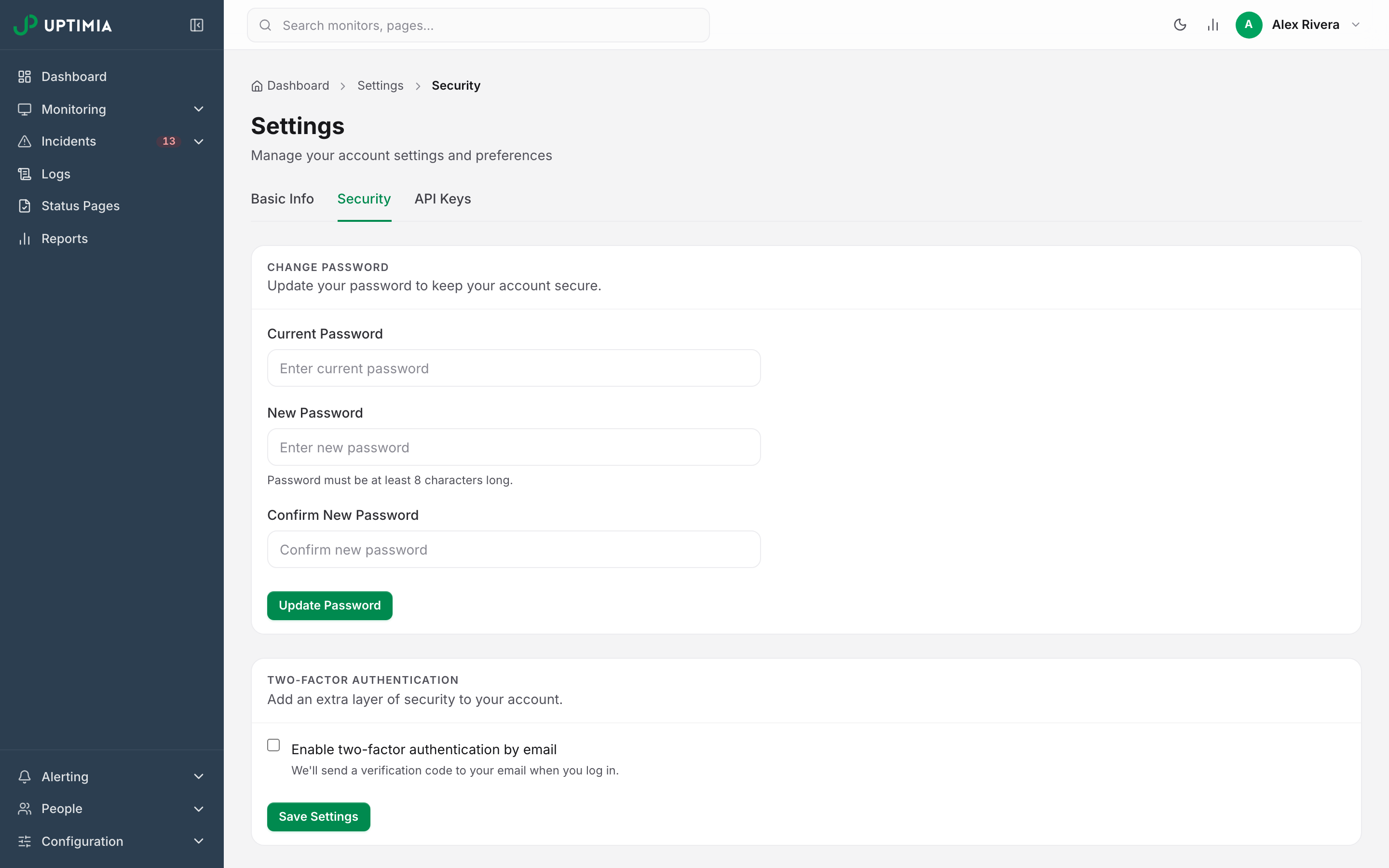
- Open Settings → Security from the avatar menu (top right).
- In the Change Password card, enter your current password in Current Password. Enter the new one in New Password, then again in Confirm New Password. The minimum is 8 characters.
- Click Update Password.
Saving takes effect at once:
- The old password stops working.
- Every other active session is deleted. From the account owner's seat, that covers the whole account: a browser still signed in on the lost device is signed out on its next request, and your team members each have to sign in again. The session you are using stays signed in.
- The remember-me token is rotated. A saved "remember me" login on that device, and any direct-access link in an old Uptimia email, stops working.
Which sessions get cleared depends on the seat and the route:
- On a team-member seat, only that member's sessions are cleared. A member changing their password never signs the account owner out, and never signs out other members.
- On the account owner's login, a password reset by email clears every session, including the one that started it, then signs you in fresh. Use that route if you cannot sign in to reach the Security tab. See Signing In and Resetting Your Password.
Step 2: Revoke API Keys the Device Held
A password change does not switch API keys off. A key stored in a terminal, a script or a mobile app on the lost device keeps working until you delete it.
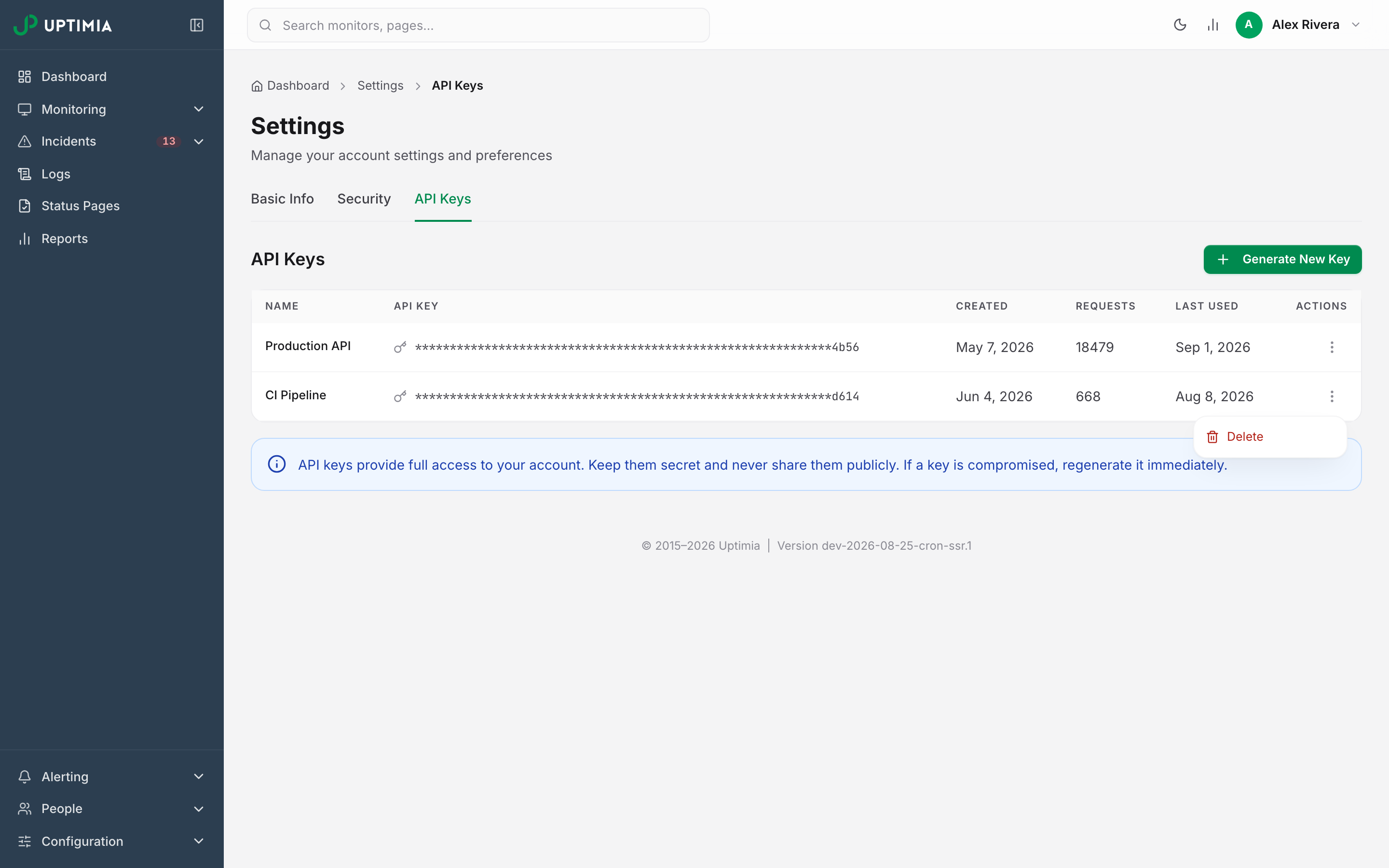
- Open Settings → API Keys.
- Find the key in the table. The Last Used column tells you which keys are live.
- Open the row's ⋮ (three-dot) menu and click Delete, then confirm with Delete in the Delete API Key window.
The key stops working the next time anything tries to use it. Whatever else was built on that key stops working too, so replace it wherever it was legitimately in use.
The API Keys tab is visible to the account Owner and to Admin members only. If the key belonged to a limited seat you created for a script, deleting the seat removes its keys with it. See Read-Only and Group-Limited API Keys.
Step 3: Turn On Two-Factor Authentication
With a second factor on, a password recovered from the lost device is no longer enough to sign in. In the Two-Factor Authentication card on the same Security tab, tick Enable two-factor authentication by email and click Save Settings.
The factor is per seat. It protects only the identity that enabled it, so on a team account every member turns it on in their own Settings → Security. Turning it off later asks for your current password, which is what stops someone who has your session from quietly removing it. Two-Factor Authentication covers the code step, the 5-attempt cap and the recovery path.
If It Was a Team Member's Device
The account Owner and any Admin can act from People → Users without waiting for the member:
- Reset two-factor auth on the member's ⋮ (three-dot) menu, for a member who can no longer receive their own codes. Uptimia clears the factor and emails them.
- Remove from account on the same menu. The seat loses access outright, and its API keys go with it.
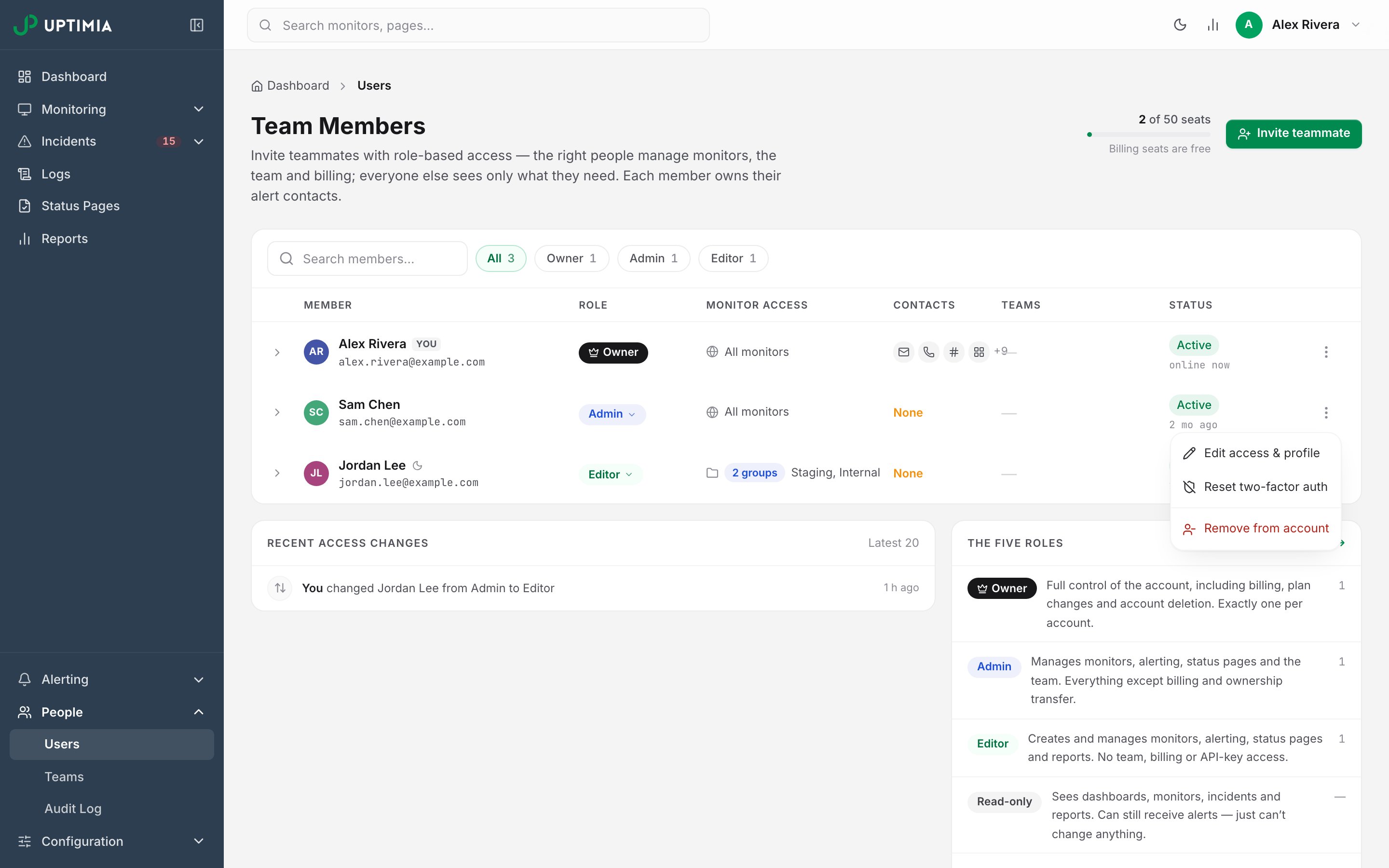
Both are written to the Recent access changes card on that page. Ask the member to change their own password as well: only they can do that, and only their own password change clears their sessions.
What the Activity Log Will and Will Not Tell You
People → Audit Log (Owner and Admin only) records these configuration changes, with the person's name and the exact time: monitors created, edited, deleted, paused and resumed, plus maintenance windows, alerting teams and monitor templates. Read it to see whether anything was changed while the device was out of your hands.
The log does not record sign-ins, and it does not record contacts, integrations, status pages or API keys. There is no per-device or per-session history anywhere in the product, so a sign-in leaves no row in the activity log.
The nearest thing is the Status column on People → Users, which shows when each seat last signed in. The account owner sees online now on their own row, and every other row shows a relative time such as 2 mo ago. One timestamp per seat, no list. Even so, it is enough to spot a team member's seat being used while they are not using it, and it is all you get: Uptimia writes no per-sign-in record to any page and sends no email about one. The Account Activity Log covers what the page holds and how to export it.
The Emails That Tell You Something Changed
Uptimia sends a security email on each of these events:
| Subject | Sent when |
|---|---|
| Your password was changed | A password is changed from the Security tab |
| Two-factor authentication enabled | The second factor is turned on |
| Two-factor authentication disabled | The second factor is turned off |
| A new API key was created | A key is generated in Settings → API Keys |
| Your account email is being changed | An email change is requested. This one goes to the old address |
Warning: One of these arriving when you did not do it is the signal to change your password immediately. It means someone else is acting inside your account.
There Is No Per-Device Sign-Out List
Uptimia has no active-sessions screen and no per-device revoke button. Changing your password is the control that ends other sessions, and it ends all of them at once.