
The activity log is Uptimia's audit trail. It writes one entry every time someone in your account creates, edits, deletes, pauses or resumes a monitor, a maintenance window, an alerting team or a monitor template, naming the person and the exact time. It answers "who deleted this monitor?" and "who paused it?", and it is what a security questionnaire is asking about. For individual check results, see Monitoring Logs.
Before You Start
- The activity log is visible to the account Owner and to Admin members only. Editor, Read-only and Accounting / Billing seats cannot open it.
- It is available on every plan.
Where the Activity Log Is
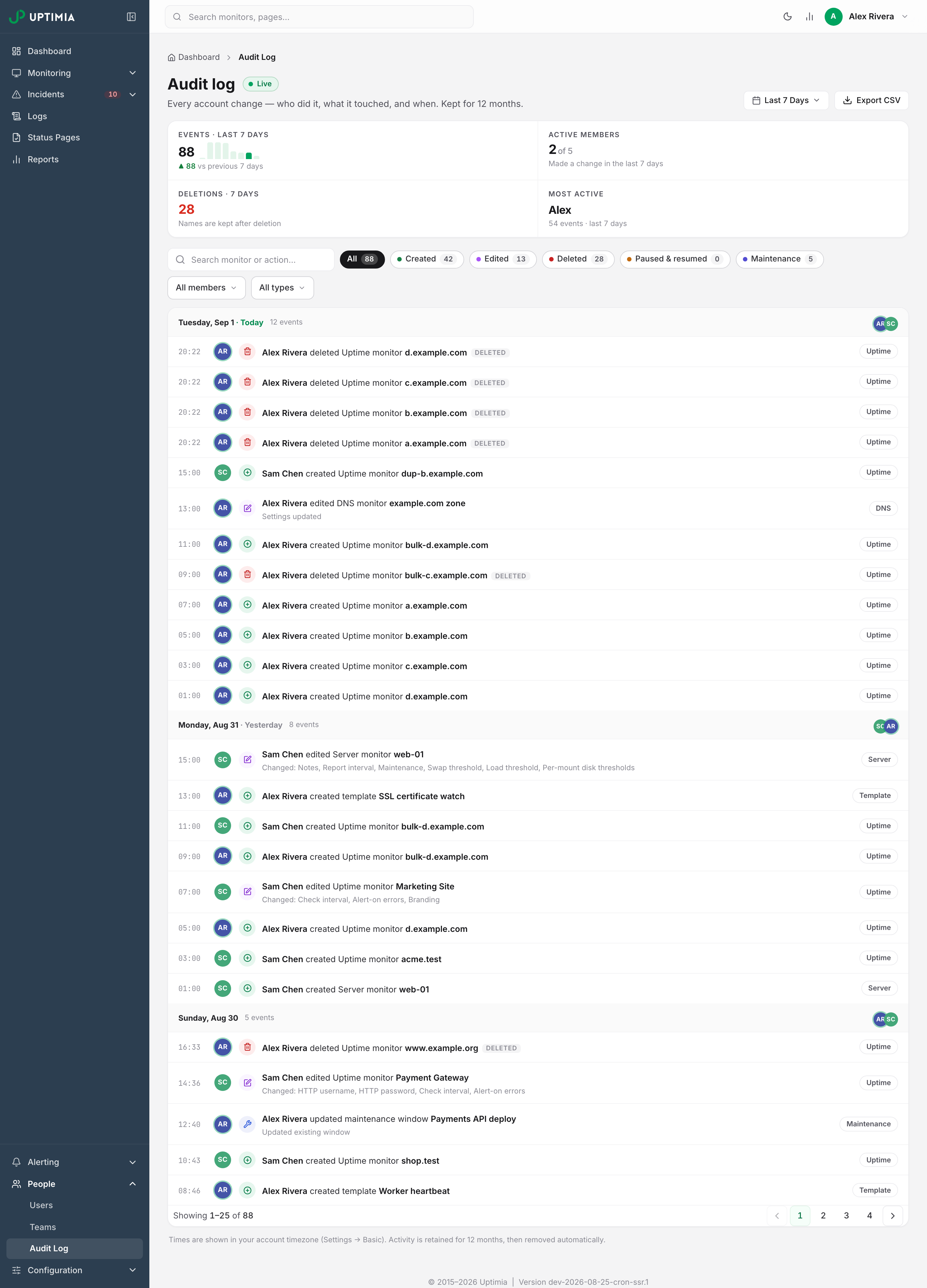
Go to People → Audit Log in the sidebar. Its heading reads Audit log, with a Live badge and the line "Every account change — who did it, what it touched, and when. Kept for 12 months."
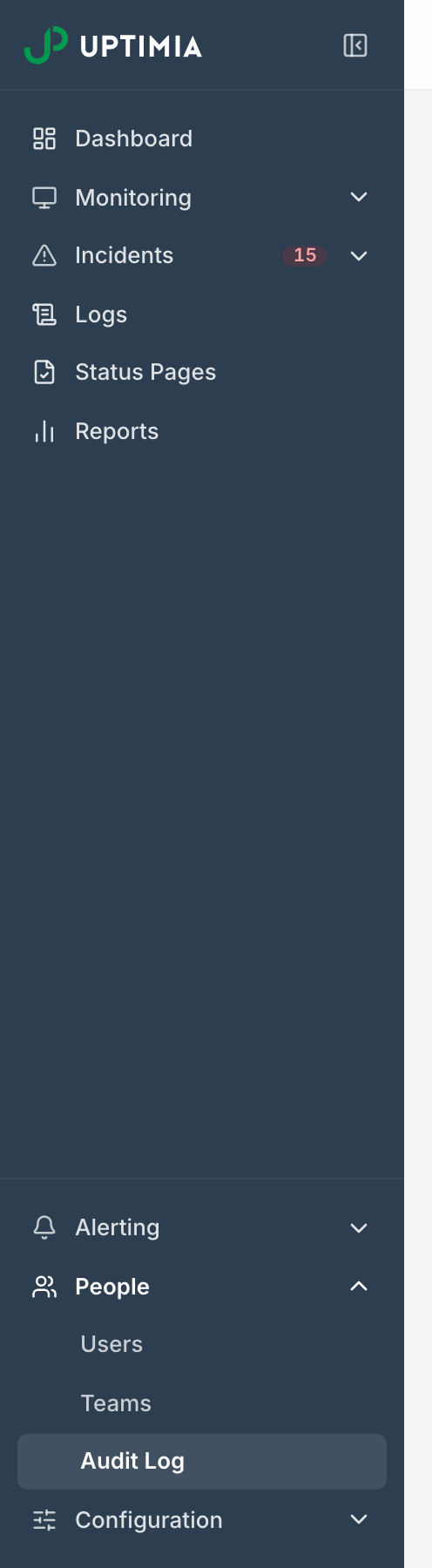
The sidebar entry does not appear for members without the right role. If one of them opens /cp/activity directly, Uptimia sends them to their own home page: the dashboard for Editor and Read-only seats, the subscription page for an Accounting / Billing seat.
What Gets Recorded
Recorded, for each of the 12 monitor families:
| Chip category | Recorded when |
|---|---|
| Created | A monitor is created, including a duplicate of an uptime monitor (the entry is named COPY <original name>) |
| Edited | A monitor is saved with a change, with the list of changed settings |
| Deleted | A monitor is deleted |
| Paused & resumed | Someone pauses or resumes a monitor |
| Maintenance | A maintenance window is scheduled, edited, deleted, or a monitor is taken out of maintenance early |
Three non-monitor objects are also recorded, each with its own type in the filter: Maintenance windows, alerting Teams and monitor Templates. Each is logged when someone creates, edits or deletes it.
Not recorded in the activity log: contacts, integrations, escalation policies, status pages, scheduled reports, branding themes, location profiles, monitor groups and API keys. Sign-ins are not recorded either. Team access changes have their own trail, in the Recent access changes card on People → Users.
Automatic events are absent too. A maintenance window opening and closing on its own schedule writes nothing, and neither does a monitor going down, a check failing or an alert being sent. The activity log records what a person did; incidents record what happened to your services.
Reading an Entry
The feed is grouped by day, newest first, in your account's time zone. Each day carries a heading like Monday, Aug 18 · Today. The heading also shows how many events that day has on the current page, and the avatars of up to six people who acted.
A row reads left to right: the time in 24-hour form, the actor's avatar, an action icon, the sentence, then a type badge. An edit reads Jane Cooper edited Uptime monitor Checkout API. The subline under it says Changed: Name, Check interval.
The verbs match the action: created, edited, deleted, paused, resumed, scheduled maintenance window, updated maintenance window, ended maintenance window, took out of maintenance. Non-monitor objects read as "created team" or "deleted template", never "created Team monitor".
The actor is the account owner or a team member. If that person has since been removed from the account, their older rows read Removed member, and the entries stay in the log.
Above the feed, four counters summarize the last week: Events · last 7 days, Active members (of the total), Deletions · 7 days, and Most active. The events counter also shows a small bar chart of the last eight days.
Filtering the Log
The filter row sits between the counters and the feed:
| Control | What it does |
|---|---|
| Search monitor or action… | Matches the monitor name, the action, the type and the entry's stored details |
| Category chips | All, Created, Edited, Deleted, Paused & resumed, Maintenance. Each chip carries a count that reflects every other active filter |
| Member dropdown | All members, or one person |
| Type dropdown | All types, any of the 12 monitor families, or Maintenance, Team, Template |
| Date range picker (top right of the page, beside Export CSV) | Today, Yesterday, Last 7 Days, Last 30 Days, This Month, Last Month, or a custom range |
The feed shows 25 entries per page, and changing any filter returns you to page 1.
Opening an Entry for the Full Detail
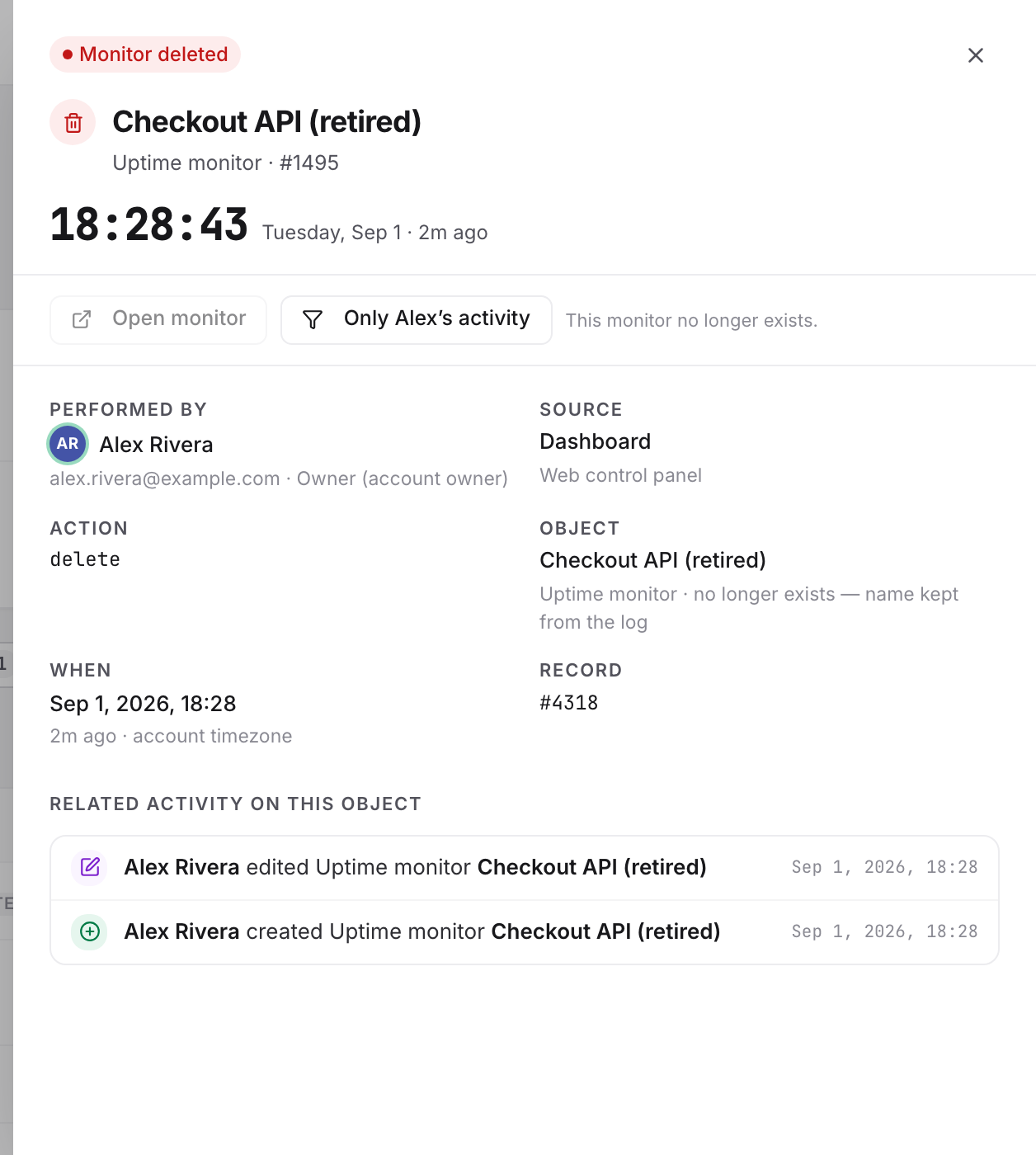
Click any row to open the detail panel on the right. It carries:
- A status badge naming the action: Monitor created, Monitor edited, Monitor deleted, Monitor paused, Monitor resumed, Maintenance scheduled or Maintenance ended. Team and template entries get their own wording.
- The item's name, its type and its number, for example "Uptime monitor · #4182".
- The time to the second, the day, and how long ago it was.
- Performed by, with the person's email, their role, and "(account owner)" where it applies.
- Source, Action (Uptimia's own internal name for what happened), Object, When, and Record, which shows the entry's own number after a
#. - Changed fields on an edit: one chip per changed setting. Each chip uses the monitor editor's own name for the setting (Name, URL, Check interval, Timeout, Locations, Escalation policy and so on). When a save changed only which contacts, groups or steps the monitor uses, the panel says "No monitor settings changed — the edit touched only contacts, groups, or steps."
- Related activity on this object: up to five other entries for the same monitor from the current page.
For a monitor entry, two buttons sit at the top of the panel. The first is Open monitor; the second is a filter shortcut that narrows the feed to that one person's activity ("Only Alex's activity"). Maintenance, team and template entries show the filter shortcut only.
Entries for Monitors That No Longer Exist
The log stores the monitor's name at the moment it writes the entry, and it does not point back to the monitor itself. Deleting a monitor never erases its history. The deletion row keeps a readable name and carries a small deleted marker in the feed. Every earlier entry for that monitor stays in the log too.
The detail panel for any of those entries disables Open monitor. The line "This monitor no longer exists." appears beside it, and the Object fact reads "no longer exists — name kept from the log".
Exporting the Log to CSV
Click Export CSV at the top right of the page. The export honors every filter currently applied (category, member, type, date range and search) and returns up to 10,000 rows, newest first. The file is named uptimia-audit-log-YYYYMMDD.csv and has eleven columns:
Record #, When, Member, Email, Role, Source, Action, Type, Monitor, Monitor ID, Details
If you need more than 10,000 rows, narrow the date range and export in slices.
How Long Entries Are Kept
Activity entries are kept for 12 months. Uptimia removes older rows nightly, and the page states the window under its heading. There is no setting to extend or shorten it, and no way to delete an individual entry. Export anything you need to keep past 12 months. Monitoring data has its own, plan-dependent windows: see Data and Log Retention.
Activity Log vs Monitoring Logs vs Incidents
The names are close enough that people open the wrong one.
| Page | Where | Answers | Kept for |
|---|---|---|---|
| Audit Log | People → Audit Log | Who changed the configuration, and when | 12 months |
| Monitoring Logs | Logs | What each individual check returned, per probe | Your plan's retention window |
| Incidents | Incidents → Active | Which monitors went down, for how long, and who acknowledged | Your plan's retention window |
If a monitor stopped alerting, one of the three has your answer. The Audit Log names whoever paused or edited it. Monitoring Logs shows whether the checks have been passing all along, and Incidents shows an incident that opened and closed while nobody was watching.
Team Access Changes: Invites, Role Changes and Scopes
Changes to who has access are recorded separately, in the Recent access changes card on People → Users. It shows the latest 20 events, written as "{person} {what they did}":
| Event | Written when |
|---|---|
| Invited | A team member is invited, naming the role and any monitor-group limit |
| Role changed | A member moves between roles, naming both |
| Scope changed | A member is limited to monitor groups, or given access to all monitors |
| Removed | An activated member is removed |
| Invite revoked | A pending invite is canceled |
| Invite resent | An activation email is sent again |
| 2FA reset | An Owner or Admin turns off a member's two-factor authentication |
The card is visible to the Owner and to Admins, keeps the same 12 months of history and has no export. For what each role can do, see User Roles and Permissions. The invite lifecycle is in Inviting Team Members.