
Agencies, MSPs and hosting providers run one Uptimia account covering dozens or hundreds of client sites. Three pieces make that work. A monitor group per client keeps the fleet filed, and monitor templates set up the thirtieth client the same way as the first. Scoped seats let a client or a junior engineer see only their own monitors. Making Uptimia look like your own product is a separate job, covered in White-Labelling Uptimia.
Before You Start
- Group scoping, templates, location profiles and groups are available on every plan. Escalation policies and creating branding themes require the Professional plan or above; the 30-day trial clears both gates.
- You need the Owner or Admin role to invite team members and set their monitor-group scope. Editors can create groups, templates and monitors, but not seats.
- Decide the group naming scheme before you create the first group. Scoping, per-client maintenance and the dashboard filter all key on group membership.
A Group Per Client, in One Account
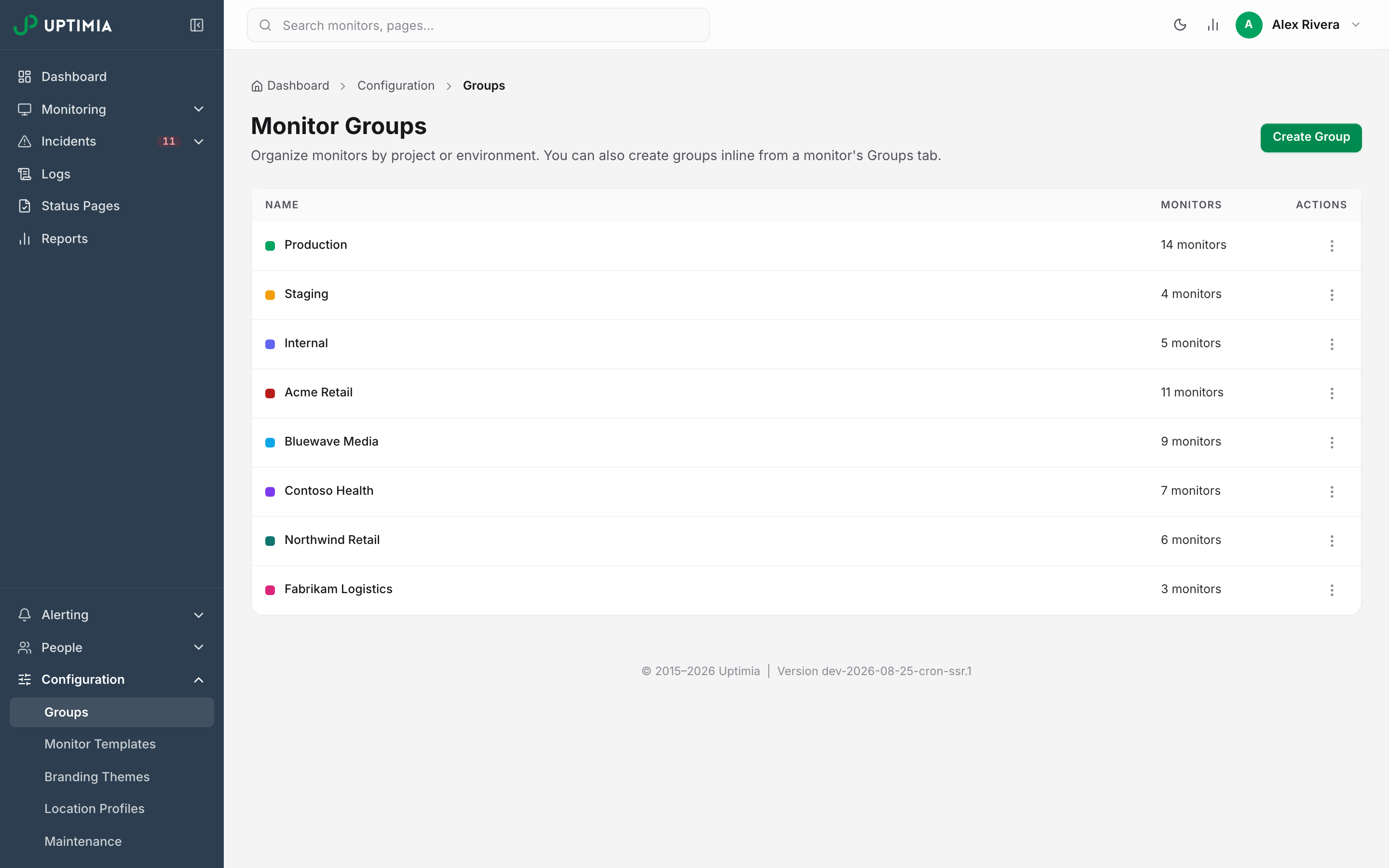
Run every client in a single Uptimia account and separate them with monitor groups. A group is a named, colored label a monitor can carry. It is also the access boundary a seat can be limited to, so your filing structure and your permission structure are the same structure.
Groups have no per-account limit, and a group name is capped at 100 characters. See Monitor Groups.
- Go to Configuration → Groups.
- Click Create Group.
- Enter the client name and pick a color, then save.
You can also create one without leaving the monitor editor: its Groups section has an inline create field.
Once an account has groups, the dashboard grows a scope bar above the overview. It opens with an All monitors tab, followed by one tab per group, and each group tab shows that group's monitor count plus a badge for anything currently down. Selecting a client re-scopes the whole page: the availability and incident stats, the monitor table and the active-incident list. The selection lands in the address bar. Bookmark the scoped view and pin one per account manager.
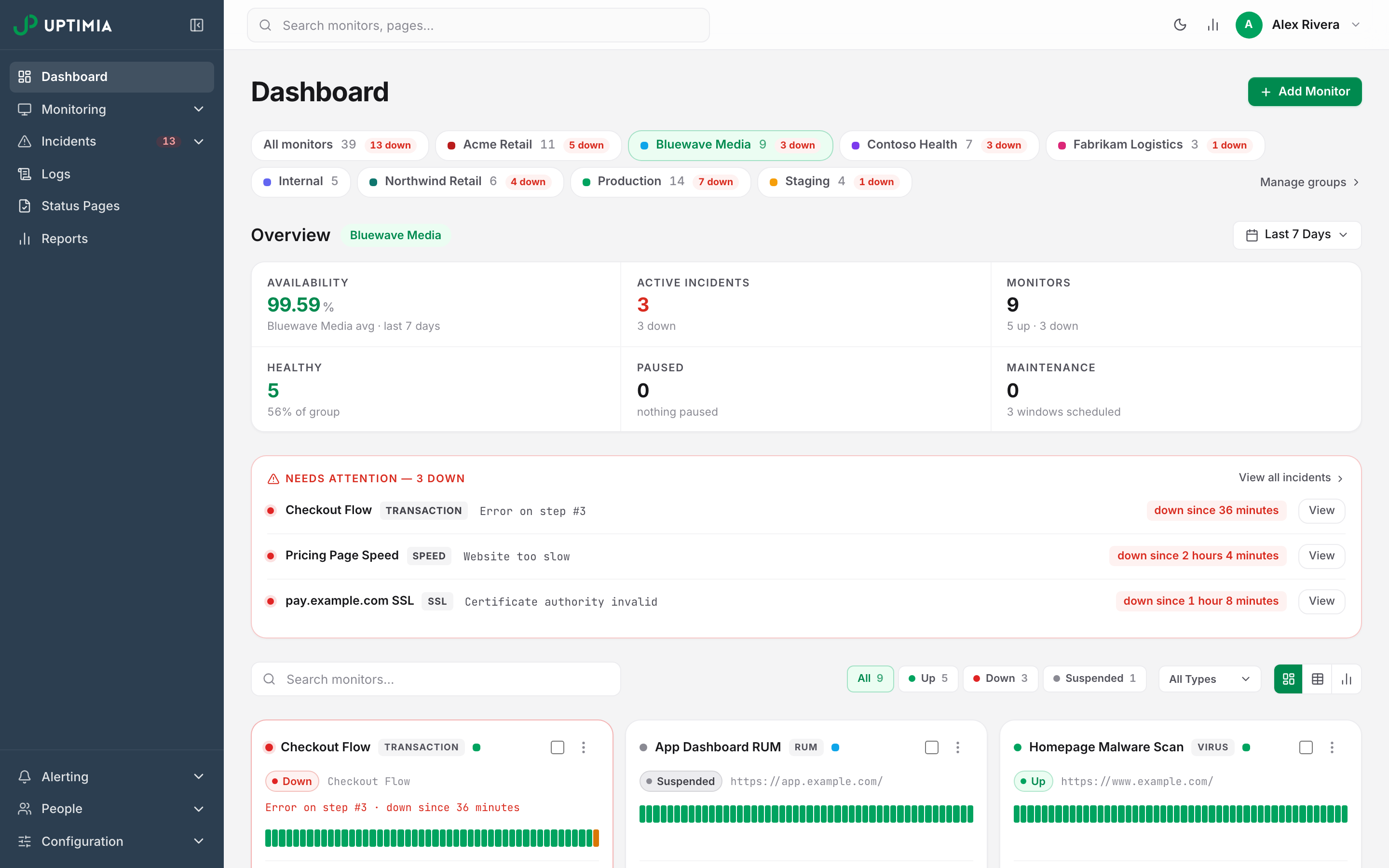
Each monitor row carries the color swatch of its first group, plus a +N marker when it belongs to more than one. That is how a shared load balancer or DNS zone reads at a glance.
Warning: Deleting a group keeps its monitors running but strips their group membership. A monitor that was in maintenance only because a group-mode window covered that group leaves maintenance at once and resumes checks and alerts. Any scoped member whose access pointed at that group loses sight of those monitors.
Standing Up Client Number 30 With Monitor Templates
A monitor template is a saved snapshot of one monitor's full configuration. Save the monitor you got right for client one, then create the equivalent for client thirty by supplying the URL and the name. To save one, open the monitor, choose Save as Template from the kebab menu at the top of the page, name it and save.
Templates are available for ten monitor families. Server is excluded because you create a server monitor by installing an agent, and Transaction is excluded because the destination for a transaction lives inside the recorded steps. You can hold 100 templates per account; the 101st save is refused with "You can save up to 100 templates". Names must be unique: a duplicate returns "A template with this name already exists".
A template carries these settings from the source monitor:
- Check frequency
- Probe locations, or the applied location profile
- Alert recipients, escalation policy and alert delay
- Notes
- Branding theme
- Outage-confirmation threshold
- The monitor's group membership
Group membership is where agencies trip. A template saved from a client-one monitor recreates the new monitor inside the client-one group. Clear the Groups section before you save, so your templates stay group-free. The alternative is one template per client, re-saved when your standard changes. Either way, check the new monitor's group before you move on.
To use one, go to Configuration → Monitor Templates and click Use on the row. The New Monitor from Template modal asks for the target and the Monitor Name, then lists what is carried over. In the target field you enter a URL, hostname, domain or zone, depending on the monitor family. Heartbeat and API templates ask for the name only, since a heartbeat's destination is its ping URL and an API monitor's lives in its recorded requests. Every create-time rule still applies: plan quota, the probe minimum, duplicate names and the URL blocklist.
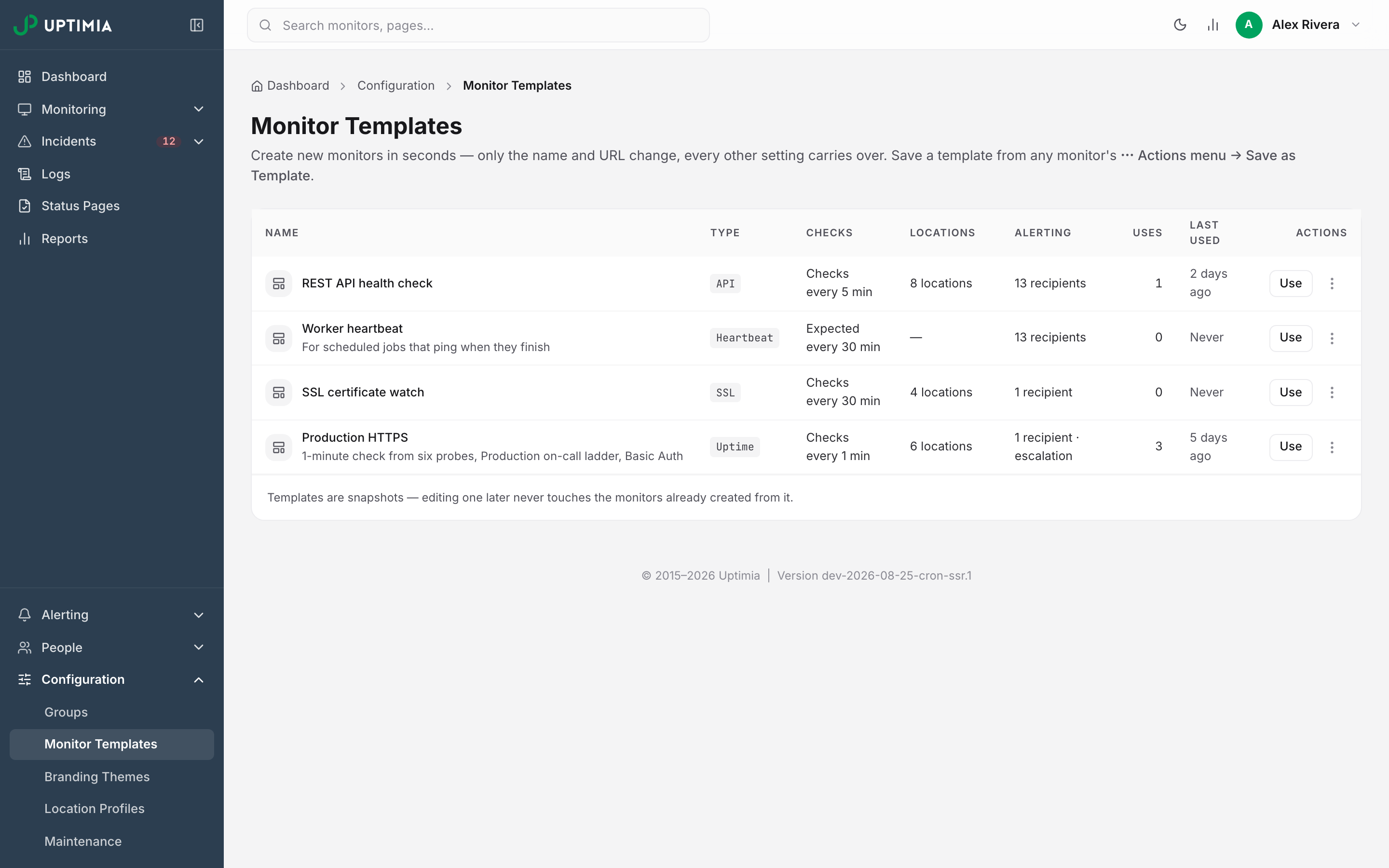
Secrets never enter a template: HTTP Basic Auth passwords and API-monitor secret variable values are masked before the snapshot is taken, and the modal tells you what to re-enter. A template is a snapshot. Editing one later never touches the monitors already created from it.
Applying One Probe Set Across Every Client
A location profile is a named, reusable probe set you apply instead of hand-picking probes per monitor, so one profile can cover EU regions only while a wider one covers the clients with international traffic. Any selection other than "all probes" must contain at least 6 probes. Seven profiles ship built in: Europe, North America, Asia, Middle East & Africa, South America, Oceania and EU / GDPR.
To retrofit an existing fleet, open Configuration → Location Profiles, open a profile's kebab menu and choose Bulk apply. The picker covers four families: Uptime, Speed, SSL and Transaction. You set other families from the monitor's own Locations section.
Editing a saved profile's probe set spreads the change: Uptimia rewrites every monitor whose probe set exactly matches the profile's previous set. The comparison looks at the probe set rather than the profile assignment, so a monitor whose probes you picked by hand is rewritten too. Nothing spreads from a profile whose previous set was "all probes".
Bulk-Creating the First Batch
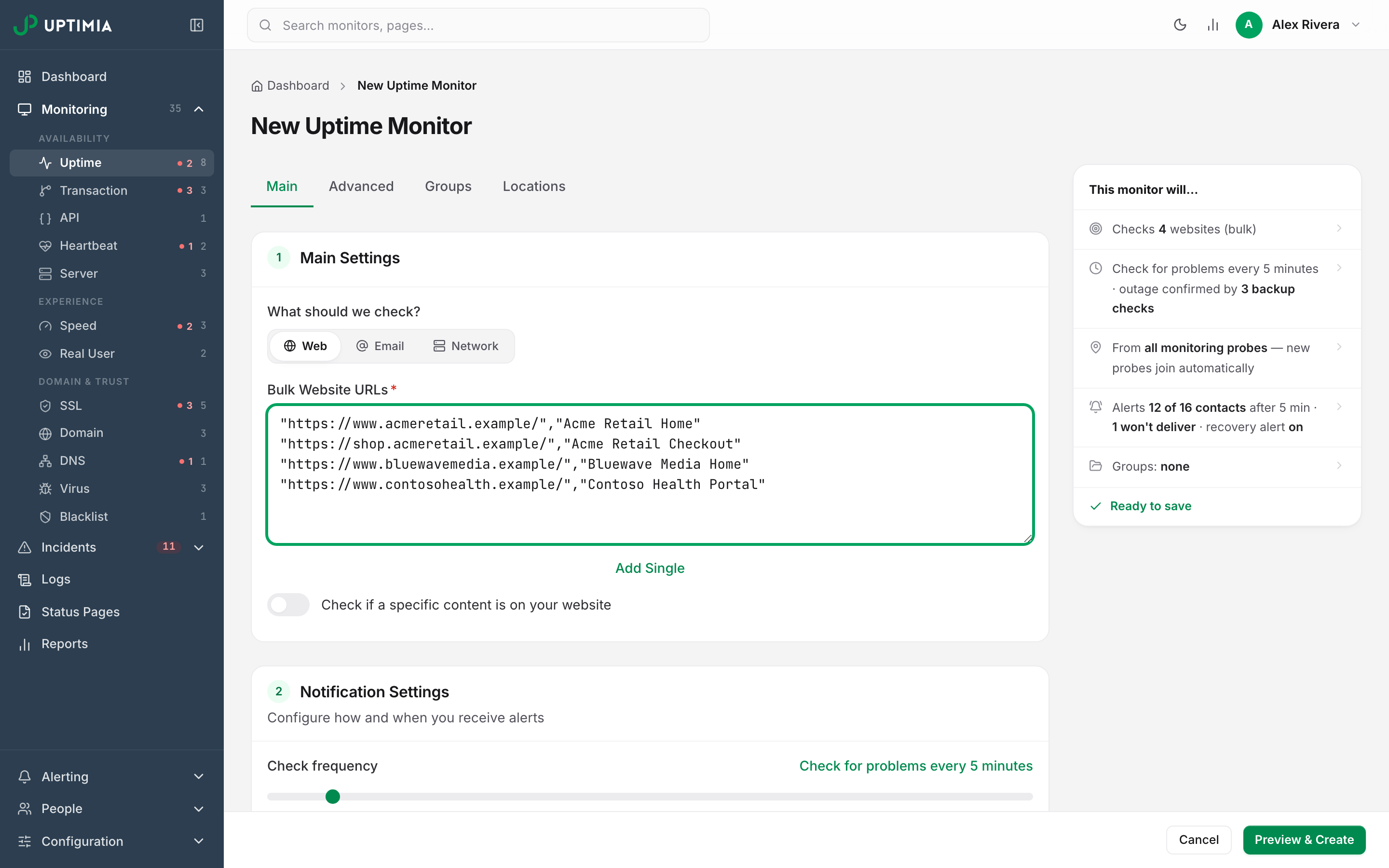
For the initial import, the monitor editor takes a pasted list. Click Add Bulk beside the target field and paste one entry per line as "https://client-one.com","Client One". Everything else on the form applies to every row in the batch: frequency, locations, contacts, groups and branding.
Bulk creation is offered on five families: Uptime, SSL, Domain, Speed and Virus. You create the rest one at a time, which is where templates earn their place: API, Heartbeat, DNS, Blacklist and Real User. Rows that fail come back individually with a reason rather than failing the batch. The full flow is in Bulk Operations.
Giving a Client or Engineer Access to Only Their Monitors
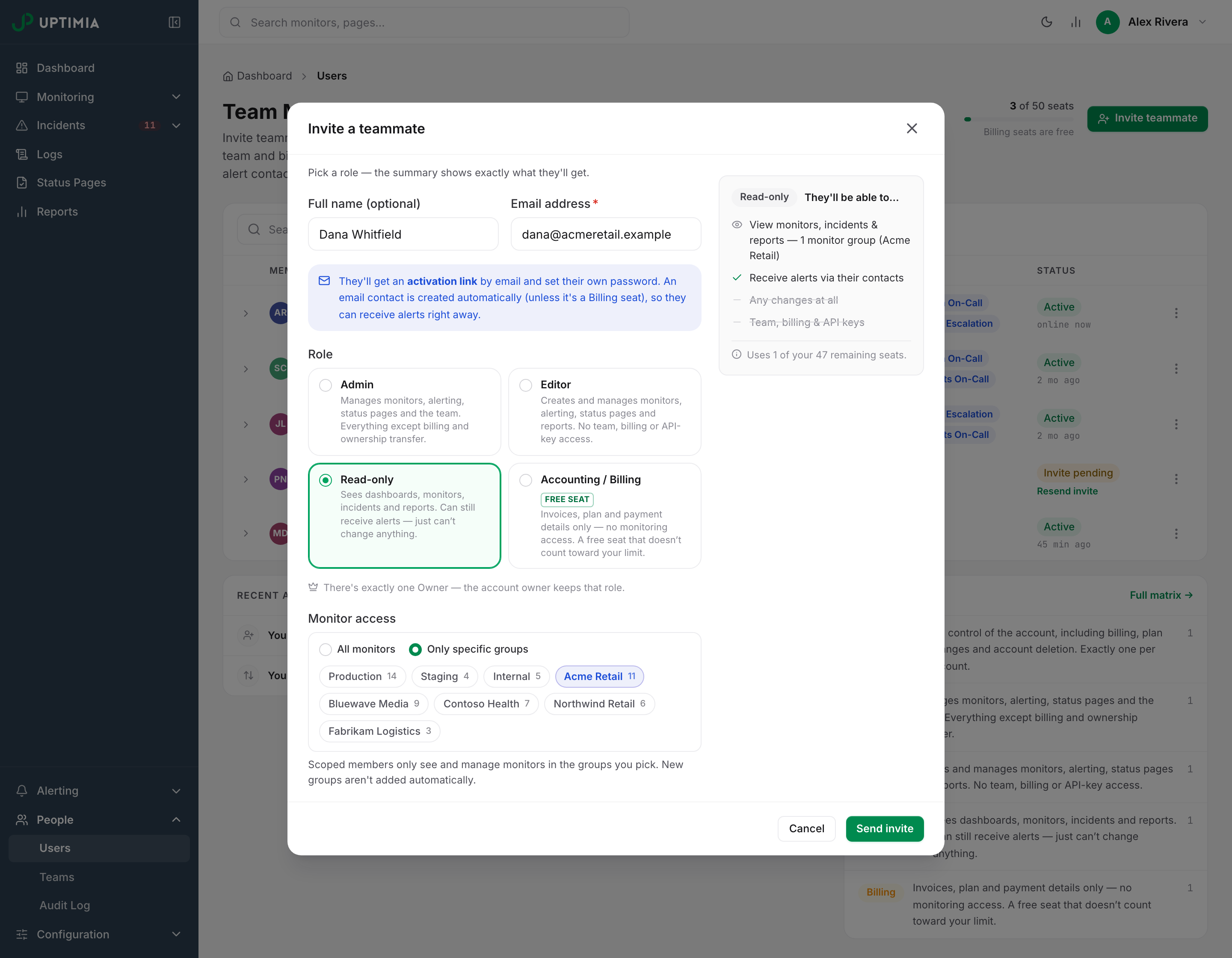
Editor and Read-only members can be limited to specific monitor groups, and Uptimia never scopes an Owner, Admin or Accounting / Billing seat. The scope is a real access boundary. A scoped member sees only in-scope monitors in the monitor list, monitor detail, logs, incidents, the dashboard, exports, maintenance, status pages and scheduled reports. If they open a link to a monitor outside their groups, Uptimia shows it as not found.
- Go to People → Users and click Invite teammate.
- Enter the name and email address.
- Pick Editor or Read-only in the role picker.
- Under Monitor access, choose Only specific groups and select the client's groups.
- Click Send invite.
To change an existing member, open their row menu and choose Edit access & profile. Role changes take effect the next time the member loads a page. Nobody has to sign in again.
Design around these:
- New groups are not added automatically. Add a client group later and you must add it to each scoped member who should see it.
- A monitor in no group is invisible to a scoped member. A monitor a scoped member creates keeps whichever of their own scope groups they picked. If they pick none, Uptimia files it into all of their scope groups, so they always end up able to see what they created.
- A scoped member cannot create groups. The attempt returns "Your access is limited to specific monitor groups, so you can't create new groups. Ask the account owner or an Admin."
- Each member owns their own alert contacts. Uptimia creates an email contact automatically on invite, so a scoped engineer can be paged for their clients without touching yours.
The mechanics and the full permission matrix are in Limiting a Member to Monitor Groups.
Routing Alerts Per Client
Build each client's recipients as contacts under Alerting → Contacts. Put the people who share one rotation into a team under People → Teams, so a monitor selects the team instead of five individuals. Two contacts pointing at the same destination collapse into one alert, so a duplicate address costs nothing but confusion.
When a client's on-call differs from your default, attach an escalation policy on the monitor's Alerting section. Build the policy first at Alerting → Escalations. The All at once | Escalate over time mode switch appears on a monitor only once the account holds at least one policy, so set the mode to Escalate over time and pick the policy. Escalation policies require the Professional plan or above. In that mode the people paged come from the policy, and the monitor's own recipient list stays required as the fallback.
Per-Client Reporting and Branding
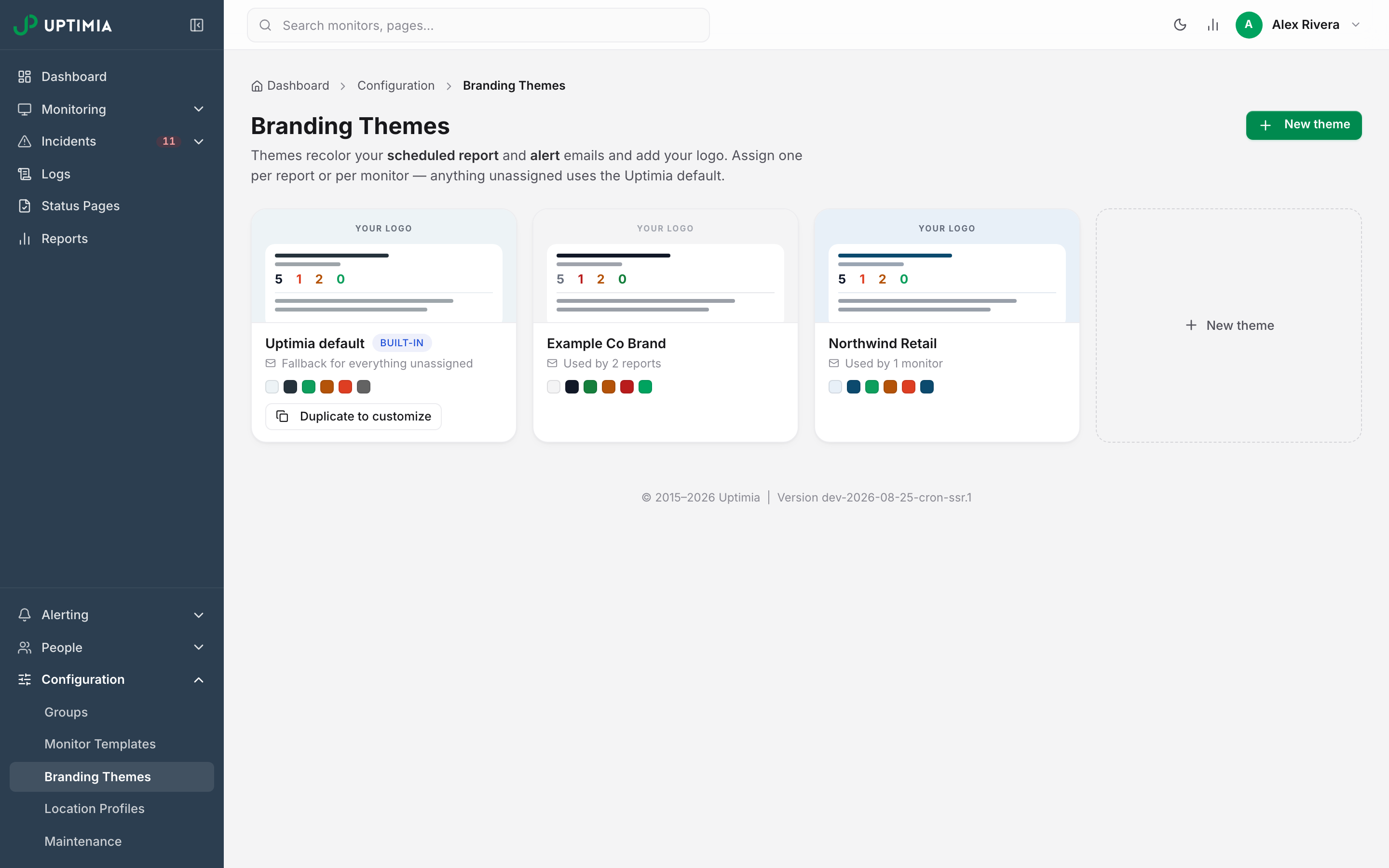
A branding theme sets the logo and colors of scheduled-report emails and down/up alert emails. Build one per client at Configuration → Branding Themes. Then attach it in two places: the Email theme field on a scheduled report, and the Branding Template field on the Advanced section of a monitor editor. Anything unassigned uses the Uptimia default.
Creating or duplicating a theme requires the Professional plan or above. The trial clears the gate, and the gate applies at creation only: an existing theme keeps working after a downgrade.
Create one scheduled report per client. Frequency is Daily, Weekly, Monthly, Quarterly or Yearly, sent around 09:00 server time. The monitors card has a group quick-add that pulls in a client's fleet in one click. Read its footer first: it "adds the group's current members as individual picks". The result is a snapshot. If you add a monitor to the client group next month, it stays out of the report until you add it to the report as well. All monitors does keep up, at the cost of covering every client in one email.
Report recipients are email contacts only. Reports cover uptime, SSL, domain, speed, Real User, virus and transaction monitors. Heartbeat, server, DNS and API monitors never appear, and blacklist monitors ride along only when the report covers All monitors, never as an individual pick.
A Status Page and a Maintenance Window Per Client
Give each client their own status page rather than one page listing everyone. You hand-pick monitors into sections. There is no group binding, so you must add each new client monitor to the page deliberately.
Each page has its own visibility, set in the editor:
| Setting | What it means | What to do |
|---|---|---|
| Public | Anyone can view | Use for the client's customer-facing page |
| Password protected | Anyone with the password | Set a shared password of at least 10 characters; changing it signs out everyone currently viewing |
| Private (IP allowlist) | Only allowed IP addresses | Enter IPs or CIDR ranges, one per line, for an internal client portal |
Password protection and IP allowlisting are available on every plan except Free; a Free account can publish public pages only.
Maintenance windows work the other way round. In the maintenance window editor choose By group and select the client: "Monitor groups you've organized. Follows group changes." A monitor added to that group later is covered by the existing window with no edit.
Watching the Ceilings
An agency hits monitor count, seats and status pages first.
| Limit | Free | Basic | Professional | Enterprise |
|---|---|---|---|---|
| Uptime monitors | 1 | 10 | 100 | 1,000 |
| Advanced checks (Speed + Transaction, one pool) | 0 | 1 | 10 | 100 |
| SSL monitors | 0 | 1 | 10 | 100 |
| Domain monitors | 0 | 10 | 100 | 1,000 |
| Team seats (invited members; the owner is not counted) | 1 | 1 | 10 | 100 |
| Status pages | 1 | 1 | 10 | 999 |
| Readable monitoring history | 7 days | 90 days | 365 days | 730 days |
A 0 means the type cannot be created on that plan at all. The 30-day trial runs at the top ceilings: 500 uptime monitors and 50 of each other family, 50 seats, 10 status pages and 30 days of history.
Three things cost you nothing:
- Monitor groups have no limit.
- An Accounting / Billing seat does not count toward the seat limit.
- The history limit clamps what you can read rather than what is stored. An upgrade widens the readable window immediately, with no import step.
The one exception is uptime check logs. On Basic and Professional they are stored for exactly that plan's window, so an upgrade does not bring back uptime checks that have already aged out. Every other family keeps more than it shows you, and an upgrade exposes all of it. See Plan Limits and Quotas and Data and Log Retention.
The Client-Onboarding Checklist
- Create the client's group at Configuration → Groups.
- Create the client's branding theme at Configuration → Branding Themes, if their deliverables are branded.
- Create the client's alert contacts at Alerting → Contacts, and their escalation policy at Alerting → Escalations if their on-call differs from your default.
- Bulk-paste the client's URLs into a new Uptime monitor, assigning the group, the probe locations and the contacts once for the whole batch. A location profile picked in bulk mode sets every row's probes. The rows are stored as a hand-picked set, not bound to the profile.
- Add the one-at-a-time families from templates: API, Heartbeat, DNS, Blacklist and Real User. Correct the group on each.
- Build the client's status page and set its visibility.
- Create the client's scheduled report and attach their branding theme.
- Invite the client contact as Read-only, scoped to their group, and the engineer as Editor, scoped the same way.
- Open the dashboard, select the client's group tab, and bookmark that view as the account manager's daily screen.