
Monitoring Logs is the account-wide record of every individual check Uptimia has run: one row per check, per probe, newest first. It answers "what did the probe in Frankfurt see at 14:31". For the outage record (when an incident opened, how long it ran, who was paged), see Incidents.
What a Log Row Is
A row is one result from one check. An uptime monitor checked from 12 probes writes 12 rows per round, a DNS monitor writes one row per sweep of its zone's nameservers, and a heartbeat monitor writes one row per ping received.
Rows are raw results. A single Down row does not mean an incident opened: outage confirmation, alert delay and grouping all sit between a failed check and a page.
Rows carry 2 statuses, Up and Down. There is no warning tier in this list. The DNS Sweep log and the blacklist Check log on the monitors' own pages add a third, amber Partial, which covers a sweep that finished but left a query unanswered, an unreadable list, or an open health issue.
Finding the Page
Logs is a top-level sidebar item, not a child of Incidents, and the page's title is Monitoring Logs.
Note: Logs and Audit Log are 2 different pages. Logs is monitoring events (probes, pings, sweeps), while People → Audit Log is the account-action trail: who invited a member, who deleted a monitor. See The Account Activity Log.
Every role except Accounting / Billing can open the page. A seat limited to monitor groups sees only those groups' checks, on the page and in every export. See Limiting a Member to Monitor Groups.
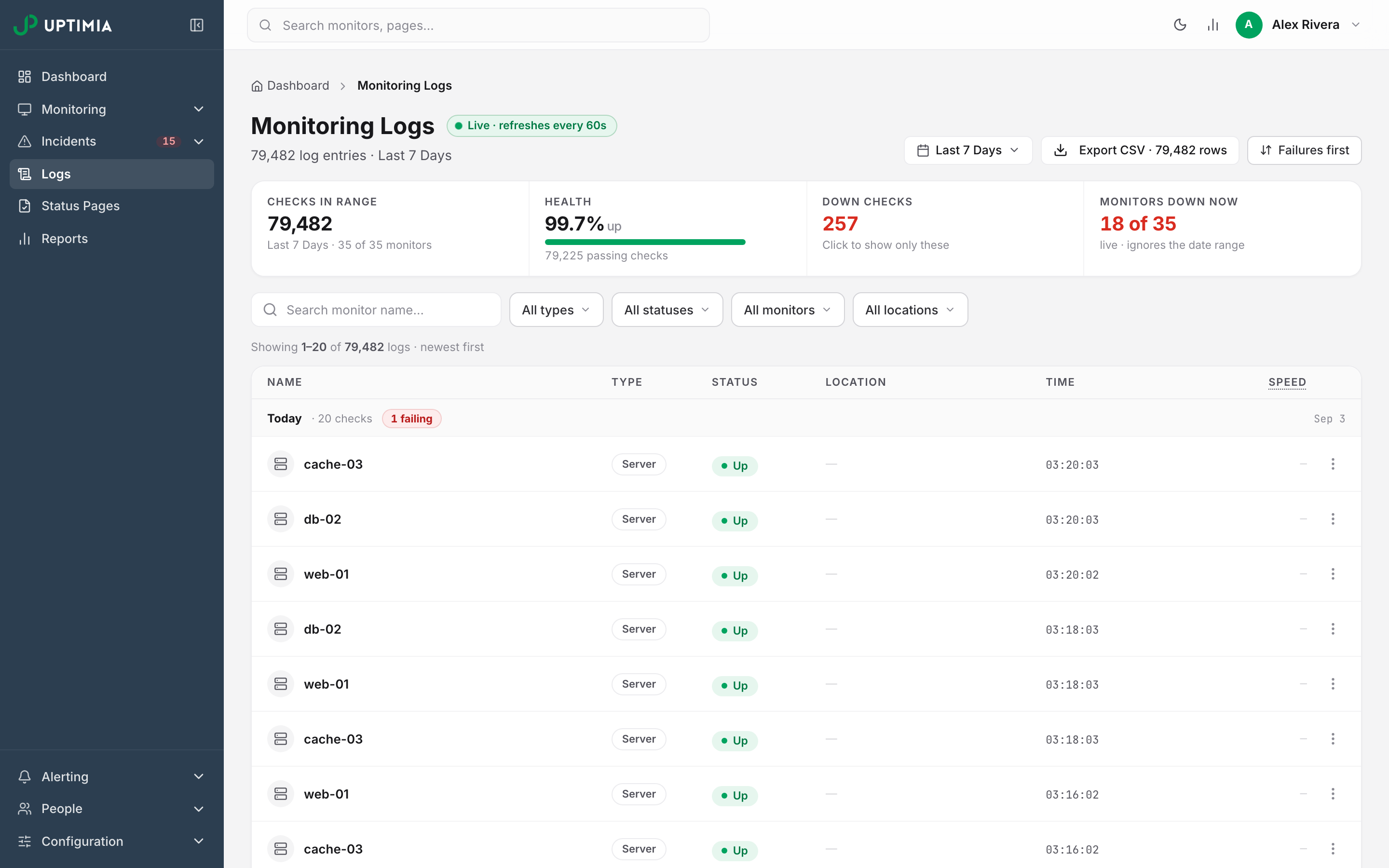
The Stat Strip
The 4 tiles above the table all describe the view you are looking at right now, so changing a filter moves them.
| Tile | What it counts | Notes |
|---|---|---|
| Checks in range | Every row the current filters match | The sub-line names the date range and how many of your monitors matched: "5 of 18 monitors" |
| Health | The share of matched checks that passed | A bar splits it as "N up, N down". Amber below 99%, red below 95% |
| Down checks | Failing rows in the same scope | Click the tile to jump to a Failing-only view, and click again to clear it |
| Monitors down now | Monitors that are down at this moment, out of the ones the filter matched | Live: it ignores the date range, and its sub-line says so |
Monitors down now counts only monitors that are checking: paused, suspended and in-maintenance monitors are excluded, not counted as down. A Healthy-only view correctly reports 0 down checks, so while that filter is on the Down checks tile relabels itself "Healthy-only · click to see failing".
Filtering the List
The filter row holds a search box and 4 pill dropdowns. Each pill labels its own state: "All types", "3 types", "Failing", "12 monitors", "All locations". A Clear all button appears once anything is narrowed.
Search matches monitor names, not URLs or response bodies, and combines with the other filters.
Status offers 2 checkboxes, Failing and Healthy, both ticked by default; un-ticking both gives "No statuses" and an empty table.
Monitors lists your monitors grouped by type, alphabetically inside each group.
Locations lists probes grouped by region; expand a region to tick individual countries. The pill disappears when the only selected types are Server, Heartbeat, DNS and Blacklist. Server and Heartbeat record no probe location at all. DNS and Blacklist each run a whole sweep from a single probe, so filtering them by country would tell you nothing.
Date range offers Today, Yesterday, Last 7 Days, Last 30 Days, This Month, Last Month and a custom range. The default is Last 7 Days, remembered across pages for the rest of the browser session.
Which Types Produce Log Rows
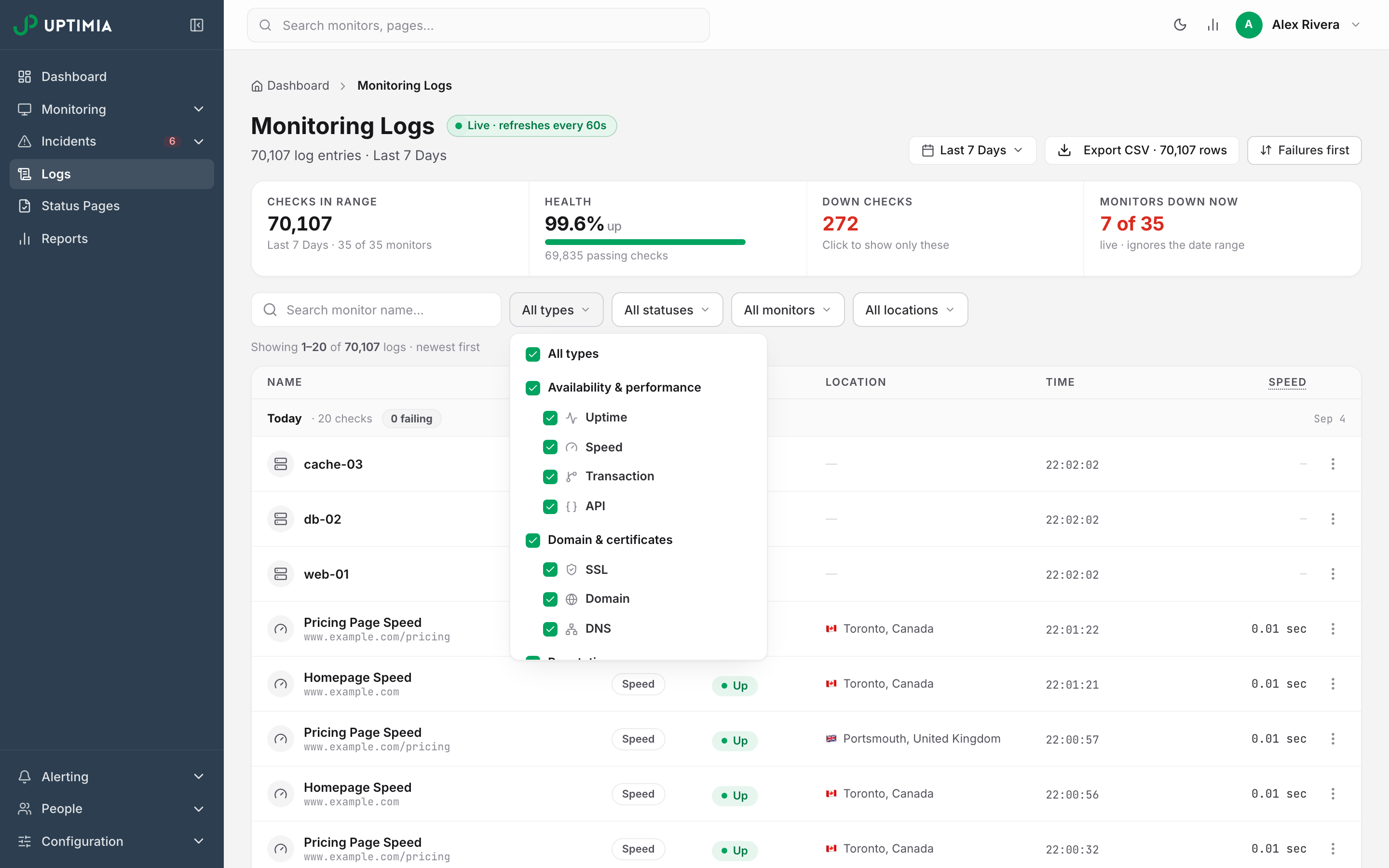
The type dropdown groups 11 families into 4 sections, plus one row on its own:
| Section | Types |
|---|---|
| Availability & performance | Uptime, Speed, Transaction, API |
| Domain & certificates | SSL, Domain, DNS |
| Reputation | Virus, Blacklist |
| Infrastructure | Server |
| (on its own) | Heartbeat |
All types toggles in one click, so the fast way to isolate a single family is to un-tick it and then tick the one you want.
What one row means differs per family, and so does the number in the Speed column:
| Type | One row is | The drawer's headline reading |
|---|---|---|
| Uptime | One check from one probe | Response time |
| Speed | One full page load from one probe | Full page load |
| Transaction | One scripted browser run | Total run time |
| API | One run of the request chain | Total run time |
| SSL | One certificate check | Days until expiry |
| Domain | One WHOIS lookup | Days until expiry |
| Virus | One malware scan | Scan result: Healthy or Problems |
| DNS | One sweep of the zone's authoritative nameservers | Slowest nameserver |
| Blacklist | One sweep of the blacklists | Sweep time |
| Server | One sample reported by the agent | Reported CPU |
| Heartbeat | One inbound ping | Run duration, or lateness against the schedule |
Real User monitors produce no log rows, so they have no chip in the filter and no per-check export. RUM collects timings from your visitors' browsers as a continuous stream rather than as discrete checks. Read it on the monitor's own page. See Real User Monitoring.
Heartbeat Pings Only Appear in a Heartbeat-Only View
A heartbeat row has a different shape: a signal type and a source IP, not a probe status and a probe location. Uptimia returns heartbeat rows only when heartbeat is the whole type selection, and never mixes them into an all-types view.
The filter enforces that. Tick Heartbeat and every other type clears; tick another type while heartbeat is selected and heartbeat drops out. The page states the rule under the filter row: "Heartbeat pings are a separate stream — other monitor types are hidden."
A missing ping never surfaces in the default all-types view. To check whether a cron job reported in, select Heartbeat, or open the monitor's own Ping log card. See Heartbeat Monitoring.
Server Rows Have No Pass or Fail
Server monitors report measurements: CPU, load, memory, disk. They do not report a pass or a fail. There is no pass/fail column behind a server row, so every server row renders as Up, and a Failing-only filter drops server rows from the list entirely rather than listing them as failures. Healthy-only and unfiltered views keep them.
A Failing-only view is never where you find a server problem. Filter to the Server type with no status filter, read the metrics in the drawer, and take the verdict from the monitor's own thresholds and incidents. See Server Monitoring.
Reading the Table
Rows are grouped by calendar day. Each day header carries its label: Today, Yesterday, or the date. Beside it sit 2 counts: how many of this page's rows fall on that day, and a badge counting the failures among them, red when it is above zero. Both numbers are page-scoped, not day totals, so at the default page size the first header can never read more than 20 checks.
Columns are Name, Type, Status, Location, Time and Speed; the monitor name links to the monitor, and clicking anywhere else on the row opens the check detail drawer. Location shows a flag and city for probe-run checks, the source IP for a heartbeat ping, and — for server rows, which record no location. Speed holds response time for probe checks and run time for heartbeats. Server rows show —, because a server sample carries no timing. Its CPU number is in the drawer.
An amber strip appears when 3 or more failing rows share a root domain and a probe country inside a 3-minute window. The rows have to be named as hostnames, such as "shop.example.com". The strip reads "4 checks failing on example.com from Germany · 14:31–14:33 — likely their side", and the band groups the rows without hiding any of them.
Monitors named in prose, such as "Payment Gateway", are never banded, because the banding reads the monitor name, not the URL.
The row kebab menu offers Open details, View monitor, Download PDF and Download HTML. Page size is 20, 50 or 100 rows.
The Check Detail Drawer
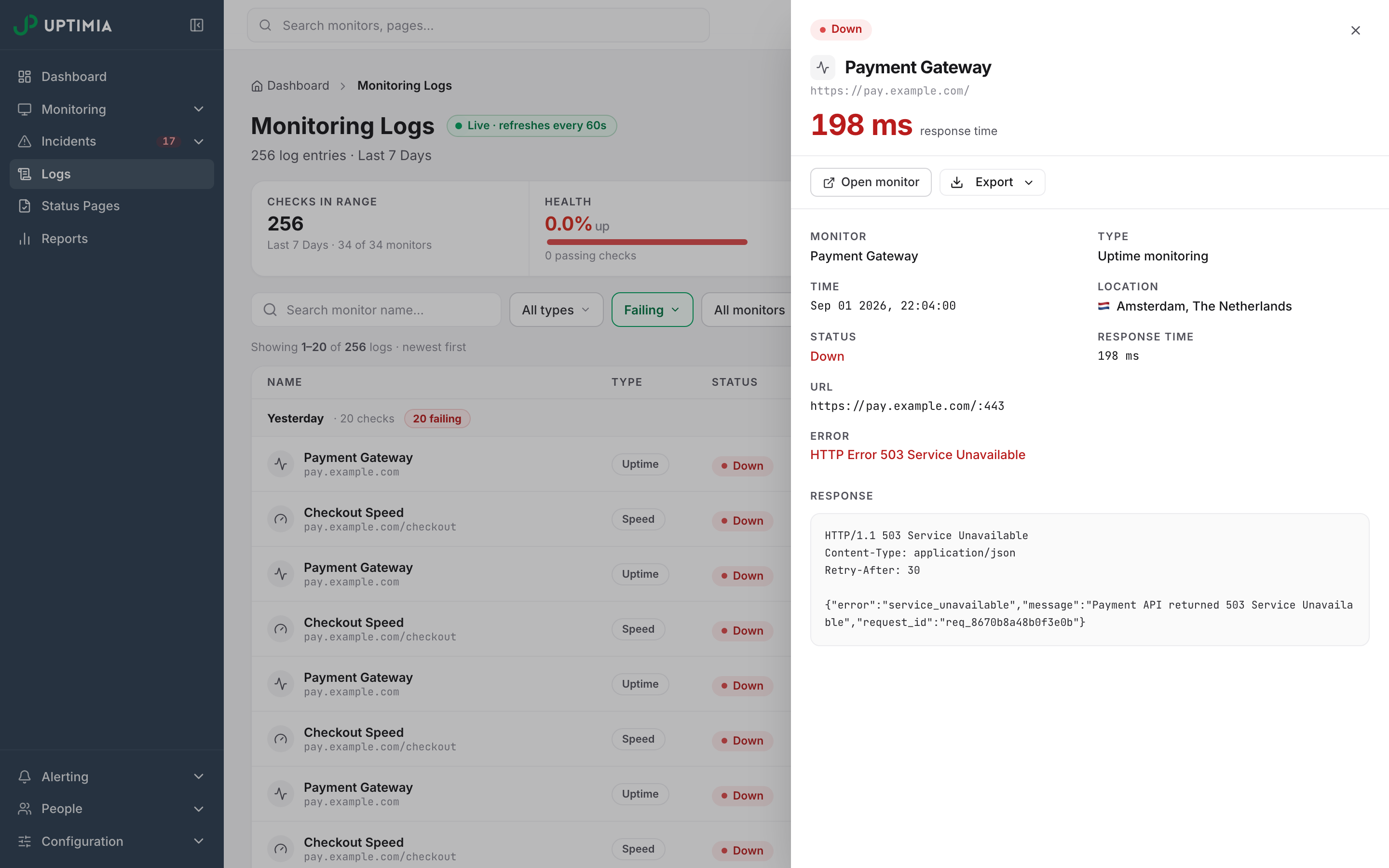
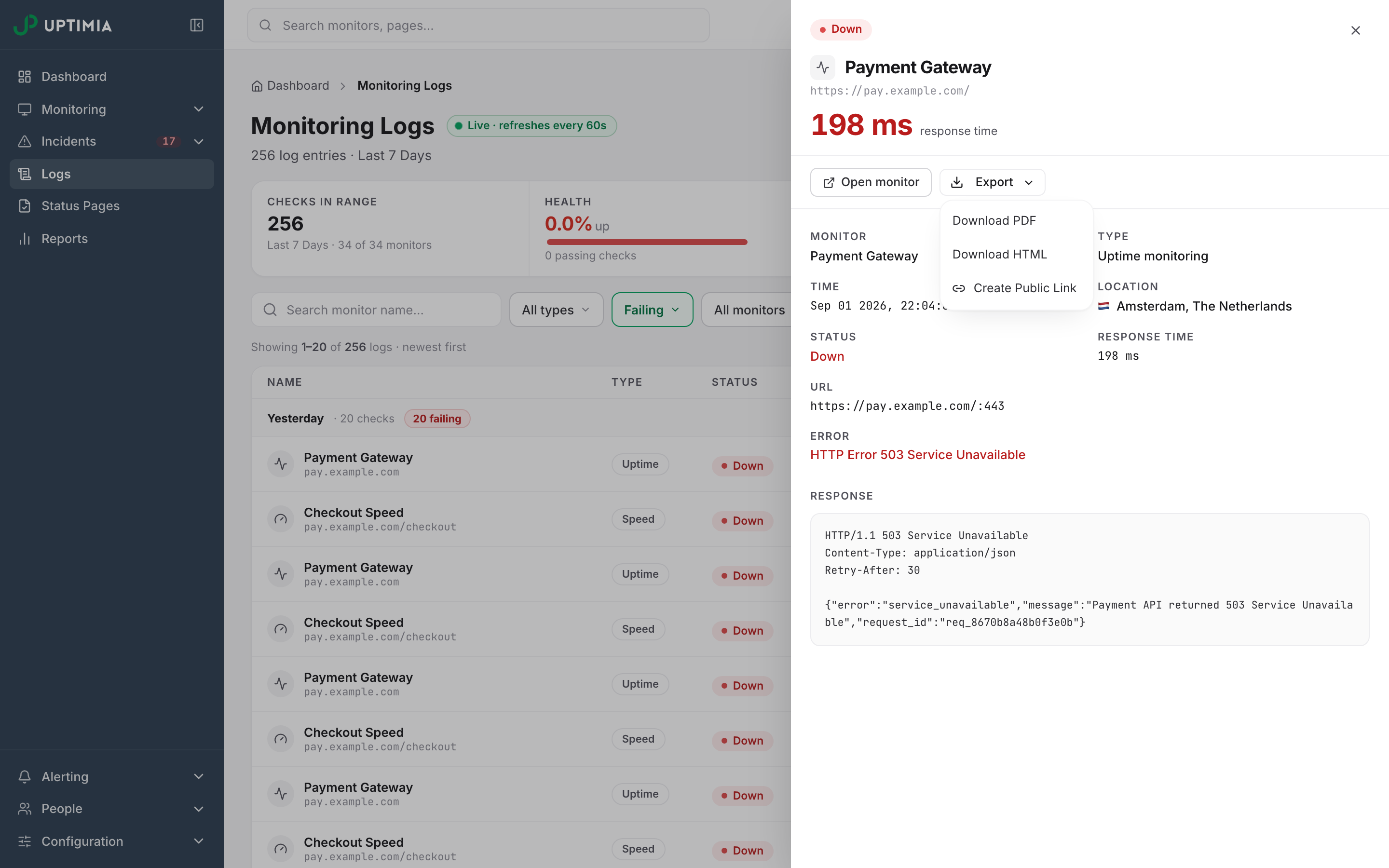
Clicking a row slides out the check detail drawer. Its header carries the status pill, the monitor name, the target and that family's headline number. The target is the URL for uptime and speed monitors, and the certificate domain for SSL.
Every family shows the same first 3 facts: Monitor, Type and Time. A fourth names where the check ran: Location for the probe families, Ran from for API, Swept from for DNS and Blacklist, and Status for Server, which records no location. Each family then adds its own:
| Type | What the drawer adds |
|---|---|
| Uptime | Status, Response time, URL and port, String send / String expect / Keyword expect where configured, Error, and a Response block with the raw response body |
| Speed | Status, Response time, URL and port, and the same string and keyword facts |
| Transaction | Status, Total run time, Error |
| SSL | Valid or Invalid, Domain, Valid from, Valid to with days remaining, Issuer, Protocol, Error, and a Certificate lifetime meter scaled to the certificate's real lifetime |
| Domain | Whether the lookup succeeded, Creation date, Updated date, Expiry date with days remaining |
| Virus | Healthy or Problems, and the scanner's error text |
| Heartbeat | Signal, Δ vs schedule (on time, or how many seconds late), Run time, Ping URL, User agent, Error |
| Server | CPU & load (CPU usage, 1m / 5m / 15m load), Memory (used, total, cached, swap), a Disk usage table per filesystem, plus process count and network RX / TX |
| API | Result (Passed or Failed), Run time, a Steps / Passed / Not run counter strip, and every step in chain order with its timing and error |
| DNS | Result, Slowest server, counters for Queries / Servers / Answered / Changes / Health, and each nameserver's answers |
| Blacklist | Result (Listed, Partial or Clean), Sweep time, counters for Queried / Listed / Info / Clean / Errors, and the informative list answers |
Blacklist detail lists only the answers that say something, and counts clean lists in the strip without listing them.
Opening the Drawer From a Monitor Page
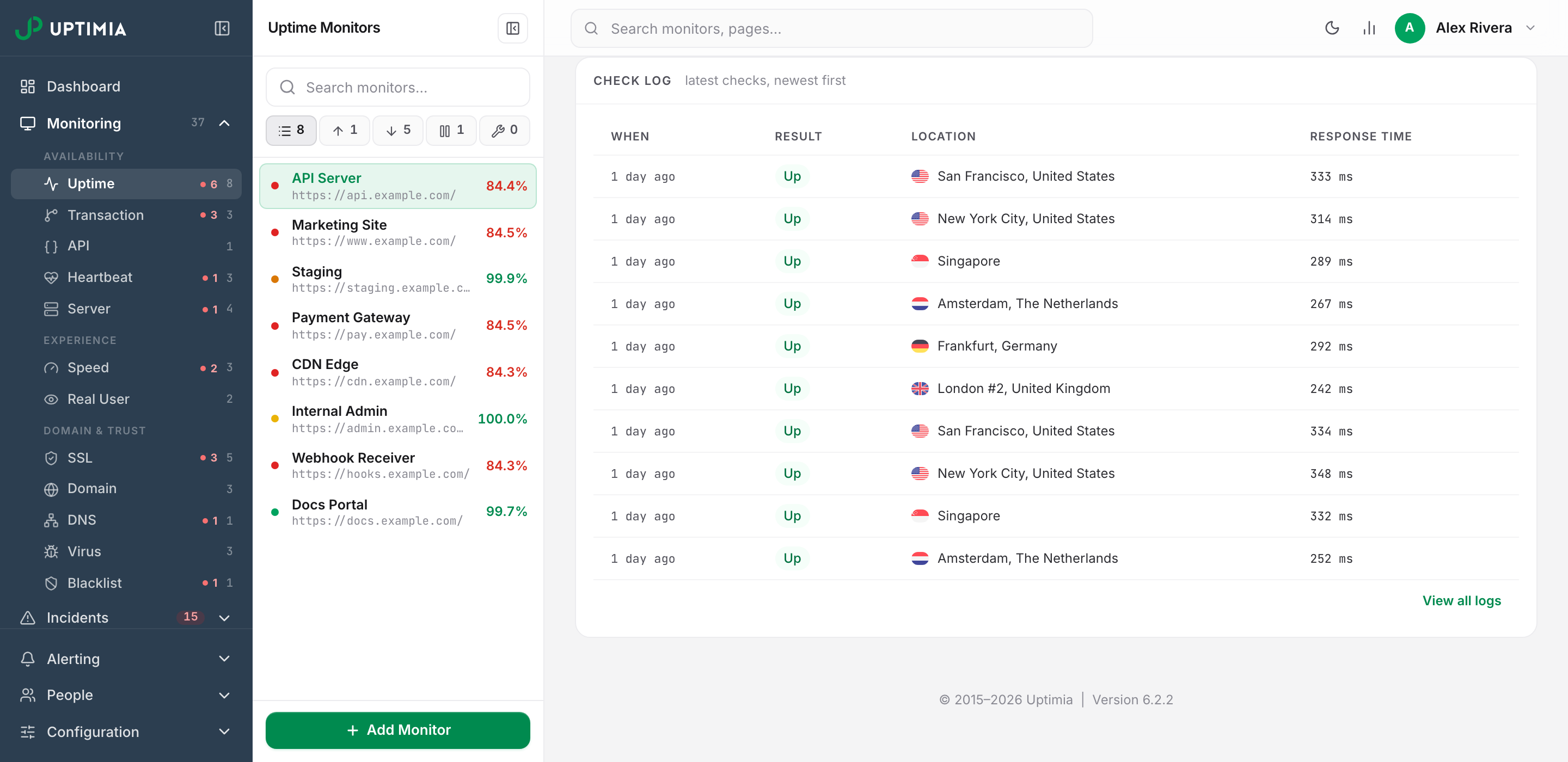
The same drawer opens from a monitor's own detail page. Scroll to the Check log card and click any row. The DNS page calls that card Sweep log, the heartbeat page calls it Ping log, and the drawer is identical, minus the Open monitor button.
The card shows the 10 most recent checks. The heartbeat Ping log shows the newest 20 pings. View all logs below it opens Monitoring Logs pre-filtered to that monitor and its type.
Live Tail, Failures First and Keyboard Triage
The page refreshes every 60 seconds, and rows that arrive on a refresh flash green. The pill beside the heading reads Live · refreshes every 60s; click it to switch to Paused and stop polling while you read.
Failures first floats failing rows to the top of each day group. It re-sorts the page you are on. Pair it with the Failing status filter when you want every failure in the range rather than the failures on this page.
The table supports keyboard triage when the drawer is closed and you are not typing in a field:
| Key | Action |
|---|---|
j / k |
Move focus down / up one row |
Enter |
Open the focused row's drawer |
Esc |
Close the drawer |
/ |
Jump to the search box |
f |
Toggle Failures first |
Exporting Checks
The filtered list. Click Export CSV. The button carries the row count, so you know what you are downloading. The file is UptimiaLogs.csv, and it honors every active filter and the date range. It holds up to 100,000 rows, with the columns Name, Type, Location, Time, Status and Duration.
One check. From the drawer, open Export. Download PDF gives you that check's full detail printed to A4 as Monitoring-Log.pdf, and Download HTML gives you the same document as a standalone Monitoring-Log.html. Create Public Link publishes the check as a page on your Uptimia host, and anyone holding that link can open it without signing in.
The PDF is that same HTML with one difference. It opens every collapsible evidence block, so a printed page hides nothing behind a disclosure. All 11 log-producing families export this way, each carrying its own detail: API steps, DNS nameserver answers, blacklist list answers, server filesystems.
Warning: A public link needs no sign-in and cannot be revoked from the control panel. Share it as you would the check itself.
- Server samples are kept for 24 hours. A server check older than a day cannot be exported, and its drawer says so: "This check's metrics are no longer available — agent samples are kept for 24 hours." Export a server check the day it happens, or read the numbers off the monitor page's charts.
- A heartbeat ping URL is masked in every exported document, down to its last 4 characters:
hb_····a1b2. A public-link export is served unauthenticated and the ping URL is the monitor's only credential, so the masked form shows enough to identify the monitor and not enough to fake a ping. The drawer itself, which is behind your login, shows the URL in full.
The format map for everything else Uptimia exports is in Exporting Your Data.
How Far Back the Logs Go
Check history is readable for as long as your plan's retention window allows:
| Plan | Readable window |
|---|---|
| Free | 7 days |
| Trial | 30 days |
| Basic | 90 days |
| Professional | 365 days |
| Enterprise | 730 days |
Upgrading widens the window instantly and retroactively. The older rows were never deleted, only out of reach, so the next page load returns them with no backfill and no waiting. Data and Log Retention has the full rules.
Two screens can disagree. The Uptime, Speed and Virus charts on a monitor's own page silently raise a too-early start date to your plan's floor. The account-wide Logs page and its CSV do not, and neither do the other families' charts, so on a short-window plan a long custom range here can return rows an Uptime, Speed or Virus monitor page will not show you. See Exporting Your Data.