
Real User Monitoring reports what your visitors' own browsers measured: load time, JavaScript errors, and the country, browser, device and operating system each visit came from. A small snippet on your pages sends that data to Uptimia, which never schedules a check or sends a probe. For the installation steps, proof that data is arriving, and the privacy answers, see RUM Installation and Privacy.
Before You Start
- The Free plan has no RUM: it includes 0 Real User monitors. Basic includes 1 monitor, Professional 10, Enterprise 100, and the Trial 50.
- Creating or editing a monitor needs an Owner, Admin or Editor seat.
- You need to be able to paste a script tag into your site's
<head>, or ask someone who can.
How RUM Differs From a Synthetic Check
Every other Uptimia family sends a request from a probe on a schedule. RUM waits: data arrives only when a real person loads a page carrying the snippet.
- The RUM editor has no cadence slider and no Locations tab, so you set no check frequency and pick no locations.
- RUM is the one family absent from Monitoring Logs, because it produces alert events rather than per-check rows. See Monitoring Logs for the eleven families that do appear there.
- A RUM monitor never moves the dashboard's overall uptime percentage, in either direction. The arithmetic is in How Uptime Is Calculated.
- A new monitor on low traffic can sit at zero for hours. For numbers measured on demand in a real browser, use Speed Monitoring instead.
Creating a Real User Monitor
- Go to Monitoring → Real User.
- Click Create Real User Monitor →.
- Enter a Monitor Name. It is auto-filled from the URL while you type and shows the hint "Auto-filled from the URL — edit to override."
- Enter the Website URL, for example
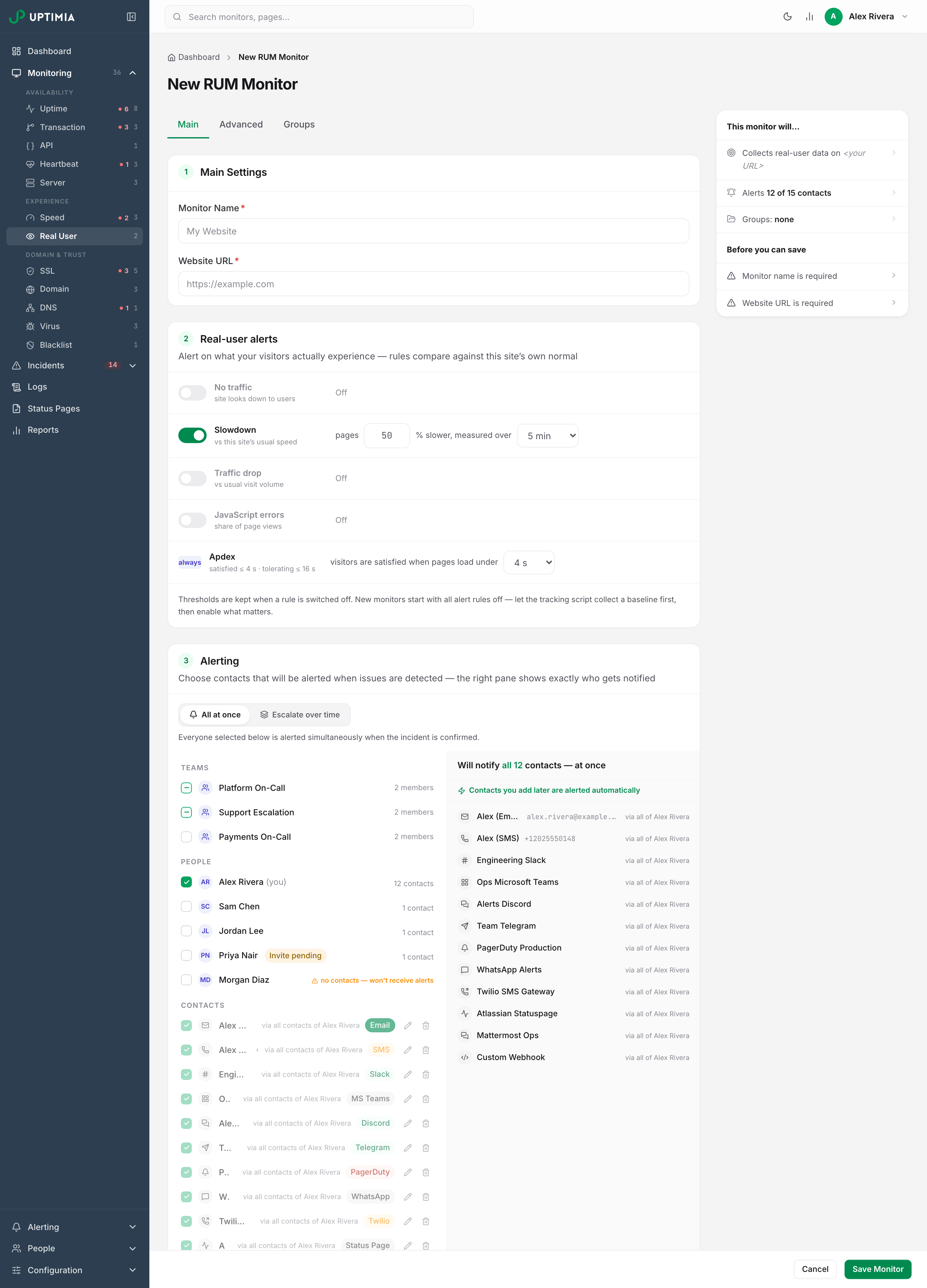
https://example.com. - Set the rules you want in the Real-user alerts card. All four toggles start off.
- Choose recipients in the Alerting card at the bottom of the Main tab.
- Click Save Monitor. An Install Tracking Script modal opens with the snippet and a Copy button.
- Copy the snippet, then close the modal. Uptimia opens the new monitor's detail page, where the snippet stays available alongside a Check Code button.
Once you have one RUM monitor, Monitoring → Real User opens it directly rather than a list. Create the next one with Add Monitor in the monitors panel.
Real-User Alert Rules
One card, Real-user alerts, holds every rule. Its subtitle states the model: each rule compares against this site's own normal rather than a fixed target. Four rules have on/off toggles and read as sentences, while the fifth, Apdex, is always on and carries an always chip in the place where the toggle would sit.
| Rule | The sentence in the card | Threshold | Window | Raises |
|---|---|---|---|---|
| No traffic | "no visits for N min" | — | 1, 2, 3, 5, 10, 15, 30 or 60 minutes · default 5 | Down |
| Slowdown | "pages N % slower, measured over N min" | 1–100% · default 50% | same presets, 1–60 minutes · default 5 | Trouble |
| Traffic drop | "traffic N % lower, measured over N min" | 1–100% · default 50% | 5, 10, 15, 30, 60, 90 or 120 minutes · default 50 | Trouble |
| JavaScript errors | "errors on N % of page views, measured over N min" | 1–100% · default 50% | same presets, 1–60 minutes · default 10 | Trouble |
The threshold fields are number inputs clamped to 1–100 and rounded to whole numbers. Type a value outside that range and Uptimia pulls it back to the nearest bound as you type. Each window is a dropdown of preset minutes. A stored value that is not a preset appears as its own option in sorted position instead of being rounded to a neighbor, which is how the traffic-drop default of 50 minutes appears in that list.
Thresholds are kept when a rule is switched off, so you can disable a noisy rule without losing its tuning. New monitors start with all four rules off, so the snippet can collect a baseline before anything compares against it. The card footer states both.
The Apdex Row
Apdex has no toggle. The Application Performance Index is a single 0 to 1 score for how many visits felt fast enough. Its row reads "visitors are satisfied when pages load under N s". The presets are 1, 2, 3, 4, 5, 8, 10, 15 and 20 seconds, the default is 4, and the sub-label recomputes as you change it: "satisfied ≤ 4 s · tolerating ≤ 16 s".
The score itself is (satisfied + tolerating / 2) / total, where a visit counts as satisfied under the threshold, tolerating up to four times the threshold, and frustrated beyond that. Changing the threshold changes what counts as satisfied. Your pages load at the same speed either way.
Uptimia accepts values from 1 to 20 seconds. If a monitor was set up outside the editor with a threshold outside 1–20 seconds, opening it shows the blocking issue "APDEX threshold must be between 1 and 20 seconds". You cannot save the monitor until you fix the value.
Down Versus Trouble
Only No traffic is critical. When it fires the badge turns Down, and the incident is titled "Traffic from visitors stopped". The other three raise Trouble, an amber badge with an open incident whose wording names the measurement, such as "Average speed dropped by 40%" or "At least 12% of pages have JavaScript errors". The shared vocabulary is in Monitor Statuses.
Choosing Who Is Alerted
The Alerting card sits at the bottom of the Main tab. In All at once mode you pick contacts and teams directly, and the right-hand pane shows who will be paged. Contacts and Alerting covers contact setup.
If your account has at least one escalation policy, a segmented control appears above the recipients: All at once | Escalate over time. Choosing Escalate over time replaces the recipient picker with a policy selector and a read-only preview of the ladder. The policy then decides who is paged. The monitor's own recipient list stays required as the fallback. Build policies in Escalation Policies. For what happens when a whole ladder reaches nobody, see Who Gets Alerted.
Three controls the other families have do not exist on a RUM monitor:
| Control | Why RUM does not have it |
|---|---|
| Check frequency | Nothing is scheduled; visits arrive when they arrive |
| Alert delay | Each rule's own measurement window is its delay |
| Alert when back up | RUM has no up/down probe result to recover from |
Advanced and Groups Tabs
The RUM editor has three tabs: Main, Advanced and Groups. Advanced carries two controls for this family. Notes is a free-text field of up to 500 characters with a live counter, described in Monitor Notes, and Email Branding Style holds a Branding Template select that defaults to "Default (Uptimia Branding)". Groups assigns the monitor to one or more monitor groups.
Reading the Detail Page
A date range picker sits above the cards. Beside it is a Reload button, and the picker offers Today, Yesterday, Last 7 Days, Last 30 Days, This Month, Last Month or a custom range, defaulting to Last 7 Days. While the range ends today, the page refreshes itself every 60 seconds, and every 5 seconds until the first pageview arrives.
The Stat Cards
| Card | What it shows | Color |
|---|---|---|
| Avg Load Time | Mean page load time over the selected range, in seconds to two decimals | Green under 2s, amber under 5s, red at 5s and above |
| Pageviews | Total page loads in the range | Neutral always |
| JavaScript Errors | Total error occurrences in the range | Neutral at 0, red at any count above 0 |
The same error count is repeated as a badge on the JavaScript Errors tab. Apdex has no stat card; it is a card on the Summary tab.
Summary Tab
The cards, in document order:
- Apdex Score: the score rounded to two decimals, with trailing zeros dropped. A perfect score prints as
1, and a monitor with no traffic yet prints0. A word sits beside it: Excellent at 0.94 and above, Good from 0.85, Fair from 0.7, Poor below 0.7. The first two are green, Fair is amber, Poor is red. - User Satisfaction: a donut of Satisfied (green), Tolerating (amber) and Frustrated (red) percentages, with the satisfied share printed in the center.
- Incidents: every RUM incident that overlaps the range, with columns Severity, Error, Started and Duration. Clicking a row opens the incident detail page described in Incidents.
- Pages with Most Errors and Slowest Pages, side by side. Despite its title, Pages with Most Errors lists the first five rows of the errors-by-name breakdown, under the columns Error, Affected Pages and Count. Slowest Pages is the five pages with the highest average load time, as URL and Avg Load Time.
Pages Tab
One table lists every page the snippet reported: URL, Loads (page views for that URL) and Avg Load Time. Load times here, in Slowest Pages and in Countries all read as seconds to two decimals, 2.34s for instance.
JavaScript Errors Tab
Four stat cards sit above two tables. They are Total Errors, Unique Errors, Affected Pages and Error Rate (a percentage of page loads). Errors by Name carries Name, Count, Affected Pages and Rate, and clicking a row opens a detail modal. Errors by Script carries Script, Count and Last Seen. RUM Installation and Privacy covers what that modal can and cannot show you, including the case where no stack trace was captured.
Geographic Tab
One card, Countries, holds a table of Country, Loads and Avg Load Time, with a row for every country your visitors came from and a flag beside the name for the handful Uptimia carries flags for. Nothing else is on the tab: no map, no heat overlay and no continent roll-up. Read the country table to decide where a CDN edge would pay for itself.
Browsers, Devices and OS Tabs
All three share one layout: a Distribution card of horizontal bars, and a Details table with the dimension name, Share as a percentage and Loads. Devices groups visits as desktop, mobile or tablet.
Monitor Actions
The … Actions button at the top right holds Edit, Pause or Resume, Save as Template, Post status update, Delete and Maintenance Window. While a window is running, Maintenance Window reads End Maintenance. Read-only members see no button at all: every entry is a write.
Post status update is always disabled for RUM, and the menu item gives no reason. The explanation appears as the tooltip on the grayed incident chip beside the status badge: "Status updates are available for uptime, speed and transaction incidents." That chip is shown only while a RUM incident is open.
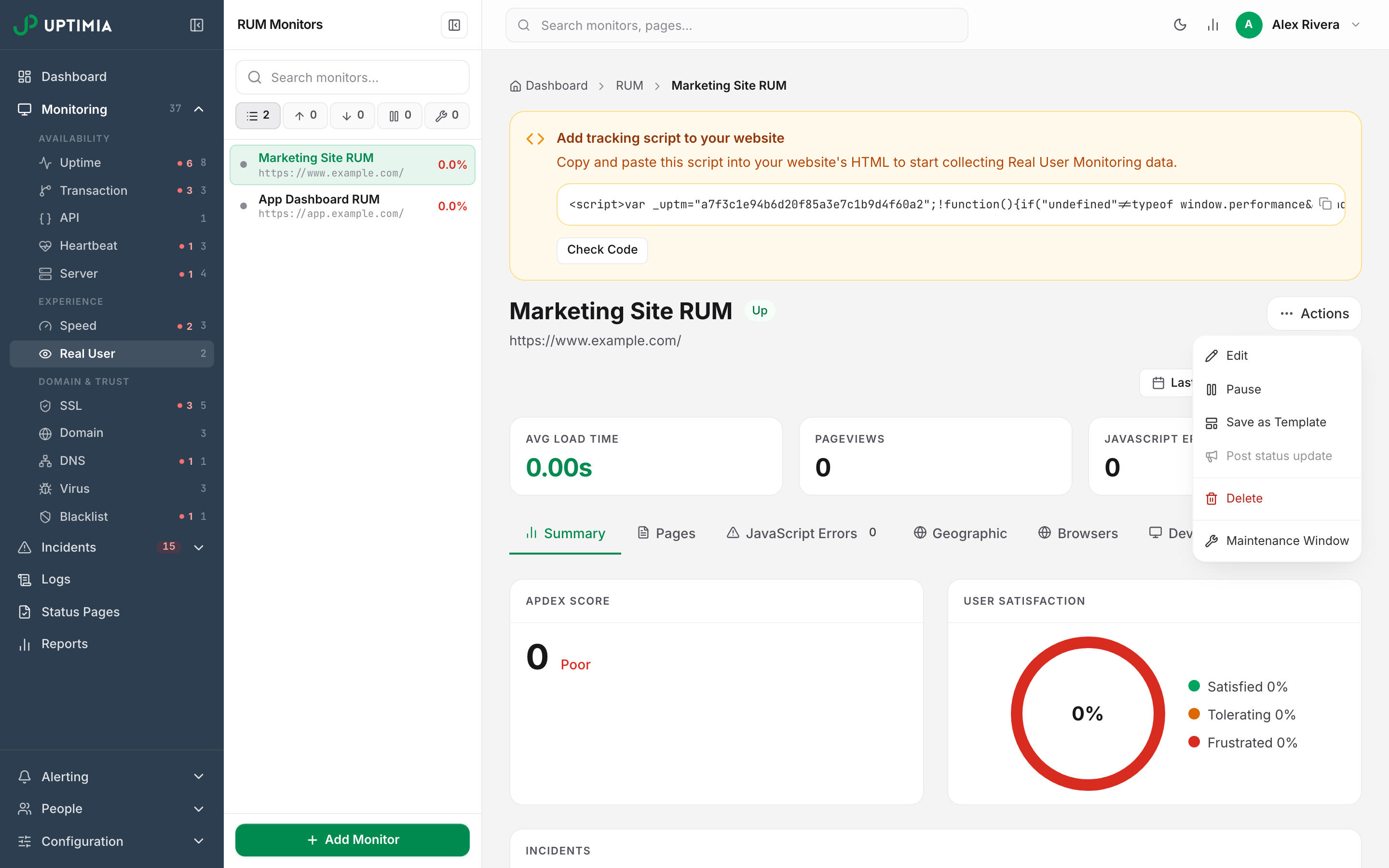
Save as Template stores this monitor's setup for reuse. See Monitor Templates. Maintenance Window opens the scheduler at Configuration → Maintenance, covered in Maintenance Windows.
Limits and Plan Availability
Two allowances apply, and both are listed with every other pool in Plan Limits and Quotas.
| Allowance | Free | Basic | Professional | Enterprise | Trial |
|---|---|---|---|---|---|
| Real User monitors | 0 | 1 | 10 | 100 | 50 |
| RUM pageviews between renewals | 0 | 150,000 | 750,000 | 7,500,000 | 500,000 |
Creating one monitor past the limit is refused with "You have exceeded the maximum number of monitored sites." Downgrading deletes nothing. Your oldest RUM monitors fill the new plan's count and keep running, and Uptimia suspends the newer ones beyond it.
Uptimia counts the pageview allowance across all your RUM monitors together rather than per monitor, and it resets at your renewal. You can watch it in two places. The RUM pageviews tile on the Subscription page is labeled "resets at renewal", and the RUM Pageviews row sits in the Plan Usage panel in the top bar.
Warning: Once the combined pageview total passes your plan's allowance, the dashboard shows every affected RUM monitor as suspended, with the status text "Pageview limit exceeded". Upgrading raises the allowance. The counter itself is zeroed at the next renewal.