
A heartbeat monitor inverts every other check in Uptimia: instead of a probe reaching your system, your system reaches Uptimia. Your job requests a unique ping URL each time it runs. When a ping does not arrive on schedule, Uptimia opens an incident and alerts your contacts.
If your pings are being sent but the monitor stays silent, go to Heartbeat Pings Aren't Registering instead.
Before You Start
- Heartbeat monitors are unavailable on Free. Per-plan counts are in Limits and Plan Availability.
- Creating and editing monitors requires the Owner, Admin or Editor role.
- The machine running the job needs outbound HTTPS to
www.uptimia.com. Nothing inbound is required, which is why heartbeat works for hosts Uptimia's probes cannot reach. See Monitoring Behind a Firewall.
What a Heartbeat Monitor Watches
A heartbeat monitor waits for a job to say "I ran": you tell Uptimia how often to expect a ping, and silence is the failure signal. It fits anything that runs on a schedule with no public endpoint to check:
- Cron jobs and scheduled scripts
- Background workers and daemons
- Queue consumers
- Backup and export jobs
- IoT devices and edge agents checking in
The What it watches dropdown on the editor's Main tab offers Cron job / script, Background worker, Queue consumer, Backup, IoT / device and Other. Your choice only changes the wording of the editor's summary rail ("Waits for your cron job to ping its heartbeat URL"). It changes no behavior, and it never appears in alerts or on the detail page.
Creating a Heartbeat Monitor
- Go to Monitoring → Heartbeat.
- Click Create Heartbeat Monitor at the bottom of the explainer, or Add Monitor at the bottom of the monitor switcher column. The Start monitoring button drawn inside the explainer's illustration opens the same editor.
- Enter a Monitor Name and pick What it watches.
- In the Schedule card, choose Every interval or Cron schedule and set the cadence and grace period.
- In the Alerting section, select the contacts to page. At least one recipient is required, and Uptimia rejects a save without one.
- Click Save Monitor. Uptimia creates the ping URL and opens the monitor's detail page.
With one or more heartbeat monitors already saved, Monitoring → Heartbeat opens a monitor's detail page instead of the explainer.
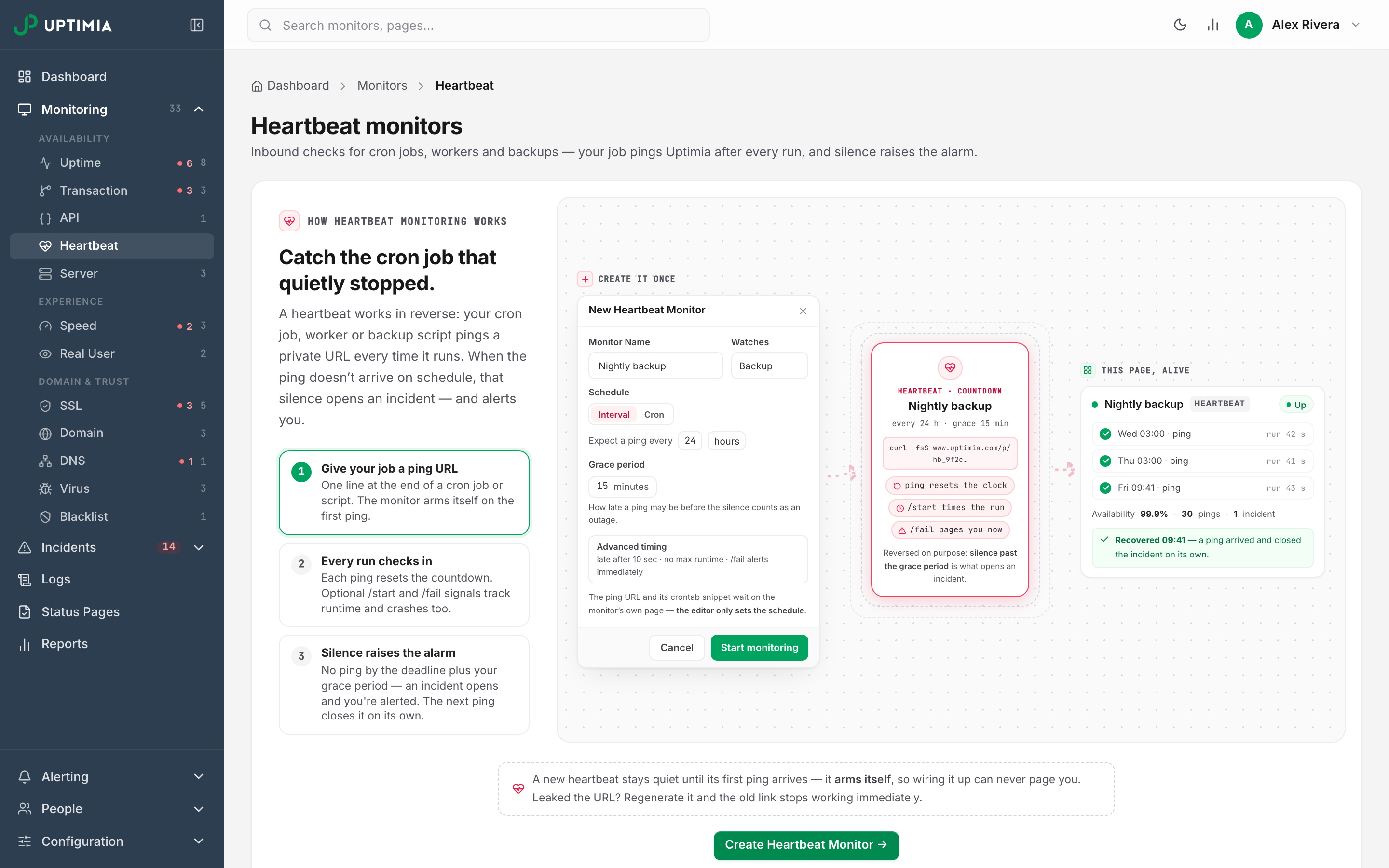
The editor has three tabs: Main, Advanced and Groups. There is no Locations tab, because nothing is probed.
Your Ping URL and the Three Signals
Each monitor gets one URL of the form https://www.uptimia.com/p/hb_ plus 32 hexadecimal characters, and anyone holding it can ping the monitor. Treat it like a password.
The URL accepts GET, POST and HEAD, so a curl, a wget --spider, a HEAD from PowerShell or a browser visit all count the same.
| Signal | URL | What it does |
|---|---|---|
| Success | /p/hb_… |
The job ran fine. Resets the countdown, records run time when a /start was seen, and closes an open incident |
| Start | /p/hb_…/start |
The run began. Enables run-duration and maximum-runtime tracking. Does not reset the countdown on a monitor that is already armed. On a monitor that has never pinged, it arms the monitor and starts the first countdown |
| Fail | /p/hb_…/fail |
The job crashed. Opens an incident immediately when A /fail signal alerts immediately is on, and advances the countdown to the next scheduled run |
A success ping is the only thing that closes an open heartbeat incident.
Each ping gets a short reply:
| Response | Code | Meaning |
|---|---|---|
{"status":"ok"} |
200 | Recorded |
{"status":"ignored","reason":"non_arming_user_agent"} |
200 | A link unfurler or preview bot touched the URL. Logged, but it does not arm the monitor or move the schedule |
{"error":"invalid_token"} |
404 | No monitor has that token. Common causes: a truncated paste, or a regenerated URL |
{"error":"rate_limited"} |
429 | More than 300 pings in 10 minutes for this monitor, or more than 60 requests in 10 minutes from one IP address using tokens that do not exist |
The ignored case returns 200, so curl -fsS treats it as success, which is the most common reason a monitor looks wired up but never arms. Heartbeat Pings Aren't Registering covers how to spot it.
Arming: Why a New Monitor Never Alerts
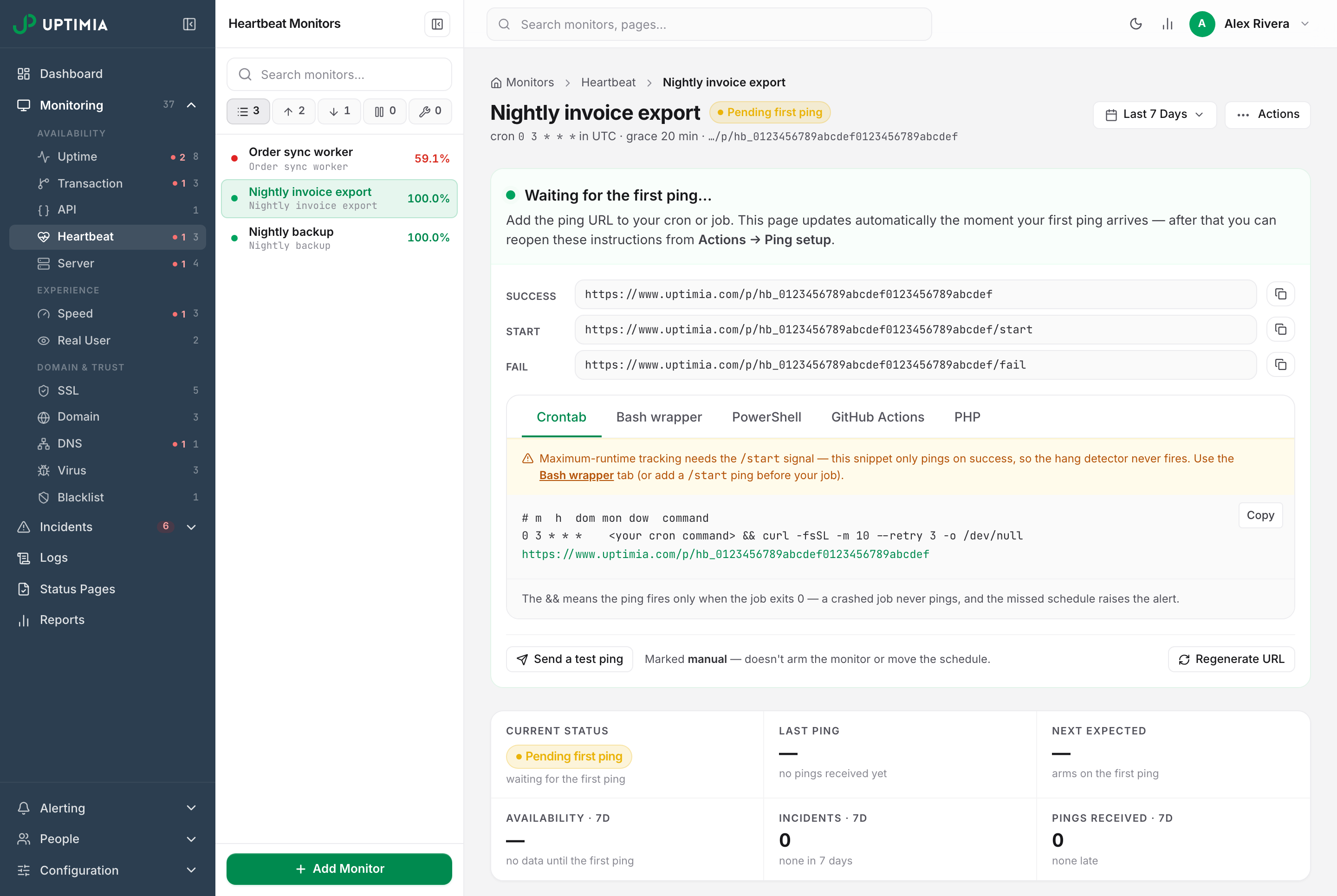
A new heartbeat monitor sits at Pending first ping, and while it waits Uptimia never counts a ping as missing. It arms on the first real ping, so a job you have not wired up yet cannot alert. Until then the detail page shows a Waiting for the first ping… banner carrying the ping URL, the three signal rows and the copy-paste snippets.
A test ping does not arm the monitor. Neither does a ping from a non-arming user agent.
Wiring the Ping Into Your Job
The detail page carries all five snippets with your real token already filled in. The examples below use a placeholder token.
Crontab. The && means the ping fires only when the job exits 0, so a crashed job never pings and the missed schedule raises the alert.
# m  h  dom mon dow  command
*/5 * * * *    /usr/local/bin/nightly-export && curl -fsSL -m 10 --retry 3 -o /dev/null https://www.uptimia.com/p/hb_0123456789abcdef0123456789abcdef
The cron cadence in your crontab must match the interval you set on the monitor. A mismatch trips false incidents.
Bash wrapper. The full signal set. This is the only snippet that sends /start, so use it when maximum-runtime tracking is on.
#!/usr/bin/env bash
HB="https://www.uptimia.com/p/hb_0123456789abcdef0123456789abcdef"

curl -fsSL -m 10 -o /dev/null "$HB/start"

if /usr/local/bin/nightly-export; then
  curl -fsSL -m 10 -o /dev/null "$HB"
else
  curl -fsSL -m 10 -o /dev/null "$HB/fail"
  exit 1
fi
PowerShell. A native command that fails exits non-zero without throwing, so branch on $LASTEXITCODE. A plain try/catch would miss the failure and ping success.
$HB = "https://www.uptimia.com/p/hb_0123456789abcdef0123456789abcdef"
try {
  & C:\jobs\nightly-export.exe
  $signal = if ($LASTEXITCODE -eq 0) { $HB } else { "$HB/fail" }
} catch {
  $signal = "$HB/fail"
}
Invoke-RestMethod -Uri $signal -Method Head -TimeoutSec 10 | Out-Null
GitHub Actions. Give the job step an id and key each ping off steps.<id>.outcome. A plain if: failure() also fires when the ping step itself blips, which mislabels a good run.
- name: Run your job
  id: job
  run: ./scripts/nightly-export.sh

- name: Ping heartbeat
  if: steps.job.outcome == 'success'
  run: curl -fsSL -m 10 --retry 3 https://www.uptimia.com/p/hb_0123456789abcdef0123456789abcdef

- name: Report failure
  if: always() && steps.job.outcome == 'failure'
  run: curl -fsSL -m 10 --retry 3 https://www.uptimia.com/p/hb_0123456789abcdef0123456789abcdef/fail
PHP. A shutdown hook that pings /fail only on a fatal error, so a warning or notice still counts as success.
register_shutdown_function(function () {
    $e = error_get_last();
    $fatal = $e && ($e['type'] & (E_ERROR | E_PARSE | E_CORE_ERROR | E_COMPILE_ERROR | E_USER_ERROR));
    $ch = curl_init('https://www.uptimia.com/p/hb_0123456789abcdef0123456789abcdef' . ($fatal ? '/fail' : ''));
    curl_setopt_array($ch, [CURLOPT_NOBODY => true, CURLOPT_TIMEOUT => 10, CURLOPT_FOLLOWLOCATION => true]);
    curl_exec($ch);
    curl_close($ch);
});
Setting the Schedule
The Schedule card offers two modes.
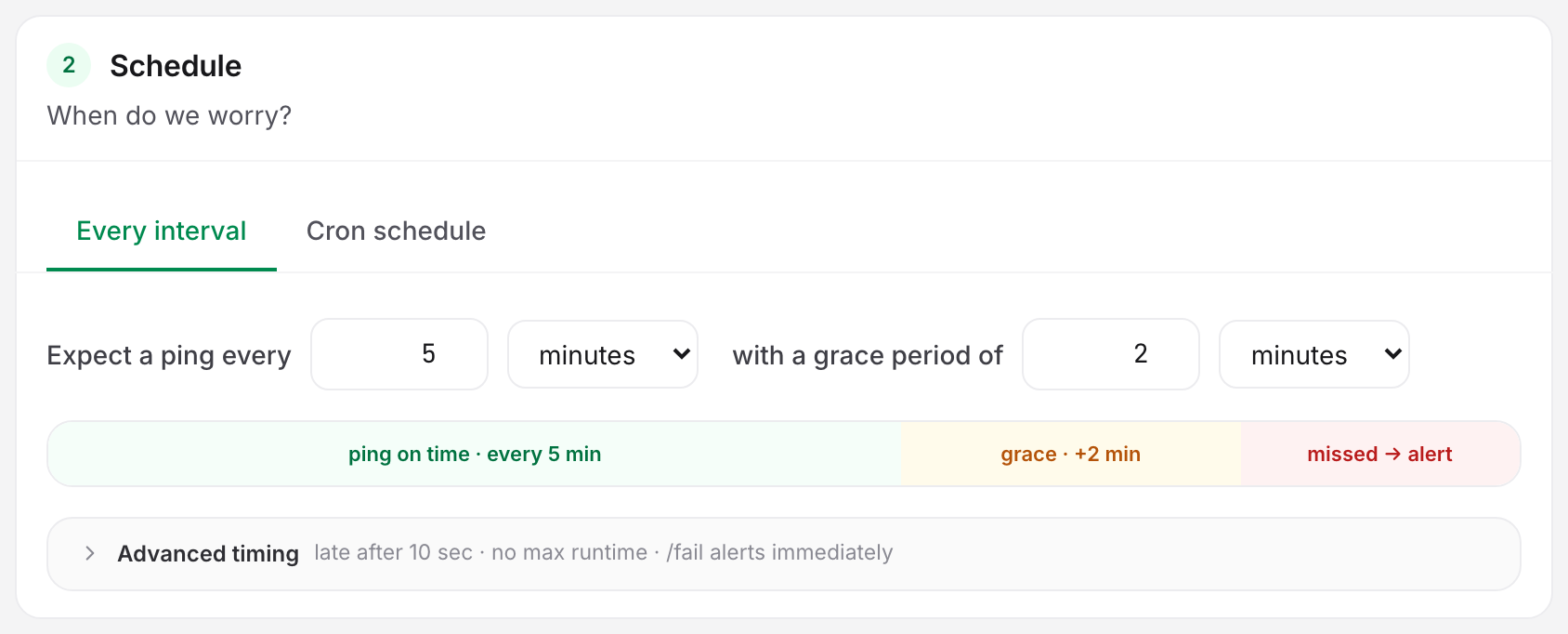
Every interval. Each ping resets the countdown from the moment it lands. Range 30 seconds–90 days, default 5 minutes. Interval mode has no time zone: nothing is anchored to a wall clock.
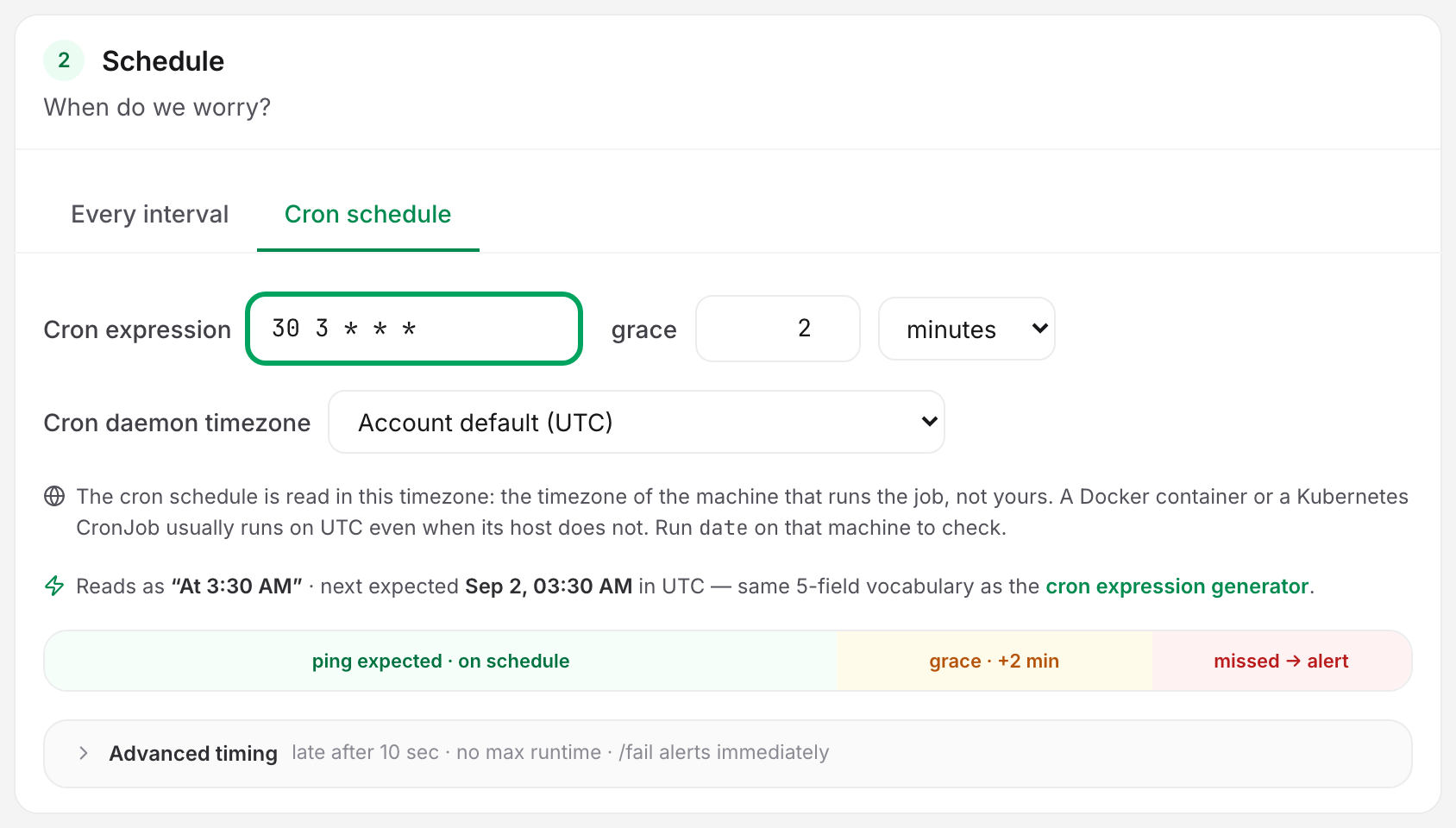
Cron schedule. A 5-field cron expression evaluated against a wall clock. Uptimia supports standard cron syntax:
*, numbers, ranges, lists and/steps- The
jan–decandsun–satnames, plus7for Sunday - The macros
@hourly,@daily(or@midnight),@weekly,@monthlyand@yearly(or@annually)
Uptimia rejects non-standard syntax at save: L, W, # and @reboot. It also rejects an expression that parses but can never fire, such as 0 0 30 2 *.
Uptimia always enforces both day fields, the same way standard Unix cron does: 0 0 */2 * * fires on odd days only, not daily. When neither day field starts with *, Uptimia matches either one. So 0 0 1-15 * 1 means days 1–15 or Mondays.
As you type, the card reads the expression back and shows the next expected run. Uptimia blocks the save while the expression is invalid.
Cron Daemon Timezone
The Cron daemon timezone select decides which wall clock the expression is read against. Set it to the time zone of the machine that runs the job rather than your own. A Docker container or a Kubernetes CronJob usually runs on UTC even when its host does not. Run date on that machine to check.
The default is Account default, which follows your account time zone, and with no account time zone set Uptimia evaluates schedules in UTC. UTC sits directly under Account default at the top of the list. Interval mode ignores this setting.
Grace, Late Pings and Maximum Runtime
The grace period sits beside the schedule fields. The other three fold behind the Advanced timing disclosure. Its summary line reflects the stored values ("late after 10 sec · no max runtime · /fail alerts immediately").
| Field | What it does | Default | Limits |
|---|---|---|---|
| Grace period | How late a ping may be before the monitor counts as missed and an incident opens. | 2 minutes | 0 seconds–30 days |
| Late-ping threshold | How late a ping must be before Uptimia marks it late. Anything later than the schedule but under this value counts as on time. Never alerts. | 10 seconds | 0 seconds–30 days, and never longer than the grace period |
| Maximum runtime | Opens an incident when a /start gets no matching success ping within this window. Requires the /start signal. |
Off | 1–10,080 minutes (7 days) |
| A /fail signal alerts immediately | When on, a /fail opens an incident at once instead of waiting out the grace period. |
On | On / off |
The three-zone bar under the schedule fields shows the sequence: on time, then grace, then missed → alert. Setting grace to 0 is legal and means late is late. Uptimia rejects a late-ping threshold set above the grace period.
Uptimia logs a repeated /fail from a crash-looping job but sends no further alert within 5 minutes of the last incident on that monitor. Missed pings and runtime overruns are never capped this way.
Reading the Detail Page
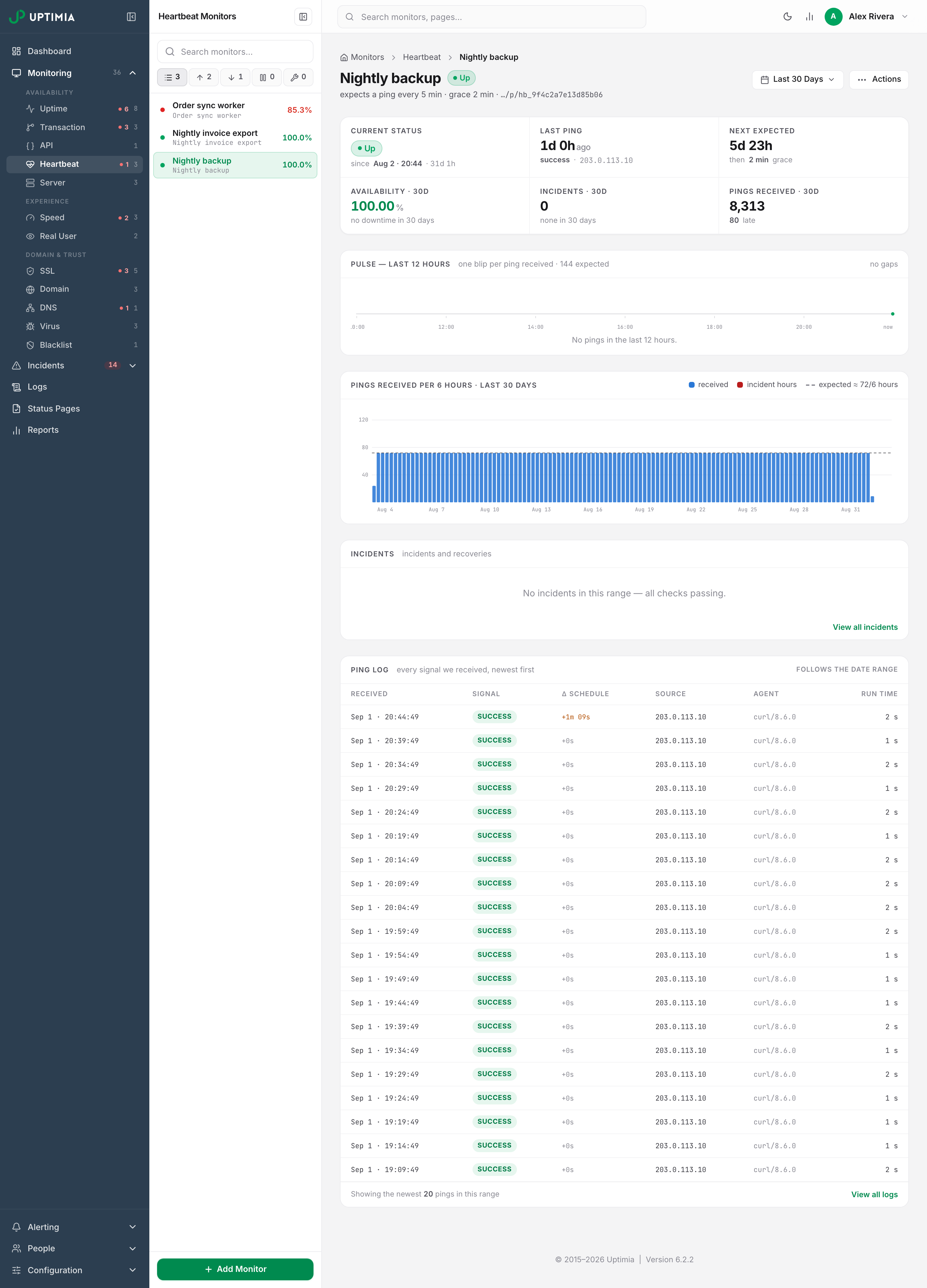
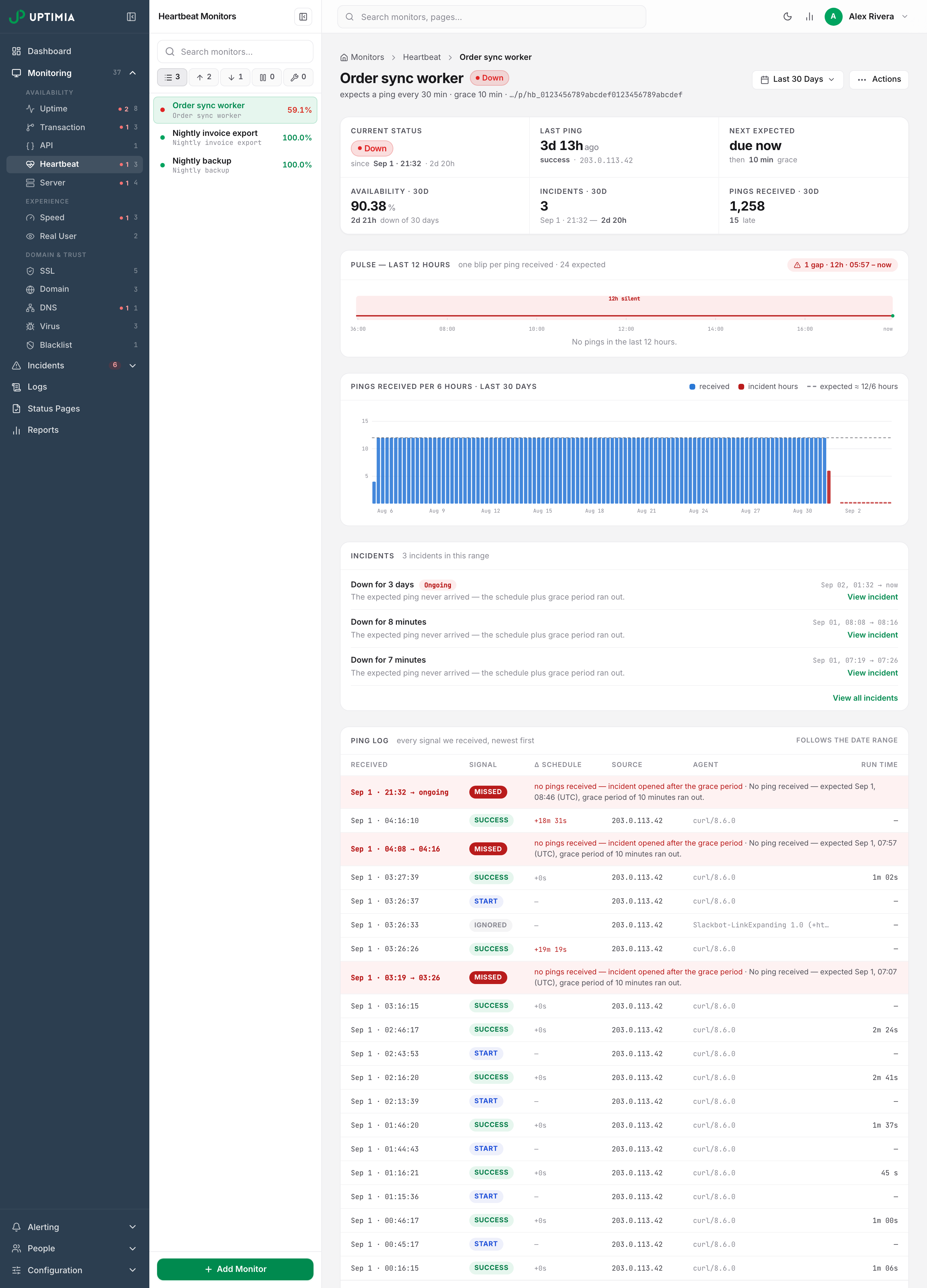
Once armed, the banner disappears and six live counters take its place: Current status, Last ping (counting up), Next expected (counting down to "due now"), Availability, Incidents and Pings received. The last three follow the page's date range.
Below that:
- Pulse strip. One blip per ping over the last 12 hours. A red flat-line gap is a period of genuine silence.
- Ping-rate chart. How many pings arrived over the selected range, next to how many were expected.
- Incidents card. The incident rows for the range, each linking to its incident page.
- Ping log. The newest 20 pings in the selected range, with columns Received, Signal, Δ schedule, Source, Agent and Run time. Signal badges read
success,start,fail,manualor a dimmedignored. Uptimia mixes the range's incidents into the same list as red rows badgedmissed,failedoroverran. The cause is written across the columns the ping cells would fill. Click a row for the full check detail, or View all logs for the whole history in Monitoring Logs.
Incidents, Recovery and Alerting
Uptimia names the specific cause in the alert rather than always saying "missed a ping".
| Cause (shown as) | Opens when |
|---|---|
Missed ping (badge missed) |
The expected ping never arrived and the grace period ran out |
Job reported failure (badge failed) |
The job pinged /fail |
Run took too long (badge overran) |
A /start got no success ping within the maximum runtime |
A missed-ping check runs every minute. The incident closes only when a success ping arrives. The next healthy run recovers the monitor and, with Alert when the job recovers on, sends the recovery alert.
The Alerting card carries no check-frequency or alert-delay controls, because the Schedule card owns both: the schedule is the cadence, and the grace period is the delay. Contacts, escalation policies, alert grouping and acknowledgment all behave as they do for every other family. Escalation policies require Professional or above.
Monitor Statuses covers the status vocabulary, including the Pending first ping state.
Note: While a heartbeat monitor is paused or in a maintenance window, Uptimia still logs pings and the schedule keeps rolling, but no incident opens and a success ping does not close an existing one. Uptimia sends the recovery alert when the monitor comes back. Resuming grants one fresh schedule window, so a long pause never alerts the moment you resume.
Test Pings and Regenerating the URL
Both live under Actions → Ping setup, and both require the Owner, Admin or Editor role.
Send a test ping records a ping with the manual signal. It appears in the ping log and proves the monitor is reachable, but it never arms the monitor and never moves the schedule.
Regenerate URL mints a new token, and the confirmation warns that the old URL stops working immediately.
Warning: After regenerating, update every job that pings this monitor. Uptimia rejects pings to the old URL, the schedule keeps counting down, and the monitor alerts as if the job had died.
Limits and Plan Availability
| Check type | Free | Basic | Professional | Enterprise |
|---|---|---|---|---|
| Heartbeat monitors | 0 | 10 | 100 | 1,000 |
On Free, Uptimia refuses to create one. The trial includes 50. A downgrade that puts you over the new limit suspends the excess: a suspended monitor still returns 200 for pings, but Uptimia never processes or logs them, and the monitor never alerts.
What a heartbeat monitor cannot do today:
- No probe locations and no location profiles: nothing is probed.
- No bulk creation; each monitor needs its own minted token.
- Not selectable on status pages.
- Not included in scheduled reports.
Monitor groups, monitor templates and maintenance windows all work normally.