
An API monitor is an ordered chain of up to 15 HTTP requests, and Uptimia replays it on a schedule from your chosen probes: log in, take the token, call the endpoint, check what came back. A failed step stops the chain. Uptimia names that step in the incident. Assertion types, value extraction and {{variable}} templating have their own reference: Assertions, Extractions and Variables.
Before You Start
- API monitoring is included on every plan: Free and Basic get 1 API monitor, Professional 10, Enterprise 100. See Plan Limits and Quotas.
- Creating or editing a monitor needs an Owner, Admin or Editor seat. A Read-only seat cannot.
- The chain runs from Uptimia's public probes, so every URL must resolve to a public address. A private, loopback or link-local target is refused with
blocked_url. For internal APIs, see Monitoring Behind a Firewall.
API Monitoring Is Not the Uptimia REST API
API monitoring is a monitor family. You describe a chain of requests against your API, and Uptimia runs it on a schedule under Monitoring → API in the sidebar. The Uptimia REST API is Uptimia's own interface: your code can read and create monitors, incidents and logs, and its keys live under Settings → API Keys (/cp/settings/api-keys). If you came here to pull your own data out of Uptimia, go to Getting Started with the Uptimia API.
API Monitoring or Transaction Monitoring
Both replay a multi-step flow.
| API monitor | Transaction monitor | |
|---|---|---|
| Executes | HTTP requests, no browser | A real browser driving a page |
| Steps | Up to 15 requests | Recorded browser actions |
| Verifies | Status code, latency, JSON fields, headers, body text | Page content and element state |
| Fastest cadence | 1 minute on every paid plan | 10 minutes |
| Plan pool | Its own API pool | The shared Advanced checks pool, split with Speed monitors |
Pick an API monitor when what matters is the payload: a token issued, an order created, a price field correct. Pick a transaction monitor when what matters is the page a customer sees. Choosing Between Monitor Types covers the rest of the set.
Creating an API Monitor
- Go to Monitoring → API.
- Click Create API Monitor on the API monitors page.
- Enter a Monitor Name. It must be unique on the account, and there is no URL to auto-fill it from.
- Add any monitor-level Variables in the top half of the Request chain card: a
base_url, an API key marked as a secret. - Click Add request step and fill in the step's name, method and URL.
- Repeat until the chain is complete, up to 15 steps.
- Click Run test in the Test & response rail and read the result.
- Set the check frequency, recipients and locations.
- Click Save Monitor.
With an API monitor already saved, the API monitors page opens that monitor instead of the create form. Use Add Monitor at the foot of the monitor panel.
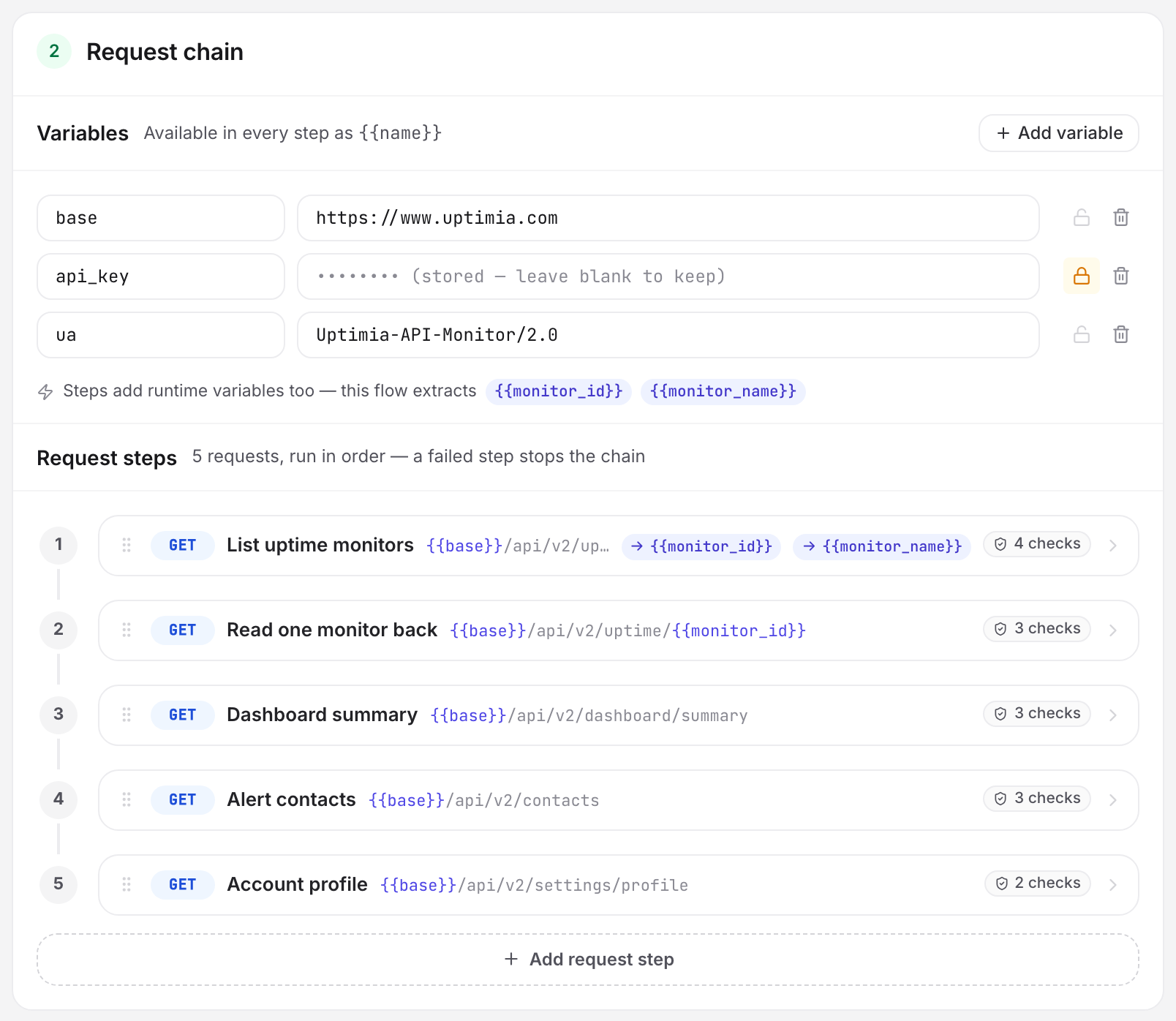
The Request Chain
Steps run in the order they appear, and a failed step leaves every later step recorded as not run rather than passing quietly. Drag a row to reorder it. To insert a step between two others, use the Add step here zone that appears on hover. Click a row to expand its editor. Step name, method and URL are always visible; everything else sits behind a three-way strip: Request, Assertions, Extract.
| Field | What it does | Default | Limits |
|---|---|---|---|
| Step name | Label used in the run log, the incident reason and the alert. | Empty | — |
| Method | The HTTP verb. | GET |
GET, POST, PUT, PATCH, DELETE, HEAD |
| Request URL | Absolute URL, {{variable}} placeholders allowed. |
Empty | 2,048 characters |
| Headers | Name/value pairs sent with the request. Values and names accept {{variables}}. |
None | 20 per step |
| Body | Request body, {{variables}} allowed. Shown for POST, PUT and PATCH only; a GET or HEAD step never sends one. |
Empty | 65,536 bytes |
A step with no assertions passes on any 2xx response. Assertions, extraction and variables are documented in Assertions, Extractions and Variables.
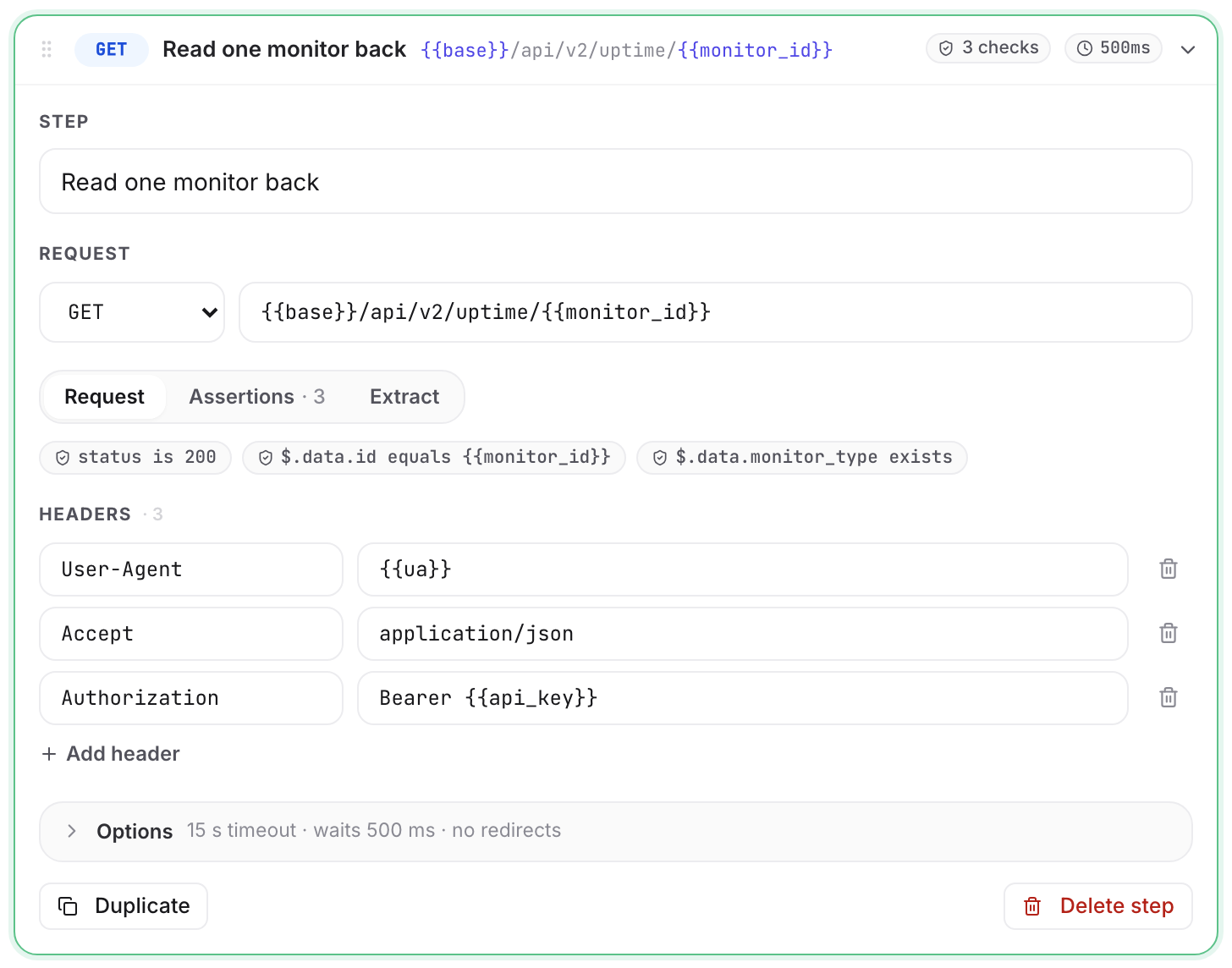
Per-Step Options
The options fold behind a closed Options disclosure. Its summary line recaps them, for example 10 s timeout · waits 500 ms · optional · follows redirects.
| Option | What it does | Default | Limits |
|---|---|---|---|
| Timeout | Fails the step if no response arrives in time. | 10 seconds | 1–60 seconds |
| Wait before this step | Pauses before the request runs, so work an earlier step started has time to finish. | 0 ms | 0–30,000 ms |
| Optional step | When this step fails, the chain carries on and the failure does not fail the run. Its extractions are left unset, so a later step that references them fails with undefined_variable. |
Off | — |
| Follow redirects | Follows redirects for this step. Uptimia re-checks each hop against the same rules. A hop that changes host or drops to plain HTTP loses the Authorization, Cookie and Proxy-Authorization headers. |
On | 5 hops |
The step footer carries Duplicate and Delete step. Once the chain holds 15 steps, Duplicate stops working.
Two whole-run ceilings apply on top of the per-step limits. Uptimia reads a response body to 1 MB, then flags it body_truncated. The chain gets 90 seconds in total. If a step crosses that ceiling, it fails with run_budget_exceeded.
Testing from the Builder
The sticky Test & response rail runs the chain you have on screen, saved or not, against a real probe and returns the full result.
- Test from picks the probe. Random (auto-select) lets Uptimia pick the probe for you.
- Run test runs the whole chain. Run to step N stops after the step you are inspecting. That is how you build a long chain a few steps at a time.
- The request-log scrubber lists every step with its method, path, status code and duration. Click one to load it into the inspector, which has Body, Headers and Timing tabs plus the per-assertion pass/fail checklist underneath. Body shows pretty-printed JSON with extracted values highlighted.
- Editing a step or a variable clears the previous verdict, so a green chip never belongs to a step you have since changed.
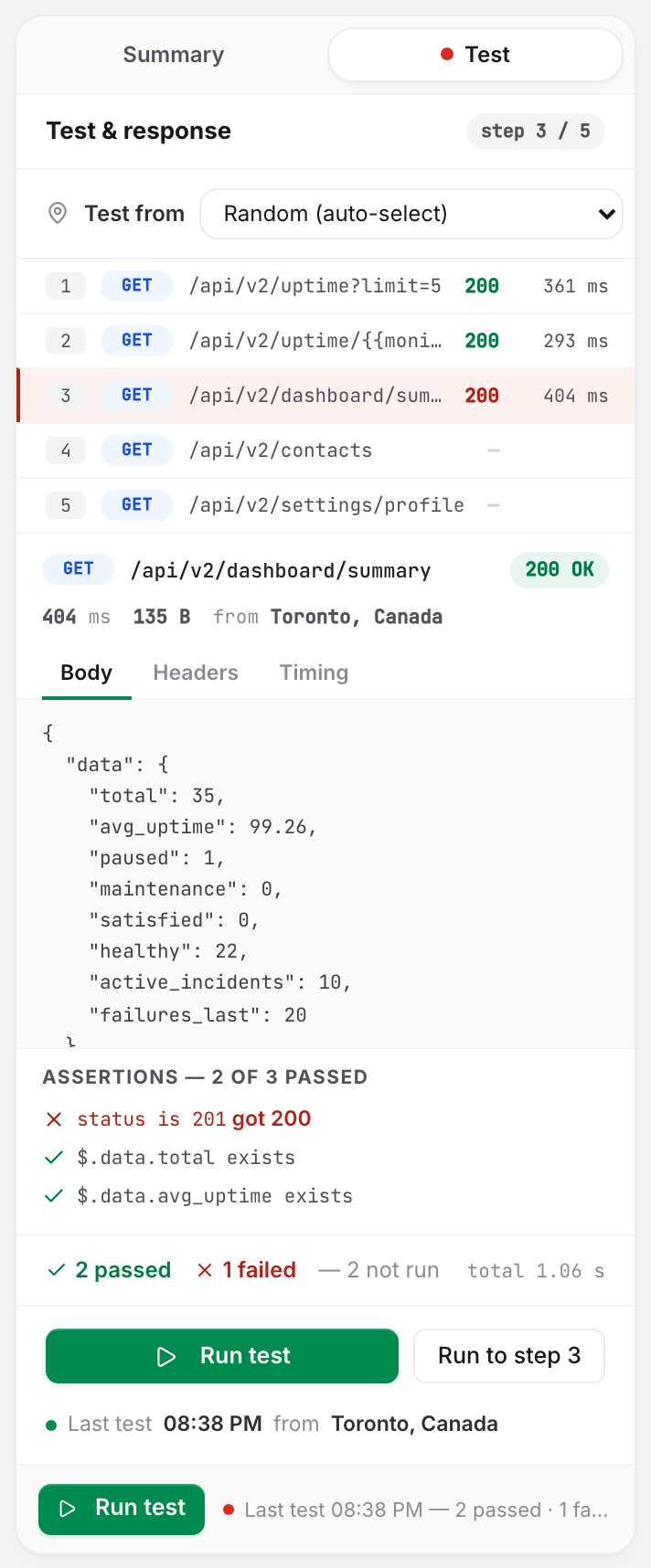
Testing a saved monitor merges your stored secret values back in, so a masked secret works without retyping it. A builder test never counts as a monitored run: it leaves the check schedule alone and can neither open nor close an incident. It does overwrite the last-run detail on the detail page.
Uptimia caps tests at 10 per minute per account. Over that the run is refused with Too many test runs — please wait a moment and try again.
Check Frequency
The Check frequency slider sits in the Notification Settings card at the foot of the Main tab. A new API monitor defaults to every 5 minutes.
Uptimia sends out API checks once a minute, so no plan can check faster than that. Basic, Professional, Enterprise and the trial all floor at 1 minute. Free is clamped further, to 5 minutes. The slider runs up to 24 hours, and its steps get coarser above 60 minutes.
Probe Locations
API monitors use the standard Locations tab: All probes, a Saved profile, or a Custom selection. A custom selection needs at least 6 probes. Saved profiles are live templates: editing one rewrites every monitor still on its previous probe set. See Location Profiles.
An account in the EU region gets the European probe set pre-selected on creation. A dismissible banner reads "Defaulted to European probes based on your account region — switch to 'All probes' any time."
Each scheduled run uses one probe, rotating through the selected set, so coverage spreads across runs rather than multiplying them.
Outage Confirmation and Alerting
Outage confirmation lives on the Advanced tab and counts differently here than on most monitor types: it is primary-inclusive, so the number you pick includes the location that failed first. The option labels say so: 3 checks total — primary + 2 other locations (recommended). A new API monitor is created at 3. The range is 1–3. At 1, 1 check — the first failed run alerts.
When a run fails, Uptimia re-runs the whole chain from other locations until the threshold is met, and the confirming runs need not fail on the same step: any failing step counts as agreement. If a confirming location passes, no incident opens. Closing is quicker: one passing run closes the incident, with no confirmation round.
Alert delay holds the alert for 0–30 minutes after confirmation. Alert when the website comes back up controls the recovery alert and is on by default.
At least one recipient is required. The editor blocks the save with "At least one alert recipient is required". An explicitly empty list sent to the API is refused with invalid_contacts ("No contacts provided"). On Professional and above, attaching an escalation policy switches the monitor to Escalate over time, and the people paged then come from the policy rather than from this list. The monitor's own list stays required as the fallback.
Reading the Detail Page
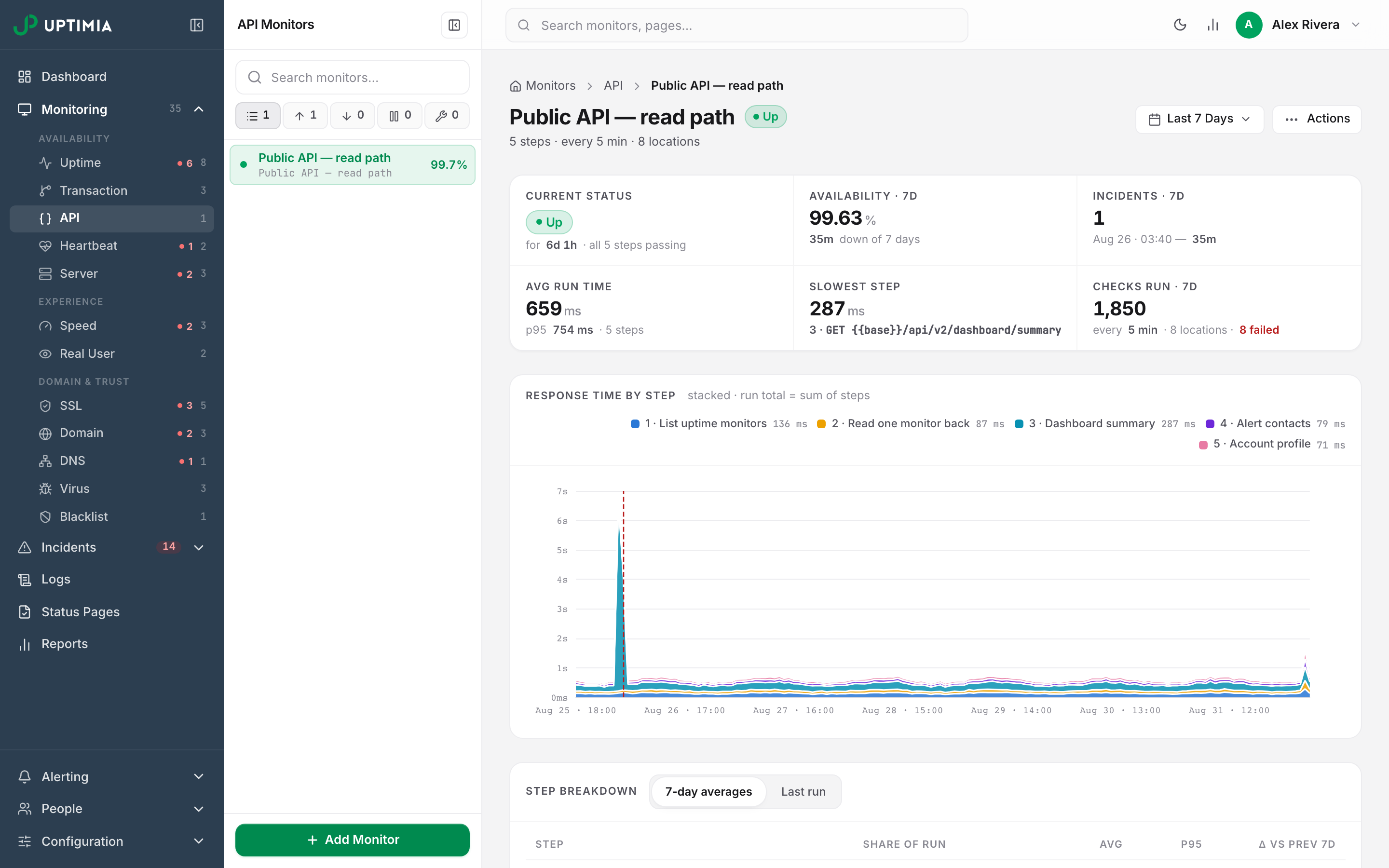
The detail page is a stack of cards under a header. The header shows the step count, the interval, the location count, and the first step's host when that step's URL starts with a literal http:// or https:// host rather than a {{variable}}. The date-range picker at the top scopes every card below it.
- The six-stat strip: Current status, Availability, Incidents, Avg run time (with p95, the time 95 runs in 100 stayed under), Slowest step, Checks run. A monitor that has never run shows a neutral Pending pill and
no data yet, not a premature Up. - Response time by step is a stacked area chart, one band per step. Buckets are hourly up to a 7-day window and coarser above it. The run total is the sum of the bands, and incident markers sit on the axis.
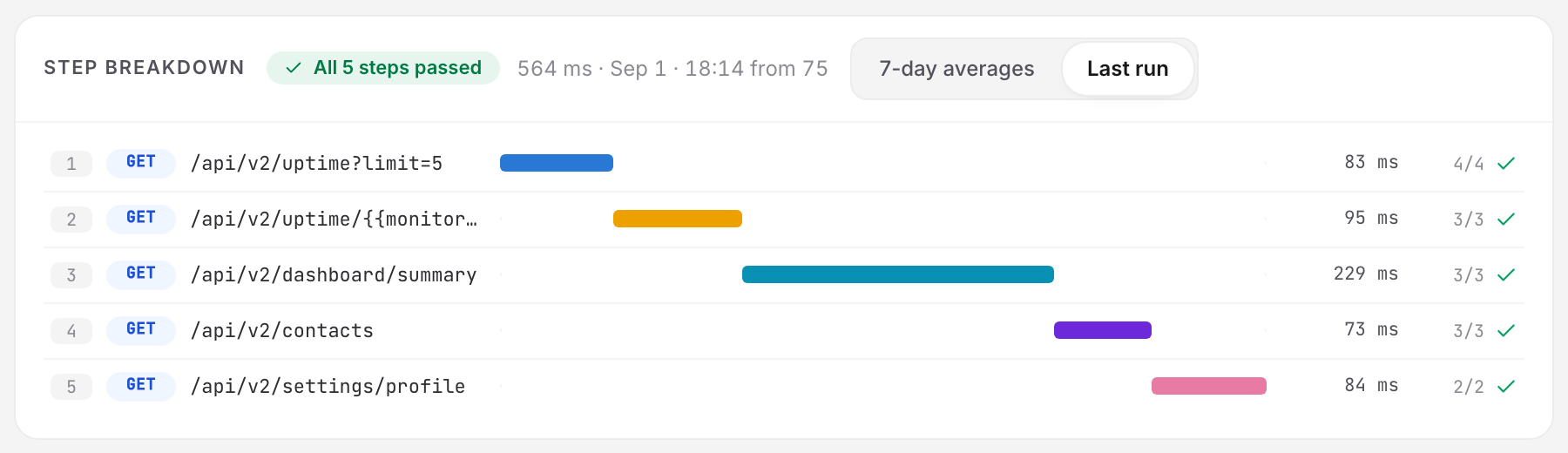
- Step breakdown has a segmented control with two modes. N-day averages show share of run, average, p95 and change against the previous equal window. Last run is a bar chart showing when each step started, how long it took in milliseconds and how many assertions it ran.
- Incidents lists the newest 8, each linking to its incident page.
- Check log lists the latest 10 runs in range, newest first: when, result, steps passed of total, probe location and duration.
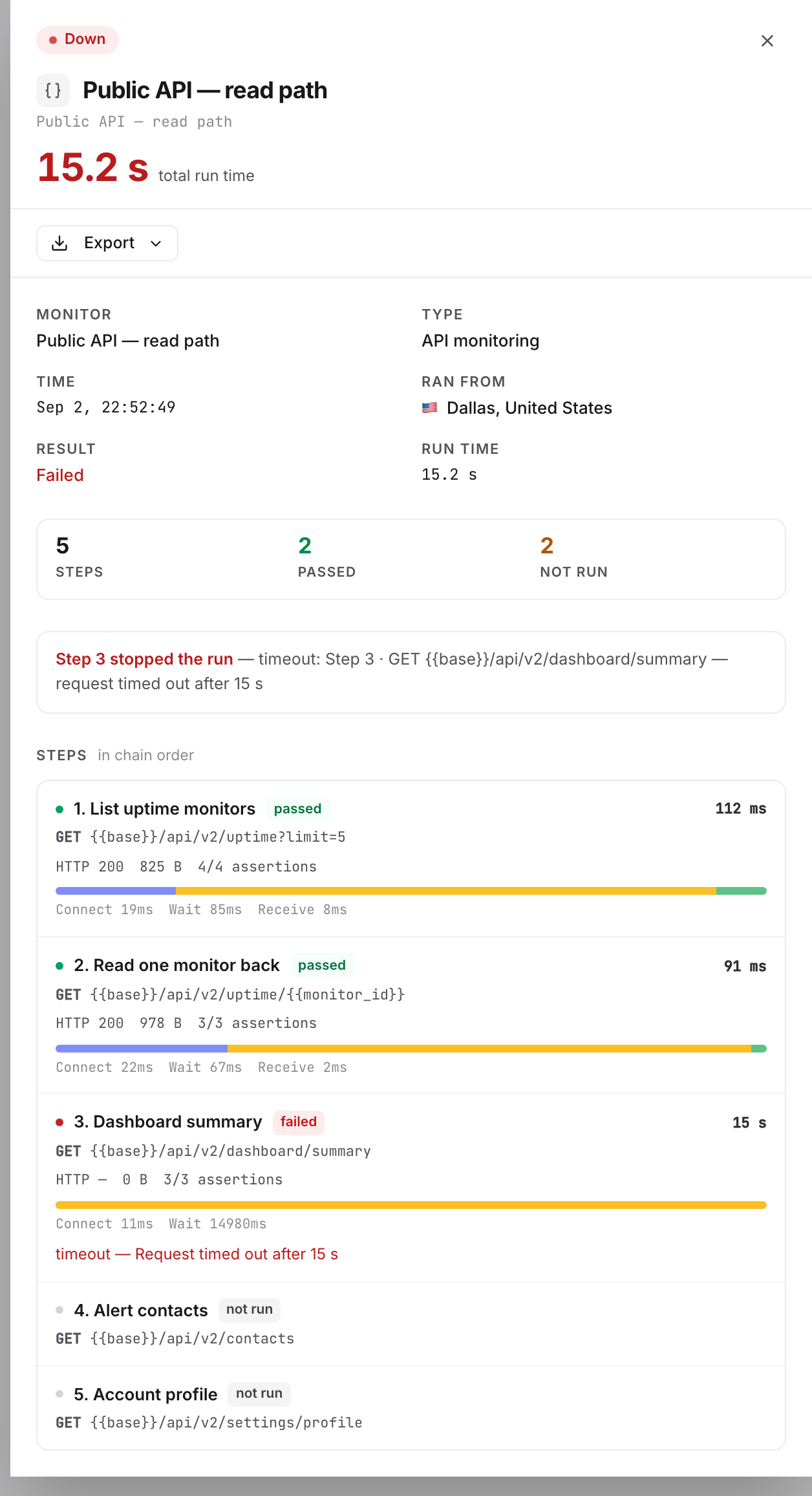
Click a check-log row to open the run drawer. It carries the run facts, a Steps / Passed / Not run counter strip, the failing-step banner, and one card per step, each showing status, status code, response size, assertion tally and error text. A phase bar splits the step's milliseconds across DNS, Connect, TLS, Wait and Receive.
Phases that measured no time are left out, so a step on a reused connection often shows only Connect, Wait and Receive. On a redirected step the phases sum to less than the step total, because they describe the final hop while the total is wall clock.
The full history across every monitor is at Logs in the sidebar. View all logs in the footer of the Check log card pre-filters that page to this monitor. See Monitoring Logs.
What a Failed Run Tells You
An incident names the failing step and what came back: Step 4 · POST /orders/{{order_id}}/notes — expected status 201, got 500. Uptimia redacts secret values before it stores the reason, so a credential never reaches an alert, an export or the log.
| Error code | What it means | What to do |
|---|---|---|
assertion_failed |
The step got a response, and an assertion disagreed with it | Open the run drawer for the expected and received values |
step_timeout |
No response inside the step's timeout | Raise the step's Timeout, or investigate the endpoint |
connection_failed |
The probe could not open a connection | Check the host is reachable from the public internet |
dns_failed |
The hostname did not resolve | Check the record and its authoritative servers |
ssl_failed |
The TLS handshake failed | Check the certificate chain and the protocol versions offered |
too_many_redirects |
More than 5 hops | Fix the redirect loop, or turn Follow redirects off for that step |
undefined_variable |
A {{placeholder}} had no value at run time |
An earlier extraction did not produce it, often an optional step that failed |
extract_failed |
The step passed but a value could not be extracted | Check the JSONPath, header name or pattern against the real response |
blocked_url |
The target resolved to a private, reserved or loopback address | Point the step at a publicly reachable host |
body_truncated |
The response passed 1 MB and was cut before assertions ran; the step still passes | Narrow the response, or assert on a smaller endpoint |
run_budget_exceeded |
The chain passed 90 seconds | Shorten the chain, or lower the per-step timeouts |
probe_error |
The probe could not complete the request | Re-run the builder test from another location, then contact support |
When no probe can run the chain, Uptimia records nothing and opens no incident: the failure belongs to Uptimia's side. The check log shows a gap instead of a false alert.
Limits and Plan Availability
| Check type | Free | Basic | Professional | Enterprise | Trial |
|---|---|---|---|---|---|
| API monitors | 1 | 1 | 10 | 100 | 50 |
Uptimia checks the pool when you create a monitor, and again whenever the plan changes. A downgrade deletes nothing. API monitors over the new limit are suspended, the oldest kept and the newest stopped. The plan-change screen names them and asks you to confirm first. A suspended monitor is not checked at all until you upgrade, and upgrading reactivates monitors oldest-first up to the new limit. Accounts on the older pricing era keep their higher API allowance. See Changing Your Plan.
Per-monitor caps are the same on every plan:
| Cap | Value |
|---|---|
| Steps per monitor | 15 |
| Headers per step | 20 |
| Assertions per step | 15 |
| Extractions per step | 10 |
| Monitor variables | 30 |
| Variable value length | 4,096 characters |
| Builder test runs | 10 per minute per account |
Editing, Reusing and Deleting
Editing works the same as creating, with the type locked. Uptimia saves the monitor and all its steps together, so a save that fails leaves nothing half-changed.
To reuse a chain, open the actions menu on the monitor's detail page and choose Save as Template. See Monitor Templates. There is no copy or duplicate action, and API monitors are excluded from bulk creation.
Warning: deleting an API monitor removes its run history and its incidents, and cannot be undone.
Three surfaces do not carry API monitors yet. You cannot add one to a status page, scheduled reports leave them out, and they cannot be managed through the older /api/v1 version of the API. The REST API serves them under /api/v2/api-monitor. They do appear in maintenance windows, monitor groups, the account-wide log page and the audit log.