
Every plan change in Uptimia runs through one checkout page, and the direction decides what that page does with your money. An upgrade applies now and credits the days you already paid for; a downgrade is scheduled for your renewal date and changes nothing until then. A cancellation keeps the account fully alive until the paid period ends, and can be undone up to that moment. See Billing and Subscription for the Subscription and Billing pages themselves.
Before You Start
- Only the account Owner and an Accounting / Billing seat can change the plan and open checkout. Other roles cannot see Plans & Billing at all.
- Open the avatar menu (top right) → Plans & Billing. That lands on Plans, the first of four tabs.
Preview Before You Pay
Every plan card on the Plans tab leads to the same checkout page. The card's button names the change:
- Upgrade to Professional
- Downgrade to Basic
- Switch to yearly · save …
- Switch to monthly billing
- Order plan, if you are on Free or still in the trial
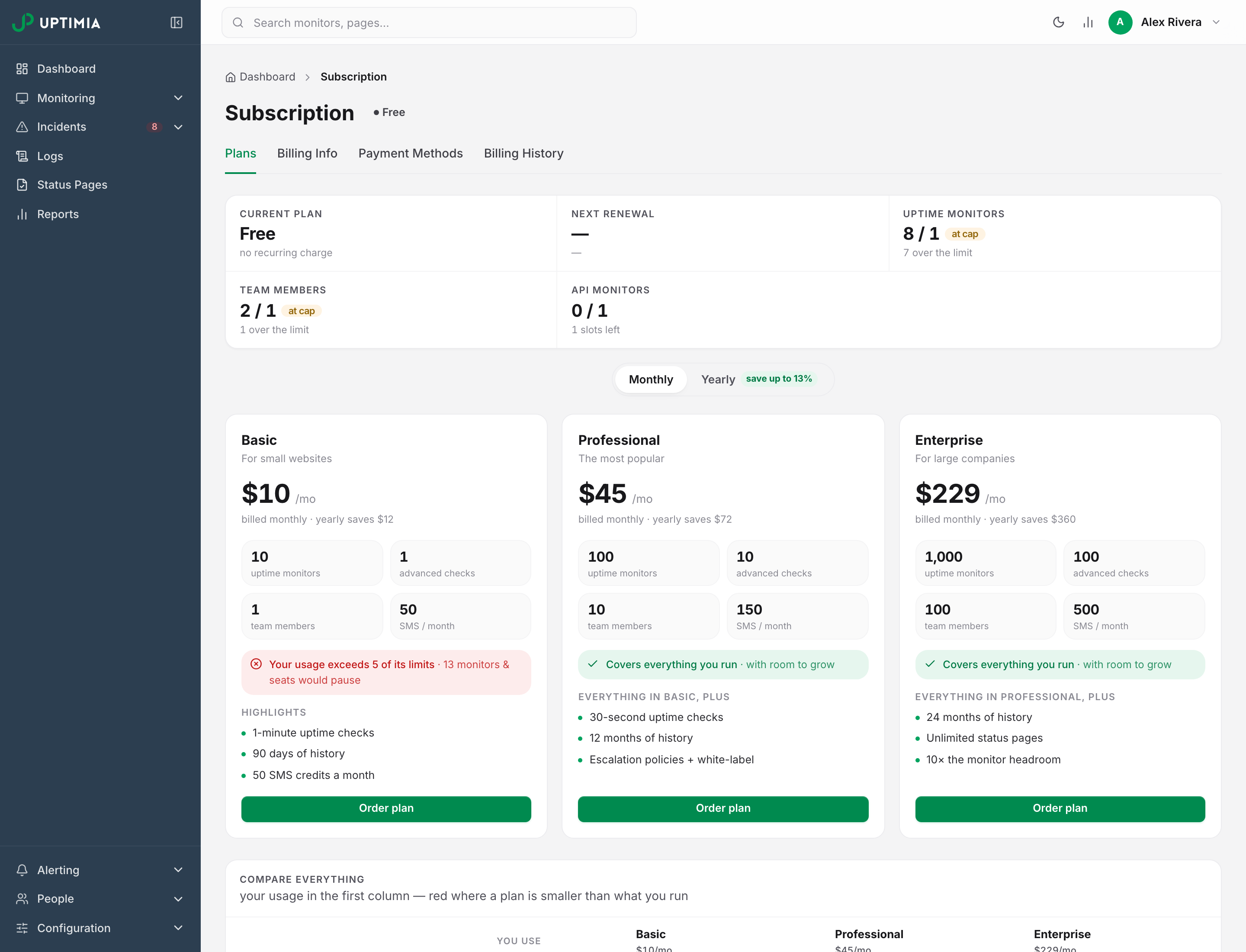
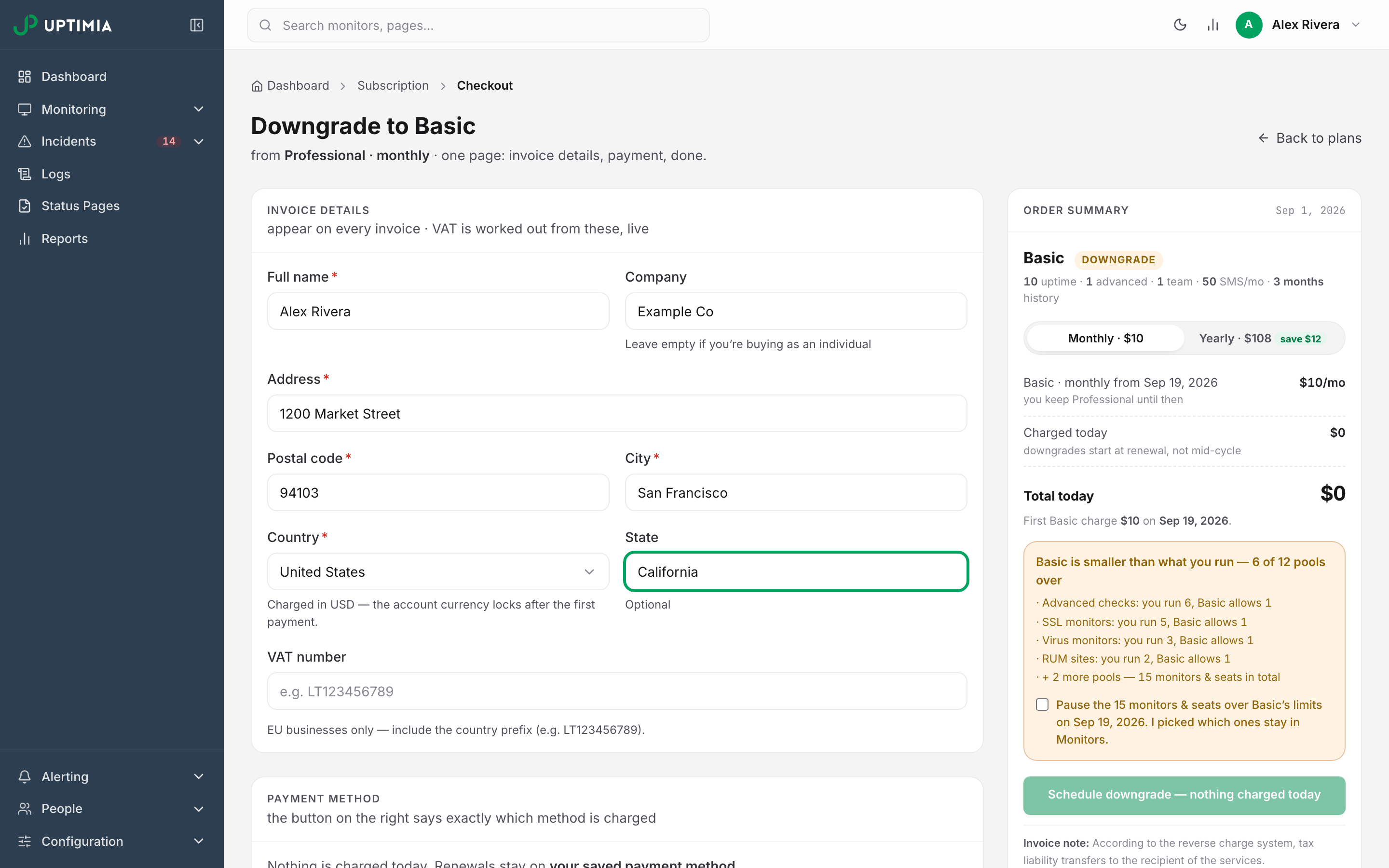
Checkout is one page. Invoice details and Payment method sit on the left, Order summary on the right. A chip there names the change Uptimia derived: Upgrade, Downgrade, Billing-cycle change, New plan or No change.
This page commits nothing. The summary re-prices itself live as you edit the invoice fields. Change your country or enter a valid EU VAT number and the VAT line moves at once.
Nothing is charged until you press the confirm button. That button always names the outcome. It reads Pay … now when money moves today, and when no money moves it reads Schedule downgrade — nothing charged today or Confirm switch — nothing charged today.
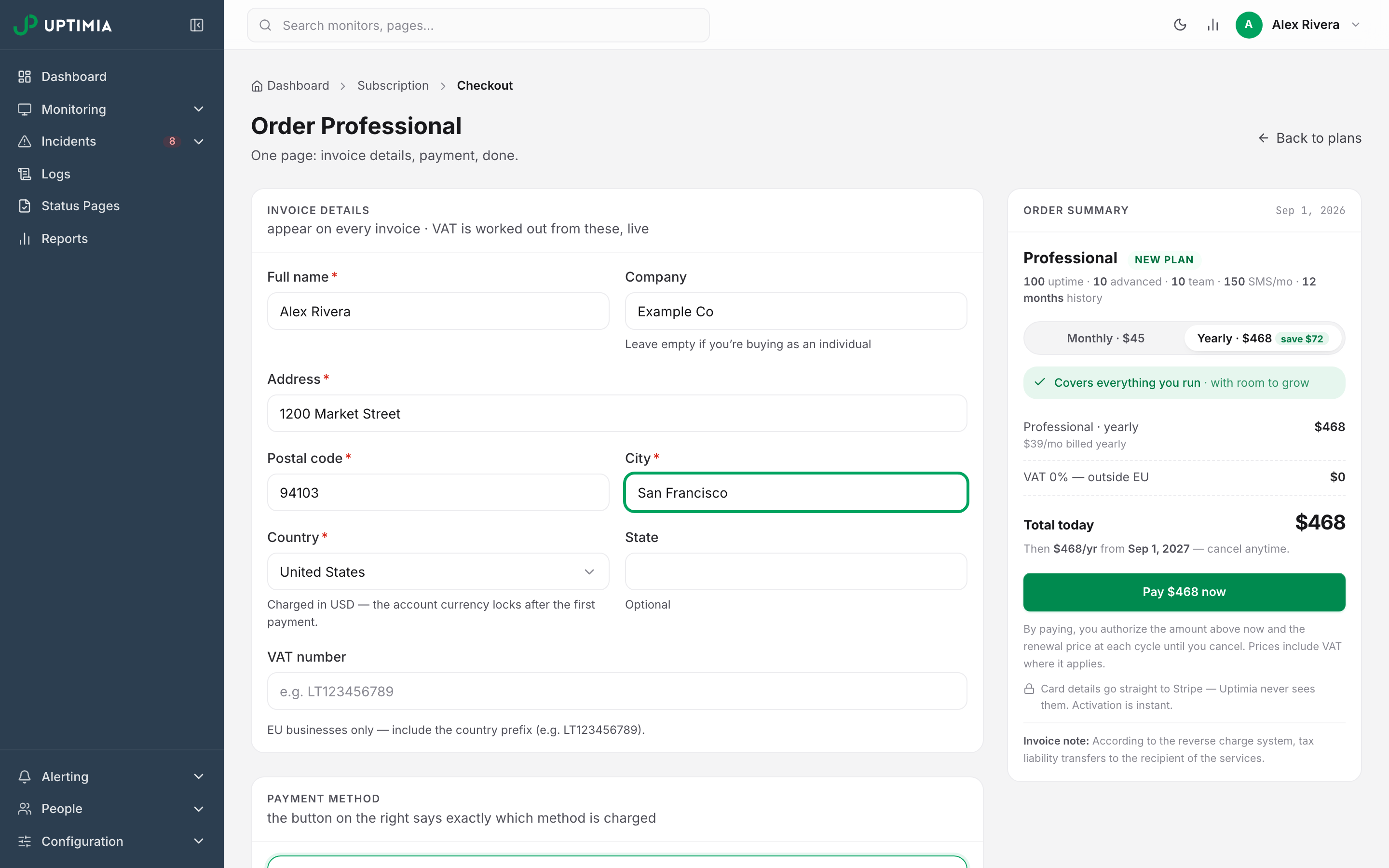
If the invoice fields are incomplete the button stays disabled: Fill in the required invoice details first — name, country, address, postal code, city.
Upgrading: Your Unused Time Comes Off Today's Charge
An upgrade applies immediately. The higher limits are live within a minute, and monitors a downgrade previously suspended come back automatically.
Uptimia charges the new plan's price minus a credit for the days left on the cycle you already paid for, computed as what you paid for the current cycle times the fraction of it still to run. The summary gives the credit its own row: Credit — 12 unused Basic days, of the cycle you already paid. That row feeds Total today.
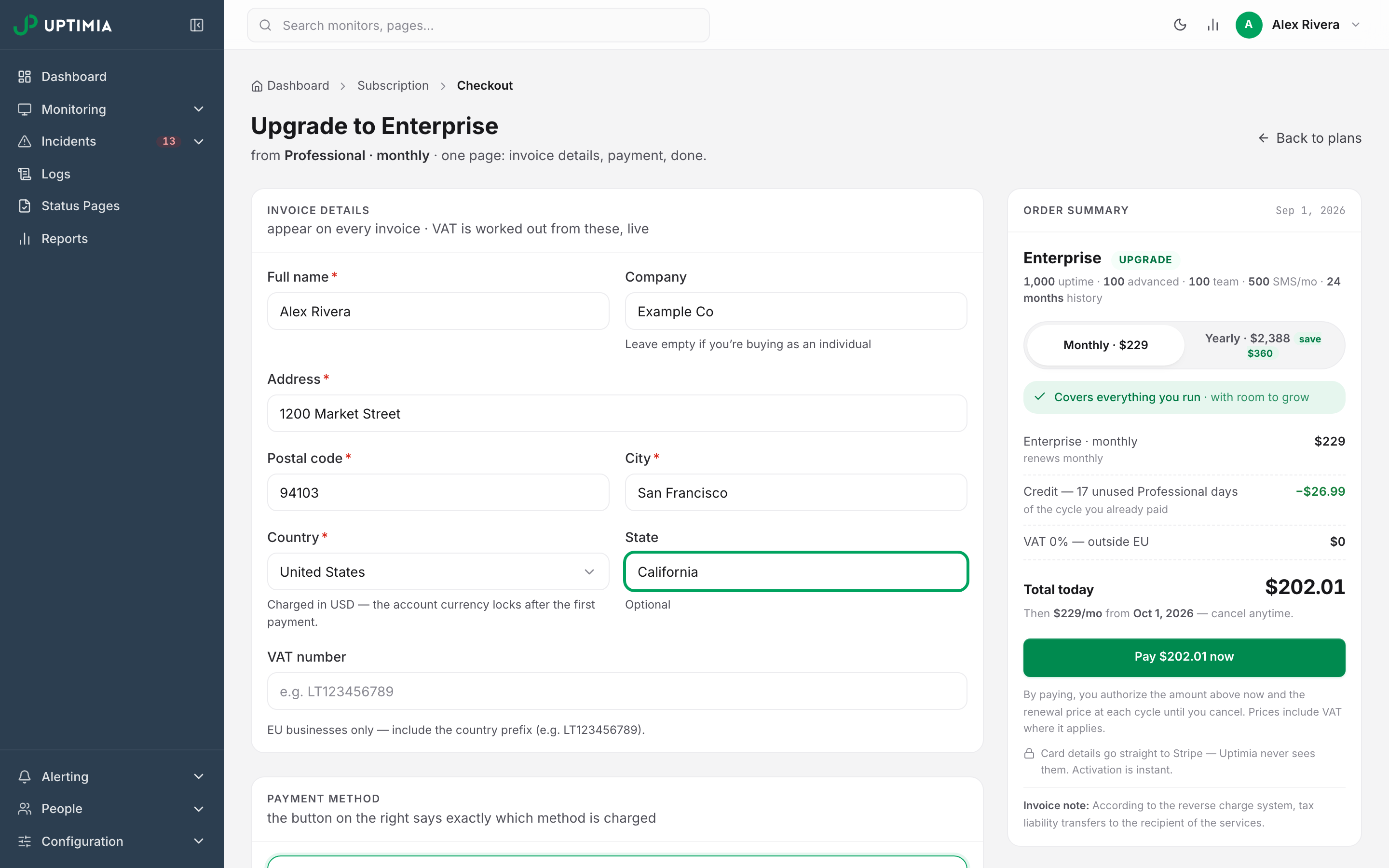
A credit appears only when all three of these hold:
| Condition | What happens otherwise |
|---|---|
| You are paying by card (Stripe) | PayPal upgrades charge full price. The page says The unused-days credit applies when paying by card. |
| The current cycle was paid and has not lapsed | No credit: money that was never charged cannot be credited back |
| No cycle switch is already pending | No credit: a pending switch has already moved the cycle to a future, unbilled one |
The credit can exceed the new plan's price, as when you upgrade from yearly to a higher monthly plan. Then nothing is charged today. The button reads Confirm upgrade — … today, covered by credit, and the remainder reduces your next renewal.
Uptimia shows a receipt page after a successful upgrade. It carries:
- the order reference, the amount and the payment method
- Invoice PDF
- a Breakdown row spelling out price − credit (N unused days)
- a What changed row of limit chips
Uptimia emails a copy to you and to any Accounting / Billing seat.
Why Your Renewal Still Bills the Full Plan Price
The credit is a one-time balance on the first invoice of the new subscription. Uptimia prices that subscription at the plan's full list price, so every renewal after the first bills the full amount for the plan and cycle you chose.
This is the most common surprise on the next invoice: a reduced amount to upgrade, then the full plan price a month later. The reduced first charge was the credit, not a new rate. For the invoice lines themselves, see Understanding Your Bill.
Downgrading Is Scheduled for Your Renewal Date, Not Applied Now
On a live card subscription, Uptimia schedules a downgrade for your renewal date and charges nothing today. Until then you keep the plan you are on, at the price you are on, with every monitor running.
The summary rows spell it out. One reads Basic · monthly from Sep 19, 2026, you keep Professional until then. A Charged today row shows zero, downgrades start at renewal, not mid-cycle, and the confirm button reads Schedule downgrade — nothing charged today.
Once scheduled:
- The Plans tab carries a banner: Downgrade to Basic scheduled for Sep 19, 2026 — nothing changes until then.
- You get an email titled Your scheduled plan change, which repeats the date and the undo option.
- Scheduling again overwrites the previous target. The last change you schedule is the one that applies.
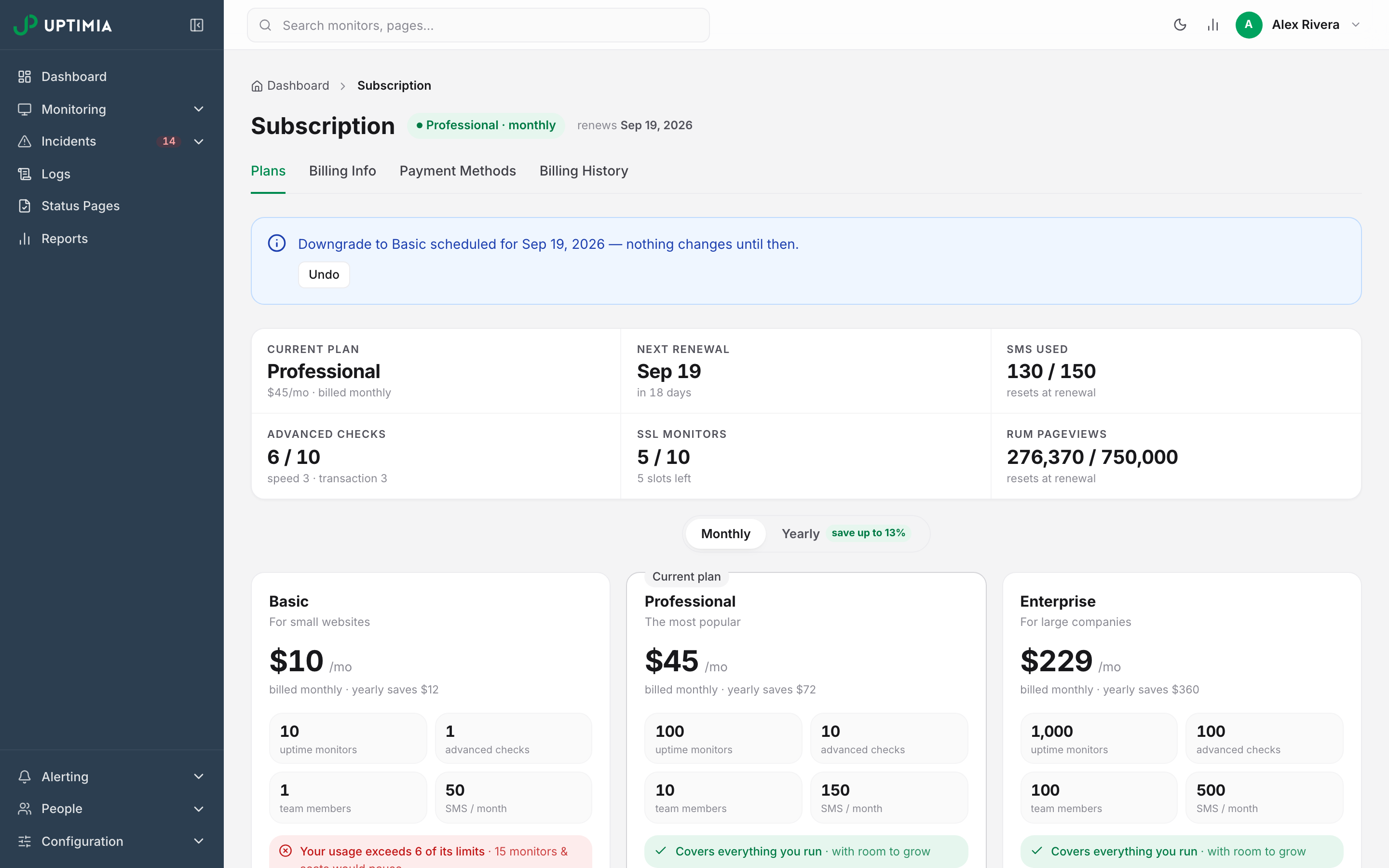
Uptimia applies the change within an hour of your renewal time, not at the exact second.
An upgrade supersedes a pending downgrade: upgrade before the renewal date and the scheduled change is cleared.
When the Smaller Plan Doesn't Fit: The Over-Limit Acknowledgment
The new plan may be smaller than what you currently run. Checkout then blocks the change until you tick a box saying which monitors you accept will stop.
An amber panel appears in the order summary, headed Basic is smaller than what you run — 3 of 12 pools over, with one line under it for each pool, such as · Uptime monitors: you run 94, Basic allows 10. Beyond four pools, the panel collapses to a total. The checkbox reads: Pause the 148 monitors & seats over Basic's limits on Sep 19, 2026. I picked which ones stay in Monitors. The confirm button stays disabled until you tick it, and on a card subscription this check cannot be skipped.
Checkout compares twelve pools:
| Pool as checkout labels it | Covers |
|---|---|
| Uptime monitors | Uptime |
| Advanced checks | Speed and Transaction, one shared allowance |
| SSL monitors | SSL |
| Domain monitors | Domain |
| Virus monitors | Virus |
| RUM sites | Real User |
| Server monitors | Server |
| Heartbeat monitors | Heartbeat |
| Blacklist monitors | Blacklist |
| DNS monitors | DNS |
| API monitors | API |
| Team members | Seats, excluding the free Accounting / Billing seat |
Checkout leaves SMS credits and RUM pageviews out: both reset every cycle, so neither can strand a monitor. The per-plan figures live in Plan Limits and Quotas.
Which monitors survive. In each over-limit pool Uptimia keeps the oldest monitors and suspends the newest ones beyond the limit. The acknowledgment does not open a picker, so your only lever is the monitor list itself: if a different set should survive, delete the others before the renewal date.
What Suspension Looks Like on a Monitor
A plan-suspended monitor carries a gray Suspended badge on its detail page, and the dashboard gains a Suspended filter chip counting them. Uptimia stops checking it, so nothing new appears in its check log and no incidents or alerts follow. Suspended monitors are also left out of the fleet availability average.
Nothing is deleted: configuration, contact selections and history all stay. Upgrading reactivates plan-suspended monitors automatically, oldest first, up to the new limit, and it never touches a monitor you paused by hand. For the other reasons a monitor goes quiet, see Why a Monitor Stopped Checking.
When the downgrade applies, Uptimia emails the account a list of every suspended monitor by family, under the subject ACTION REQUIRED | Uptimia.com — your new plan no longer covers all monitors.
Switching Between Monthly and Yearly Billing
A cycle switch keeps your plan and changes only the renewal price. Nothing is charged today. The summary carries a Charged today row of zero, your paid month runs to its end first, and the button reads Confirm switch — nothing charged today. The toast names the price and the date it first applies. Your renewal date stays where it is, so the switch takes effect on the date you already had.
Cycle switches are not available on PayPal: the checkout button reads Not available for PayPal subscriptions.
Undoing a Scheduled Downgrade or Cycle Switch
Both scheduled changes are undoable up to the moment they apply: on the Plans tab, press Undo in the banner, and the toast confirms Scheduled change cancelled — your plan continues unchanged. Your next renewal then bills the plan you are on. Once a renewal has applied the change, the way back is a new upgrade.
Canceling: Access Runs to the End of Your Paid Period
Canceling does not stop your monitors today. You keep full access until the end of the period you have already paid for.
The control is at the bottom of the How plan changes work card on the Plans tab: Prefer to stop? Cancel subscription. The modal is titled Cancel Subscription, states the date, and its confirm button is Cancel at period end.
A banner then sits at the top of the page: Cancellation scheduled, Subscription ends on Sep 19, 2026. Your monitors stay active until then. A Reactivate subscription button appears beside it. Uptimia also emails a cancellation confirmation carrying the same date and a resume link.
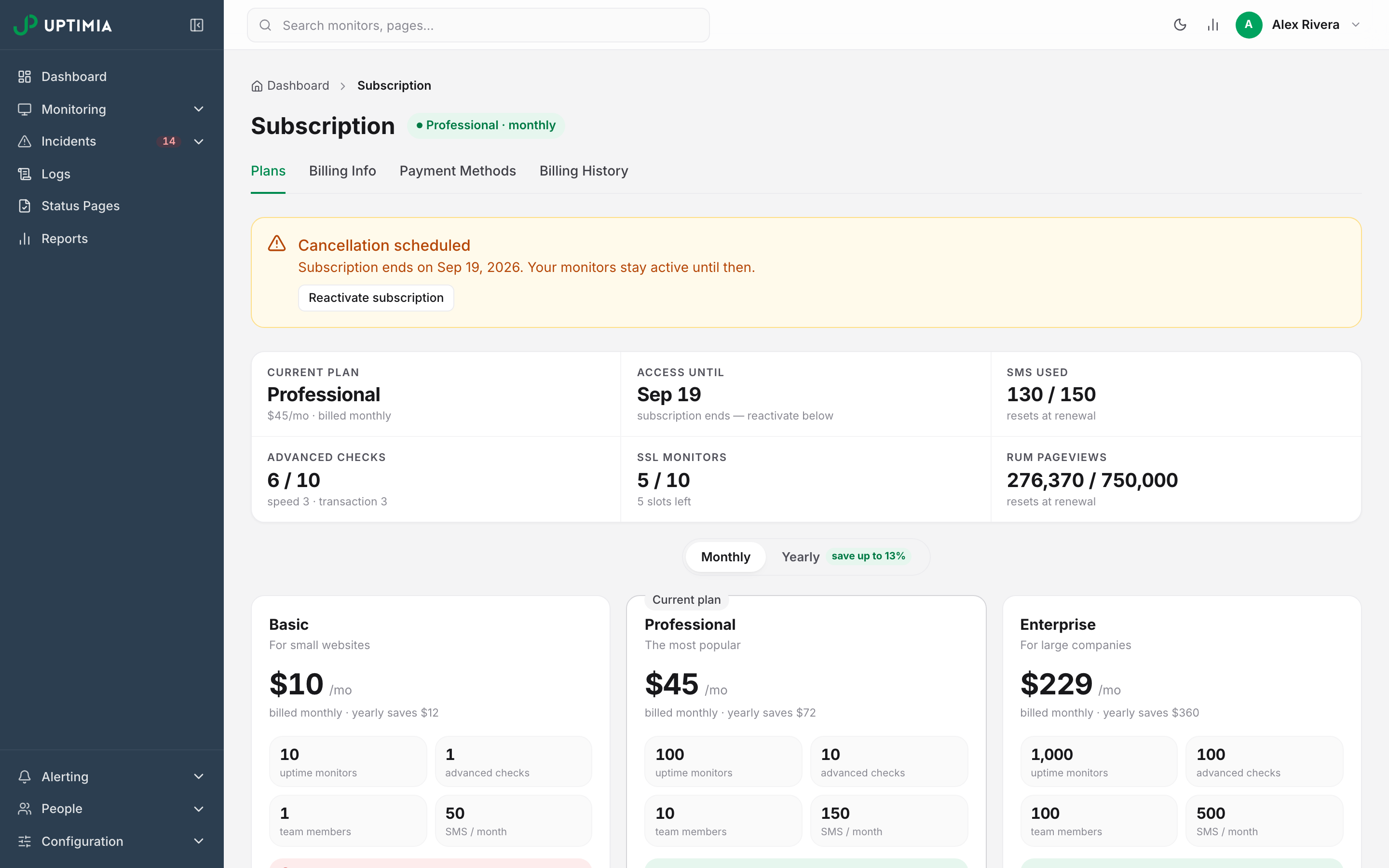
Reactivate subscription opens a modal confirming there is no immediate charge; the toast reads Subscription reactivated. Your plan will renew as normal. Everything stays exactly as it was.
What Happens at Period End If You Don't Reactivate
Once the paid period has elapsed, Uptimia finalizes the cancellation automatically: your account moves to Free, the pools drop to Free's limits, and every monitor beyond them is suspended the way a downgrade suspends monitors. Nothing is deleted, and a later upgrade brings them back. The Free row is in Plan Limits and Quotas.
Canceling ends the billing and leaves the account standing: your data, monitors and invoices stay. Removing the account and its data is a separate, irreversible action that cancels the subscription for you. See Deleting Your Account.
None of this applies to the trial, which has its own ending. See When Your Trial Ends.
Paying with PayPal: What Works Differently
PayPal cannot hold a credit balance for you, so on PayPal Uptimia can neither give you a credit nor delay a change until your renewal date.
| Change | On a card (Stripe) | On PayPal |
|---|---|---|
| Upgrade | Applies now, charged price minus your unused-time credit | Applies now, charged full price, fresh cycle starts |
| Downgrade | Scheduled for your renewal date, nothing charged today | Applies immediately, charged full price today, no credit for unused days |
| Monthly ↔ yearly switch | Scheduled for your renewal date | Not available |
| Cancellation | Reversible with Reactivate subscription until the period ends | Not reversible from the control panel |
You approve a PayPal change in a PayPal window rather than with a button in Uptimia. The amount stays exactly as the summary shows it.
A PayPal downgrade applies the moment you approve it in PayPal: the smaller plan and its price start at once, and a fresh billing cycle begins.
Uptimia leaves your over-limit monitors running on a PayPal plan change, though the smaller plan's limits still apply to anything you add from then on. Delete what you no longer need before you approve.
Warning: canceling a PayPal subscription cannot be undone from the control panel. Your paid period still runs to its end, but no cancellation banner and no Reactivate subscription button appear. To continue, order the plan again through checkout before the period lapses.
Card Authentication (3-D Secure) and Changes That Didn't Stick
Some cards require 3-D Secure authentication. Checkout opens your bank's challenge, and only an explicitly successful result changes the plan: if you close the challenge or it fails, the page stays open and says Payment was not completed. Your plan has not been changed. Nothing was charged.
One message deserves care: Payment may have completed — verifying… please try again in a moment. It means the card was authorized but the final confirmation step did not return. Press the same button again. The retry finishes the payment that already happened; it does not start a second one and cannot double-charge you. Do not reload and pick the plan again from scratch.
Two other errors you may see at the button:
- Your usage now exceeds Basic's limits — confirm the over-limit monitors will be paused, then try again. Your monitor count grew between opening checkout and pressing the button. The acknowledgment panel appears; tick it and retry.
- Too many attempts — please wait a moment and try again. Uptimia limits how many payment attempts one account can make in a short time. Wait, then retry.
A charge may appear on your statement while the plan on the Plans tab has not moved. Check Billing History first: the invoice for a completed change is there within seconds. If it is missing, contact support with the date, the amount and the plan you were buying.