
Every new Uptimia account starts on a 30-day trial ranked as the top plan. Every plan-gated feature is switched on, and checks run at the fastest cadence. When the trial expires, the account moves to the Free plan, which keeps 1 uptime monitor checking every 5 minutes, and Uptimia suspends everything above the Free limit for each family. Nothing is deleted. Upgrading switches the stopped monitors back on.
What the 30-Day Trial Includes
The trial runs for 30 days from the day you sign up. If day 30 lands on a weekend, or on 24-26 December or 1 January, the trial runs on to the next working day, which makes the longest possible trial 35 days. It costs nothing and takes no card. The countdown in your account carries the exact date.
Wherever a feature is limited by plan, the trial counts as the highest plan Uptimia sells. Escalation policies, incident grouping, alert acknowledgment, branded scheduled reports and branded alert emails are all Professional-and-up capabilities, and the trial clears every one of them. Check frequency works the same way: the trial gets the 30-second tier.
The trial's quantities are a separate ladder, counted per family: 500 uptime monitors, and 50 of each other monitor type. There is no single shared pool of 500.
| Pool | Trial | Free |
|---|---|---|
| Uptime monitors | 500 | 1 |
| Advanced checks (Speed and Transaction share one pool) | 50 | 0 |
| API monitors | 50 | 1 |
| SSL monitors | 50 | 0 |
| Domain monitors | 50 | 0 |
| DNS zones | 50 | 0 |
| Blacklist monitors | 50 | 0 |
| Virus monitors | 50 | 0 |
| Heartbeat monitors | 50 | 0 |
| Server monitors | 50 | 0 |
| Real User websites | 50 | 0 |
| RUM pageviews per month | 500,000 | 0 |
| Team seats | 50 | 1 |
| Status pages | 10 | 1 |
| SMS credits | 20, granted once at signup | 0 |
| Readable monitoring history | 30 days | 7 days |
| Fastest uptime check | 30 seconds | 5 minutes |
Trial SMS credits are a one-time grant; the monthly refill starts only on a paid plan. A 0 means the type cannot be created on Free. The full ladder for every plan is in Plan Limits and Quotas.
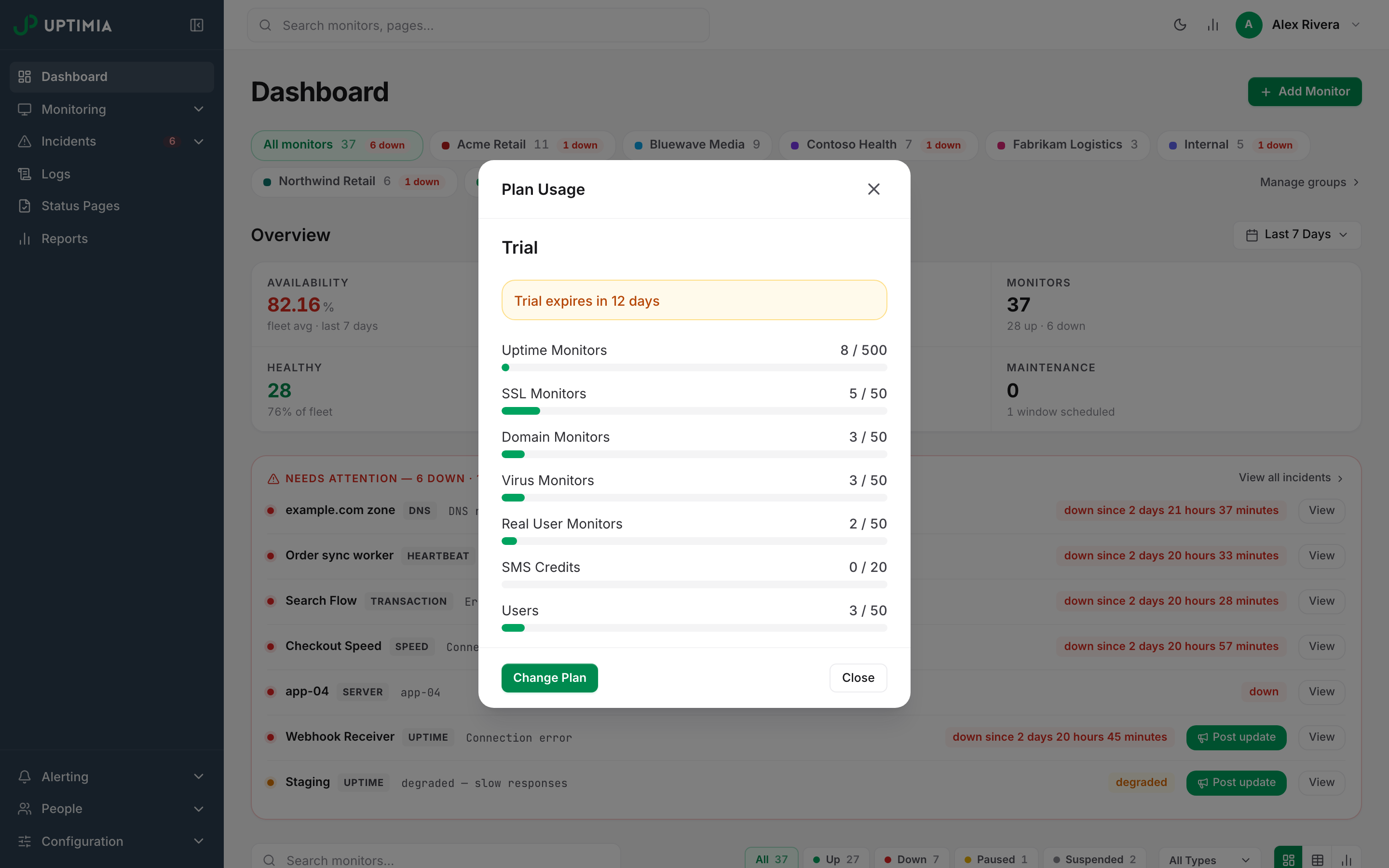
To see how much of the trial you are using, click the bar-chart Usage button in the top bar, next to the light/dark toggle. Plan Usage carries a Trial expires in N days banner. Below it sit bars showing how much of each limit you have used, for seven pools: Uptime Monitors, SSL Monitors, Domain Monitors, Virus Monitors, Real User Monitors, SMS Credits and Users. The modal stops there. For the other pools, see Plan Limits and Quotas. The avatar menu shows the same countdown as Trial · N days left.
The Day the Trial Ends
Uptimia looks for expired trials every 10 minutes, so the change lands within minutes of the 30-day mark. In one pass, Uptimia:
- Moves the account to the Free plan and sets the SMS credit balance to 0.
- Suspends every monitor above the Free limit for its family.
- Emails the account owner.
- Rewrites any uptime monitor checking faster than 5 minutes to 5 minutes, and any Speed monitor checking faster than 10 minutes to 10 minutes.
Only monitors change. Team seats and status pages you created during the trial keep working; you just cannot add another one until you upgrade. Adding a second team member on Free returns "You exceeded the maximum number of users. Please upgrade your plan to create more users."
Which Monitors Stop, and Which Keep Running
Uptimia keeps the oldest monitors in each family and suspends the rest. On Free that means your first uptime monitor and your first API monitor keep checking, and everything else in every family stops.
A suspended monitor keeps its configuration, its alert recipients, its locations and its history; Uptimia only flags it Suspended and takes it out of the check queue. Nothing is deleted. The dashboard and the monitor's own page both show Suspended rather than Paused, so you can tell a plan-driven stop from one you triggered yourself.
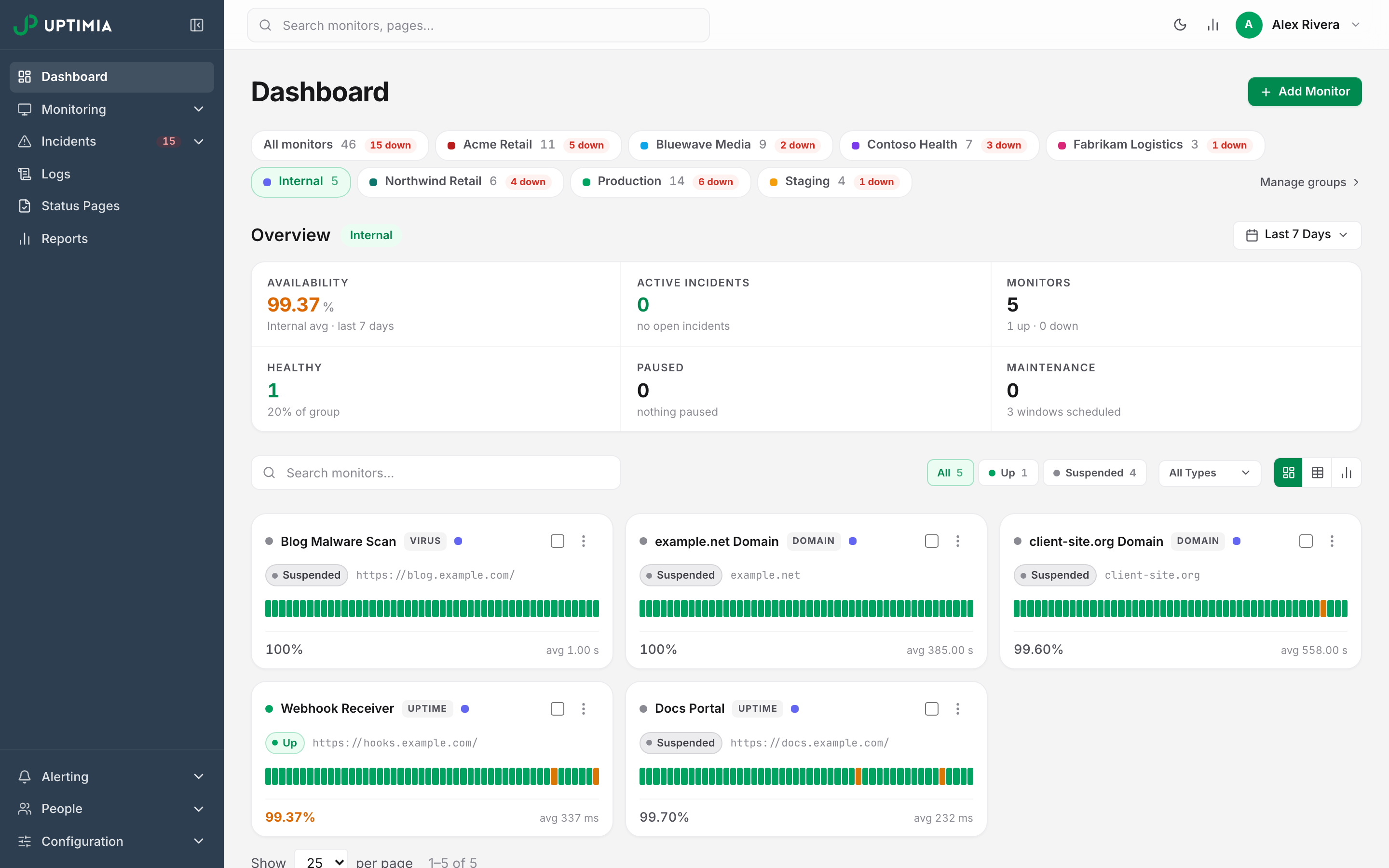
Uptimia tracks a monitor you paused yourself separately, so an upgrade clears suspensions only and leaves paused monitors paused.
Check Frequency Drops to 5 Minutes
On Free, uptime checks can run no faster than every 5 minutes, so any uptime monitor set faster is reset to 5 minutes (300 seconds) when the trial expires. The frequency slider in the monitor editor stops at 5 minutes on Free.
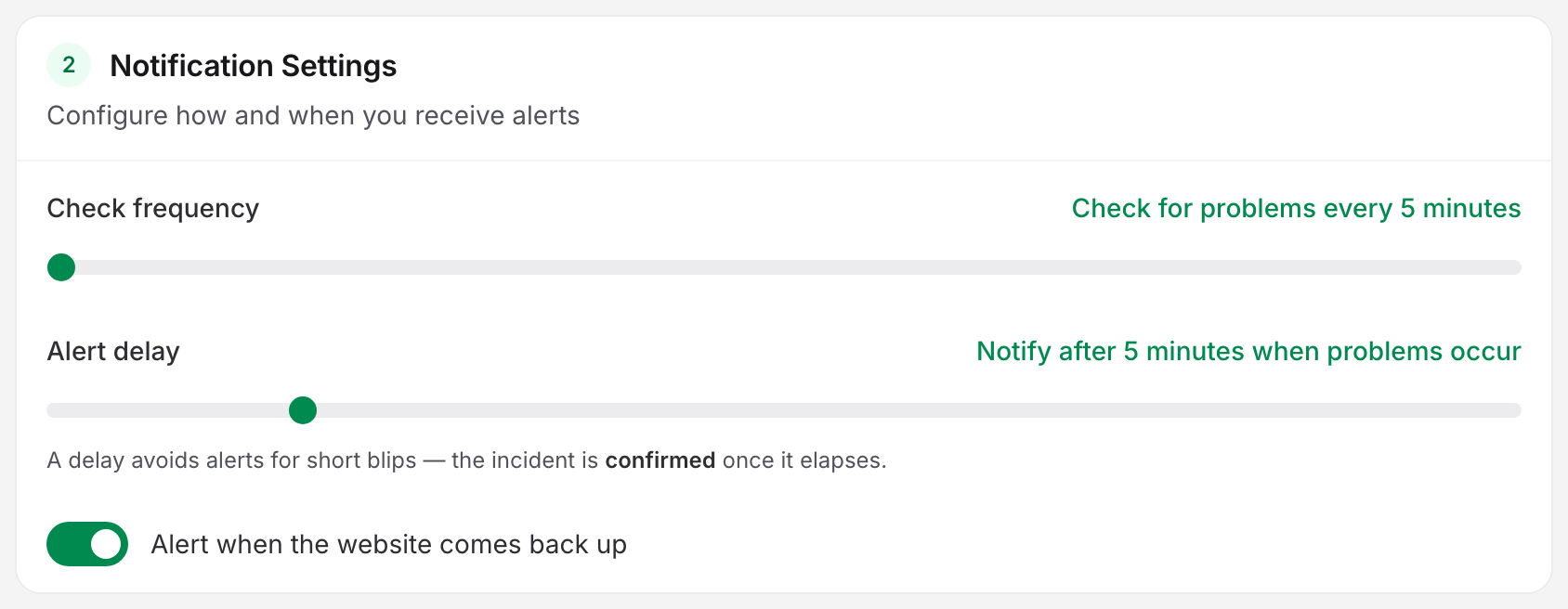
The rewrite sticks. It changes the stored interval, so the monitor stays at 5 minutes; upgrading lifts the floor but does not restore the value you had before. Open each monitor after you upgrade and set the frequency you want.
Your Readable History Drops from 30 Days to 7
Free serves 7 days of monitoring history against the trial's 30. Uptimia trims any request for a longer range back to your plan's window (7 days on Free), so days 8 to 30 stay in storage and stop being served. The rows survive. Upgrading widens the window straight away, including the older days. Data and Log Retention has the window for every plan and the exceptions.
Escalation Policies and Branding Themes Built During the Trial
Escalation policies, incident grouping, alert acknowledgment and branding themes are gated at creation rather than at run time. Anything you built during the trial keeps working on Free:
- An escalation policy attached to a monitor keeps firing its ladder, and stays editable.
- A branding theme keeps rendering on the reports and alert emails already using it.
- Creating a new policy is refused until the account is on Professional or above. The message reads "Escalation policies are available on the Professional plan and above."
See Escalation Policies for the ladder itself.
The Email Uptimia Sends
The message goes to the account owner's address. Uptimia sends it as a service email about the account, with no marketing footer.
If any monitors were stopped, the subject is "ACTION REQUIRED | Uptimia.com trial ended - subscribe to continue monitoring your websites". The body lists every stopped monitor grouped by family: Uptime Monitors, Page Speed Monitors, Transaction Monitors and so on. A Turn my monitors on button opens your plan page.
If nothing needed stopping because you were already inside the Free limits, the subject is "ACTION REQUIRED | Uptimia.com trial ended - subscribe to use Uptimia without restrictions" and the button reads Subscribe now.
Note: The same stopped-monitors email exists for a failed payment, a cancellation and a downgrade, each with its own subject line. If yours does not mention the trial, the cause is one of those instead. See Changing Your Plan.
Upgrading Before or After the Trial Ends
You can upgrade at any point (day 12, day 30, or three months into Free), and Uptimia puts the account right the same way.
- Open the avatar menu (top right) and click Plans & Billing. The entry appears for the account owner and Accounting / Billing seats only. A Billing seat reaches the same page from its Plans sidebar row. Admins, Editors and Read-only members have no route to billing and need the owner to do this.
- Pick the plan and billing cycle you want, then complete checkout.
- Reopen each monitor the expiry slowed down and set the check frequency you want.
On the upgrade, Uptimia reactivates suspended monitors oldest first, up to the new plan's limit for each family. Monitors you paused yourself stay paused. Your full readable history comes back with the plan's window. Understanding Your Bill covers what the charge itself looks like: proration, credit and the invoice line.
If a monitor is still not running after an upgrade, Why a Monitor Stopped Checking walks the remaining causes.