
A monitor that has gone quiet is in one of two situations: it is no longer being checked, or it is being checked and something is stopping the alert. Seven states produce it, all visible in the control panel. If the monitor is running normally and you think it missed a real outage, read Why Didn't Uptimia Detect My Outage? instead.
First, Read the Status Badge
A status pill appears on the dashboard, on the monitor's own page and in the monitor lists. Read the pill first, then jump to the matching section below.
| Badge | What it means | What to do |
|---|---|---|
| Up | The last check passed | Nothing |
| Degraded | Checks are running and failing a non-critical rule. The dashboard shows this pill as Degraded, and the monitor's own page shows the same state as Trouble | Fix what it flags; alerts still go out |
| Down | An open incident | Work the incident |
| Paused | You or a team member stopped the checks | Resume it |
| Maintenance | A maintenance window is covering this monitor right now | Wait for the window, or end it early |
| Suspended | Your plan no longer covers this monitor | Raise the plan |
| Pending first ping | Heartbeat only: the monitor has never received a ping | Send the first ping |
The dashboard's filter chips use the same words: All, Up, Down, Paused, Maintenance, Suspended and No recipients, and each chip appears only while at least one monitor sits in that state. Filter by one to count what has gone quiet. The full vocabulary, including the trouble/critical split across the 12 monitor families, is in Monitor Statuses.
The Monitor Says Paused
Cause. Someone used Pause in the kebab menu on the monitor's page, the row menu on the dashboard, or a bulk action on a multi-select.
On the probe-checked families a pause stops the checking itself. The monitor leaves the check queue, so no probe runs, and a check already in flight is discarded on arrival, which is why a pause can never open an incident a second after you silenced the monitor. Uptimia purges queued down alerts that are not yet due, and cancels any escalation ladder or alert group the incident had joined.
The two inbound families are the exception, because nothing of theirs is queued to stop. A paused or in-maintenance heartbeat still logs its pings and keeps its schedule rolling, and a paused, suspended or in-maintenance server keeps receiving samples from its agent. Only the alerting goes quiet. See Heartbeat Pings Aren't Registering and Your Server Monitor Says Offline.
Check. Open the monitor: the kebab menu shows Resume where Pause was, and the timeline paints the span in the Paused band. People → Audit Log records both the pause and the resume, with the name of the person who did it.
Fix. Click Resume. The monitor rejoins the queue within a minute.
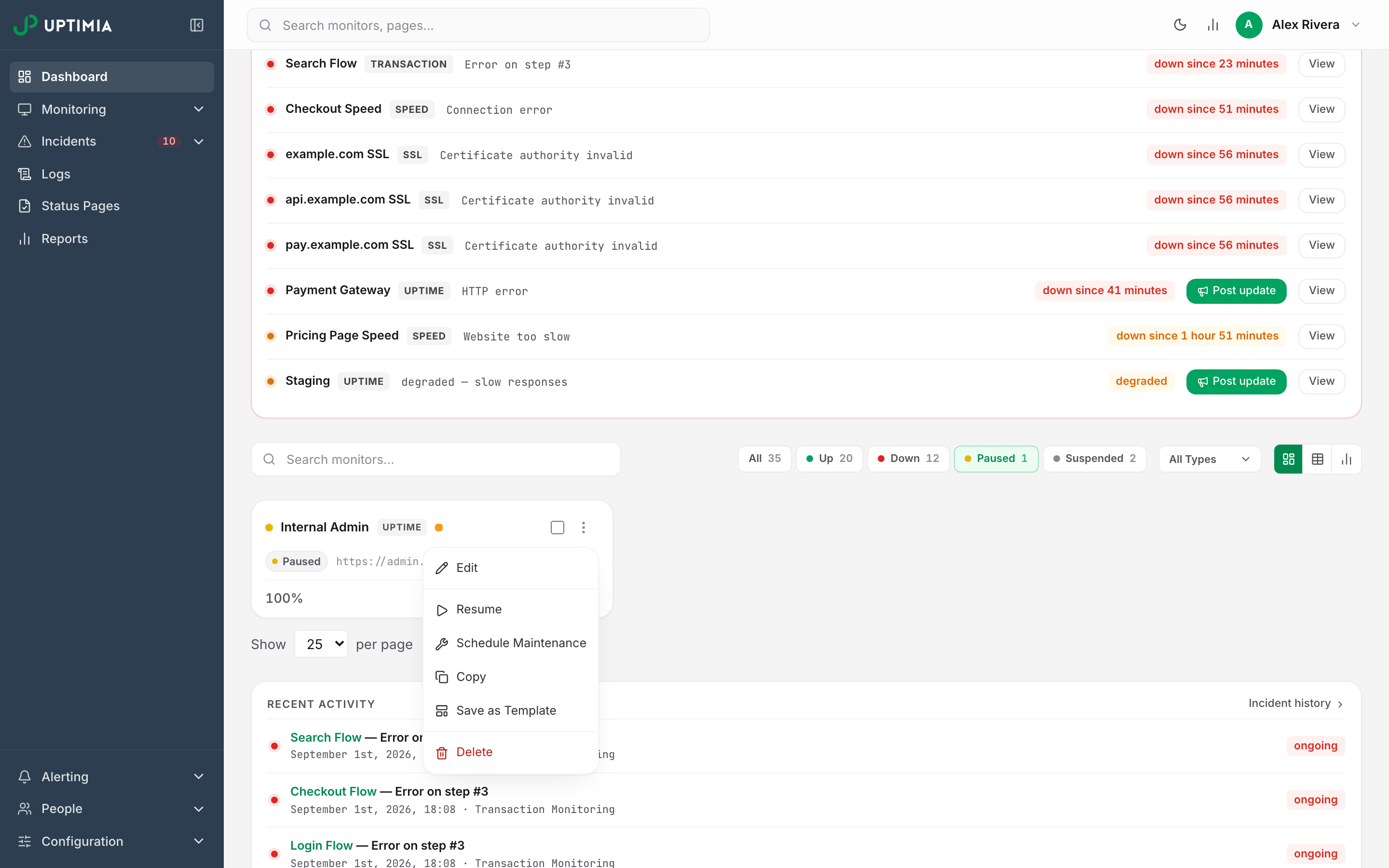
The dashboard's fleet availability number excludes paused monitors (the Paused card says "excluded from availability"), so pausing a broken monitor lifts the fleet figure. A paused monitor still consumes its slot in your plan's pool, so pausing frees no capacity.
The Monitor Says Suspended
Cause. Suspension is never a user action. Uptimia suspends monitors when your plan stops covering them:
- The 30-day trial ended and the account dropped to Free.
- You downgraded.
- A renewal payment failed.
- You canceled the subscription.
Uptimia suspends per monitor family, oldest first. Within each family it keeps the monitors you created earliest, up to the new allowance, and suspends the rest.
A suspended monitor behaves like a paused one: it leaves the check queue, records nothing, alerts nobody. Servers are the exception. A suspended server's agent keeps posting and its charts keep filling, and only the alerting stops. A suspended heartbeat monitor still answers its ping URL with HTTP 200 as if all is well, then throws the ping away, so a cron job pinging it keeps succeeding against a monitor recording no life at all.
Check. Filter the dashboard by Suspended. Uptimia also emails the account owner a list of every stopped monitor, naming the reason in the subject line. Your current pools are on the Subscription page: open the avatar menu (top right) → Plans & Billing. Only the account owner and Accounting / Billing seats see that entry; an Admin, Editor or Read-only member reads the used-and-total figures from the Usage button in the top bar instead.
Fix. Pay for a plan that covers them. A payment on a higher plan than the account's current one reactivates suspended monitors automatically, oldest first, up to the new allowance, and Uptimia emails you to say so. Three things reactivate nothing: a renewal at the same tier, a card-validation charge, and deleting other monitors to make room. Your own pauses survive reactivation; only the suspension is cleared.
Note: Speed and Transaction share one pool, and reactivation restores Speed monitors first, so the split can differ from the one you had. Per-plan pools are in Plan Limits and Quotas.
Uptimia refuses the new monitor instead of suspending it silently: the editor's type card reads Plan limit reached (used/max) — upgrade to add more, or Not included in your plan — upgrade to add this monitor type.
The Monitor Says Maintenance
Cause. A maintenance window covering this monitor is running. On the probe-checked families a window suppresses the checks themselves. The monitor leaves the check queue, and a result already in flight is dropped on arrival: no log row, no incident, no alert. A covered heartbeat still logs its pings and a covered server still receives its agent samples, just as it does during a pause.
Entering a window also force-closes any incident open on the covered monitors and cancels their queued down alerts. If a down alert had already gone out, Uptimia holds the matching recovery alert and sends it on the first successful check after the window ends.
Check. Go to Configuration → Maintenance. A window that is live carries the Running chip and a countdown that ticks every 30 seconds. Other rows are labeled Scheduled, Recurring, Expired or Invalid.
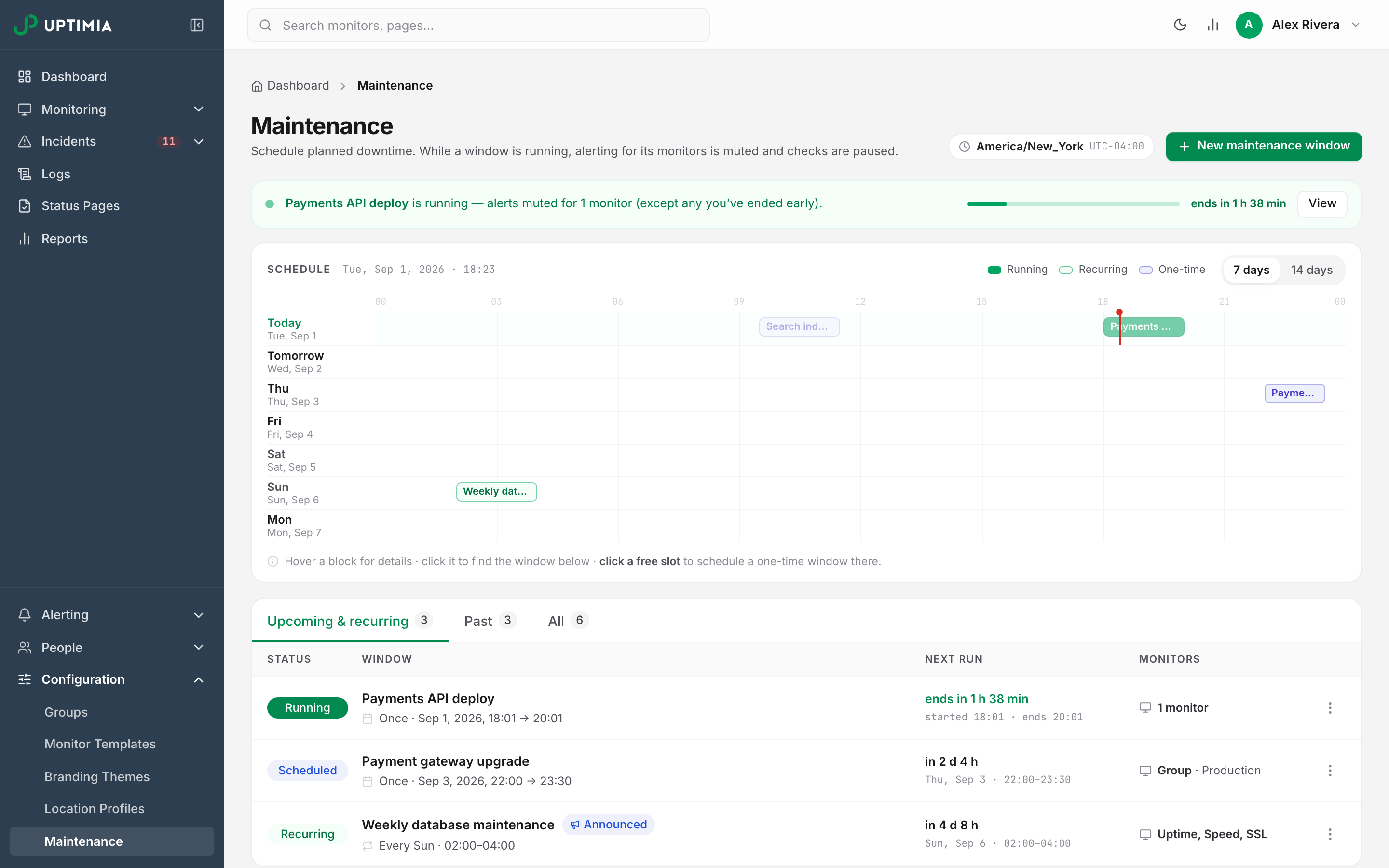
Fix. Wait, or end it. While a window runs, the kebab menu's Schedule Maintenance item becomes End Maintenance. That releases this monitor without touching the others the window covers. On most pages Pause disappears for the duration, though the Heartbeat, API, DNS and Blacklist pages keep it, and either way Uptimia re-checks the monitor the moment the window ends.
Afterwards the span shows on the timeline as a Maintenance band, and its seconds leave both sides of the availability fraction, counting neither as downtime nor as uptime. The arithmetic is in How Uptime Is Calculated. Scheduling and recurrence are in Maintenance Windows.
Checks Run but No Alert Ever Arrives
The monitor is Up or Down, the check log is filling, and nobody is told.
Your Account Email Is Not Verified
Cause. While the account's own email address is unverified, no notification goes out: every monitor, every channel, nothing retried later. Uptimia drops SMS, Slack and webhooks alongside email, and skips scheduled reports too.
Check. An amber banner sits above the top bar reading Verify your email to receive alerts., followed by the address it is waiting on. Only the account owner sees it. A team member investigating the same silence will not, so sign in as the owner to confirm. The monitor editor repeats the same warning as a row.
Fix. Click Resend verification email in the banner and open the link in the message. The button is rate-limited; pressed too often it answers "Please wait a moment before requesting another email."
Until it is verified, creating an Uptime, SSL, Domain, Speed, Virus or Real User monitor is also refused, with Please verify your email address. The other six families save normally and then page nobody, so verify first.
The Monitor Has No Recipients Left
Cause. The monitor has no contact, no team and no escalation policy attached. You cannot save a monitor that way, so this state always appears later. It shows up when the last contact it used is deleted, or when an escalation policy that was its only recipient is deleted.
Check. The dashboard carries a panel headed No alert recipients — N monitors, which lists every affected monitor and tags one that is down right now with Down now, nobody told. The panel clears itself once every listed monitor has a recipient again. The No recipients chip filters the grid to the same set.
Fix. Click Assign contacts on the row. That opens the monitor's Alerting card. Select at least one contact, team or escalation policy.
Recipients can also be attached but badged won't deliver. That happens when the contact is unconfirmed, used an alert email's unsubscribe link, or duplicates another selected contact on the same destination. See Alert Emails or SMS Not Arriving.
Your Alerting Schedule Blocks Every Day
An alerting schedule with no day enabled silences the monitor. The editor says so: "Your alerting schedule blocks all 7 days, so this monitor will page nobody." Fix it in Alerting Schedules, Quiet Hours and Time Zones.
A Heartbeat That Has Never Been Pinged
Cause. A heartbeat monitor arms on its first real ping. Before that it has no deadline to miss, so it never opens a missed-ping incident and its own page never shows a green Up badge. The monitor lists are the exception: with no failed check on record they still draw a green dot and 100%, so read the badge on the monitor's own page instead.
Check. The monitor's page shows the yellow Pending first ping badge beside the monitor name and a Waiting for the first ping… banner. Neither is an error; neither clears on its own.
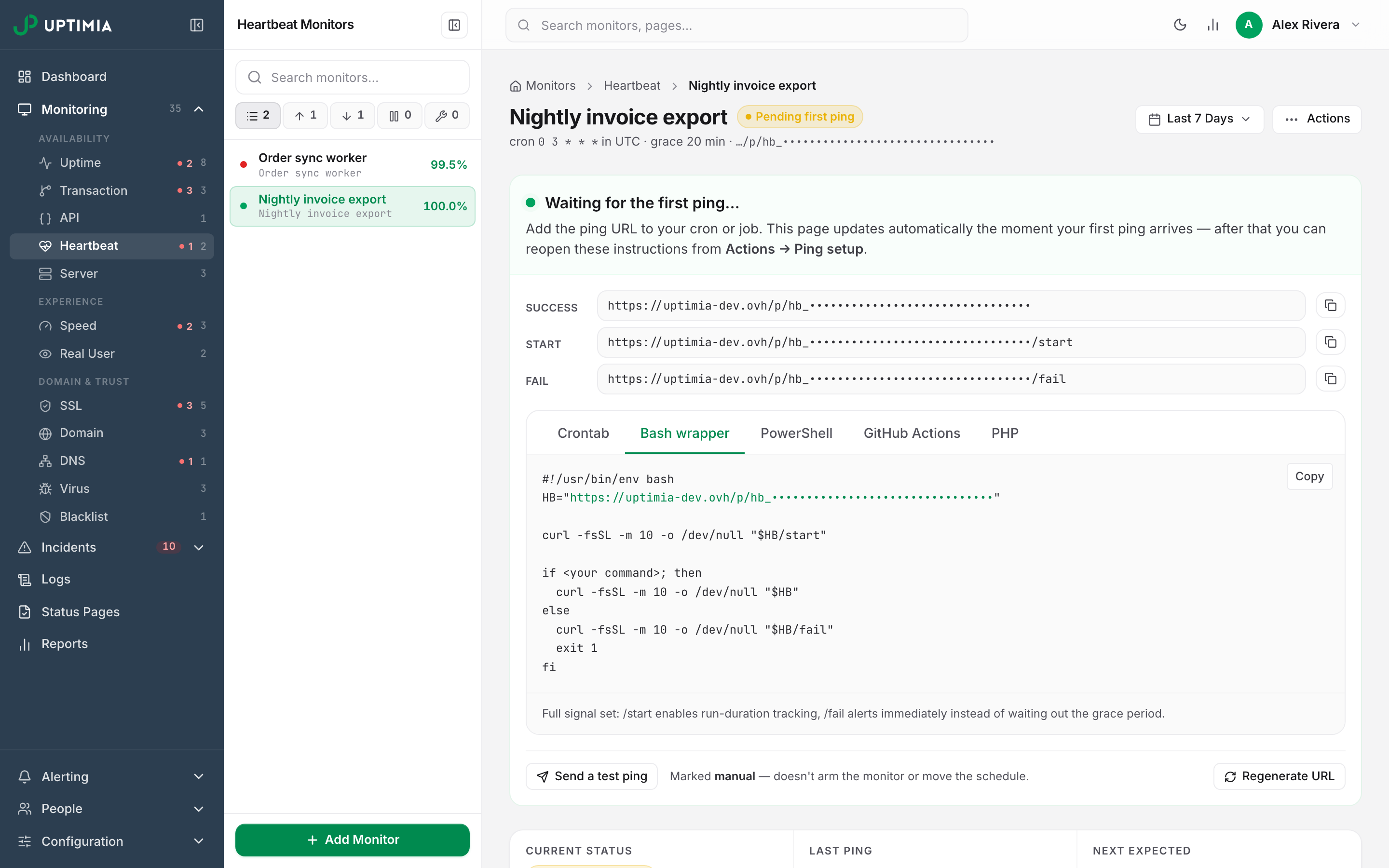
Fix. Send one ping from the machine that will run the job, then reload. If the ping appears to succeed and the monitor stays pending, go to Heartbeat Pings Aren't Registering. The usual cause is a ping Uptimia logged but deliberately ignored: it still answers HTTP 200, so the job counts it as a success.
A New Monitor With an Empty Chart
A new monitor is queued for its first check straight away, and the queue is rebuilt every minute. It is created Up, so an empty chart under a green badge for the first few minutes is normal. Long-cadence families fill slowly: Domain runs daily at its fastest, Virus hourly.
Degraded Is Not Down
An amber Degraded monitor is being checked normally. Its badge on the monitor's own page reads Trouble, and it has hit a non-critical rule rather than a hard failure: a slow response, a certificate nearing expiry, a budget breach. Degraded monitors do alert, to the same recipients as a down monitor. Their degraded seconds count as downtime in your availability percentage.
Triage in Order
- Read the status badge on the monitor's own page.
- Paused: click Resume, then check the Audit Log for who paused it.
- Maintenance: find the Running window under Configuration → Maintenance, or use End Maintenance on the monitor.
- Suspended: the account owner opens the avatar menu → Plans & Billing and compares the pools against what you have. Admin, Editor and Read-only seats cannot reach that page.
- Checking normally: look for the email-verification banner above the top bar.
- Then check the dashboard's No alert recipients panel and the monitor's Alerting card.
- For a heartbeat, confirm it has ever received a ping.
When to Contact Support
If none of those steps fits, contact support with:
- The monitor name and the URL of its page in the control panel.
- The status badge it shows, copied exactly.
- The timestamp of the last entry in its Check log card, and your account time zone.
- What you expected instead: a check that did not run, or an alert that did not arrive.
- For a missing alert, the contact address or channel and the incident it should have covered.