
A server monitor goes offline when the agent stops reporting. Uptimia never contacts the server. It waits for the agent to check in, and when the silence runs past three times the monitor's report interval, the minute-by-minute sweep marks it stale and then opens the incident. To install or re-install the agent, see Installing the Uptimia Server Agent. Threshold alerts for CPU, memory, disk and load are in Server Monitoring.
First, Check the Last Report Tile
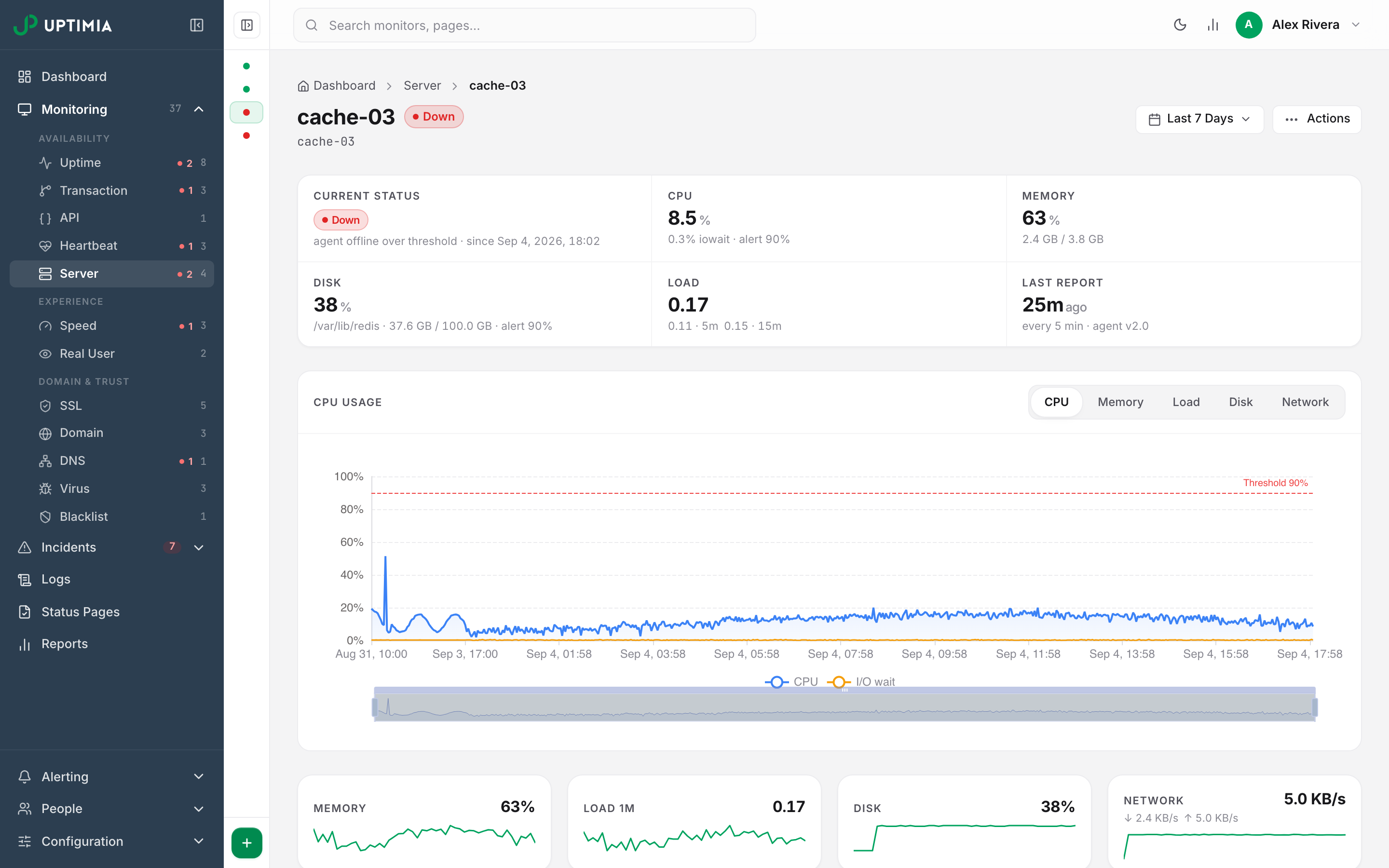
Open the monitor and read the Last Report tile in the stat strip at the top. It shows how long ago the newest sample arrived, with the configured cadence underneath. That one figure tells you which case you are in:
- "waiting for first check-in": the agent has never reported. This monitor stays at Up and never flips offline. Go to The Monitor Has Never Reported.
- A gap slightly larger than the interval: the agent is alive, and the incident has recovered or is recovering now.
- A gap of three times the interval or more, such as 25 minutes on a 5-minute monitor: the agent stopped. Start at The Agent Is Running but Nothing Reaches Uptimia and work through the causes.
How Offline Is Decided
A sweep runs every minute and looks for servers whose last report is older than 3 × the monitor's report interval. The first sweep that finds a server stale only records the fact. If the server is still silent on a later sweep, the incident opens. A stall on Uptimia's own side can make healthy servers look stale, and one tick of evidence does not prove an agent is dead. That is why the second tick exists.
The real detection latency is three report intervals plus one to two sweep minutes:
| Report interval | Silence before the first stale mark | Offline flagged after |
|---|---|---|
| 30 seconds | 90 seconds | 150–210 seconds |
| 60 seconds | 3 minutes | 4–5 minutes |
| 2 minutes | 6 minutes | 7–8 minutes |
| 5 minutes | 15 minutes | 16–17 minutes |
Any report that arrives clears the stale mark, so a single missed tick never becomes an incident. When the agent comes back, the offline incident resolves on its own.
The Alert Arrived Later Than the Table Says
The table is when the incident opens. Notification is separate. Until the incident has stood for the monitor's Alert delay, Uptimia holds the down alert back. That field sits in the Notification Settings card of the server editor and defaults to 5 minutes. At the default 30-second interval, the incident opens 150–210 seconds into the silence and the alert leaves 5 minutes after that.
If you also attached an escalation policy, step 1 fires at that same moment. Alert delay applies to escalation too, and every later step's wait is measured from step 1. See Escalation Policies.
The Agent Is Running but Nothing Reaches Uptimia
Cause. The agent process is fine, but the report is rejected or never leaves the host. Common reasons: a firewall blocking outbound traffic, a wrong API_URL, or a key that no longer matches.
Check. Read the agent's own log on the server. It records the status code of every failed send:
journalctl -u uptimia-agent.service -n 50
Three log lines tell you which it is. report failed (no HTTP response from …; curl error or timeout) is egress or DNS. report rejected with HTTP 401 (will not buffer a 4xx) is the key. report deferred with HTTP 429 or 503 is temporary, and the agent is already retrying.
Match what the last 50 lines show against this table:
| What the log shows | What it means | Fix |
|---|---|---|
A send rejected with 401 |
The key is wrong or has been rotated | Re-run the install command from Actions → Install Agent |
| No response at all, or a timeout | Outbound traffic to Uptimia on port 443 is blocked, or DNS fails | Allow outbound traffic to Uptimia; see Whitelisting Uptimia's Probe IPs |
| A send deferred, with the agent retrying | Uptimia was briefly busy or unavailable | Nothing to do; the reports resume on their own |
| No failed, rejected or deferred sends logged since the reports stopped | The key works and the host can reach Uptimia; the agent is not firing | Look at the timer instead: systemctl status uptimia-agent.timer |
Also confirm the host in the config matches the host you sign in to: sudo grep API_URL /opt/uptimia/uptimia.conf. The config is mode 600, which is why that command needs root. An agent installed with the wrong second argument posts to a host that has never heard of that key.
It Went Offline Right After You Rotated the API Key
Cause. Rotation takes effect the moment you confirm it. The old key is answered with 401 from then on, with no grace window and no dual-key period. The installed agent still carries the dead key, so nothing it sends is recorded. Three report intervals later, the sweep offlines it.
Check. The agent log shows report rejected with HTTP 401 (will not buffer a 4xx) on every tick. Those reports are not buffered, so the gap in the charts is permanent.
Fix. Open Actions → Install Agent on the monitor, copy the rebuilt command, and run it as root on the server. Rotate a key only when you can reach the host to re-install.
It Went Offline Right After You Changed the Report Interval
Cause. The editor's Report interval select tunes offline detection only. A deployed agent never reads it back. Its cadence is fixed by the systemd timer, cron file, LaunchDaemon or Scheduled Task written at install time. Shorten the select from 5 minutes to 30 seconds and the offline window drops from 15 minutes to 90 seconds. The agent keeps reporting every 5 minutes, so every sweep finds it stale.
Check. Compare the Last Report tile's elapsed time against the cadence printed beneath it. You are in this case when a monitor flips offline within minutes of an edit while reports still arrive on the old rhythm.
Fix. Either set the select back to the agent's real cadence, or re-run the install command so the agent adopts the new one. The steps are in Installing the Uptimia Server Agent.
The Monitor Has Never Reported
Offline detection skips a server whose agent has never checked in. The sweep needs a previous report to compare against. A monitor created hours ago with no agent on it is never flagged and never alerts. Its Current Status reads Up, and the page keeps showing the amber install banner with Waiting for first check-in….
If you were expecting an offline alert here, that is why there is none. Install the agent.
Alerts Went Quiet but Data Keeps Arriving
Three states suppress every server alert, offline included: a manual Pause, a maintenance window, and a plan suspension after a downgrade. None of the three stops metric ingestion. The agent keeps posting, the charts keep filling, and only the alerting goes silent. A paused server that dies produces no incident and no page.
To find which one you are in, and how to leave it, see Why a Monitor Stopped Checking.
A Whole Fleet Went Stale and Nothing Paged
Cause. Two guards stop Uptimia marking many servers offline at once, because simultaneous silence across many servers usually means the fault is on Uptimia's side rather than in every one of those machines. Uptimia opens no offline incidents during any minute in which it cannot record data itself. And it opens none in a tick where more than half of every actively monitored server on the platform has gone stale.
Check. Look for the same silence across unrelated hosts. If reports resumed on their own with no incident, the guard did its job.
Fix. Nothing on your side. Detection resumes on the next tick where the platform is not mass-stale. The test is platform-wide, so silence confined to your own account never trips the guard. Those servers are offlined normally.
Reading the Last Sample the Agent Sent
Click any row in the Check log card on the monitor page to open the check-detail drawer. It shows the full sample the agent posted for that moment: CPU and load, memory, a per-mount disk table, process count and network counters. Open the last row before the silence to see what the machine looked like as it went quiet.
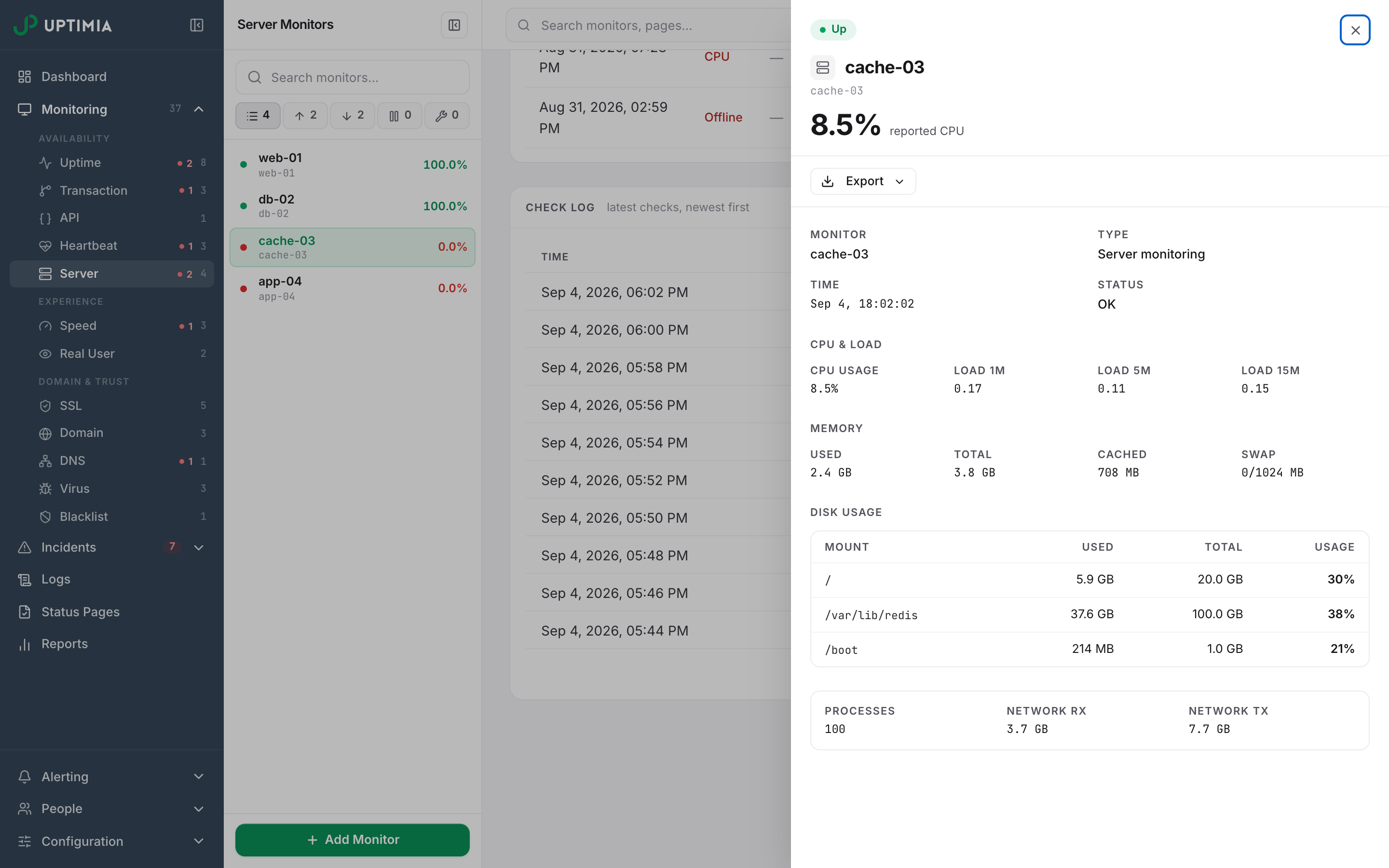
Raw agent samples are kept for 24 hours. Older rows survive as hourly averages for charting, but the individual sample is gone. The drawer then reads "This check's metrics are no longer available — agent samples are kept for 24 hours". Exporting a single log entry for a server row older than a day fails. Export the sample the same day if you need it for a post-mortem. The 24-hour limit leaves incident records untouched, and those are stored separately.
Offline Is Critical, Resource Breaches Are Trouble
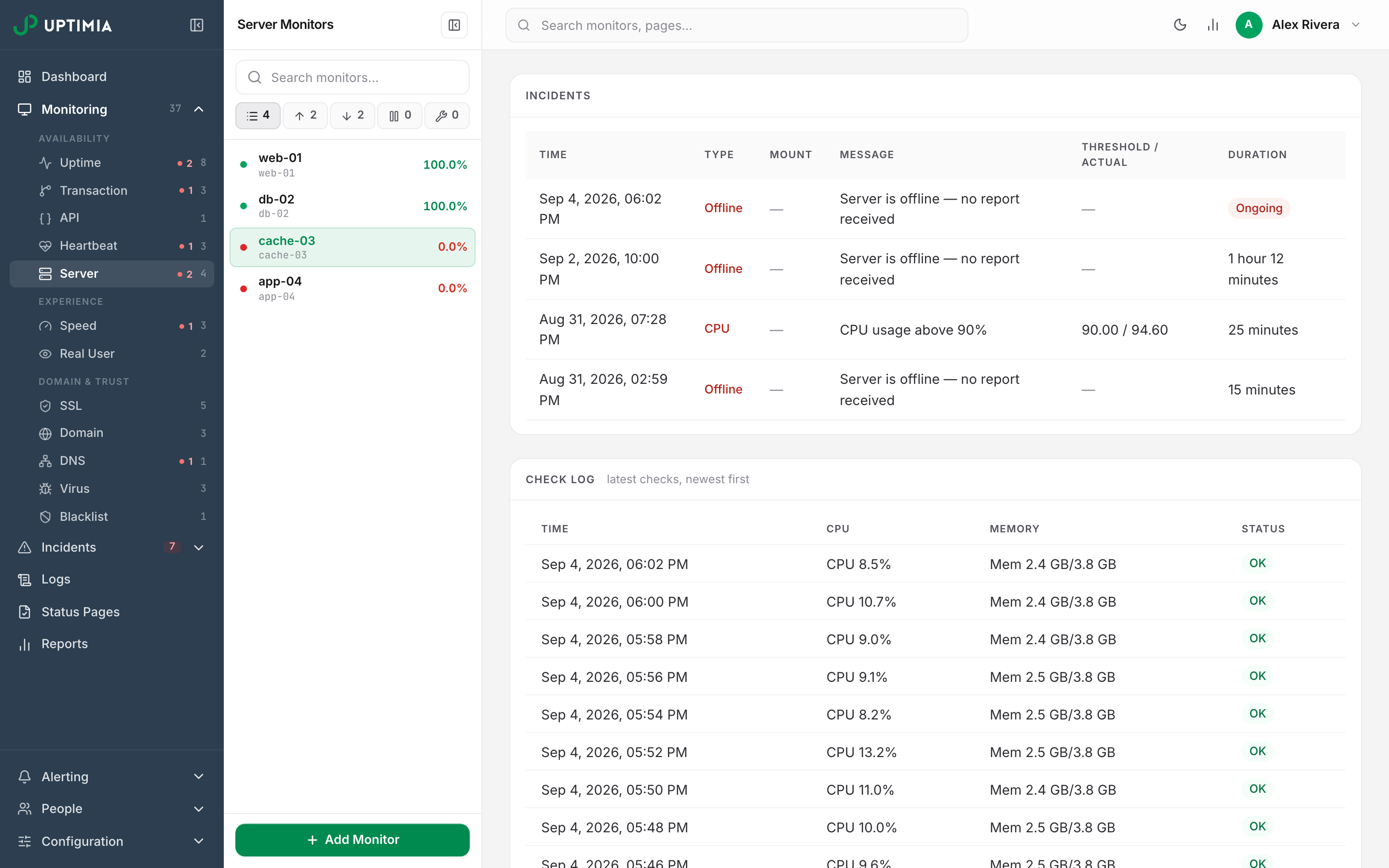
Server monitors raise two grades of incident:
| Incident type | Severity | What it means |
|---|---|---|
| Agent offline | Critical (red, status Down) | No report for 3 × the report interval, confirmed on a second sweep |
| CPU, memory, swap, disk, inode, load, process, network | Trouble (amber) | A threshold was breached and the agent is still reporting. CPU, memory, swap, load, process and network need the breach to hold for its configured duration. Disk and inode are first-breach rules: they open on the first report over the threshold. |
A trouble incident is proof the agent is alive. If both are open on the same monitor, chase the offline one.
When to Contact Support
Contact support in two cases: the agent log shows a 2xx response but the monitor still shows no reports, or reports stop with no matching line in the log at all. Include:
- The monitor name and the address of its page
- The timestamp of the last sample the panel shows, and your time zone
- The last 50 lines of
journalctl -u uptimia-agent.service - Whether the key was rotated, or the report interval changed, in the hours before it went quiet
Uptimia support traces the ingest side against those timestamps.