
A server monitor collects nothing until the Uptimia agent is running on the host. The agent is a script that reads CPU, memory, disk, load and network figures from the operating system, then posts them to Uptimia over HTTPS using an API key that belongs to that one server monitor. There are agents for Linux, macOS and Windows. Server Monitoring covers what the agent measures and which alert rules you can set.
Before You Start
- Server monitors are a paid feature. Free accounts have 0 server monitors, Basic 1, Professional 10, Enterprise 100, and the trial 50. The Server row appears in the sidebar only when your plan's server allowance is greater than 0.
- Root access on the host, plus
bashandcurl. The installer writes to/optand/etc/systemd/system, so it refuses to run as a non-root user withError: This script must be run as root. - Outbound HTTPS. The agent connects out to Uptimia on port 443. Nothing needs to be opened inbound, and the agent listens on no port. See Whitelisting Uptimia's Probe IPs if egress is filtered.
How the Agent Authenticates
Every server monitor gets its own API key, 64 hexadecimal characters long. Uptimia generates it when you create the monitor. The agent sends it with every report. Uptimia never stores the key itself, only a SHA-256 hash of it, and checks each report against that hash before filing the metrics under that monitor.
The key is a bearer credential: whatever holds it can post metrics for that server, and nothing else. It opens no part of the control panel, reads none of your data and manages no monitors. Account API keys are a separate credential. See Read-Only and Group-Limited API Keys.
One key belongs to one monitor. Running two hosts against the same key interleaves both machines' samples into a single monitor, so give every host its own server monitor.
Installing on Linux
- Go to Monitoring → Server and create a server monitor. Give it a name and save.
- On the monitor page, find the amber banner headed Install the monitoring agent on your server and click Copy.
- Run the copied command as root on the server you want to monitor.
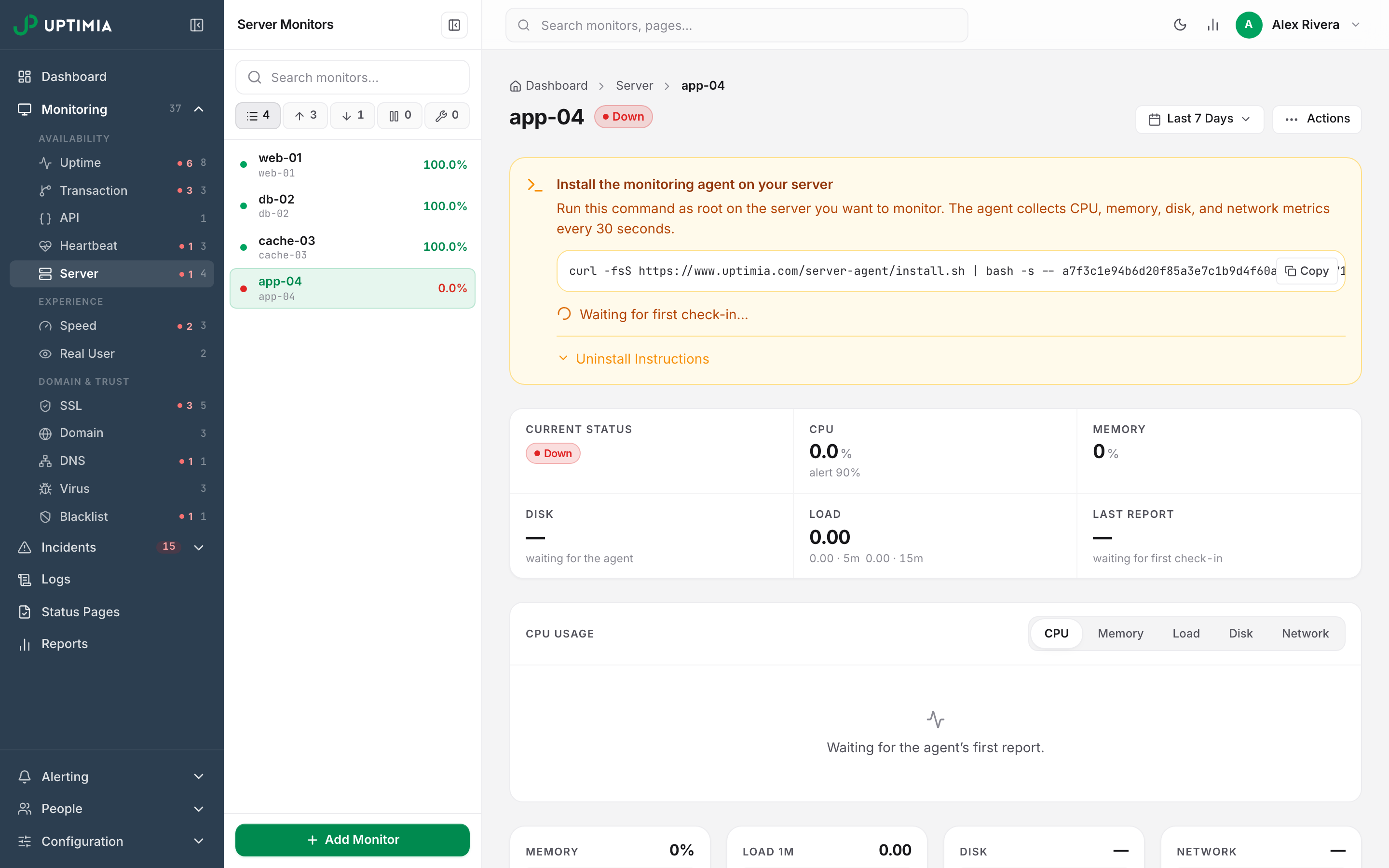
The command looks like this:
curl -fsS https://www.uptimia.com/server-agent/install.sh | bash -s -- 3f9c…a71b https://www.uptimia.com 30
Copy it from the panel rather than retyping it. The panel builds the command from your monitor's own key, your account's host and the interval currently saved on the monitor.
What Each Argument Does
| Position | Argument | What it does |
|---|---|---|
| 1 | Server API key | Written to /opt/uptimia/uptimia.conf and sent with every report. Required: without it the installer exits with Error: API key is required. |
| 2 | Base URL | The host the agent reports to. Sets API_URL to <base>/api/v1/server/report, and is also where the installer downloads the agent script from. Defaults to https://www.uptimia.com when omitted. |
| 3 | Report interval, in seconds | How often the agent collects and sends a sample. Accepts 30, 60, 120 and 300 only. Any other value prints Warning: unsupported report interval '<value>', using 30s. and falls back to 30. Defaults to 30 when omitted. |
Re-running the installer on a host that already has an agent is safe. It stops the running timer, replaces the agent and config, then starts again.
What the Installer Writes
The installer downloads uptimia-agent.sh and its published .sha256 file over HTTPS with TLS 1.2 or better, then compares the two. If they disagree, it aborts: Error: Checksum mismatch — refusing to install a tampered/partial agent. It makes the script executable and moves it into place only after the checksum matches.
| Path | What it is |
|---|---|
/opt/uptimia/uptimia-agent.sh |
The agent itself |
/opt/uptimia/uptimia.conf |
API_KEY, API_URL and BASE_URL, mode 600 |
/opt/uptimia/state/ |
Counter snapshots used to compute CPU and network deltas |
/opt/uptimia/spool.jsonl |
Buffered reports, created only when a send fails |
/etc/systemd/system/uptimia-agent.service and .timer |
The scheduler on a systemd host |
/etc/cron.d/uptimia-agent |
The scheduler when systemd is absent |
On a host with systemd, the timer fires at the interval you passed. Without systemd, the installer writes a cron file instead and says so: systemd not detected — falling back to cron. Cron's finest granularity is one minute, so a 30-second interval becomes two lines per minute, the second offset by sleep 30; 60 becomes every minute, 120 becomes */2, and 300 becomes */5.
The last thing the installer does is run the agent once, so the first sample arrives immediately rather than at the next tick.
Confirming the Agent Connected
The monitor page polls every 5 seconds while it is waiting, so you do not need to refresh. On the first report, a green Connected — the agent is reporting line replaces the spinner in the banner, with the agent version in brackets. The Last Report tile then starts counting from the newest sample.
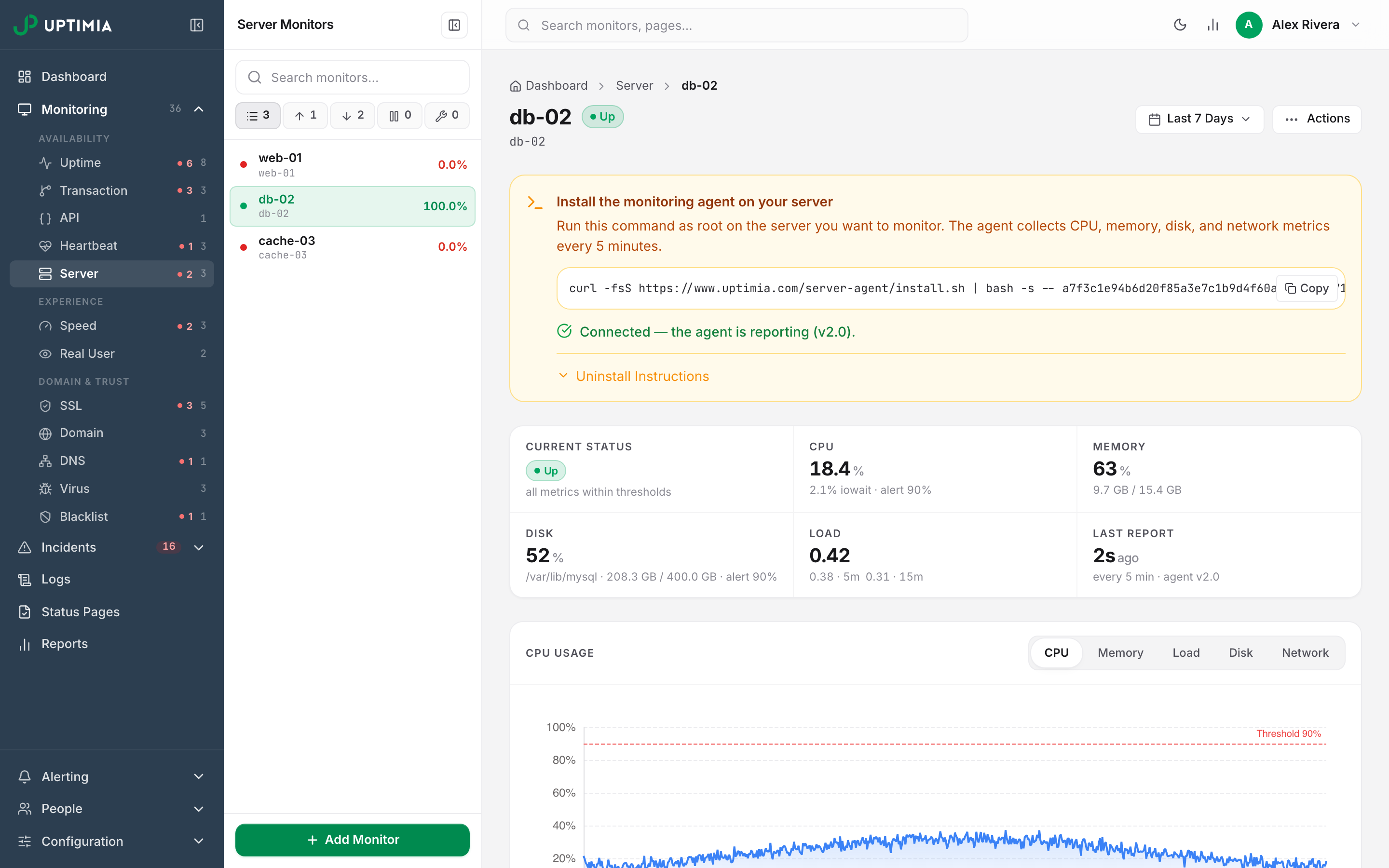
After 60 seconds with no report, a Still not seeing data? Troubleshoot link replaces the spinner and lists the four usual causes. On the host itself:
systemctl status uptimia-agent.timer
journalctl -u uptimia-agent.service -n 50
The agent writes its failures to standard error, so the journal carries the exact HTTP status code Uptimia returned. If nothing has arrived after that, read Your Server Monitor Says Offline.
Installing on macOS
There is no one-liner for macOS. The macOS agent collects the same figures as the Linux one, apart from two that macOS does not publish: I/O wait and per-core CPU. Install it by hand, as root:
sudo mkdir -p /opt/uptimia /opt/uptimia/state
sudo curl -fsSL https://www.uptimia.com/server-agent/uptimia-agent-macos.sh \
     -o /opt/uptimia/uptimia-agent-macos.sh
sudo chmod +x /opt/uptimia/uptimia-agent-macos.sh
sudo tee /opt/uptimia/uptimia.conf >/dev/null <<'EOF'
API_KEY="YOUR_SERVER_API_KEY"
API_URL="https://www.uptimia.com/api/v1/server/report"
EOF
sudo chmod 600 /opt/uptimia/uptimia.conf
Take YOUR_SERVER_API_KEY from the first argument of the install command the panel shows you.
Then create a LaunchDaemon at /Library/LaunchDaemons/com.uptimia.agent.plist. It needs four things:
Labelcom.uptimia.agentProgramArgumentsof/bin/bashand/opt/uptimia/uptimia-agent-macos.sh- a
StartIntervalof30 RunAtLoadset true
Load it with:
sudo launchctl load -w /Library/LaunchDaemons/com.uptimia.agent.plist
StartInterval is the cadence. Set the monitor's Report interval in Uptimia to the same number of seconds.
Installing on Windows
Windows uses a PowerShell agent driven by a Scheduled Task. It omits per-core CPU, I/O wait and inode usage, which Windows does not expose the way the Linux agent reads them. Windows PowerShell 5.1 or PowerShell 7 is enough. There are no other dependencies.
From an elevated PowerShell prompt, create C:\ProgramData\Uptimia and C:\ProgramData\Uptimia\state. Download https://www.uptimia.com/server-agent/uptimia-agent.ps1 into that folder. Then write C:\ProgramData\Uptimia\uptimia.conf with two lines:
API_KEY=YOUR_SERVER_API_KEY
API_URL=https://www.uptimia.com/api/v1/server/report
Then register a task named UptimiaAgent as SYSTEM, built from a one-off trigger with a 30-second repetition interval. The task runs powershell.exe -NoProfile -ExecutionPolicy Bypass -WindowStyle Hidden -File "C:\ProgramData\Uptimia\uptimia-agent.ps1". The full command block is in the comment header of uptimia-agent.ps1. As on macOS, the repetition interval is the cadence: match the monitor's Report interval to it.
Changing the Report Interval
The Report interval select in the monitor editor offers Every 30 seconds, Every 60 seconds, Every 2 minutes and Every 5 minutes. Its own hint states what it controls: "Tunes offline-detection sensitivity — the server is offline-flagged after ~3× this interval without a report."
That is all it does. Once installed, an agent never reads the setting back. Its cadence is fixed at install time by the systemd timer, cron file, LaunchDaemon or Scheduled Task. Lengthening it just loosens offline detection. Shorten it below the cadence the agent is actually running, and Uptimia flags a healthy server offline once two consecutive sweeps have seen it silent.
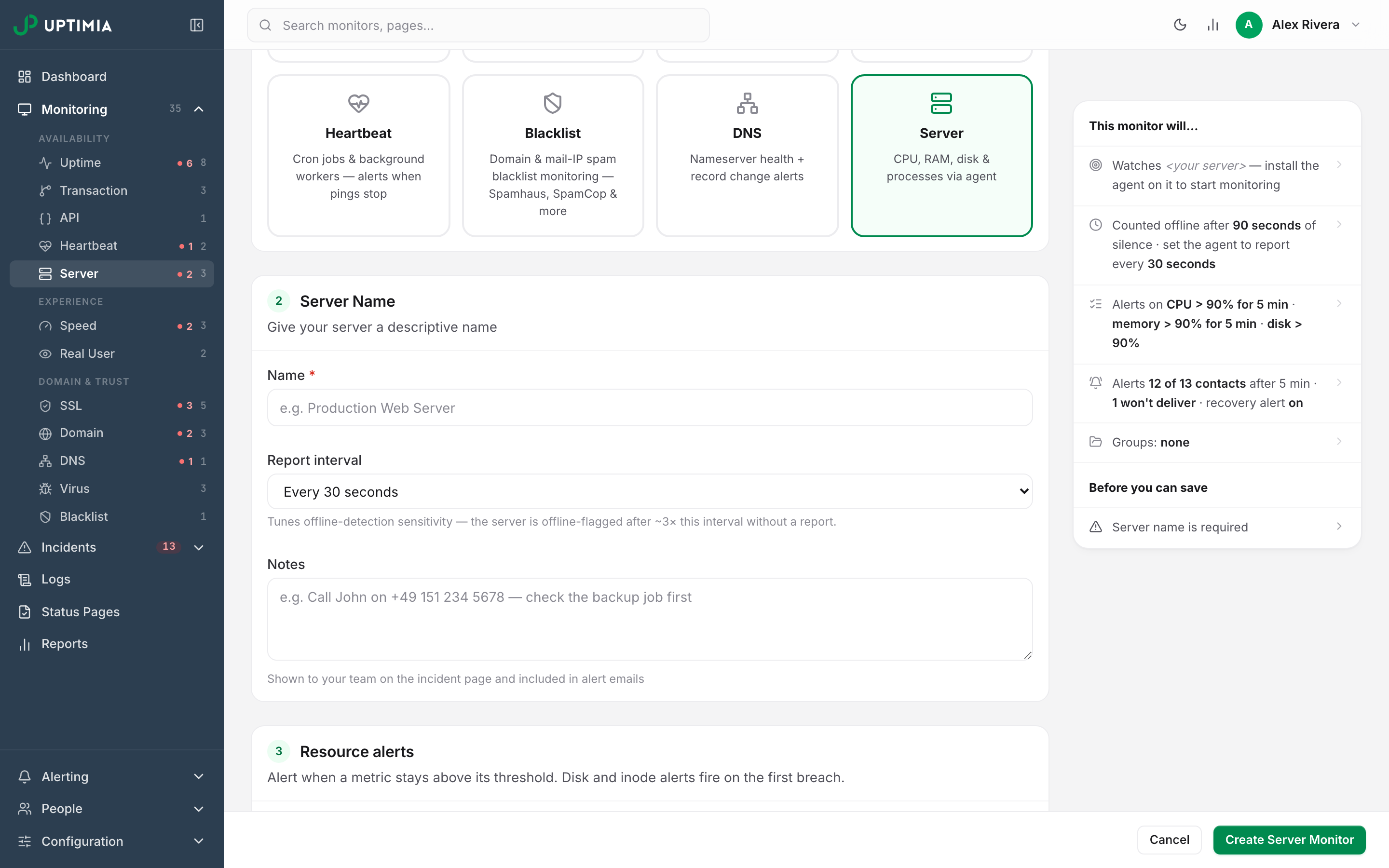
To change the cadence for real on Linux:
- Open the monitor editor, set Report interval, and save.
- Return to the monitor page, open Actions → Install Agent, and copy the command. Its third argument now carries the new value.
- Re-run it as root on the server.
On macOS and Windows, edit the StartInterval in the LaunchDaemon or the repetition interval on the Scheduled Task, then set the select to match.
Rotating the Agent API Key
Rotate the key if it has leaked, or when the host it was installed on is decommissioned.
- On the monitor page, open Actions → Rotate API key. The item appears only for roles that can manage monitors, and Uptimia blocks the rotation for anyone else even if they reach it another way.
- Read the confirmation and click Rotate Key.
- The Install Agent modal reopens with the command rebuilt around the new key, above the line "The API key was rotated. The previous key no longer authenticates — re-run this command on the server to reconnect the agent."
- Copy it and run it as root on the server.
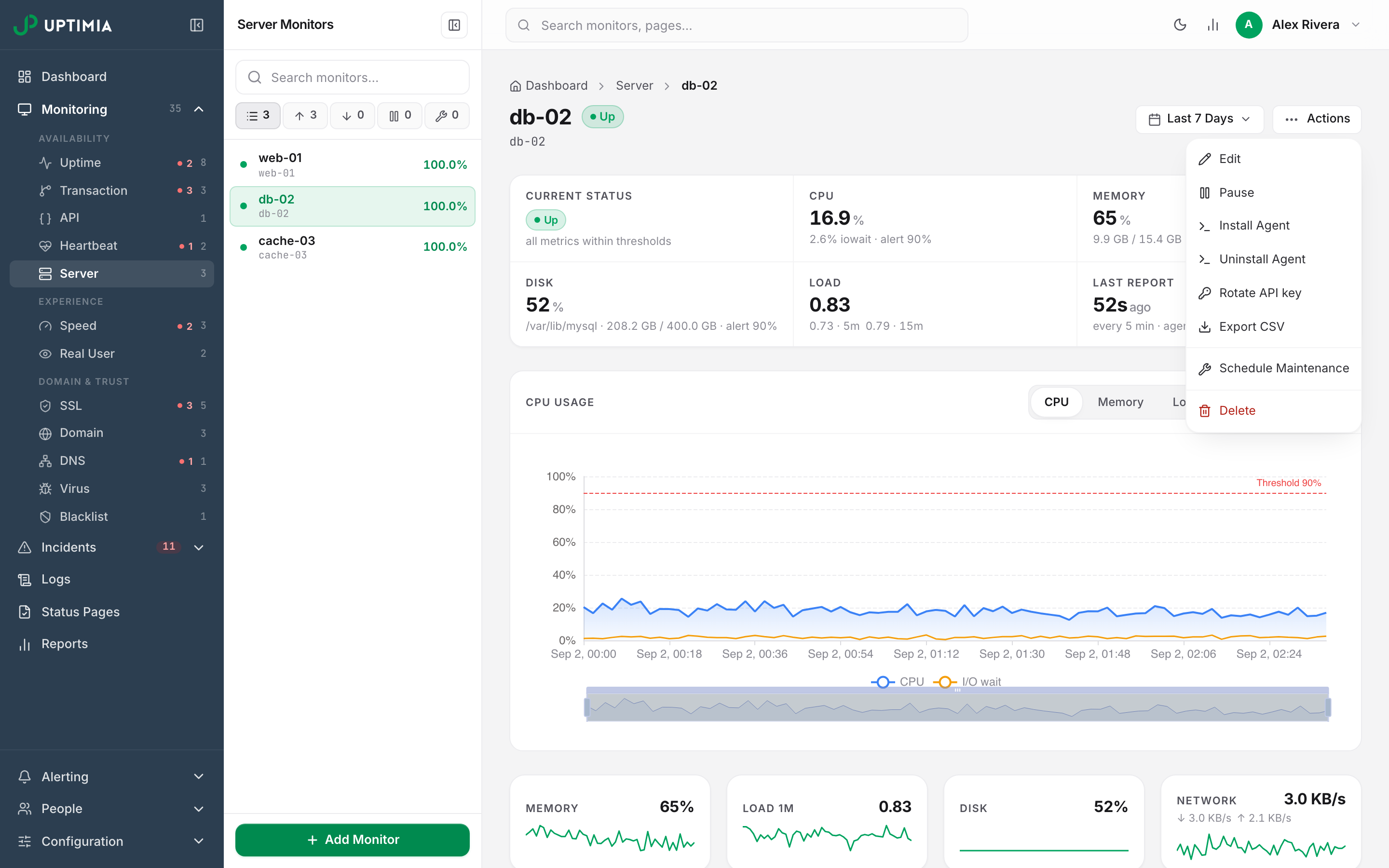
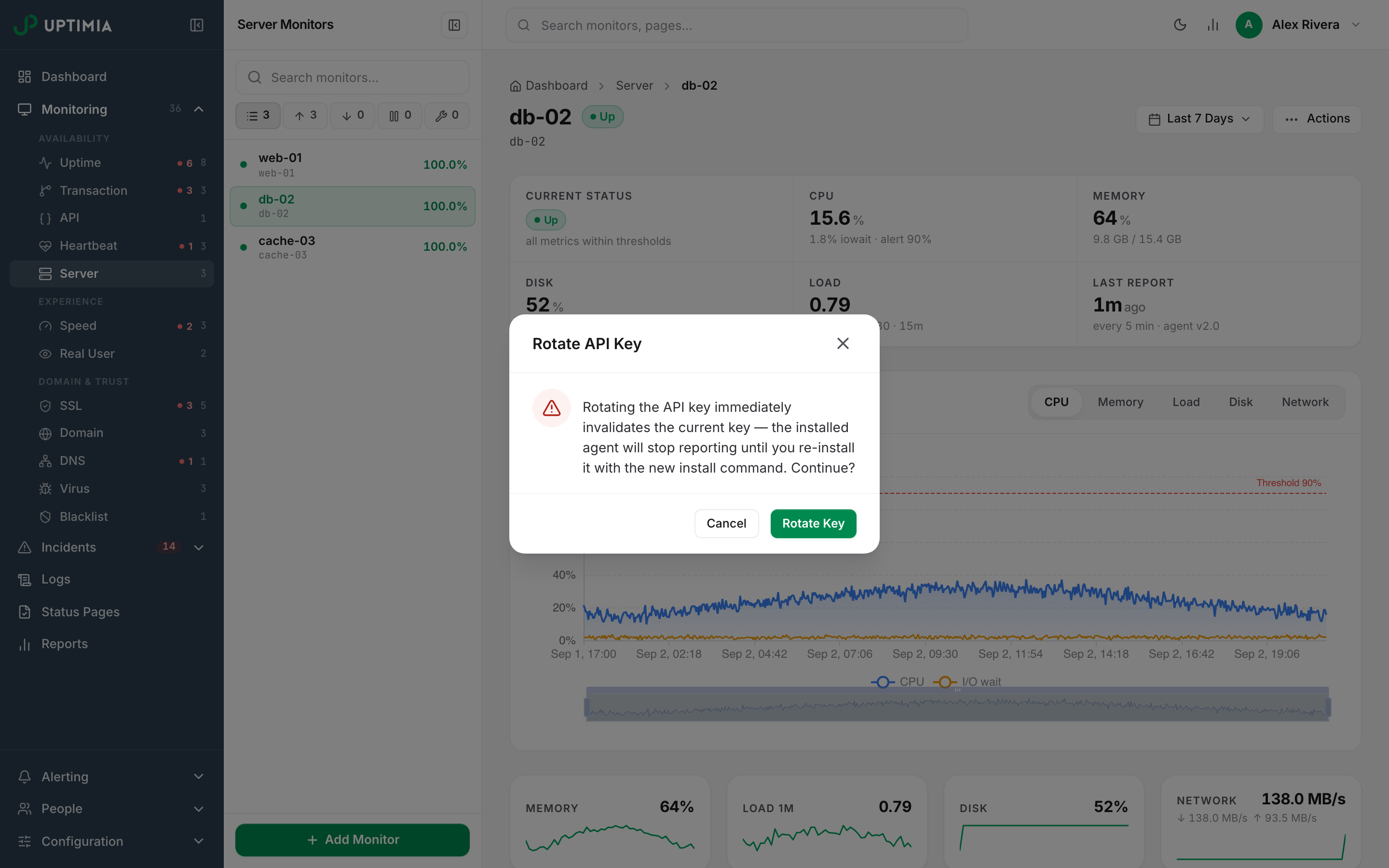
Warning: Rotation takes effect immediately. There is no grace window and no dual-key period. Uptimia answers the previous key with HTTP 401 from that moment. The installed agent stops reporting until you re-run the installer, and offline detection runs as normal in the meantime. Rotate when you can reach the host.
Uptimia records the rotation in the account Audit Log as an edit to that monitor, with Changed: API key. The log stores neither the old key nor the new one.
When Uptimia Is Briefly Unreachable
The agent keeps a report it could not send, appending it to /opt/uptimia/spool.jsonl (C:\ProgramData\Uptimia\spool.jsonl on Windows). The spool holds 2,880 buffered reports, which is 24 hours at a 30-second cadence. Once it is full, the agent drops the oldest report first. On the next successful run the agent drains the spool oldest-first, so the charts fill back in rather than showing a hole.
If Uptimia answers 429 (too many requests) or 503 (temporarily unavailable), the agent treats the failure as temporary and tries again. It throws away any other rejection in the 4xx range (an invalid key after a rotation, or a badly formed report) because a retry would never succeed, and logs it as report rejected with HTTP <code> (will not buffer a 4xx).
Uninstalling the Agent
Run this as root on the server:
curl -fsS https://www.uptimia.com/server-agent/uninstall.sh | bash
It stops and disables the timer, removes the systemd units and the cron file, then deletes /opt/uptimia. Running it twice does no harm. On macOS, run sudo launchctl unload -w /Library/LaunchDaemons/com.uptimia.agent.plist and delete the plist; on Windows, run Unregister-ScheduledTask -TaskName 'UptimiaAgent' -Confirm:$false.
The uninstaller never contacts Uptimia. The monitor stays in your account and, three report intervals later, goes offline and alerts. Delete or pause the monitor in the control panel when you retire a host.
Installing on Several Servers
Create one server monitor per host and run each monitor's own command on its own machine. If you are provisioning in bulk, Uptimia can create a server monitor from a name and hand back its ID and its agent API key, which is enough to template the install line into your configuration management. See Getting Started with the Uptimia API.