
A heartbeat monitor arms itself on the first real ping, then alerts when the next one fails to arrive. Either your job looks like it is pinging but the monitor still says Pending first ping, or a job that ran on time collects a missed-ping incident. In both cases the ping endpoint answered something other than {"status":"ok"}, and the one-line curl in your crontab swallowed the answer. Read the response body. Wiring the ping URL into cron, Bash, PowerShell, GitHub Actions or PHP belongs to Heartbeat Monitoring.
First, Check Whether the Monitor Ever Armed
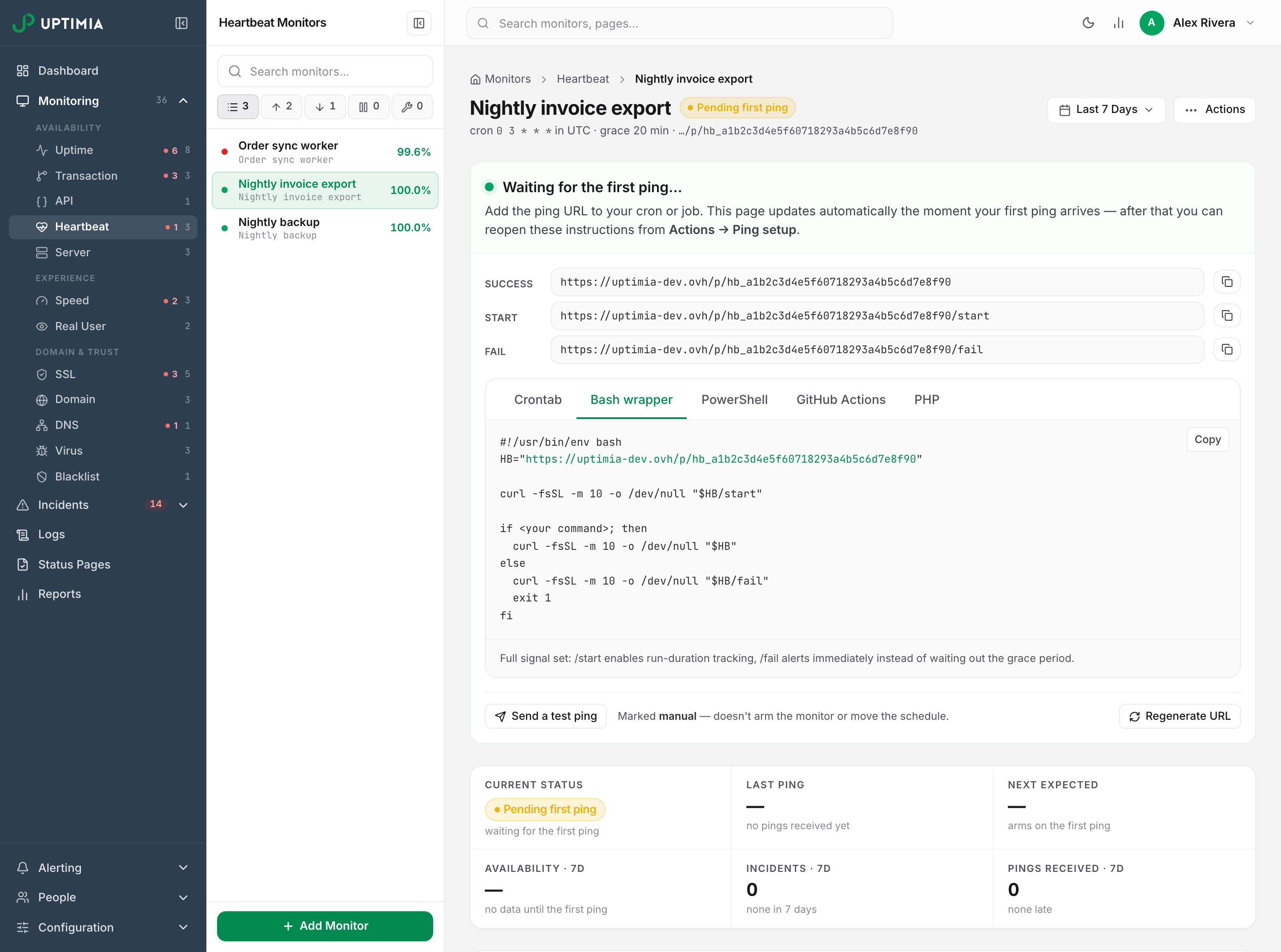
Open the monitor from Monitoring → Heartbeat. A monitor that has never received a real ping shows four signs at once:
- The badge Pending first ping.
- A Waiting for the first ping… banner carrying the setup instructions.
- Last ping reading
no pings received yet. - Next expected reading
arms on the first ping.
In the stat strip, Availability shows — rather than 100%. The monitor list on the left still reads 100.0%, because that number counts incidents and a monitor that has never checked in has none.
That badge means no arming ping has ever reached Uptimia. Work through the response bodies below. Any other badge means the monitor armed at some point, so a later ping is at fault and the wiring is fine.
Read the Response Body, Not Just the Exit Code
The ping endpoint answers with terse JSON. curl -fsS fails on the 404 and the 429, so those reach your job as a non-zero exit status, but the suppressed ignored answer is an HTTP 200 and curl calls it a success. Run the ping URL by hand and read the body:
curl -sS -i https://www.uptimia.com/p/hb_5c8f1e0a4d7b2396af10c53e6b8d24f7
| Response | HTTP | What it means | What to do |
|---|---|---|---|
{"status":"ok"} |
200 | The ping was recorded. It armed the monitor, reset the countdown and recovered any open incident. | Nothing; the plumbing works |
{"status":"ignored","reason":"non_arming_user_agent"} |
200 | The ping was logged, and nothing else. It did not arm the monitor or move the schedule. | Something previewed the URL: regenerate it, update every job, and keep it out of chat, tickets and email |
{"error":"invalid_token"} |
404 | The URL is well formed, but no monitor holds that token. | See "The URL Is the Monitor's Only Credential" |
{"error":"rate_limited"} |
429 | The monitor is over its ping budget. | See "Rate Limited" |
| An HTML Page not found page | 404 | The URL itself is malformed: wrong token shape, or an invented signal suffix. | Recopy the URL from Actions → Ping setup |
A JSON 404 and an HTML 404 are different faults, so check that row first. The token is the literal hb_ followed by 32 lowercase hexadecimal characters, and the only signal suffixes are /start and /fail. /p/{token}/success does not exist. The plain URL is success.
The Ping Answered "ignored" Because Something Previewed the URL
When the User-Agent matches a named link unfurler, mail-gateway rescanner or preview crawler, Uptimia logs the ping tagged ignored and does nothing else. Chat unfurlers (Slack, Teams, Discord, Telegram, WhatsApp), email-security rescanners (Outlook SafeLinks, Mimecast, Proofpoint, Barracuda) and the major search and AI crawlers are all on that list. A chat client that re-fetches a pasted URL every few minutes would otherwise keep a dead cron looking alive forever.
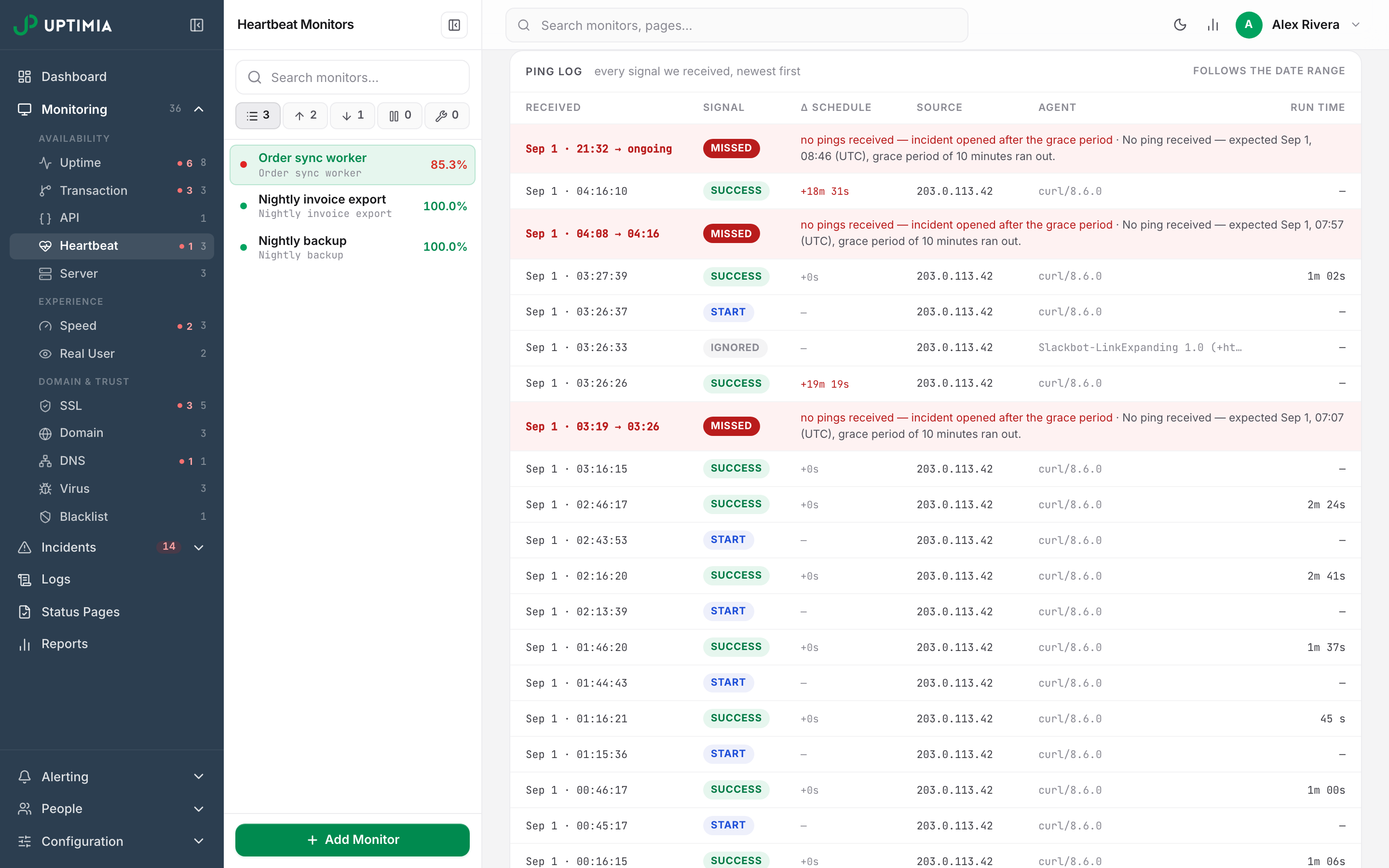
Check: open the Ping log card on the monitor page and read the Signal column. An ignored badge sits beside an Agent column naming the client responsible.
Fix: the ping URL was pasted somewhere that previews links, such as a chat channel, a ticket or an email. Remove it, regenerate the URL, and wire the new one into the job. Your own clients are safe: only those named vendor agents are suppressed, so a job sending backup-bot/1.2 arms the monitor normally.
The URL Is the Monitor's Only Credential
Nothing authenticates a ping except the token in the URL, so a {"error":"invalid_token"} 404 has three causes:
- The URL was retyped or truncated.
- The monitor was deleted.
- The token was regenerated and the job still holds the old one.
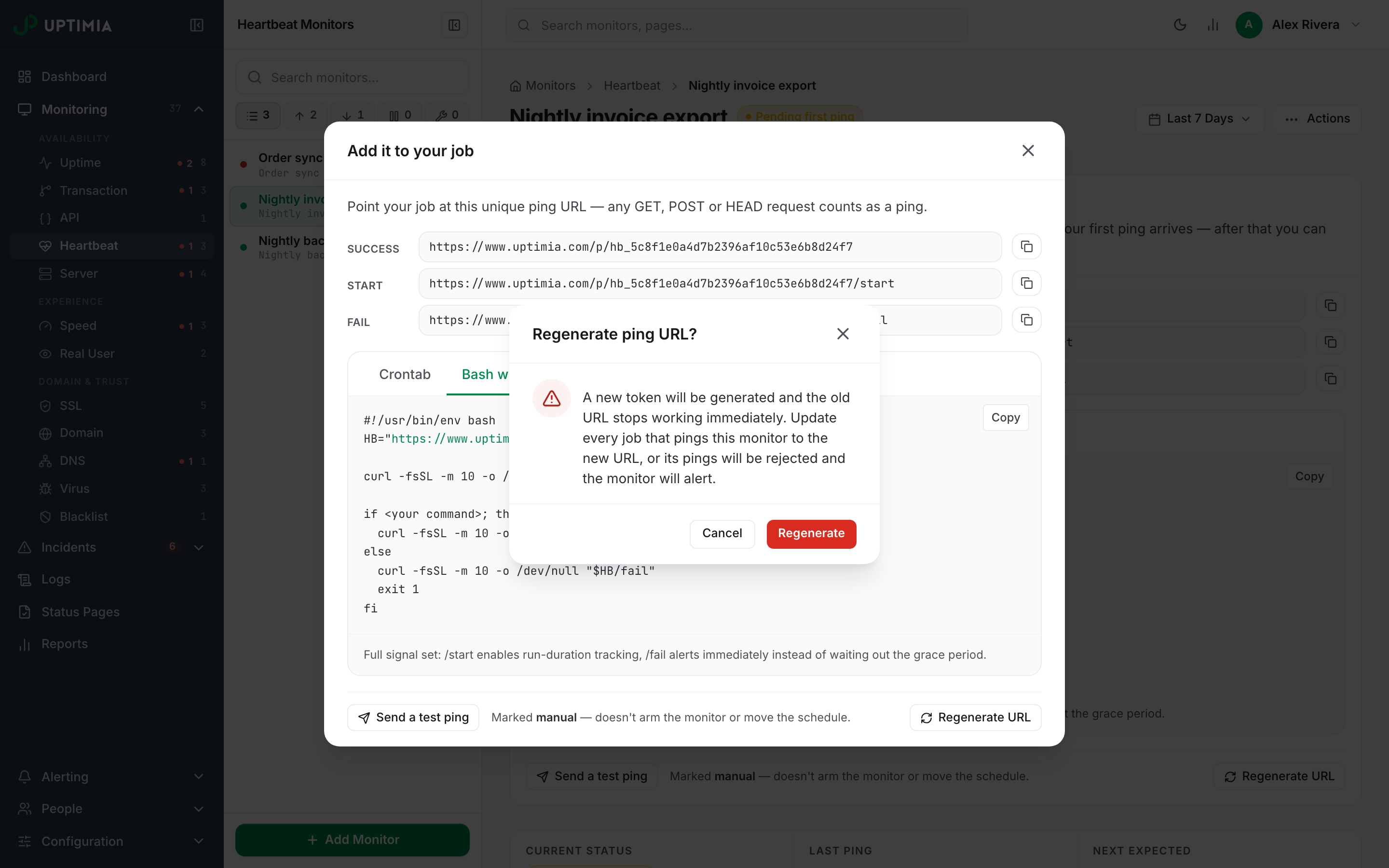
Regenerating is immediate, and the Regenerate ping URL? confirmation says so. Update every job that pings that monitor in the same change. Miss one and its pings start returning 404 and the monitor opens a missed-ping incident at the end of its next grace period.
Exports do not leak the token. A single-check export, whether PDF, HTML or a public share link, shows the ping URL with the token masked to its last 4 characters (/p/hb_····abcd). That is enough to match the record against your monitors, and too little to replay a ping. Regenerate only when the working URL itself has been published somewhere: a chat channel, a ticket, a repository.
Rate Limited: 300 Pings per 10 Minutes
The ping budget is 300 requests per 10 minutes, counted per monitor rather than per IP address. Requests over it get {"error":"rate_limited"} with HTTP 429 and go unrecorded, so they do not move the schedule, and a job that hammers the endpoint can rate-limit itself into a missed-ping incident. Counting per monitor means a fleet behind one NAT address never shares a budget; many machines pinging the same monitor do share it.
A second limit applies only to unknown tokens: 60 requests per 10 minutes per IP address, to blunt token scanning. Valid pings never hit it. It bites while you debug, though: retry a mistyped URL more than 60 times in 10 minutes and the JSON 404 in the table above turns into the 429, which reads like a different fault. Wait out the window, then test with the URL copied from Actions → Ping setup.
The Job Ran but Uptimia Says It Missed
A ping arms the schedule from the moment it lands, so a missed-ping incident on a job that ran means Uptimia expected the ping earlier than you did.
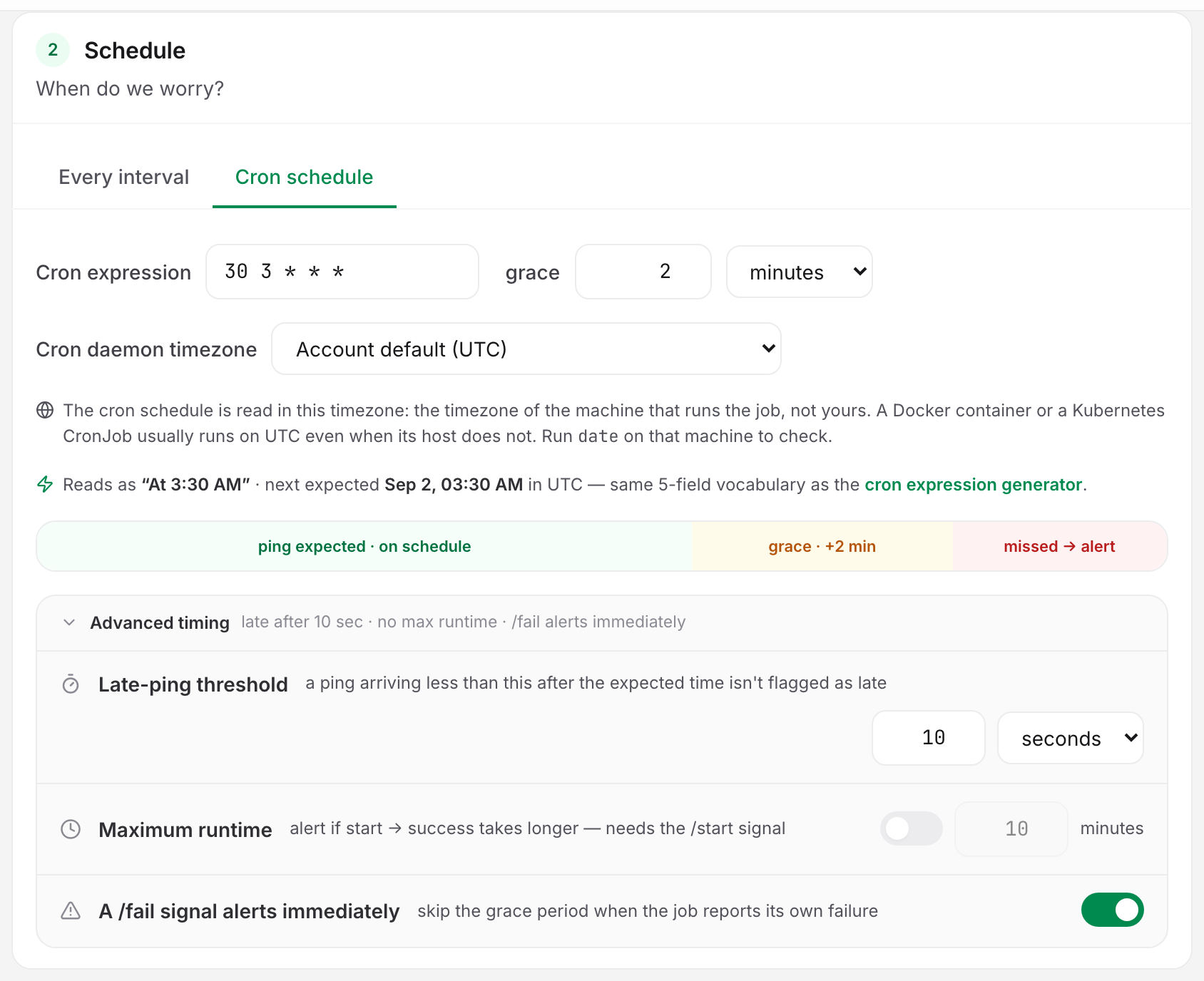
- Cron mode reads your daemon's clock, not yours. The Cron daemon timezone field on the Schedule card defaults to Account default. Uptimia spells out the common case on the card: a Docker container or Kubernetes CronJob usually runs on UTC even when its host does not. Run
dateon that machine and set the field to match. The option UTC — most servers, containers and CronJobs sits directly under Account default, ahead of the rest of the zone list. - Grace is the whole delay. A heartbeat has no separate alert delay; the grace period is it. The default is 2 minutes and the range is 0 to 30 days. A job whose runtime varies needs a grace period longer than its worst run.
- Interval mode counts from the last ping, not from a wall clock. The range is 30 seconds to 90 days. A job that pings at the end of a run drifts by its own duration each cycle, so the interval has to cover run time plus schedule.
- A ping up to 60 seconds early still counts for its slot in cron mode, or up to half the gap between consecutive slots when that is shorter, so clock skew does not blow the deadline.
The Late-ping threshold under Advanced timing changes none of this. It decides which within-grace pings are counted as late (default 10 seconds) and must be less than or equal to the grace period. A late ping never alerts.
Maximum Runtime Never Fires
Maximum runtime detects a job that starts and hangs, so it needs the /start signal. A job that pings only the plain success URL gives it no start time to measure against.
Send curl -fsSL -m 10 -o /dev/null "$HB/start" at the top of the job and the plain URL at the end. A /start does not reset the countdown, because a job that starts and never finishes must still miss its schedule; the success or fail ping that follows clears the start marker. The limit is 1 to 10,080 minutes.
The Job Reported /fail Repeatedly but Only Paged Once
An incident opened by a /fail signal is capped at one per monitor per 5 minutes. A crash-looping job that fails every 30 seconds has every attempt recorded in the ping log, but it re-pages once every 5 minutes at most. Missed-ping and runtime-overrun incidents are never capped, so this cap never silences a slow real outage.
Two other reasons /fail pages nobody: the A /fail signal alerts immediately toggle is off, or an incident is already open on that monitor.
Pings During a Pause, a Maintenance Window or a Suspension
Paused monitors and monitors inside a maintenance window still log their pings and keep the schedule rolling. They stay silent while paused or inside the window: /fail opens no incident, and a success ping does not close an open one. The first success ping that lands after the pause or window ends delivers the recovery and its alert.
A monitor suspended by a plan downgrade is different: its pings return 200 and Uptimia neither processes nor logs them, so the dead-man's switch stops. Heartbeat allowances are 0 on Free, 10 on Basic, 100 on Professional, 1,000 on Enterprise and 50 during the trial, and a downgrade suspends every monitor over the new limit. Why a Monitor Stopped Checking covers getting one back.
Finding Your Pings in Monitoring Logs
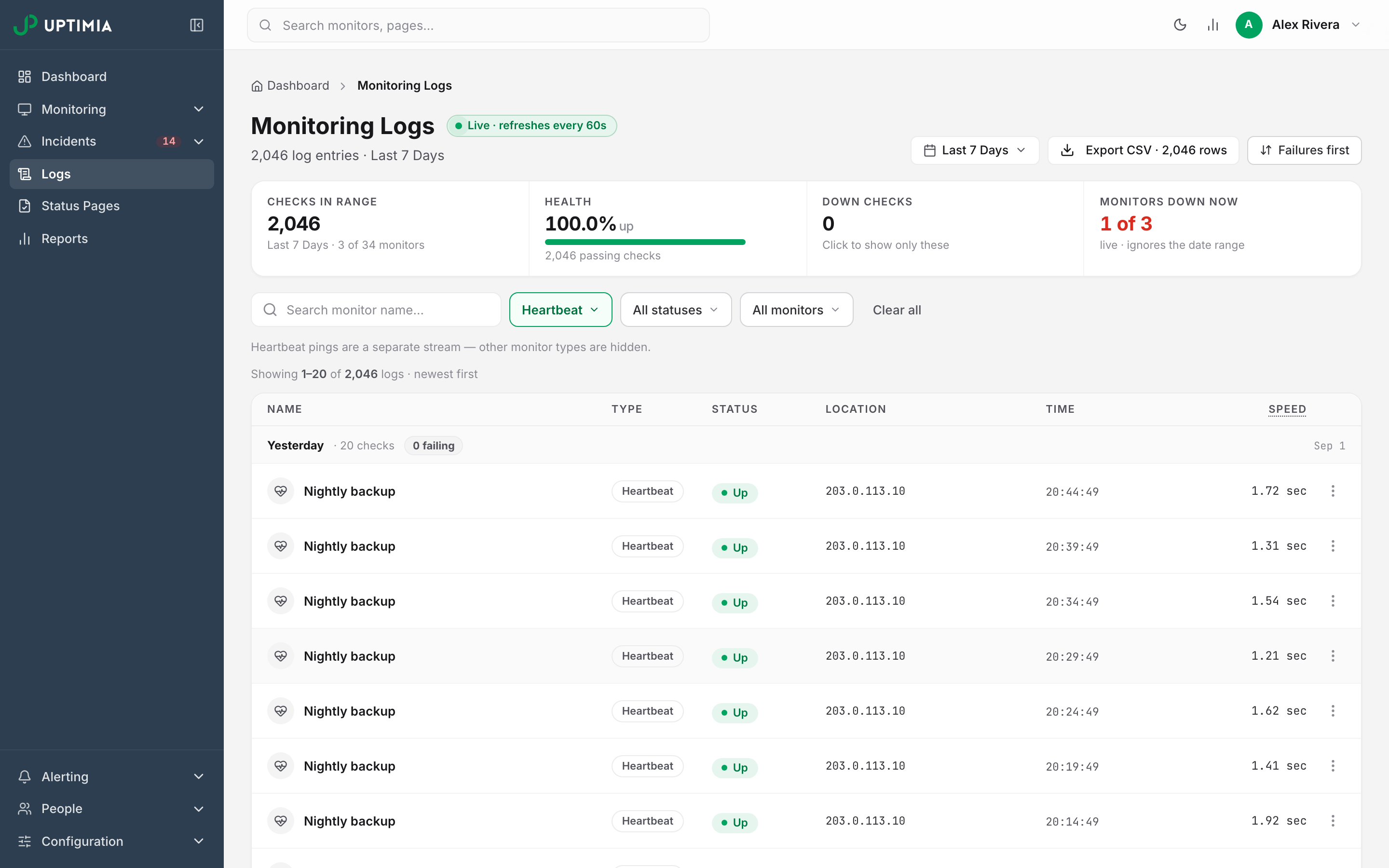
Heartbeat pings are a separate stream from probe checks, so they appear on the Logs page only when Heartbeat is the whole type selection. Tick Heartbeat alone and Uptimia confirms it: Heartbeat pings are a separate stream — other monitor types are hidden. Mix it with any other type and the heartbeat rows drop out.
Three columns read differently here:
- Location carries the source IP address instead of a probe location.
- Speed carries the job's run time.
- Status is Up for every signal except
fail.
Filtering to Up-only hides ignored rows, so leave both status boxes ticked when hunting a suppressed ping. The CSV export has no signal column, so use the per-monitor Ping log card when the signal is what you need. Monitoring Logs covers that page.
Sending a Test Ping
Actions → Ping setup → Send a test ping records a ping tagged manual. It proves the monitor and the log work, and nothing more: a manual ping never arms the monitor and never moves the next expected time, so it cannot mask a job that has stopped running. Only a real ping from the job itself arms the monitor.
When to Contact Support
Open a ticket if a ping returns {"status":"ok"} and the monitor's Last ping stat does not move within a minute. Include:
- The monitor name, and the address of its page in your browser.
- The full response of
curl -sS -i <ping URL>, including the status line. - The ping timestamp in UTC, and the time zone of the machine that sent it.
- The User-Agent your job sends, when it is something other than
curl. - Whether the monitor is paused, in maintenance or suspended.
Do not paste the ping URL into the ticket. Send the monitor name instead and support will look the token up.