
The ordinary password reset does not fix a two-factor code you can no longer receive, an invite that was never activated, or an account that was deleted. Most of those need no support ticket. If you have only forgotten your password, start with Signing In and Resetting Your Password instead.
Start From the Message on Screen
| What you see | What it means | What to do |
|---|---|---|
| Wrong email or password, repeatedly | No account exists on that address, or the password is wrong | Check the address. If it is right, see A Team Member Who Never Activated the Invite and The Account Was Deleted |
| Too many failed attempts. Please try again later. | Too many wrong passwords in a row. The wait gets longer with each new attempt | Wait it out. See Signing In and Resetting Your Password |
| Access denied | The IP address you are on is blocked | Try another network, then contact support with the IP |
| The confirmation appears but no reset email arrives | Something silently suppressed the send | Reload the form and submit once. If you tried within the last 5 minutes, wait. An unverified address or an unactivated invite also sends nothing. See The Reset Email Never Arrives |
| Stuck on the Two-factor authentication screen | You cannot reach the mailbox the code goes to, or the attempt budget is spent | Read the message on screen. A team member can ask the account owner or an Admin for a reset; an owner must contact support. See You Cannot Complete the Two-Factor Code |
| Invalid or expired activation link. Please contact the account owner to resend your invitation. | An invite link that was already used or superseded | Ask the account owner or an Admin to send the invite again |
The Reset Email Never Arrives
The forgot-password form answers "Please check your email and follow the instructions." whenever it recognizes the address, even when nothing was sent. An unknown address gets "We could not find any account with this e-mail address."
Two of the silent cases are product rules: the 5-minute per-account cooldown, and an address that was never verified. Signing In and Resetting Your Password documents both fixes. The hourly per-IP cap is the third rule there, but it shows an error instead of the confirmation: "Too many requests. Please try again later."
The remaining causes belong here:
- The form's bot defense rejected the submit. Its token is single-use and expires 2 hours after the page loads. A reused or expired token sends nothing. Neither does an address whose domain cannot receive mail at all: one that publishes neither an MX nor an A record. Both answer with the same success message. Reload the page, check the domain, then submit once.
- The address belongs to a member who never activated their invite. Ask the account owner or an Admin to send the activation link again.
If you have several addresses, request a reset for each one you might have signed up with as the account owner. The email goes only to the exact address on file. If it is a team member's seat, ask the account owner or an Admin for help instead.
You Cannot Complete the Two-Factor Code
The code goes to the mailbox of whoever is signing in. A team member gets it at their own address; the owner gets it at the owner's.
If you have the mailbox but the code is refused, read the message instead of requesting more codes. Extra spaces are ignored, so a bad paste is rarely the cause.
- "That code is incorrect." Re-read the code in the email and enter it again. Each try spends one of the 5 attempts.
- "Your sign-in request expired. Please sign in again." The pending sign-in lapsed after 1 hour. Start again from the sign-in page.
- "Too many attempts. Please sign in again to get a new code." The 5-attempt budget for this sign-in is spent, and Resend code cannot buy more. Start again from the sign-in page.
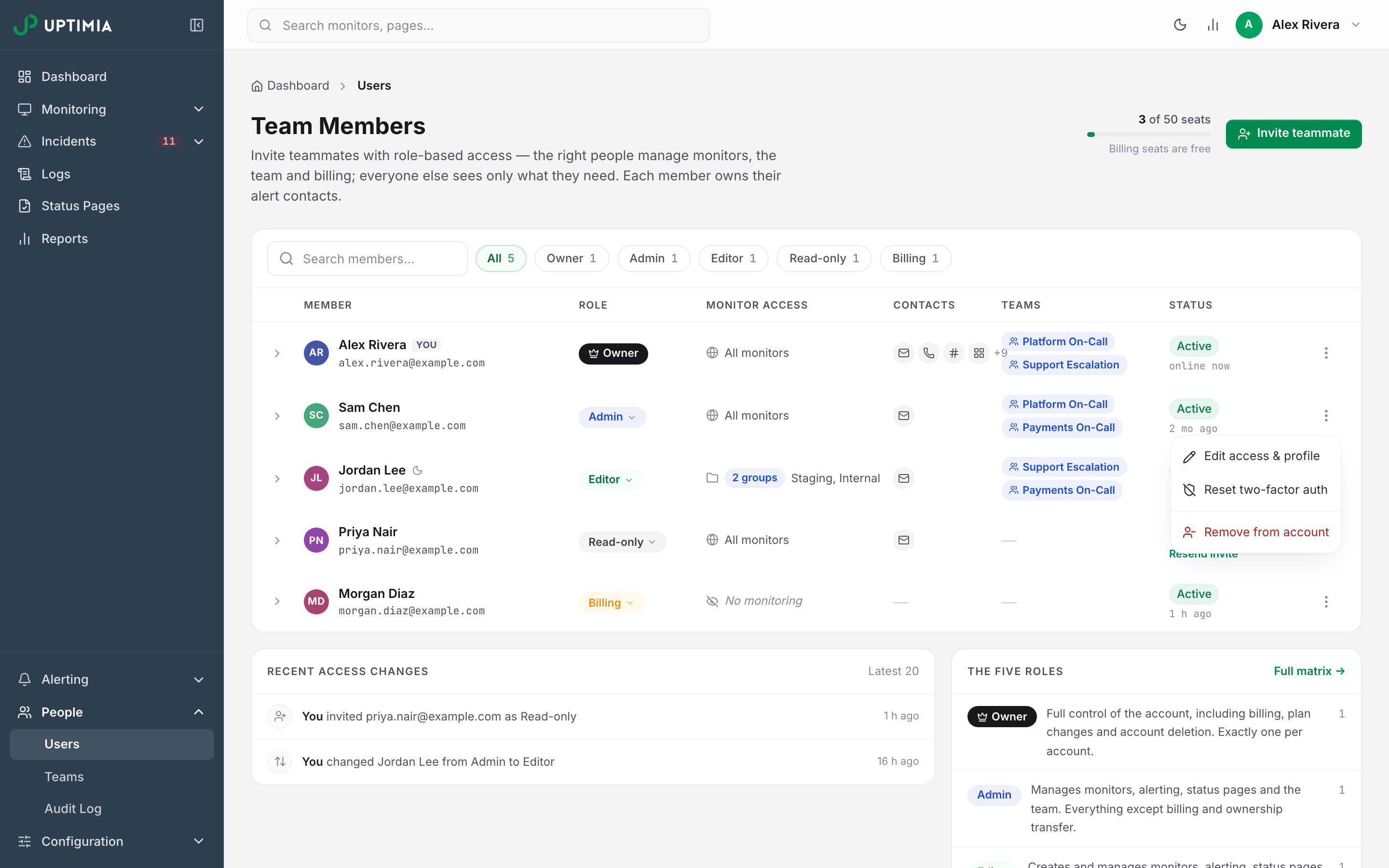
If you are a team member who has lost the mailbox, the account owner or an Admin clears your factor from inside the product:
- Go to People → Users.
- Open the kebab menu on the member's row.
- Click Reset two-factor auth.
The item shows only for a member with two-factor authentication enabled, never on your own row or the owner's. Uptimia emails the member and logs the change to the Recent access changes card on the same People → Users page. Their password still signs them in. To enroll again, they open the avatar menu (top right) → Settings → Security tab.
If you are the account owner and have lost the mailbox, contact support. There is no authenticator app and no backup codes, and no one else on the account can clear the owner's factor. Support verifies you are the owner first.
Two-Factor Authentication covers the factor itself; Inviting Team Members covers the seat lifecycle around it.
A Team Member Who Never Activated the Invite
An invite is an activation link, and a seat that has not used it has no password yet:
- The forgot-password form sends nothing for that address, and still reports success.
- An invite link that has been superseded returns "Invalid or expired activation link. Please contact the account owner to resend your invitation."
The fix is to send the activation link again. The owner or an Admin opens People → Users and the kebab menu on the pending row, where Resend invite emails the same link and Copy invite link passes it on another way. Both items appear only while the seat is unactivated.
The Account Was Deleted
Deleting an account cannot be undone, and support cannot restore it. Deletion clears the login token and the password, so no one can sign in again, and an old remember-me cookie or an old direct-access link is refused. Signing in shows Wrong email or password, the same message as an address that never existed.
If you want to monitor again, create a new account; Deleting Your Account lists what deletion removes and what survives.
A lapsed plan is a different thing, and it does come back. Dropping to a smaller plan suspends the monitors that no longer fit, keeping the oldest ones, and moving back up reactivates them in the same order. Monitors you paused by hand stay paused; an upgrade never touches a manual pause.
Don't Create a Second Account
A new account has none of your monitors, history or settings, and you'll have two logins to untangle later. Work the case that matches yours, or contact support and verify your identity against the original account.
When to Contact Support
Contact support when you are the account owner and can no longer receive your two-factor codes. Also contact support when your address was never verified and you cannot sign in to verify it, or when you see Access denied. Include these facts and support can answer in one round:
- The exact email address you are signing in with.
- Whether you are the account owner or a team member.
- The on-screen message, word for word, and the time you saw it.
- Whether that address has ever received email from Uptimia.