
A virus monitor asks Google Web Risk about one URL on a schedule, and it opens an incident when Google flags that URL for malware, social engineering or unwanted software. Web Risk is what browsers use to warn visitors away from a site. Spam blacklists such as Spamhaus and SpamCop are a separate family, covered in Blacklist Monitoring.
Before You Start
- Virus monitors are not available on Free. Basic includes 1, Professional 10 and Enterprise 100; the trial includes 50. See Plan Limits and Quotas.
- Every monitor needs at least one alert recipient. Saving one with no recipients is refused.
What a Virus Monitor Checks
Each scan is one Google Web Risk lookup for the URL you gave, against three threat types:
| Threat type | What Google flags |
|---|---|
| Malware | Injected scripts, drive-by downloads and exploit kits that attack the visitor's device |
| Social engineering | Phishing and deceptive pages that impersonate a legitimate site to collect credentials |
| Unwanted software | Pages pushing adware, browser hijackers or bundled toolbars |
"Clean" means Google Web Risk does not flag the URL: there is no second scanner and no inspection of your page's own content. Uptimia asks Google directly instead of sending probes, so a virus monitor has no location selection.
Creating a Virus Monitor
- Go to Monitoring → Virus.
- Click Create Virus Monitor.
- Enter a Monitor Name and the URL to scan.
- Set Check frequency and Alert delay on the Notification Settings card.
- Pick the contacts to alert on the Alerting card.
- Click Save Monitor. The first scan is queued immediately and runs within a minute.
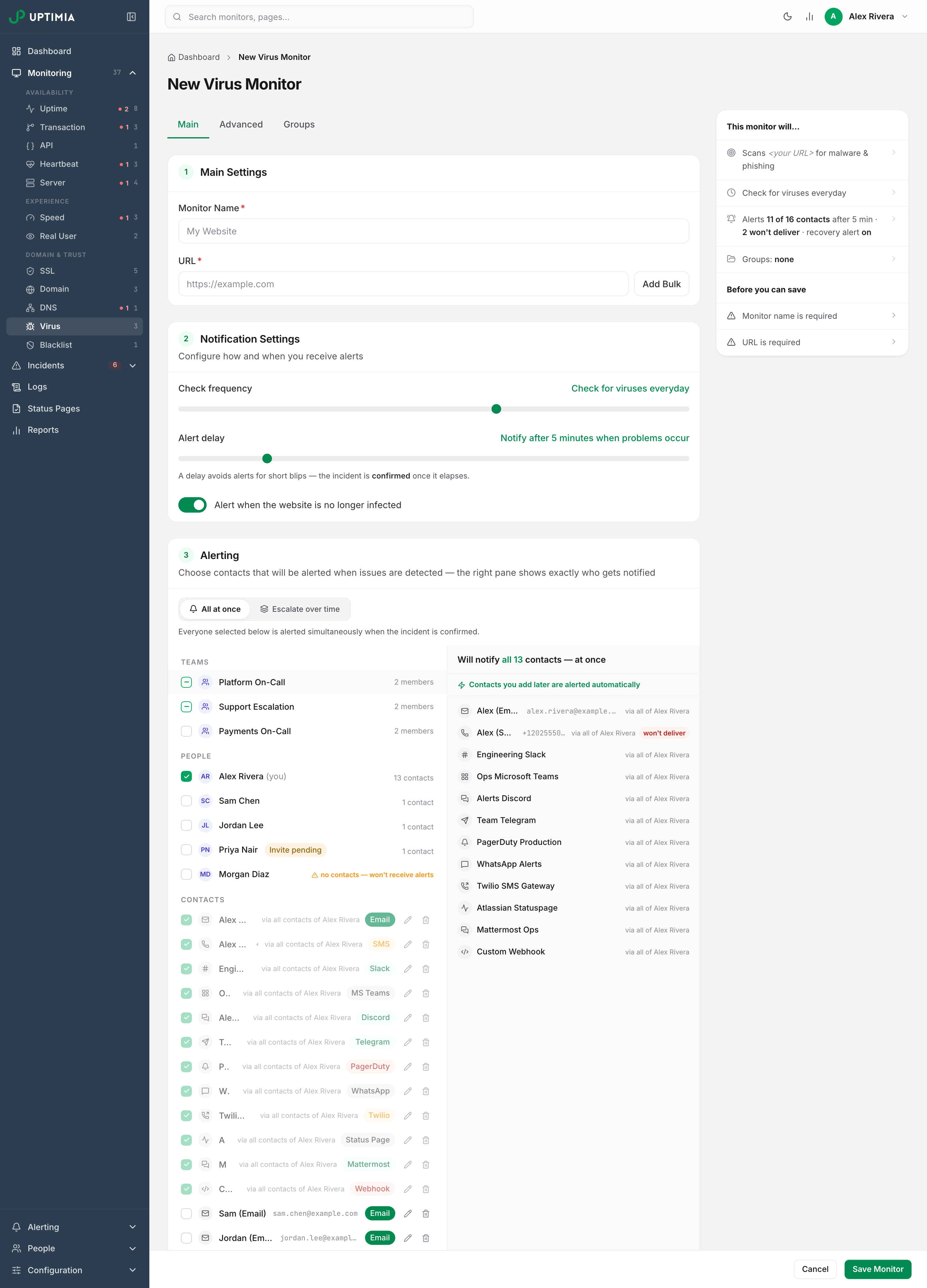
With one or more virus monitors already saved, Monitoring → Virus opens one of them instead of the create page. Use Add Monitor in the monitors panel and pick the Virus type.
To create several at once, switch the target field to Add Bulk and paste one URL per line, with an optional name after a comma. Every setting applies to the whole batch. Open each monitor afterwards to give it its own name and notes. You can also reuse a finished monitor: open its detail page, choose Save as Template from the action menu, then create the next one from that template.
Settings Reference
| Field | What it does | Default | Limits |
|---|---|---|---|
| Monitor Name | The label used on the dashboard, in alerts and in reports. | — | Must be unique among your virus monitors; upper and lower case count as the same |
| URL | The address Web Risk is asked about. | — | Must be a valid URL |
| Check frequency | How often the URL is scanned. Slider labels: every hour, every 2 hours, every 3 hours, every 6 hours, every 12 hours, everyday, every 2 days, every 3 days, every week. | everyday | 1 hour to 1 week |
| Alert delay | How long a detection must stand before the first alert goes out. The incident is confirmed when it elapses. | 5 minutes | 0–30 minutes |
| Alert when the website is no longer infected | Sends a recovery alert when the first clean scan closes the incident. | On | On / off |
| Alerting | The contacts paged when an incident opens, or an escalation policy that pages them step by step. | All at once | At least one recipient |
| Groups | Monitor groups this monitor belongs to. | None | — |
| Notes | A free-text note that travels with the monitor onto incidents, alert emails and webhooks. | Empty | 500 characters |
| Email Branding Style | The branding theme applied to this monitor's alert emails. | Account default | — |
The editor has three tabs: Main, Advanced and Groups. Name, URL and the alerting cards are on Main; Advanced holds only Notes and Email Branding Style. There is no Locations tab, because a Web Risk answer is the same wherever it is asked for, and no Outage confirmation control either: one Web Risk answer decides the state, with no backup pass behind it.
Once your account has at least one escalation policy, the Alerting card gains an All at once | Escalate over time switch. Set it to Escalate over time and pick a policy. With no policies saved yet, the card links you to where you create one (see Escalation Policies).
Save-Time Validation
- A check frequency under 1 hour is rejected with "Virus monitors require a minimum check interval of 1 hour". A save that leaves the frequency out is raised to 1 hour rather than failing.
- A name already used by another of your virus monitors is rejected as a duplicate; names used by your other monitor types do not conflict.
- A save with no alert recipients is rejected.
Scan Cadence and Re-Scanning After Cleanup
Between incidents the monitor scans as often as Check frequency says, with two exceptions:
- While a threat is standing, the monitor re-scans every hour regardless of that setting. A site you clean at 10:00 clears within the hour rather than waiting for tomorrow's daily scan. Once the incident closes, the normal frequency resumes.
- When Web Risk cannot be reached, the scan is skipped and retried in 60 seconds. A skipped scan is never logged as clean, and the incident state stays as it was, so an outage at Google's end cannot close your incident or invent a healthy scan.
If you save a change to any field, the monitor is scanned again straight away. Saving the form without changing anything does not start a new scan, so opening the form to look at it never uses up a scan.
Reading the Detail Page
The detail page is one scrolling stack of cards, not a set of tabs.
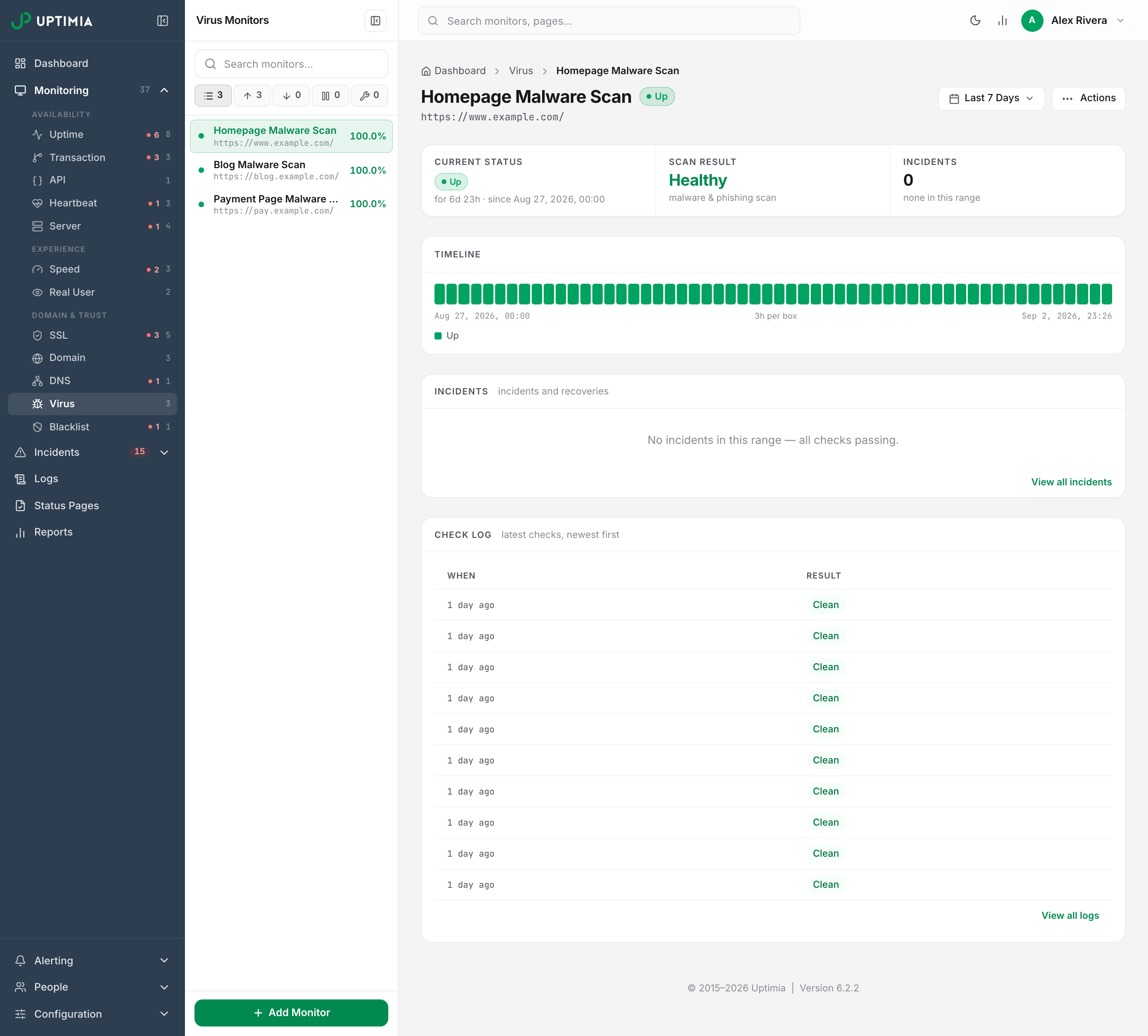
Header. The monitor name, its URL and a status badge: Up, Down, Maintenance, Paused or Suspended. A virus detection is always critical. That is why a virus monitor never shows Trouble. When a maintenance window is running, a line under the URL reads "Under maintenance until end time · window name", and that line links to the maintenance page. Status vocabulary across all families is in Monitor Statuses.
Stat strip. Four cells:
| Cell | What it shows |
|---|---|
| Current Status | The status badge, with how long it has held and since when |
| Scan Result | Healthy, Infected, Paused, Maintenance, Suspended or Unknown, under the sub-line "malware & phishing scan" |
| Incidents | Detections in the selected date range, with the most recent one's start time |
| Last Scan | How long ago the last scan ran, or "Not yet" before the first one |
Unknown means no scan has landed yet. Suspended means the monitor is over your plan's virus allowance after a downgrade and is not being scanned at all.
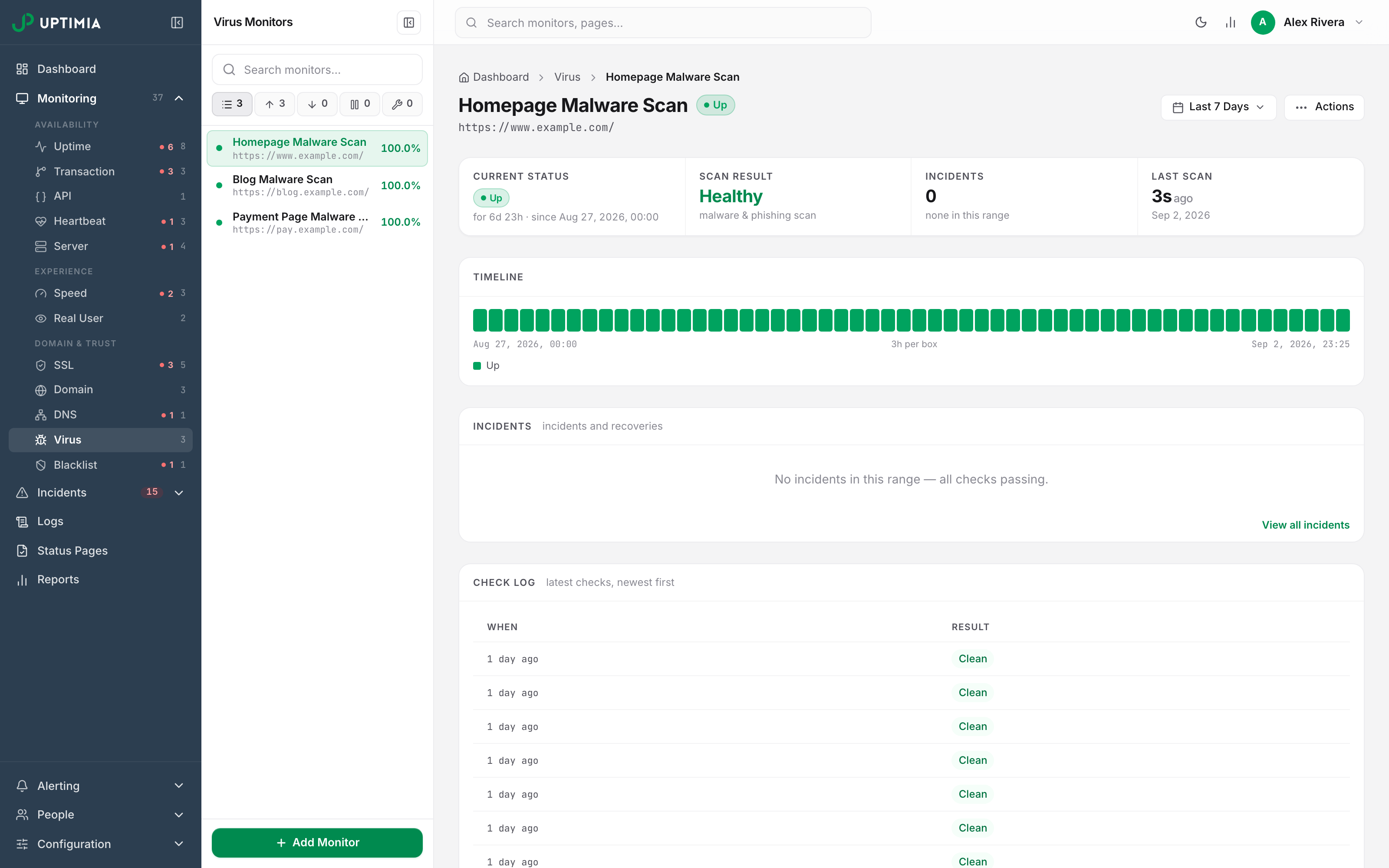
Timeline. The shared status bar across the selected range. Its legend lists only the states present in that range, drawn from Up, Down, Maintenance, Paused and Unknown. On a monitor that has been clean all range it reads only Up.
Incidents card. One row per detection with its start, end and duration. Clicking a row opens the incident's own page. A virus incident carries the Web Risk threat type as its error code, plus one of three reasons:
- "Malware has been detected on your website."
- "Your site has been flagged for social engineering."
- "Unwanted software, such as malware, has been detected on your website."
A detection always opens a critical incident, and the first clean scan closes it.
Check log card. The scan history, newest first. A virus scan row carries two columns only, When and Result, badged Clean (green) or Infected (red), with no probe or response time, because Uptimia asks Google a question instead of loading your page. View all logs opens the same rows in the account-wide Monitoring Logs page, filtered to this monitor.
Limits and Plan Availability
| Monitor type | Free | Basic | Professional | Enterprise | Trial |
|---|---|---|---|---|---|
| Virus | 0 | 1 | 10 | 100 | 50 |
Free accounts cannot create a virus monitor. If a downgrade puts you over the allowance, the excess monitors are suspended rather than deleted. They stop being scanned, and they start alerting again once you are back inside the limit.
After an Infection
- Fix the cause, not the symptom. Most infections arrive through an out-of-date CMS or a vulnerable plugin, so update everything and remove what you do not use.
- Check server access logs for unauthorized access, then rotate every credential involved: FTP, SSH, database and CMS admin.
- Leave the monitor running. It re-scans hourly while the incident is open, and the recovery alert is your confirmation that Google no longer flags the URL.
- Create one monitor per public hostname. A monitor knows only about the URL it was given, so a flagged subdomain is invisible to a monitor pointed at the apex domain.