
Uptimia posts downtime and recovery alerts into a Microsoft Teams channel through a webhook you create with the Workflows app (Power Automate). Because Uptimia sends an Adaptive Card and nothing else, the webhook has to be a current Workflows one rather than an older connector URL. A retired classic Office 365 connector shows nothing. Delivery rules shared by every channel are in Integrations Overview.
Before You Start
- Managing integrations requires the Owner or Admin role. Editor, Read-only and Accounting / Billing seats cannot open Alerting → Integrations.
- You need rights to add the Workflows app to the Teams channel that should receive alerts.
- Use the Microsoft Teams card rather than the generic Webhooks card. The Teams card builds the Adaptive Card for you; the generic webhook sends plain data that Teams will not show as a card.
Adaptive Card Only: What That Means for Old Connectors
Uptimia sends one message format: an Adaptive Card, version 1.4. There is no older format and no fallback. A Teams integration still pointed at a classic Office 365 Incoming Webhook connector receives nothing, no matter how healthy the integration looks in Uptimia.
Microsoft retired that classic connector on webhook.office.com in a rollout dated 18–22 May 2026. It stopped the older *.logic.azure.com Workflows trigger URLs on 30 November 2025. Microsoft issues current Power Automate Workflows webhooks on *.environment.api.powerplatform.com.
If Teams alerts used to arrive and went quiet with no change on your side, that is the cause. Create a new Workflows webhook and paste it into the existing integration. Every monitor already pointing at that contact keeps working.
Step 1: Create the Webhook in Teams
- In your Microsoft Teams sidebar, click … (More apps) and open the Workflows app.
- Search for webhooks and select Send webhook alerts to a channel.
- Select your Team and Channel, then click Save.
- Click Copy webhook link.
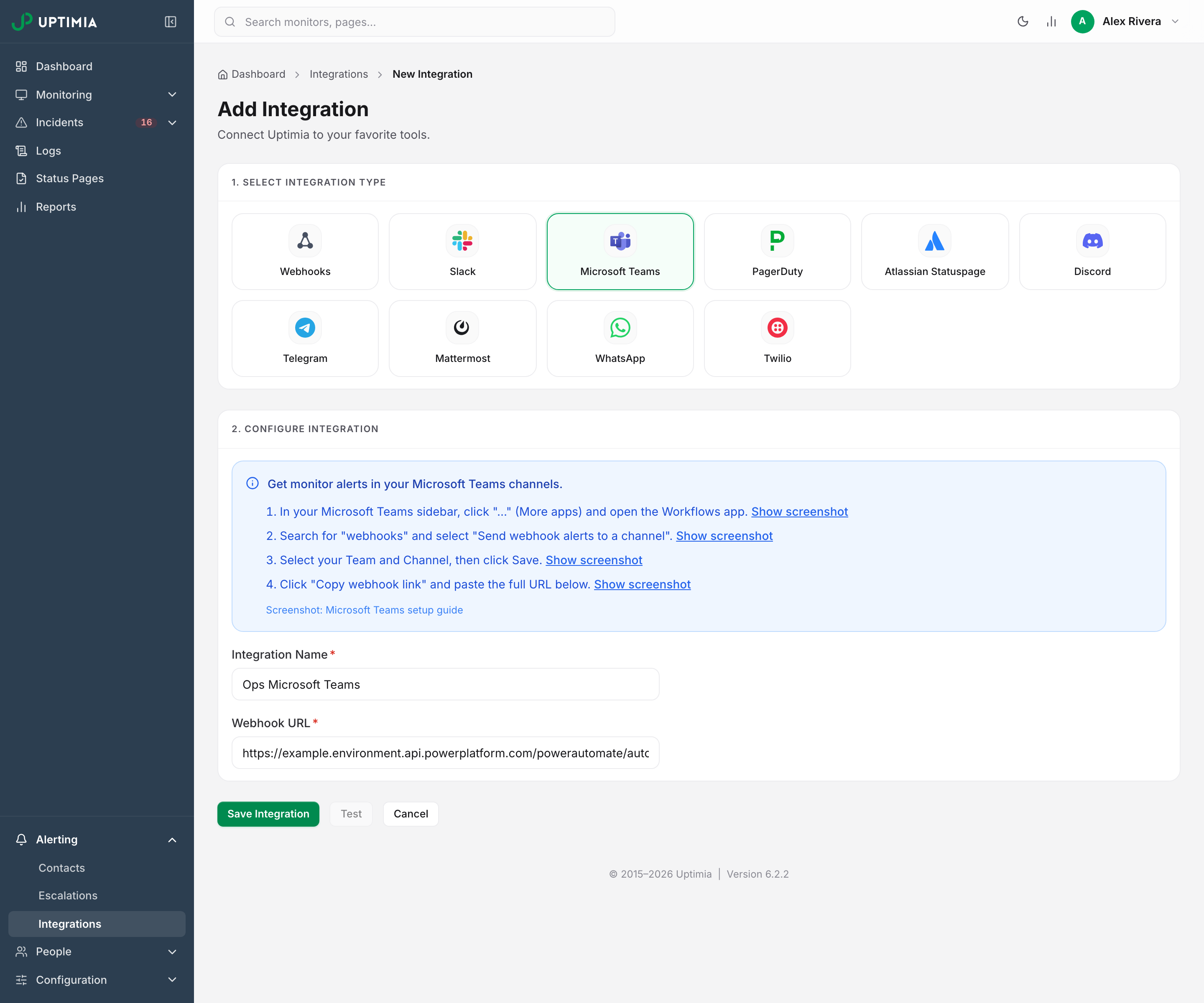
The integration editor shows these same four steps in a blue panel, each with a screenshot you can expand.
Step 2: Create the Integration in Uptimia
- Go to Alerting → Integrations and click Add Integration.
- Select the Microsoft Teams card under 1. Select Integration Type.
- Enter a name in Integration Name. It becomes the name of the contact created alongside the integration, so name it after the channel.
- Paste the copied link into Webhook URL.
- Click Save Integration.
Which Webhook URLs Are Accepted
Uptimia accepts a Teams webhook link only on Microsoft's own web addresses, and only over HTTPS. It runs that check when you save, and again just before every send.
| Accepted host | Status |
|---|---|
*.environment.api.powerplatform.com |
Current, where Workflows issues webhooks today |
*.logic.azure.com |
Legacy Workflows trigger URLs, stopped 30 November 2025 |
outlook.office.com, *.office.com, *.webhook.office.com |
Classic O365 connector, retired 18–22 May 2026 |
The legacy hosts are still accepted for tenants that have not migrated, but Microsoft no longer delivers to them.
Uptimia refuses anything else:
- a different host
- an
http://URL - a URL carrying credentials
- a web address that does not exist
- an address that points inside a private or reserved network
The save then fails with a generic message: creating an integration gives The integration is missing required fields, and editing one gives There was an error updating the integration. If the name and URL are both filled in, the host is what was rejected.
Step 3: Test It
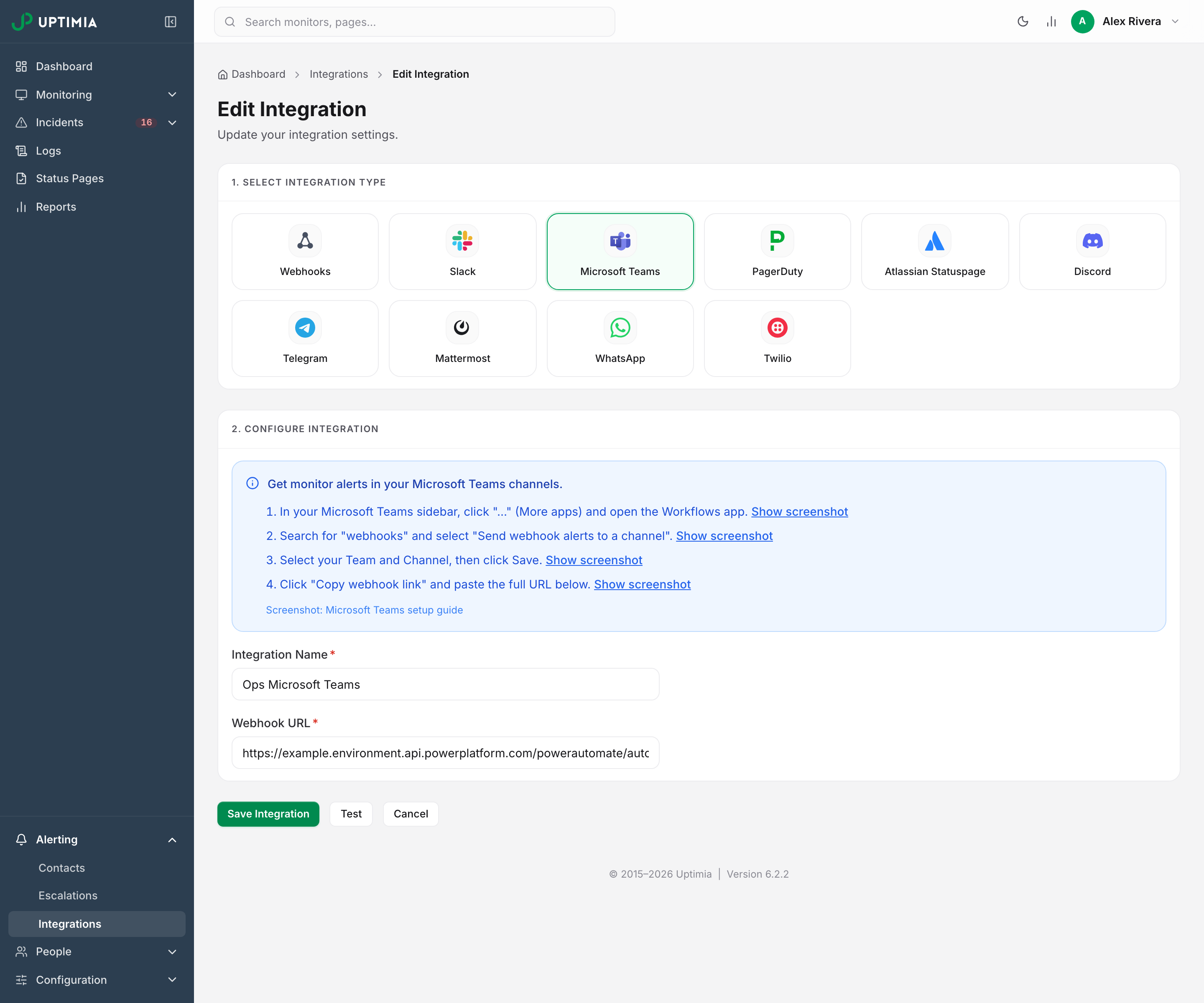
On the integrations list, open the row's actions menu (three dots) and choose Test. The editor's Test button beside Save Integration does the same thing. It uses the saved settings, so it is disabled while the form has unsaved edits.
The test posts a card reading "Congratulations, your Microsoft Teams Channel has been connected to Uptimia! You will receive notifications to this channel as long as you connect this integration to any websites you monitor."
The Test notification sent successfully toast only means Uptimia accepted the request. For Teams you get that toast whether or not the send succeeded, and even when the URL was refused before any request went out. The card in the channel is the only proof. A green toast over an empty channel means the send failed, and while a retired connector URL is the usual cause, a rejected host or any non-2xx answer from Microsoft produces the same green toast. Check the host first.
What the Alert Card Contains
Every alert is one Adaptive Card:
| Element | Content |
|---|---|
| Header | The Uptimia icon, the title Monitoring Alert, and a subtitle reading Status for a real alert or Integration Test for a test |
| Message body | The alert text, on a red background when the monitor is down and a green background when it recovers (the card's attention and good styles) |
| Details | Assigned to (the account email), Type (the monitor family, such as Uptime Monitoring or SSL Certificate), and Priority (High while down, Low on recovery, None for a test) |
| Action | A Contact Settings button linking to your contacts page |
Attach the Teams Contact to Your Monitors
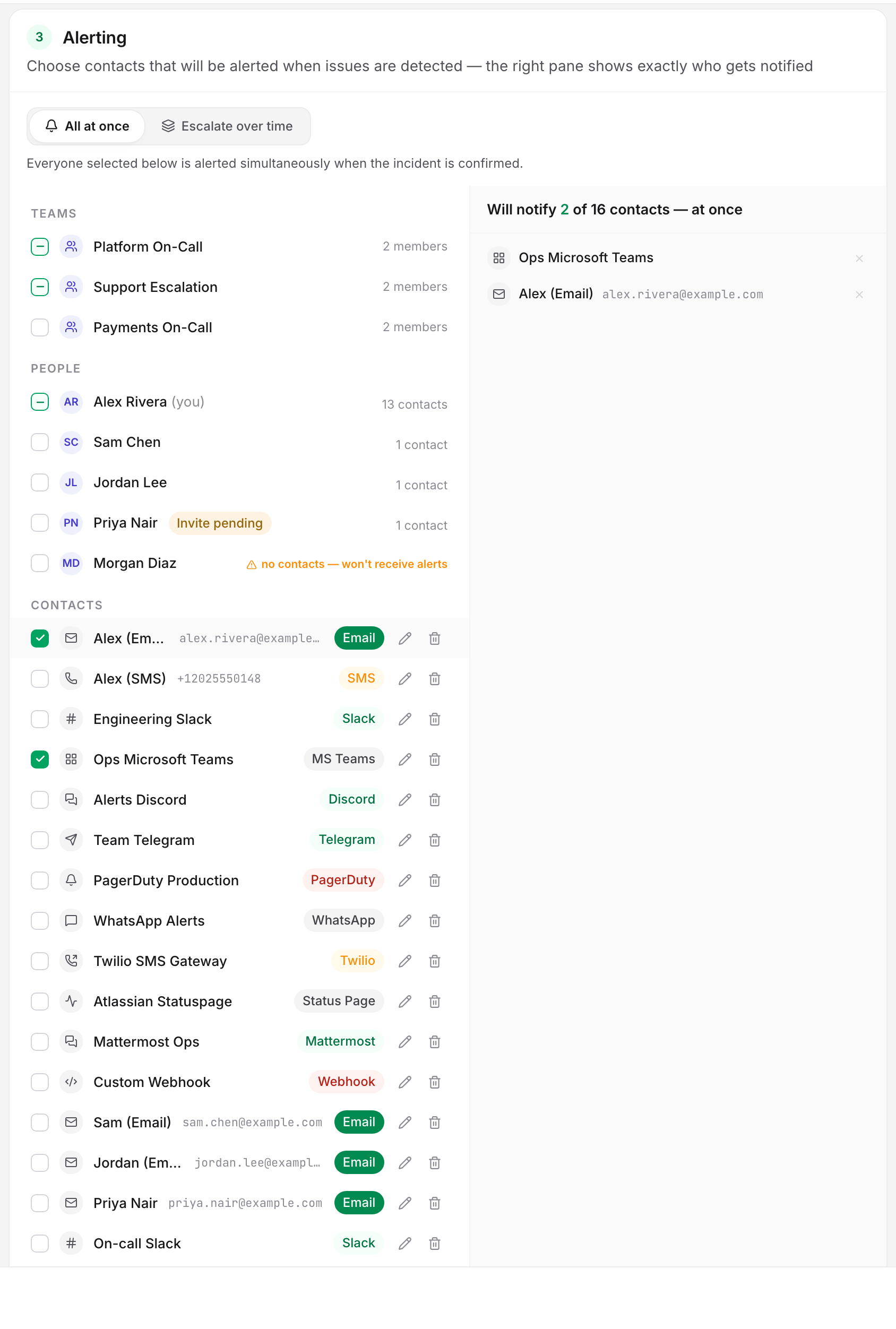
Saving the integration creates a matching alert contact. Open the monitor, scroll to the Alerting card at the foot of the editor's Main tab, tick the Teams contact and click Save Monitor.
Monitors already set to the auto-include selection picked up the Teams contact the moment you created the integration, so they need no edit. On a solo account that selection is the All my contacts — current & future row at the top of the recipients panel. An account with team members gets a different panel, grouped by People and Contacts and, if you have any, Teams; the equivalent row there is your own under People, which covers every contact you own, current and future. See Who Gets Alerted.
While the monitor is set to Escalate over time, the people paged come from the escalation policy, not from this list. Add the Teams contact to a policy step. The monitor's own list is still required as the fallback for an incident the grouping and escalation layers cannot take, and a ladder that reaches nobody pages the account owner as a last resort.
Teams During an Alert Storm
When several monitors sharing one escalation policy fail together, the channel gets one digest card listing each monitor instead of one card each. That card also carries an Acknowledge incident button, which pauses the escalation ladder without signing in. See Alert Groups and Acknowledging Incidents and MTTA.
If Alerts Don't Arrive
The Webhook Is a Retired Classic Connector. Uptimia accepts a webhook.office.com URL, and Microsoft ignores it. Open the integration and check the host in Webhook URL. It has to be *.environment.api.powerplatform.com. For any other host, create a new Workflows webhook and replace it.
Teams Answered With Something Other Than 2xx. Teams has to confirm it received the card. Anything else counts as a failure, including an answer that redirects Uptimia somewhere else. A deleted Workflow, or one whose owner left the tenant, answers with an error every time. Retries, along with the point where Uptimia gives up on a failed send, work the same on Teams as on every other channel. See Integrations Overview.
The Monitor Is Escalating and Teams Is Not in the Policy. Open the monitor's Alerting card and check the mode. In Escalate over time, the Teams contact belongs in a policy step rather than the recipients panel.
Your Alerting Schedule Is Holding the Alert. Uptimia holds an alert raised outside your alerting schedule's open window and delivers it at the next opening. A schedule that blocks all seven days pages nobody on any monitor. Adjust it on the Contacts page. See Contacts and Alerting.
Your Account Email Is Unverified. While the account email is unverified, Uptimia drops every waiting alert on every channel. Verify the address and the next incident alerts normally.
When to Contact Support
Contact support if the webhook host is current, the test card arrives, and the monitor's recipients include Teams. Send:
- the integration name
- the webhook host, not the full URL
- the monitor name and type
- the incident's start timestamp with your time zone