
Uptimia posts downtime and recovery alerts into a Slack channel through an incoming webhook. You add Slack as an integration, which creates a matching contact. Then route monitors to that contact. Integrations Overview covers grouped digests, delivery retries and the outbound URL check.
Before You Start
- You need permission to create an app and add an incoming webhook in the Slack workspace that should receive alerts.
- In Uptimia you must be Owner or Admin. Only those roles see Alerting → Integrations.
- Your Uptimia account email must be verified. While it is unverified, Uptimia drops every queued alert at delivery time on every channel, including Slack, even though integration tests still pass.
Step 1: Create the Incoming Webhook in Slack
You choose the destination channel here, in Slack. Uptimia has no channel field.
- Go to
api.slack.com/appsand click Create New App, then From scratch. - Enter an app name and pick the workspace.
- Open Incoming Webhooks and turn the feature on.
- Click Add New Webhook to Workspace and select the channel alerts should post to.
- Copy the generated URL. It starts with
https://hooks.slack.com/services/.
Step 2: Add the Slack Integration in Uptimia
- Go to Alerting → Integrations and click Add Integration.
- Select Slack in the 1. Select Integration Type grid. A setup panel opens with the same Slack steps, each with a Show screenshot link.
- Enter an Integration Name: name it for the channel it posts to, such as "Production alerts – #ops".
- Paste the URL into Webhook URL.
- Click Save Integration. Uptimia creates a Slack contact of the same name, already confirmed.
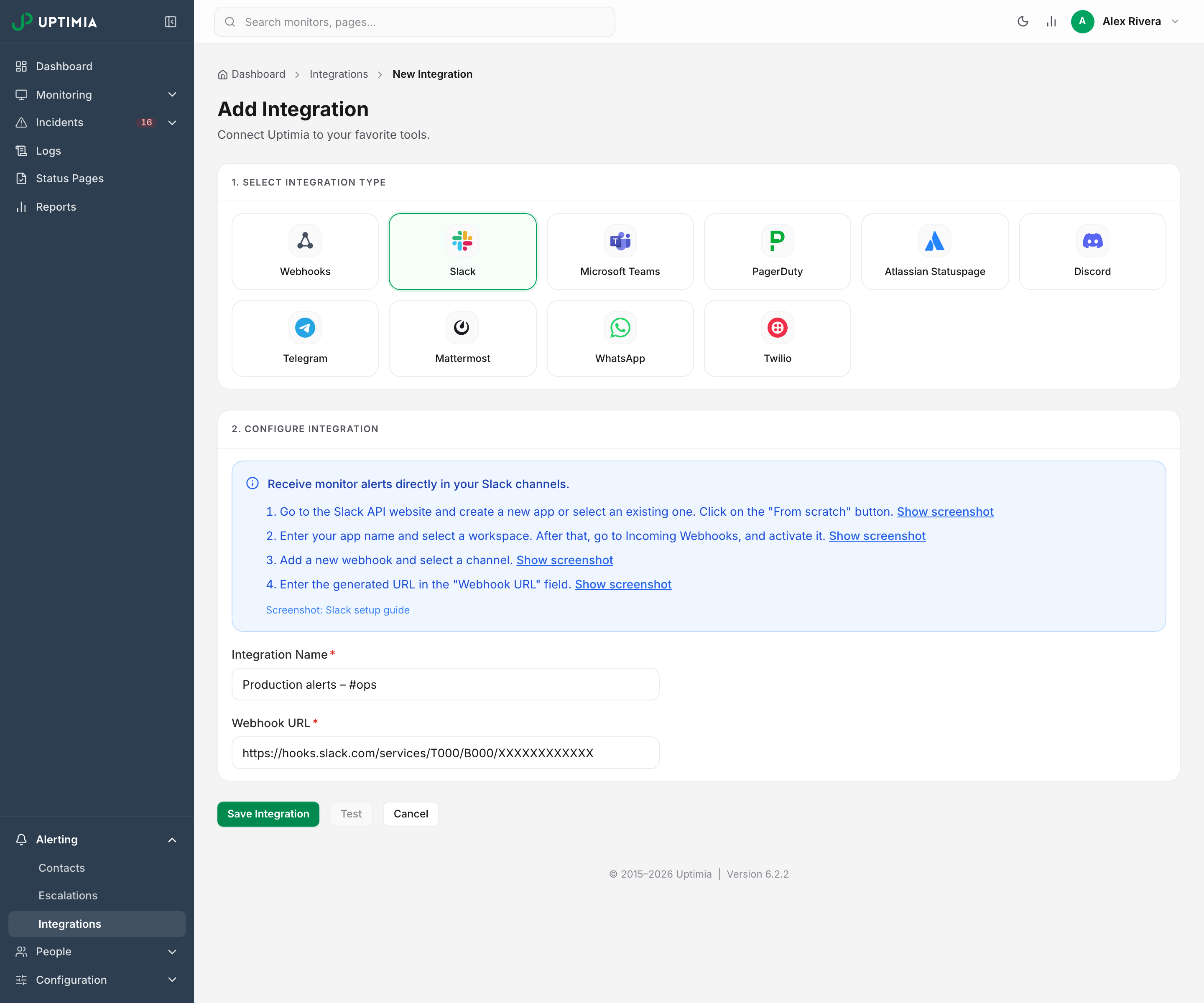
Uptimia accepts a Slack webhook only over HTTPS on hooks.slack.com. Any other host is refused, and the save reports The integration is missing required fields. A blank Webhook URL is caught earlier and flagged on the field itself as This field is required.
Step 3: Route Monitors to the Slack Contact
Open the monitor, scroll to the Alerting card at the bottom of the Main tab, select the Slack contact in the left pane, and save. The right pane lists the endpoints Uptimia will notify.
Monitors already set to auto-include every contact need no edit: they pick up the new Slack contact on their own. On a single-user account, that setting is the All my contacts — current & future row at the top of the left pane. On an account with team members, it is the person row for your own name, Alex Rivera (you) in the screenshot, with its 13 contacts. See Who Gets Alerted.
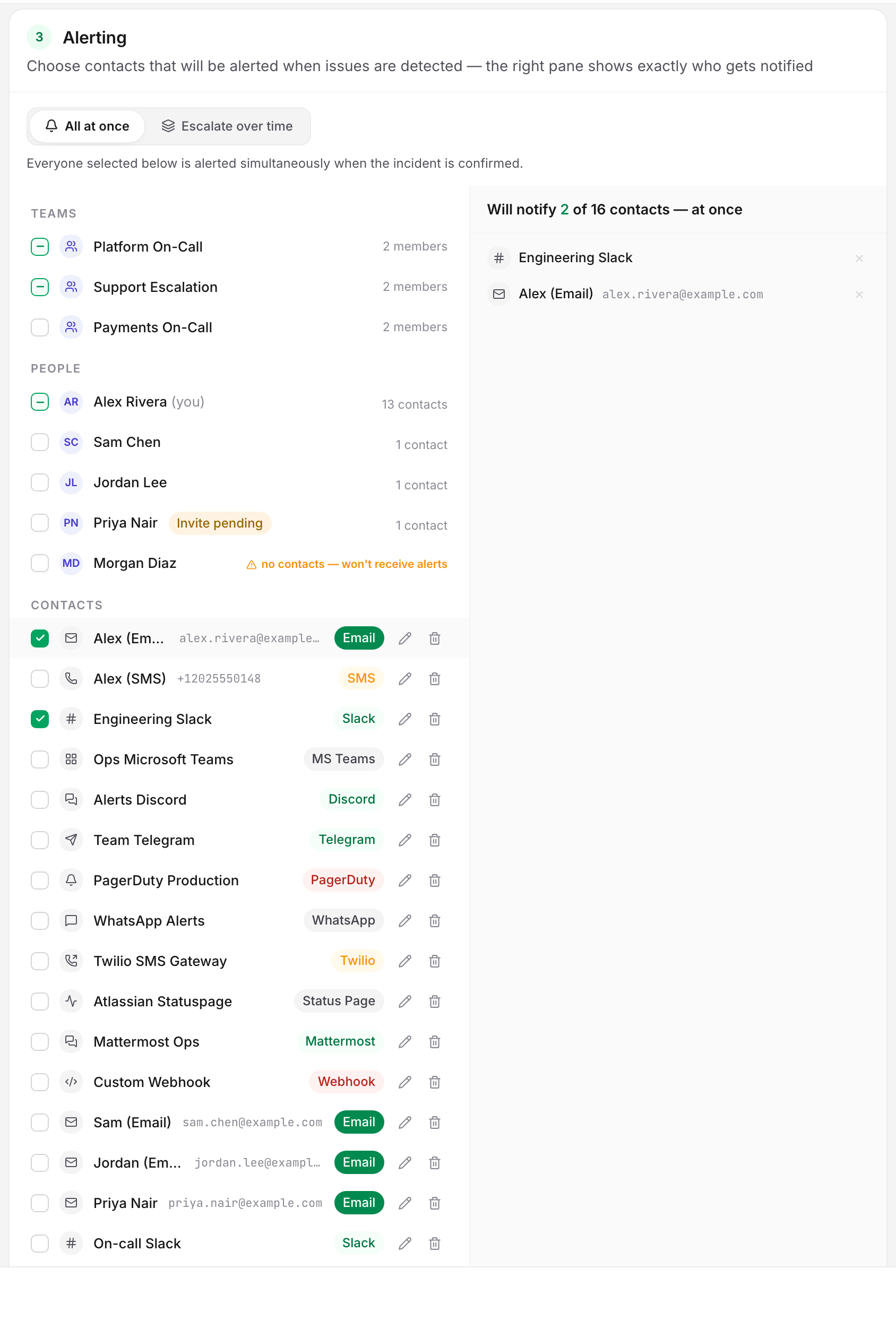
While a monitor is set to Escalate over time, the people paged come from the escalation policy, not from this list. Add the Slack contact to a step of the policy. The monitor's own list stays required as the fallback for incidents the grouping and escalation layers cannot take. If a whole ladder reaches nobody, Uptimia pages the account owner as a last resort.
Test It
From Alerting → Integrations, open the actions menu (three dots) on the Slack row and select Test. Slack should receive a "your Slack Channel has been connected to Uptimia" confirmation, sent through the same webhook URL live alerts use. Uptimia shows Test notification sent successfully.
The editor's Test button does the same thing, but only in edit mode and only when there are no unsaved edits. It tests the saved row, so a dirty form disables it and the page reads Save your changes to test the updated configuration.
What a Slack Alert Looks Like
A live alert arrives as a Block Kit message with five parts:
- a Monitoring Alert header
- an "Affected monitor" line naming the monitor
- the alert text
- Priority and Type fields
- a "Sent from Uptimia" footer
When several monitors sharing an escalation policy fail together, Slack gets one digest naming all of them instead of one message each. The digest carries an Acknowledge incident link that pauses the escalation ladder without signing in. See Alert Groups.
If Alerts Don't Arrive
Work through these in order.
- Check the monitor's alerting mode. Open the monitor's Alerting card. If the mode reads Escalate over time, the Slack contact must appear in a step of the attached policy. If it reads All at once, confirm the contact is selected, directly or through All my contacts.
- Check the account email is verified. While the account email is unverified, Uptimia drops every queued alert, and integration tests keep passing.
- Read the right pane of the recipients panel. A recipient carrying a won't deliver badge is unconfirmed, opted out, or duplicates another selected contact on the same destination. Hover the badge to see which. See Who Gets Alerted. Two Slack contacts on the same integration collapse into one alert. Two contacts on two different Slack integrations are two alerts.
- Check the alerting schedule. An alert falling outside the alerting days and hours is held, then delivered when the window next opens. Nothing is discarded. A schedule belongs to the person who owns the contact, never to the contact itself. Whoever created the integration owns the Slack contact, so the alert obeys that person's window. The account owner sets that window on Alerting → Contacts under Your alerting schedule; an Admin sets their own from People → Users. See Alerting Schedules, Quiet Hours and Time Zones.
- Confirm the incident exists. Open the monitor's Incidents card. No incident means nothing was sent, and the problem is upstream of Slack.
Judge the test by what lands in the channel, not by the toast. For Slack, Uptimia reports Test notification sent successfully whether or not Slack accepted the post, so an archived channel or a revoked webhook still shows green. No test message means a broken webhook. Regenerate it under Incoming Webhooks in Slack, paste it into Webhook URL, save, and test again. A single failed post is not lost work. Slack is the one channel Uptimia retries in the same request, 2 seconds after that failure, before the shared delivery queue takes over.
Contact support when all three of these are true and Slack still receives nothing: the test message arrives in Slack, the incident exists, and no recipient shows a won't deliver badge. Send the integration name, the affected monitor and the incident timestamp, and we'll trace the delivery log for that alert.