
Mattermost is self-hosted team chat, so its incoming-webhook URL points at your own server rather than at a vendor endpoint. Uptimia resolves the webhook host when you save, and a URL that only works inside your network is refused. Delivery rules shared by every channel live in Integrations Overview.
Before You Start
- Only the Owner and Admin roles manage integrations. Editor, Read-only and Accounting / Billing seats do not see Alerting → Integrations.
- You need a Mattermost account allowed to create incoming webhooks in the target team.
- The webhook host must resolve to a public address from the internet. A Mattermost server reachable only over a VPN or on a LAN address cannot be used.
Step 1: Create an Incoming Webhook in Mattermost
- In Mattermost, open the app dropdown in the top-left corner and click Integrations.
- Select Incoming Webhooks.
- Add a new incoming webhook and choose the channel alerts should post to.
- Save it, then copy the generated URL. It has the shape
https://mattermost.example.com/hooks/xxxxxxxxxxxxxxxxxxxxxxxxxx, on your own domain.
If Integrations or Incoming Webhooks is missing, incoming webhooks are turned off on your server. A Mattermost system administrator has to enable them. Mattermost's own documentation is at https://docs.mattermost.com.
Step 2: Add the Integration in Uptimia
- Go to Alerting → Integrations.
- Click Add Integration.
- Under 1. Select Integration Type, click Mattermost.
- Enter a name in Integration Name that identifies the channel, such as
Production alerts - #ops. - Paste the webhook URL into Webhook URL.
- Click Save Integration. The toast reads Integration created and you land back on the integrations list.
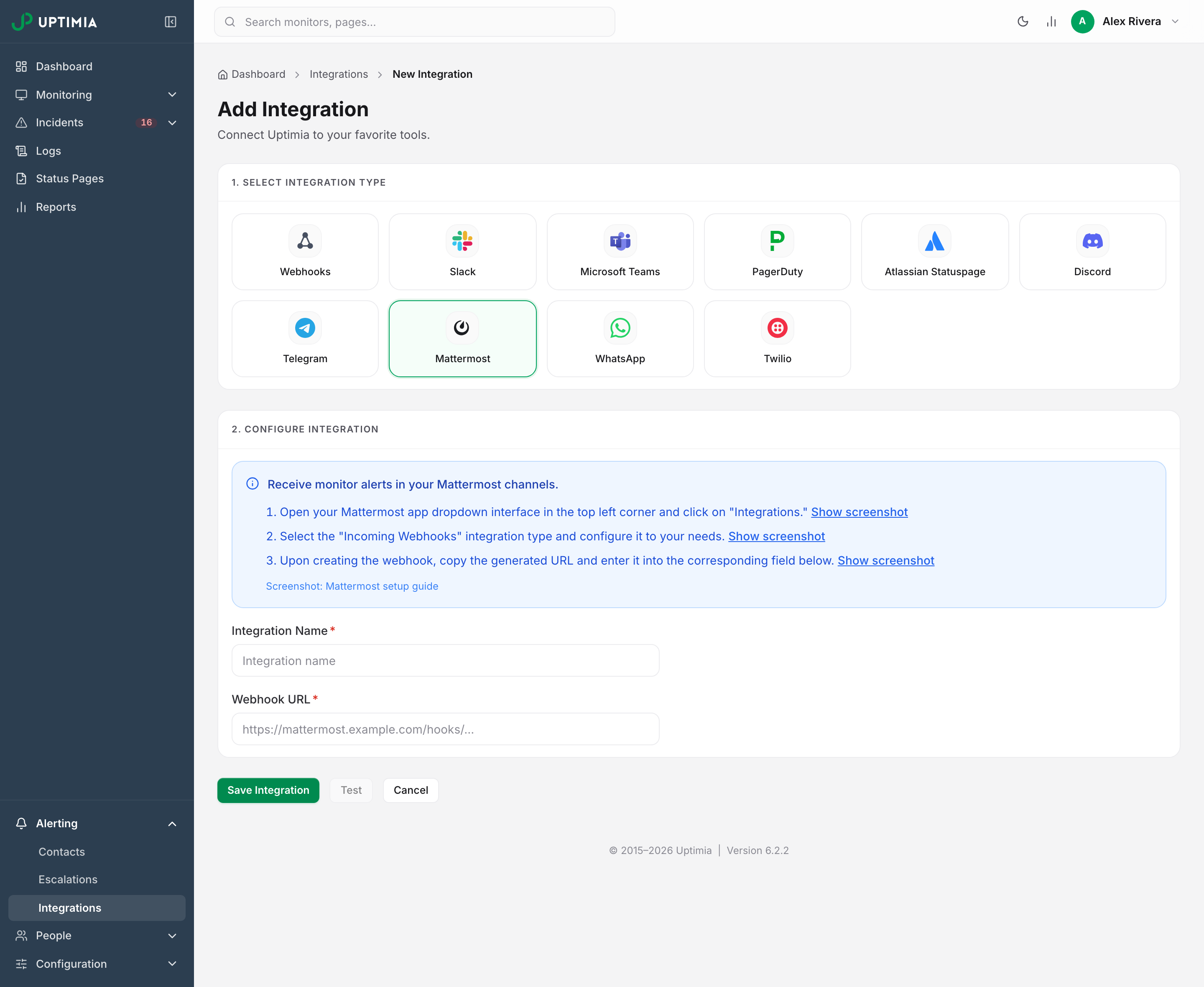
Saving also creates a contact of type Mattermost carrying the same name. The contact is what you attach to monitors, and the integration on its own delivers nothing. Rename the integration and the contact is renamed with it. On a multi-user account the contact belongs to whoever created it, shown in the Owner column on Alerting → Contacts.
Your Webhook URL Must Be Publicly Resolvable
Uptimia checks the URL at save time and again just before every send, looking the hostname up in public DNS each time. Mattermost, Slack, Discord, Microsoft Teams and custom webhooks all face it. A DNS change that moves the host onto a private address blocks a channel that saved and tested fine.
| Requirement | What is refused |
|---|---|
The scheme is http or https |
Any other scheme |
| No credentials in the URL | https://user:[email protected]/hooks/... |
| Plain English letters in the hostname, with no dot at the start or end | A hostname with accented or non-Latin letters; mattermost.example.com. |
| The host resolves in public DNS | An internal-only name, including a split-horizon name that resolves on your VPN and nowhere else |
| Every resolved address is public | Loopback, 10.0.0.0/8, 172.16.0.0/12, 192.168.0.0/16, link-local, carrier-grade NAT (100.64.0.0/10), multicast, and the IPv6 equivalents |
Uptimia reports the refusal as a generic validation error whose wording never names the URL. On a new integration the red toast reads The integration is missing required fields, and on an existing one it reads There was an error updating the integration. If both fields are filled in and Save is still refused, the URL is what failed.
To get past it:
- Expose the webhook endpoint publicly. A reverse proxy that answers
/hooks/on a public hostname is enough. The rest of the server stays private. Uptimia's application servers send the alerts, not the monitoring probes, so a probe allowlist does not cover them. Ask support for the sending addresses if your edge filters by IP. - Use a non-default port.
https://mattermost.example.com:8065/hooks/...is accepted; the port is preserved for delivery. - Route the alert somewhere else. If Mattermost cannot be reached from the internet, page the same people by email or SMS. For the opposite problem, a target Uptimia's probes cannot reach, see Monitoring Behind a Firewall.
Note: A plain http:// webhook URL is accepted at save time and for ordinary per-monitor alerts. Slack, Discord and Microsoft Teams are HTTPS-only. Escalation is stricter: alerts routed through an escalation policy go out over HTTPS only, and that includes alert-group digests, so an http:// webhook receives none of them. Use an https:// URL if the monitor uses an escalation policy. Uptimia does not follow redirects, and counts the alert as delivered only when your server answers with a success. If your proxy answers http:// by redirecting (a 301) to https://, store the https:// URL.
Step 3: Send a Test
Both routes send the same post through the stored configuration.
- From the list. Go to Alerting → Integrations, click the three-dots menu in the Actions column on the Mattermost row, and choose Test.
- From the editor. Open the integration and click Test in the footer, next to Save Integration. It stays disabled until the integration has been saved, and while the form has unsaved edits. The line Save your changes to test the updated configuration. sits underneath.
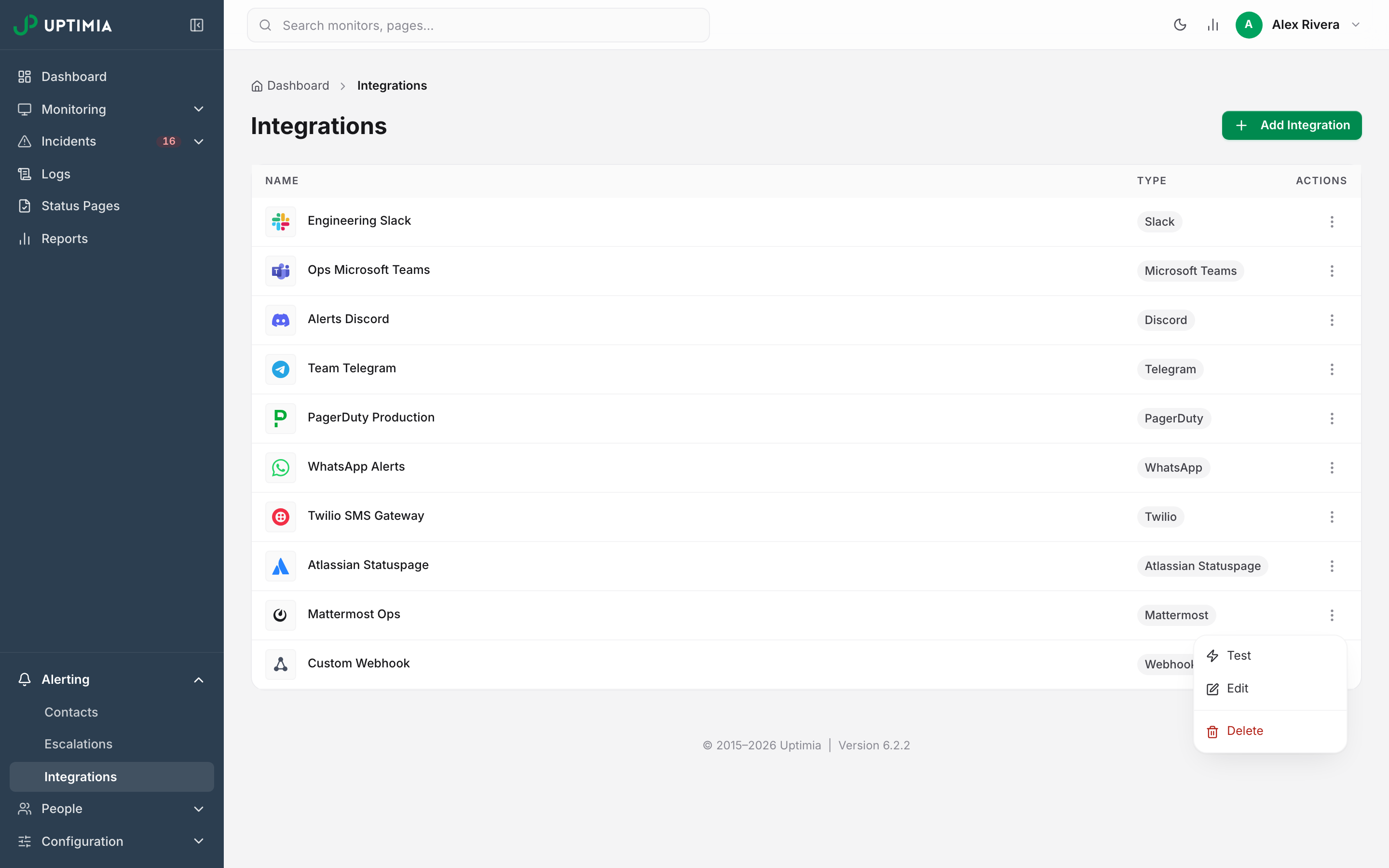
A green toast reads Test notification sent successfully, and for Mattermost that green says nothing about whether the post arrived. Uptimia never reads the result of the test post. A URL the guard blocks, a refused connection and a non-2xx answer from your server all still show green. Nothing about the attempt is recorded. The only confirmation is the post appearing in the channel. A red toast reads Test failed followed by an error code, most often because the integration no longer exists. Failed to send test notification means your browser could not reach Uptimia.
What a Mattermost Alert Looks Like
Uptimia posts a message attachment: a colored bar down the left, the author Uptimia, a title, the alert text, and two short fields, Priority and Type.
| Event | Title | Bar color | Priority | Type |
|---|---|---|---|---|
| Integration test | Integration Test | Green | None | Test |
| Monitor goes down | Monitoring Alert | Red | High | The monitor family, such as Uptime Monitoring |
| Monitor recovers | Monitoring Alert | Green | Low | The monitor family |
Step 4: Alert a Monitor Through Mattermost
- Open the monitor you want the channel to cover and click Edit.
- Stay on the Main tab and scroll to Alerting, the last card on it.
- In the left pane of the recipients panel, select the Mattermost contact. The right pane lists exactly who will be notified.
- Click Save Monitor.
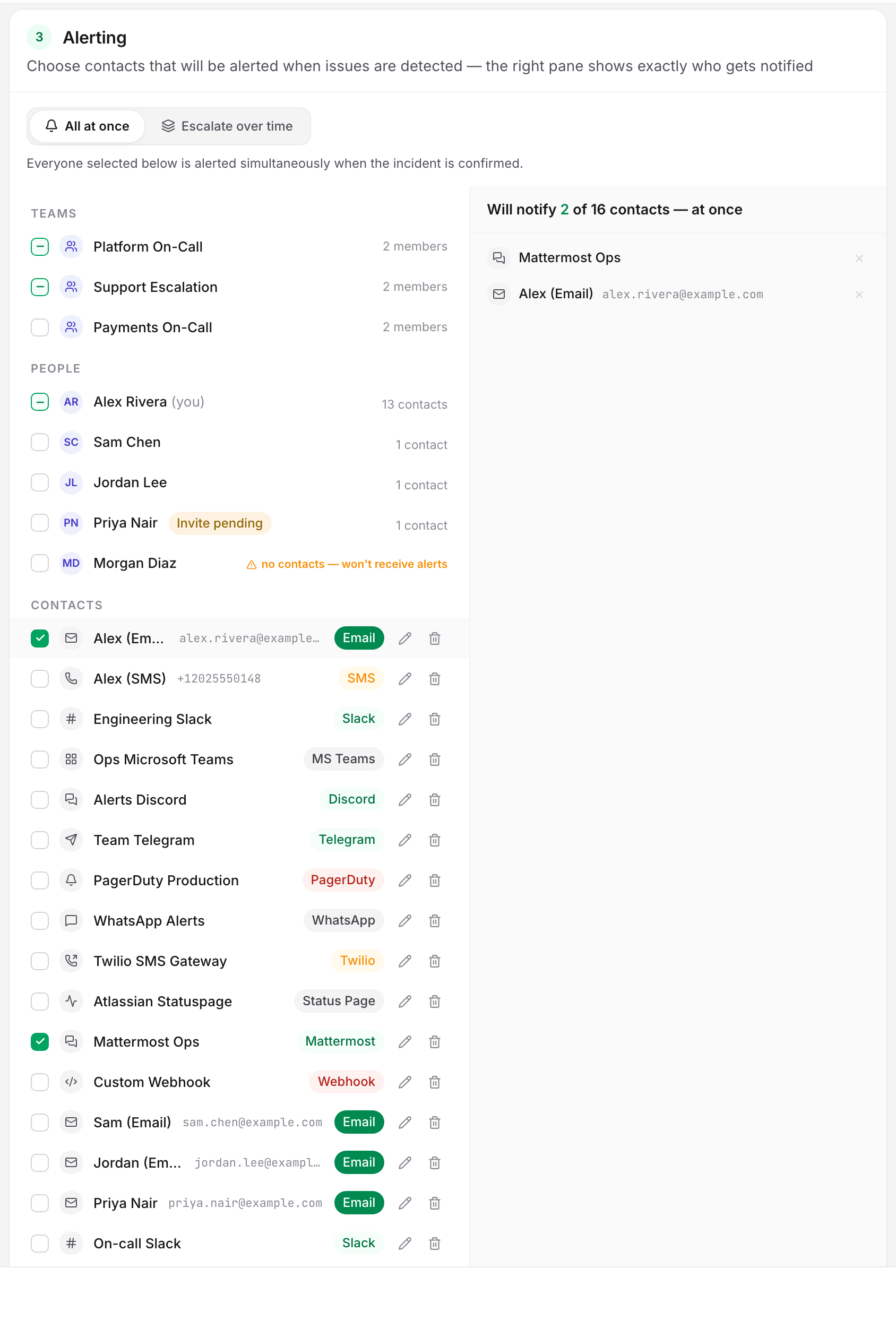
Alerting → Contacts manages the contacts themselves; it cannot attach one to a monitor.
On a single-user account a new monitor starts on the All my contacts row, marked auto-includes new, and a monitor left on that row picks up the Mattermost contact with no editing. On an account with more than one seat the left pane lists people and contacts instead, and a new monitor starts with the account owner's contacts selected, so a Mattermost contact created by anyone else has to be ticked on each monitor. Every monitor needs at least one recipient. Saving an empty list is rejected with At least one alert recipient is required.
While a monitor is set to Escalate over time (a Professional-plan feature) the people paged come from the escalation policy, not from this list. Add the Mattermost contact to a step of the policy. The monitor's own list stays required as the fallback.
During an Alert Storm
Mattermost carries both the digest and the acknowledgment link. When several monitors fail together with grouping on, the channel gets one combined post, plus a limited number of follow-up posts as more monitors fail, instead of one post per monitor. That post carries an Acknowledge incident link that stops the paging without a login. Grouping and acknowledgment need an escalation policy on the monitor and the Professional plan or above. The free trial includes this. See Alert Groups.
Editing and Deleting
Open the integration from the list by clicking the row, or from the three-dots menu with Edit. The page heading then reads Edit Integration, and the button that commits the change is Save Integration. The integration type is fixed at creation. To switch services, delete this integration and create a new one.
Change the Webhook URL here whenever the Mattermost webhook is rotated or the server moves. Uptimia re-checks the address the URL resolves to before every send. It never re-checks that the webhook still exists on the Mattermost side, so a webhook deleted there keeps failing until you paste a new one.
Warning: Deleting a Mattermost integration also deletes its contact. The contact disappears from every monitor that had it selected, and neither can be restored.
If Alerts Stop Arriving
If your server answers with an error, or cannot be reached at all, Uptimia records the failure and puts the alert back in the queue. Integrations Overview covers how retries work, how repeat alerts are suppressed, and what URLs are allowed. Mattermost posts are not retried straight away (Slack is the only integration that does that), so a failed post waits for the queue's next attempt. Most common causes first:
- The webhook was deleted or the channel was removed in Mattermost. The stored URL then answers with an error instead of accepting the post. Create a new incoming webhook, paste it into the integration and click Save Integration.
- Your proxy started redirecting or moved to HTTPS. A redirect (a 301 or 302) counts as a failure, not a success, because Uptimia does not follow redirects. Store the final URL.
- The contact is no longer selected on the monitor. Open the monitor's Alerting card and read the right pane. It lists the endpoints that will be notified and flags the ones that will not deliver.
Treat the webhook URL as a credential: anyone holding it can post into your channel.