
The Twilio integration sends Uptimia monitor alerts as SMS through your own Twilio account, using your credentials, your sender number and your Twilio balance. It is a separate channel from Uptimia's built-in SMS, so it never touches your monthly SMS credits. SMS Alerts covers the built-in channel: verified numbers, credits, and coverage.
Twilio delivers text messages only. Uptimia has no voice channel: there is no voice contact type and no sender that places a call, so a Twilio integration cannot ring a phone. The setup panel inside the control panel still describes the channel as "SMS/voice calls"; only SMS is sent.
Before You Start
- You need the Owner or Admin role. Only those two roles manage integrations.
- Have your Twilio Account SID and Auth Token open in the Twilio console, plus an SMS-enabled Twilio phone number.
- Decide which number should receive the alerts. One Twilio integration sends to one recipient number.
How the Twilio Channel Relates to Uptimia SMS Credits
Uptimia's built-in SMS channel spends one SMS credit per message from your plan's monthly allowance. The Twilio channel spends none of it. Instead, Twilio bills the message to your Twilio account at its per-segment rate, and no Uptimia credit is deducted. So running out of Uptimia SMS credits does not stop a Twilio alert, and topping up Twilio does not add Uptimia credits.
Use Twilio when you need more SMS than the plan includes, or when your SMS has to leave from your own sender number. Plan Limits and Quotas lists the monthly credit allowances for the built-in channel.
The two channels are independent contacts. You can keep a built-in SMS contact and a Twilio contact on the same monitor. If both point at the same number, that person is texted twice.
Setting Up the Twilio Integration
- In the Twilio console, copy your Account SID and Auth Token from the account dashboard.
- In Uptimia, go to Alerting → Integrations and click Add Integration.
- Select Twilio from the type grid.
- Enter an Integration Name, for example
Twilio - On-Call SMS. The name is also the name of the contact that gets created. - Fill in the four configuration fields listed under Configuration Fields.
- Click Save Integration. Uptimia creates the integration and a matching Twilio contact in one step, then returns you to the integrations list.
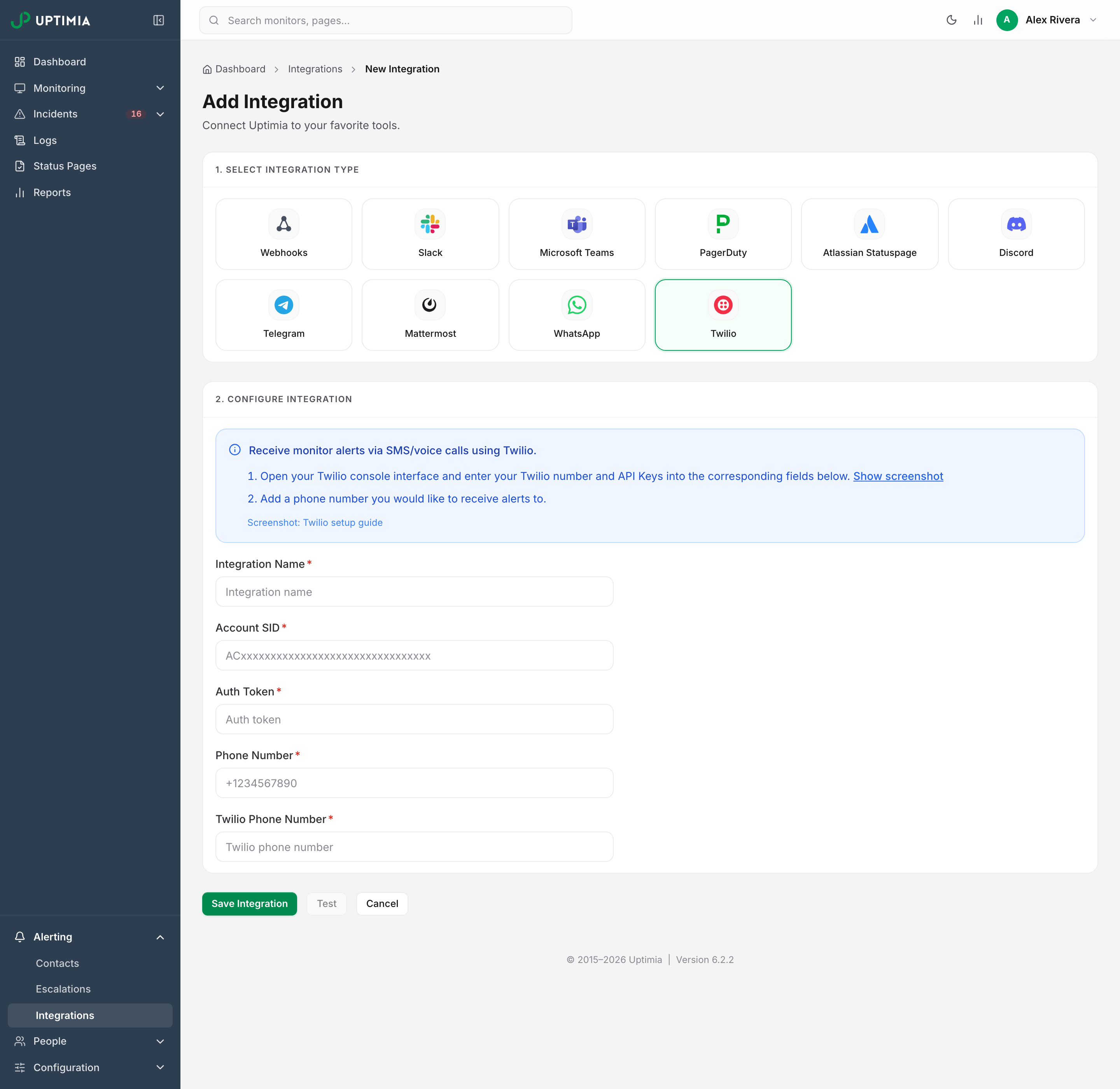
The contact Uptimia creates is confirmed immediately, so it can carry alerts straight away, the same as a new built-in SMS contact.
Configuration Fields
All four configuration fields are required, and so is the Integration Name. Leaving one blank marks it This field is required and blocks the save, so Uptimia cannot store a half-configured integration.
| Field | What it does | Format |
|---|---|---|
| Integration Name | Names the integration and the contact created alongside it. Renaming it later renames the contact. | Free text; Integration name is required if blank |
| Account SID | Your Twilio account identifier, used to authenticate the send. | Starts AC, 34 characters |
| Auth Token | Your Twilio auth token. Stored with the integration and used on every send. | Twilio auth token |
| Phone Number | The number that receives the alerts. | E.164, for example +441234567890 |
| Twilio Phone Number | The Twilio number the alerts are sent from. Must be SMS-enabled in Twilio. | E.164, a number on your Twilio account |
The two phone fields sit next to each other and are easy to swap. Phone Number is the destination. Twilio Phone Number is the sender.
Attaching the Twilio Contact to a Monitor
A new integration sends nothing on its own. Tick the contact it created on every monitor that should use it.
- Open the monitor and click Edit.
- On the Main tab, scroll to the Alerting card at the bottom.
- Tick the Twilio contact in the left pane of the recipients panel. The right pane redraws to show exactly who will be paged.
- Click Save Monitor.
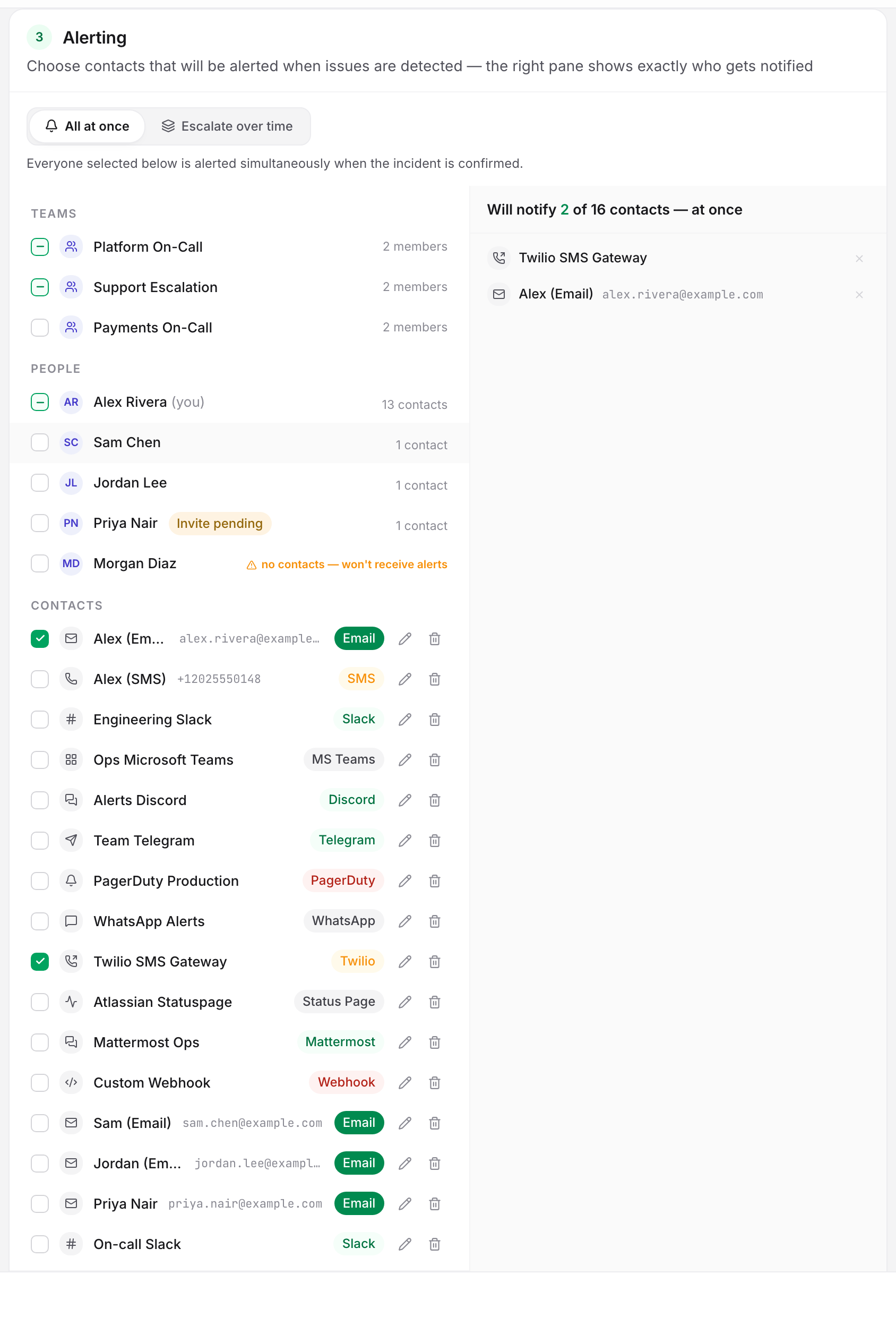
If the monitor is set to Escalate over time, the Alerting card shows the policy and its resolved recipients instead of a picker. Add the Twilio contact to a step of the escalation policy rather than to the monitor.
Alerting → Contacts is where contacts are created, edited, given an alerting schedule and deleted. Assignment happens on the monitor.
Sending a Test
- Go to Alerting → Integrations.
- Open the kebab menu (three dots) on the Twilio row.
- Click Test.
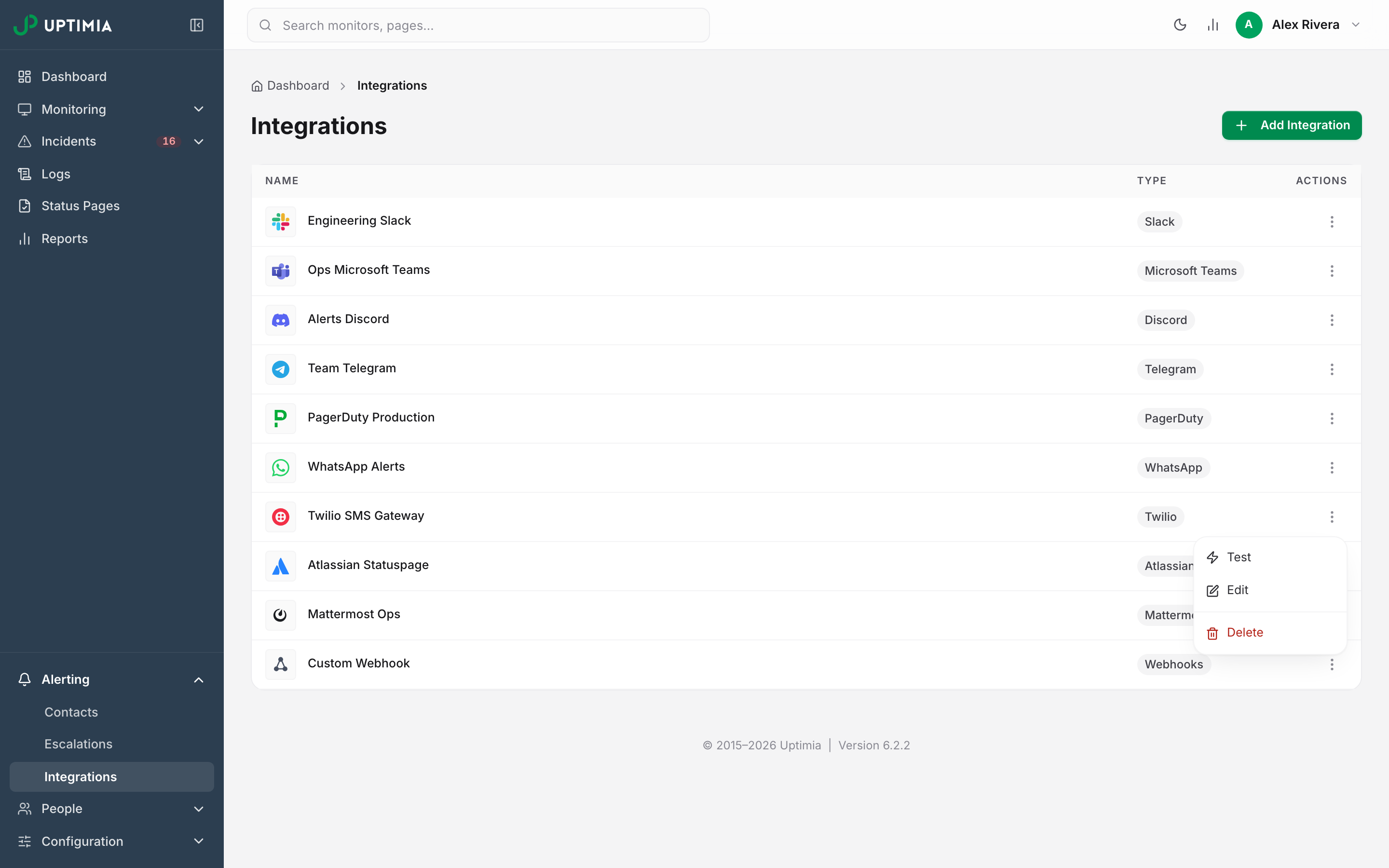
A success toast reads Test notification sent successfully. The recipient number receives a message confirming that the Twilio number is connected to Uptimia and will carry monitoring status updates.
The Test button inside the integration editor is disabled while the form has unsaved edits. Underneath it, a line reads Save your changes to test the updated configuration. The button is disabled on a brand-new integration too, until the first save. Either way, the test exercises the stored configuration, so a run against edited-but-unsaved credentials would report on the old ones. Save first, then test.
When the Test or an Alert Fails
| What you see | Cause | Fix |
|---|---|---|
| Test failed: invalid_phone_number | Twilio rejected the recipient number: Twilio needs a valid, reachable number in international format (Twilio logs this as error 21211). | Re-enter Phone Number with the country code, no spaces or brackets. |
| Test failed: test_failed | Twilio returned any other error: wrong Account SID or Auth Token, a Twilio Phone Number that is not SMS-enabled or not on your account, an unverified destination on a Twilio trial account, or an exhausted Twilio balance. | Check the credentials and both numbers, then read the message log in your Twilio console for the specific error code. |
| Failed to send test notification | Uptimia itself could not send the test. | Retry; if it repeats, contact support. |
| Test succeeds, no message arrives | Twilio accepted the message and dropped or queued it downstream: carrier filtering, a sender number that is not registered for that destination country, or missing business-messaging (A2P) registration. | Open the message log in your Twilio console and find that message. |
Uptimia gives every message it hands to Twilio 5 seconds to connect and 10 seconds in total. A Twilio response slower than that fails the send rather than stalling other alerts, and Uptimia then retries the failed alert with a growing gap between attempts before dropping it. Integrations Overview carries the schedule.
What Arrives During an Alert Storm
Twilio receives a grouped digest instead of one message per monitor, provided the monitors carry an escalation policy and alert grouping is on. A monitor with no policy attached keeps the one-alert-per-monitor behavior. Escalation policies and grouping require the Professional plan or above, and the trial includes them.
| Situation | What the Twilio number receives |
|---|---|
| Several monitors on one policy fail inside the join window | One digest naming the count and the first two monitors: UPTIMIA: 3 monitors DOWN — api.example.com, www.example.com +1 more (14:05). |
| More monitors join the same group | A throttled update: UPTIMIA: 2 more monitors joined — now 5 DOWN. |
| Everything recovers | One message: UPTIMIA: RESOLVED — all 3 monitors back up after 12 minutes. |
| A single monitor fails on its own | The ordinary single-monitor alert, naming the monitor and the time it went down |
Because you pay Twilio per segment, a 20-monitor outage on one policy costs you a handful of messages rather than 20.
Grouped down-alerts to Twilio also carry a one-click Acknowledge link that pauses the escalation ladder without a login. Uptimia trims its own built-in SMS to a 160-character budget, but it never trims a Twilio message, so the acknowledgment link is never dropped for length. Turn the links off account-wide with Acknowledge from alert links in the Acknowledgement card at Alerting → Escalations → Grouping & acknowledgement. Alert Groups covers the behavior.
Things That Hold or Drop a Twilio Message
- The alerting schedule of the contact's owner. Uptimia applies quiet hours and blocked days. An alert raised outside the window is held, then delivered when the window opens. If all seven days are blocked, that person's contacts are never alerted, on any monitor.
- "won't deliver" badges in the recipients panel. A Twilio contact shows one when another selected contact already covers the same channel and destination. Two contacts backed by the same Twilio integration collapse into one message. The other two causes of that badge, unconfirmed and opted out, cannot apply to a Twilio contact.
- Alert text is English only, on Twilio and on every other channel. There is no per-contact language setting.
Editing and Deleting the Integration
Editing is at Alerting → Integrations → Edit on the row's kebab menu. Renaming the integration renames its contact to match, so the monitors it is attached to keep working.
Warning: deleting a Twilio integration also deletes the contact it created, so every alert addressed to that contact is dropped from then on and the contact disappears from the monitor recipients panel. Those monitors still alert their remaining recipients. Deleting the integration leaves more behind than deleting a contact from Alerting → Contacts does: any escalation-policy step the contact was on keeps its entry, rendered as contact # with not found in place of its destination, so open those policies and remove it by hand. The confirmation reads This action cannot be undone, and every monitor needs at least one recipient to save, so check what is left before you delete.
Keeping Your Credentials Secure
Your Account SID and Auth Token grant access to your Twilio account, so treat the token like a password. If it may have been exposed, rotate it in the Twilio console. Then open the integration in Uptimia, paste the new value into Auth Token, save, and send a test.