
A webhook integration makes Uptimia POST a JSON body to a URL you own whenever one of your monitors goes down or recovers. It is the catch-all for anything without a dedicated integration: an internal dashboard, an on-call router, a queue, your own script. The field-by-field body is in Webhook Payload Reference.
Before You Start
- Only Owner and Admin manage integrations. Editor, Read-only and Accounting / Billing seats never see Alerting → Integrations.
- Your endpoint must be reachable from the public internet over
httporhttps, and it must acceptPOST. Uptimia refuses a hostname that resolves to a private, loopback, link-local, CGNAT or otherwise reserved address. - Webhooks are not plan-gated. Every plan, Free included, can create them.
Step 1: Create the Webhook Integration
- Go to Alerting → Integrations and click Add Integration.
- Under 1. Select Integration Type, choose Webhooks.
- Enter an Integration Name. Uptimia reuses it as the name of the contact it creates, so make it recognizable: "Ops router", not "Webhook 2".
- In Webhook URL, enter the endpoint Uptimia should POST to.
- Enter any Custom Headers, one header per line in
Name: valueformat. - Click Save Integration.
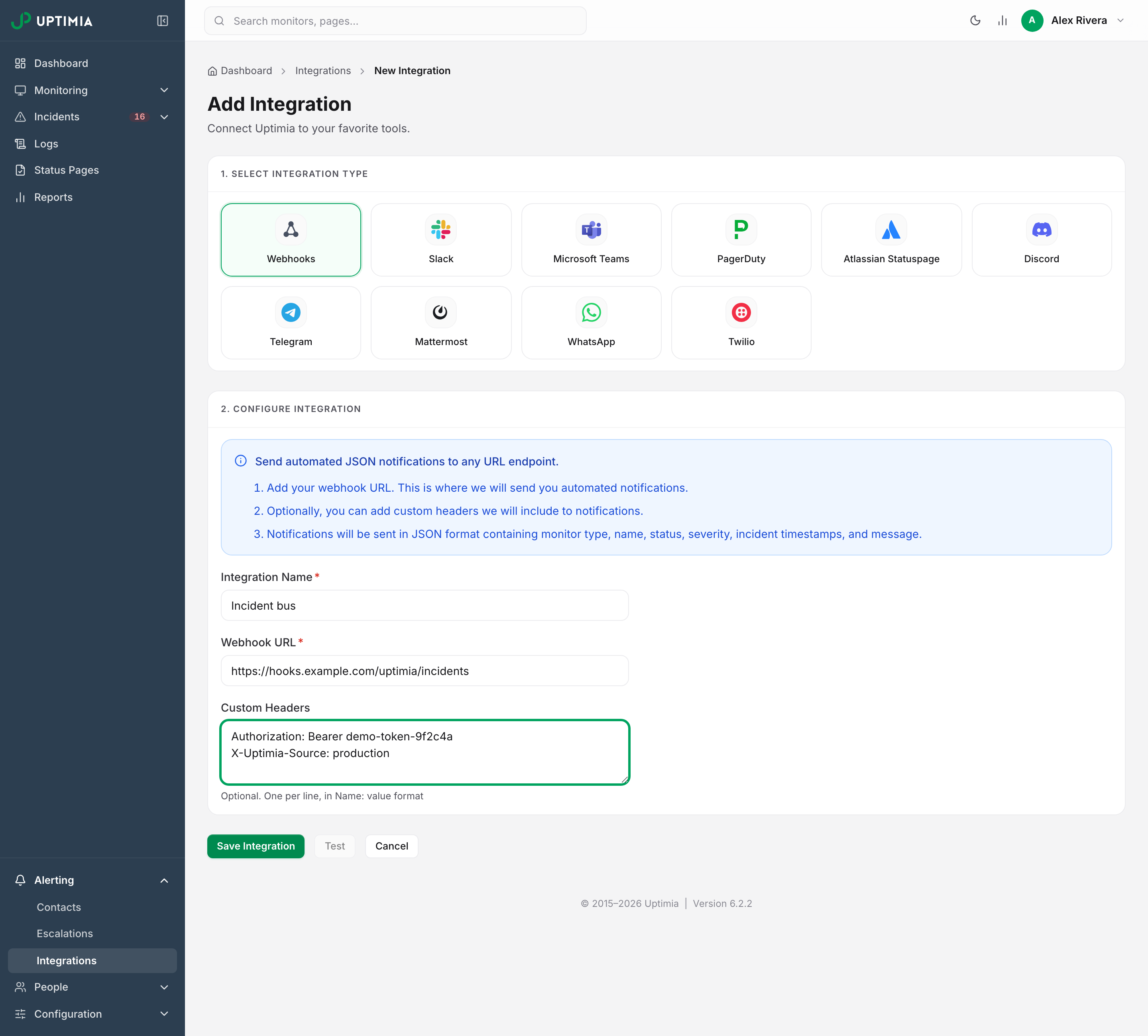
Saving writes two records: the integration profile, and a matching contact of type Webhook with the same name, confirmed on creation so it can receive alerts right away, since an integration contact has no address to verify. (Email and SMS contacts are confirmed on creation too; SMS verification is optional.) Renaming the integration renames the contact. Deleting the integration deletes the contact.
Custom Headers Go One Per Line, Never as JSON
Uptimia stores the Custom Headers box verbatim and splits it on newlines, then trims each non-blank line and sends it out as one raw header. Blank lines are skipped. Content-Type: application/json is added for you, so you never need to enter it.
Use this format:
Authorization: Bearer abc123
X-Source: uptimia
A JSON object is not a header. If you enter {"Authorization": "Bearer abc123"}, the whole line goes out as one header whose name is {"Authorization". Your endpoint sees no Authorization header at all, so it rejects the request, and the alert is recorded as failed with nothing in the interface to explain it. Uptimia spells out the rule in the field's own hint: Optional. One per line, in Name: value format.
There is no signature over the body: no HMAC, no shared-secret digest. Possession of the URL is the credential. If your endpoint needs to verify that the caller is Uptimia, use a secret header entered here, or an unguessable segment in the URL path, over HTTPS. Treat both like a password.
Step 2: Attach the Webhook to Your Monitors
Saving the integration sends nothing on its own. Alerts flow only from monitors that have the webhook contact selected.
- Open the monitor for editing and scroll to the Alerting card at the bottom of the Main tab.
- In the left pane of the recipients panel, tick the row for your webhook contact.
- Check that it now appears in the resolved-recipients pane on the right (the list of who gets notified).
- Click Save Monitor, then repeat for every other monitor that should reach the endpoint.
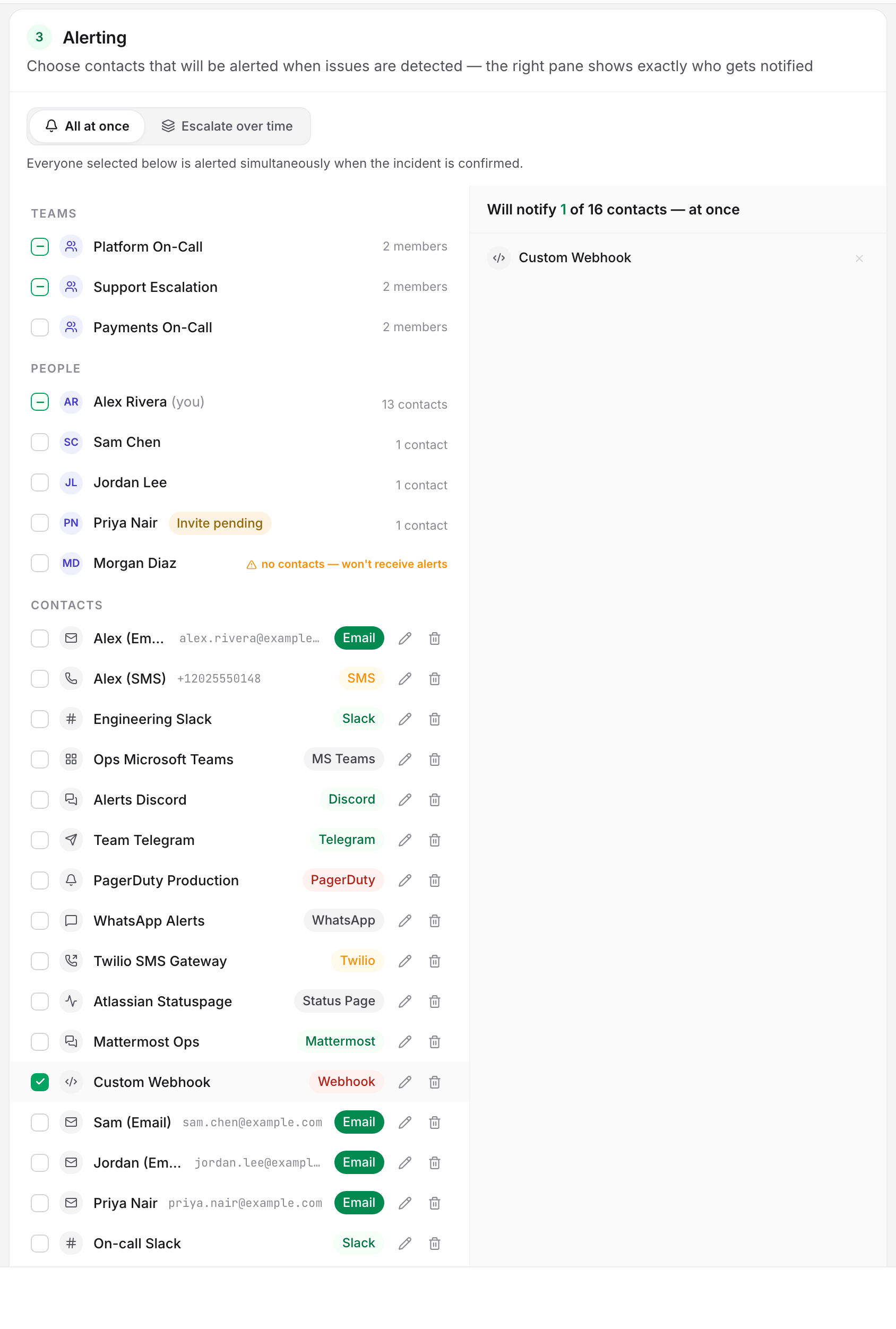
If your account has at least one escalation policy, the Alerting card also shows an All at once / Escalate over time selector. While a monitor is set to Escalate over time, the people paged come from the escalation policy, not from the monitor's own recipient list. Add the webhook contact to a policy step; the monitor's own list stays required as the fallback.
Test It
From the Integrations list, open the kebab menu on the webhook row and click Test. Uptimia POSTs a sample body to the stored URL with the stored headers. The Test button in the integration editor does the same, though it stays disabled until the record is saved and while the form has unsaved edits.
Warning: the green Test notification sent successfully toast means Uptimia attempted the send. It does not report your endpoint's response: a rejected URL, a timeout and an HTTP 500 all produce the same success toast. Confirm the test at your receiver, not in Uptimia.
The test body is not a real alert. It carries placeholder values:
| Field | Value in the test body |
|---|---|
monitor_name |
the literal Test monitor |
monitor_unique_id |
Test unique ID (optional) |
monitor_status and severity |
both test |
all three incident fields, incident_duration_seconds included |
the string None |
On real alerts incident_duration_seconds is a number, so a receiver that validates types strictly will reject the test while handling live alerts correctly.
What Counts as a Delivered Alert
Any 2xx response is a success: 200, 201, 202 and 204 are all accepted. A 3xx is not, because redirects are never followed. Anything else, plus a TLS failure or a timeout, is a failure.
Uptimia allows 10 seconds to connect and 10 seconds for the whole request on a single-monitor alert, and 30 seconds for a grouped digest. TLS certificates are verified. Uptimia also connects to the same address the guard checked immediately before the send, so a DNS change in between cannot redirect the request.
Delivery is at-least-once, and your receiver must deduplicate. Use monitor_type plus id plus incident_start_time plus monitor_status as the key. That tuple never changes between retries. A failed delivery goes back on the queue, and Uptimia retries it up to 5 times: 1, 2, 3, 4 and then 5 minutes after the previous attempt. If the fifth retry also fails, the notification is dropped.
URLs Uptimia Will Not POST To
The same outbound guard runs when you save the integration and again immediately before every send. It rejects a URL when:
| Rejection | What triggers it |
|---|---|
| Scheme | Anything other than http or https |
| Credentials in the URL | A user:password@host form |
| Host format | An empty host, a leading or trailing dot, or a raw internationalized (non-ASCII) hostname |
| Unresolvable host | No A or AAAA record |
| Private or reserved address | Any resolved record in a loopback, RFC 1918, link-local (169.254.169.254 included), unique-local, CGNAT 100.64.0.0/10, benchmarking or multicast range, plus the IPv4 address embedded inside a 6to4, NAT64 or IPv4-compatible IPv6 address |
Saving a new integration from the control panel returns The integration is missing required fields, and editing an existing one returns There was an error updating the integration. When the URL is the only thing you changed, that is the guard talking, not a blank field. The webhook-specific API endpoint is plainer: it answers Webhook URL rejected: followed by the reason.
An endpoint on your own network cannot be reached this way. Terminate the webhook on a public host you control and forward it inward from there.
If It Doesn't Work
Your endpoint answers a 3xx. A receiver that redirects http to https, or /hook to /hook/, records a failure on every attempt. Enter the final URL in Webhook URL.
Your endpoint answers a 2xx but nothing happens downstream. The request arrived and Uptimia's work is finished. Point the webhook at a request-inspection service temporarily and compare the captured body against Webhook Payload Reference.
Authentication fails. Re-open the integration and check that each header sits on its own line as Name: value, with no braces, no quotes and no trailing comma. A stale token produces the same 401 as a malformed header, so rotate it while you are there.
The alert never fired at all. Open the incident from Incidents and read the Timeline card on the incident detail page. It lists which contacts received which alerts, and when. A webhook that never delivered is absent from that list. If the webhook contact is absent from every incident, either the monitor's recipient list is missing it, or the monitor runs in Escalate over time mode and the policy steps are missing it. One gate sits outside the monitor entirely. While your account's own email address is unverified, Uptimia drops every queued alert, on every channel and every monitor. The account owner sees an amber Verify your email to receive alerts. banner at the top of every control-panel page. Alert Emails or SMS Not Arriving covers that gate and the other delivery gates.
The monitor will not save. A monitor cannot be saved with an empty recipient list. Select at least one contact, then add the webhook alongside it.