
Uptimia triggers a PagerDuty incident the moment a monitor fails, and resolves that same incident when the monitor recovers. Your on-call schedule handles Uptimia outages like any other page. Create an Events API v2 Integration Key in PagerDuty, add it to Uptimia as an integration, then attach the alert contact Uptimia creates to the monitors it should cover. One thing catches on-call teams out. Resolving the PagerDuty incident does nothing to the Uptimia escalation ladder.
Before You Start
- A PagerDuty account with permission to create a service and add an integration to it.
- An Uptimia seat that can manage integrations: the Owner or an Admin. Editor, Read-only and Accounting / Billing seats do not see the Integrations entry at all.
- At least one monitor you want PagerDuty to page on.
Step 1: Create an Events API v2 Integration in PagerDuty
- Sign in to PagerDuty and open Services from the header bar.
- Click New Service, name it, and select Events API v2 as the integration type. You can also add an Events API v2 integration to an existing service.
- Open the service's Integrations tab and copy the Integration Key.
The Integration Key is a credential: anyone holding it can open incidents on that service. A key from any other PagerDuty integration type will not work here.
Step 2: Add the Integration in Uptimia
- In the sidebar, open Alerting → Integrations.
- Click Add Integration.
- Under 1. Select Integration Type, choose PagerDuty.
- In Integration Name, enter something that names the PagerDuty service, such as
PagerDuty Payments on-call. - Paste the key into Integration Key.
- Click Save Integration. Uptimia creates the integration and a matching alert contact of type PagerDuty, already confirmed and ready to select.
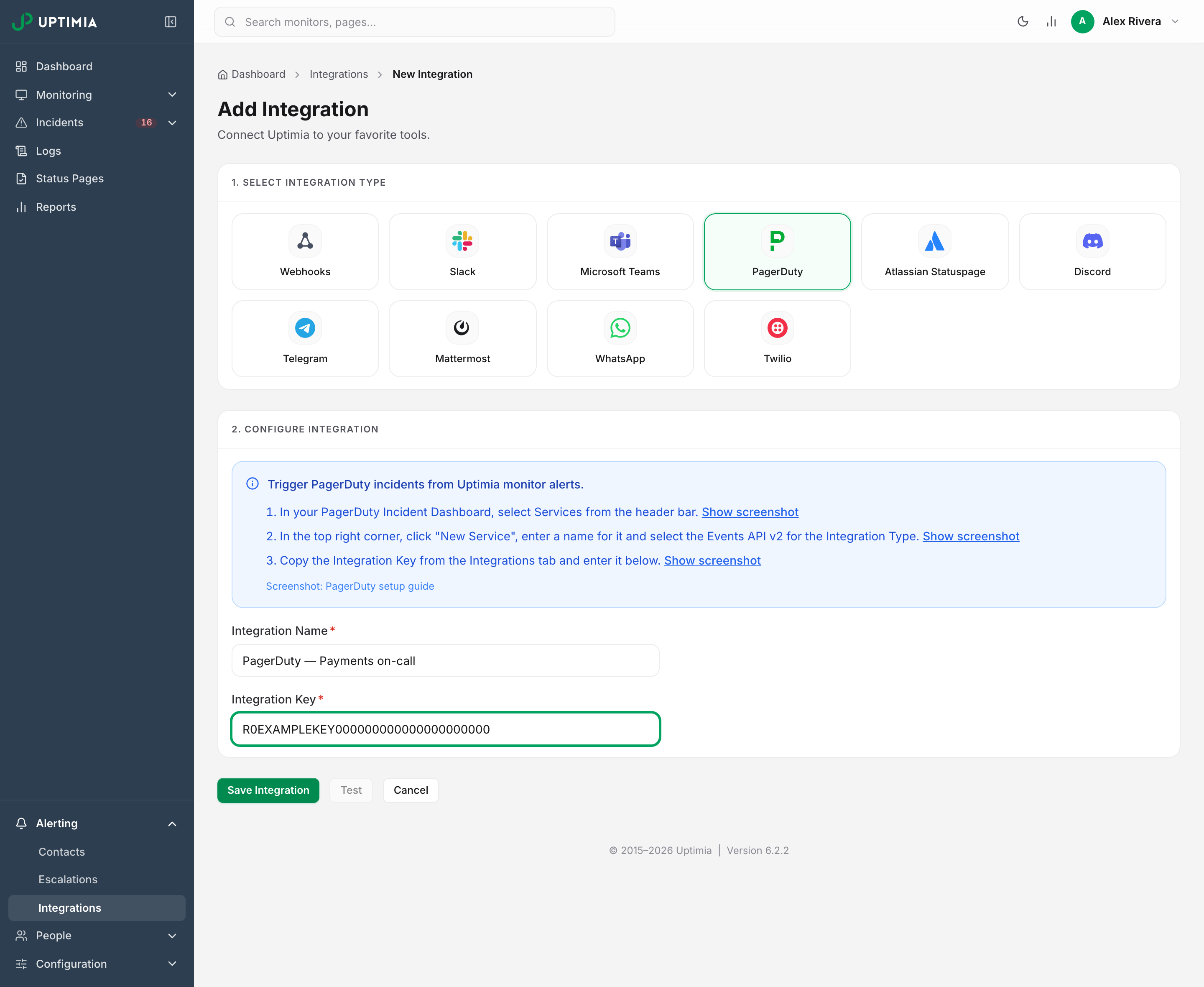
Both fields are required. Leave Integration Key blank and Uptimia blocks the save with an inline This field is required. Leave Integration Name blank and you get Integration name is required.
Step 3: Send a Test
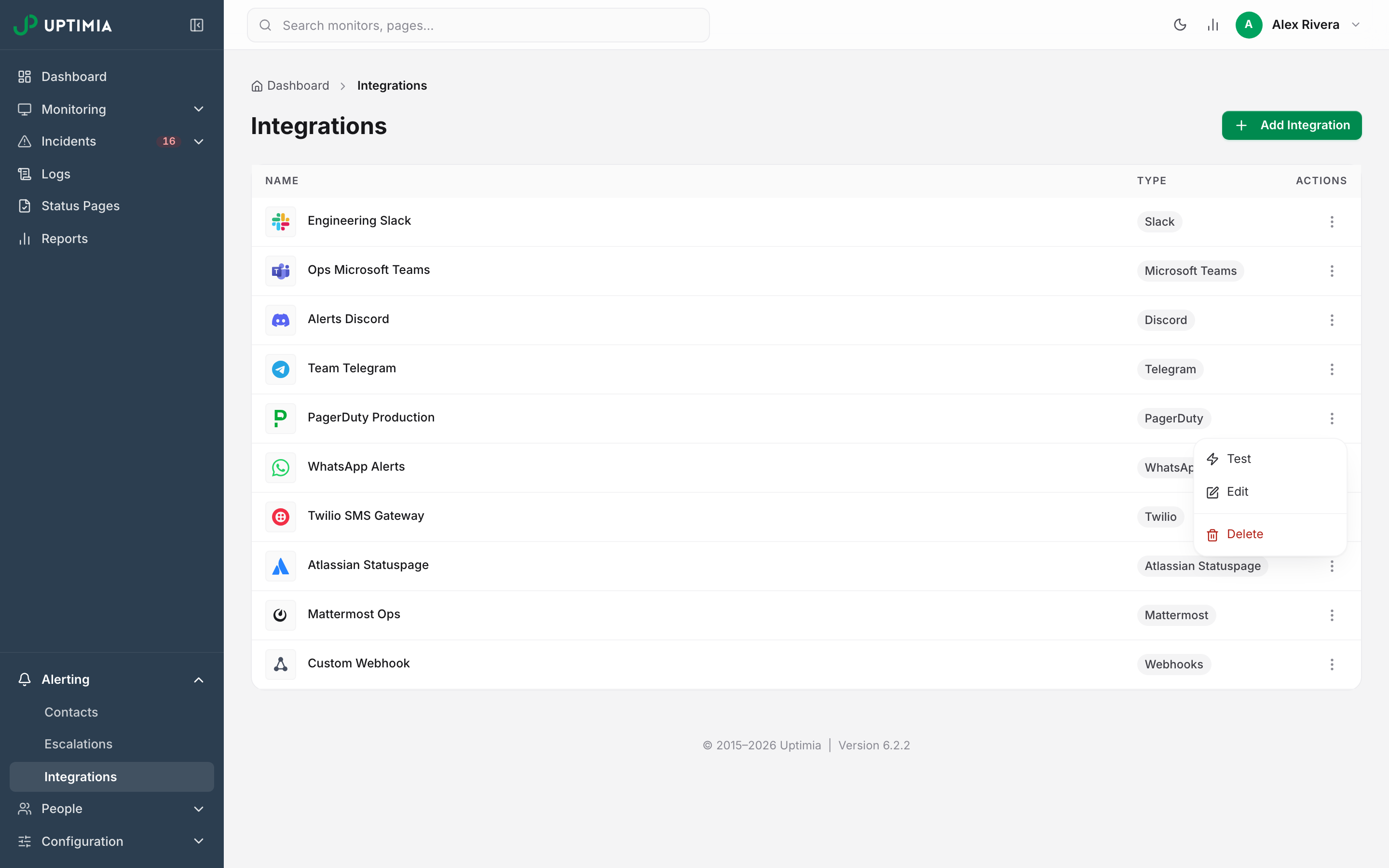
- Go back to Alerting → Integrations.
- Open the three-dot Actions menu on the PagerDuty row and choose Test.
- Switch to PagerDuty and confirm a new incident appeared on the service tied to that key, with severity Info and the Uptimia test summary in the body.
- Resolve the test incident in PagerDuty yourself. The test carries no deduplication key, so Uptimia never closes it for you.
Warning: the success toast Test notification sent successfully means Uptimia dispatched the event, not that PagerDuty accepted it, and a mistyped Integration Key produces the same success message because Uptimia does not read the PagerDuty result back. The PagerDuty incident board is the only proof the test worked. Check it before you rely on the integration.
You can also click Test while editing an integration, but it runs only against the saved configuration. With unsaved edits the button is disabled and the page reads Save your changes to test the updated configuration. Save first, then test.
Step 4: Attach the PagerDuty Contact to Your Monitors
An integration pages nobody until its contact is attached to a monitor.
- Open the monitor, choose Edit from its actions menu, and stay on the Main tab.
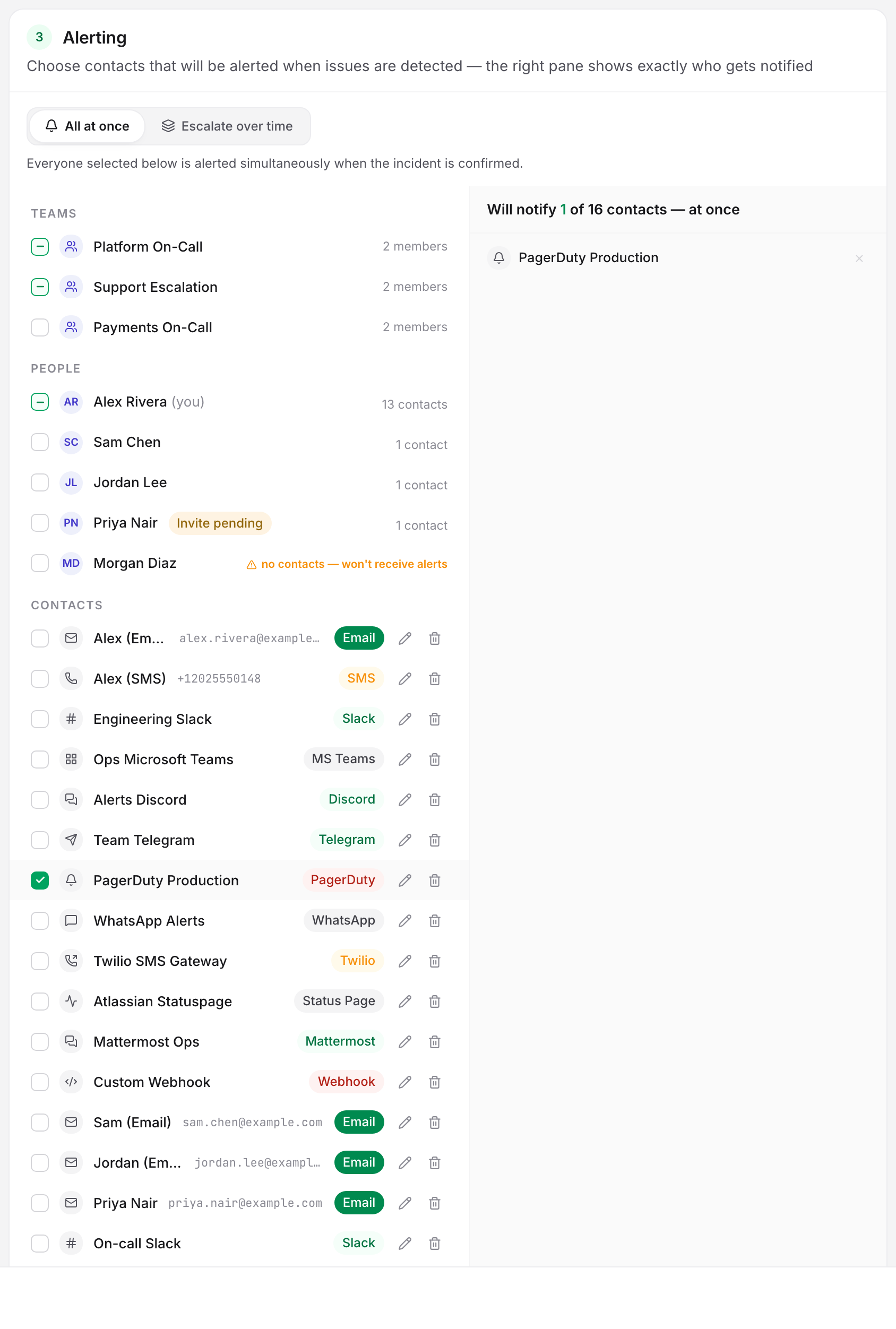
- Scroll past the Notification Settings card, which holds check frequency, alert delay and the recovery toggle. The numbered Alerting card sits below it.
- If the All at once / Escalate over time control is present and set to All at once, tick the PagerDuty contact in the left pane. The right pane updates to Will notify N of M contacts — at once and lists the PagerDuty endpoint.
- Save the monitor. Repeat for every monitor that should page through PagerDuty.
If the Monitor Is Set to Escalate Over Time
The segmented control appears only once the account has at least one escalation policy. In Escalate over time, a policy selector replaces the recipients panel. The policy's steps decide who is paged, so ticking the PagerDuty contact on the monitor pages nobody.
Add the contact as a recipient on a step of the policy at Alerting → Escalations instead. Pick step 1 if PagerDuty is your primary pager, a later step if it is the backstop. Or switch the monitor back to All at once and select the contact directly; whichever mode you use, the monitor's own recipient list stays required as the fallback.
What Uptimia Sends to PagerDuty
Every alert is one Events API v2 event, and the incident PagerDuty opens shows uptimia.com as its source.
| Field | Value |
|---|---|
| Action | Opens a PagerDuty incident on a failure, and resolves that same incident on recovery. The recovery is only sent when the monitor's recovery alert is on |
| Deduplication key | uptimia-<family>-<incident id>, for example uptimia-uptime-4812. The down and the recovery share it, so one PagerDuty incident opens and closes |
| Summary | The same one-line alert text the chat channels get, for example *ALERT*: Project Checkout is DOWN |
| Severity | critical for an outage, warning for a trouble-tier problem, info for a test |
| Component | The monitor family, spelled out: Uptime Monitoring, SSL Certificate, Speed Monitoring, DNS Monitoring, API Monitoring, and so on |
Severity varies by family. These trouble-tier problems arrive as warning rather than critical:
- An SSL certificate expiring soon.
- A DNS record drifting from its baseline.
- A blacklist listing on a site that is still serving.
- A page-speed budget breach.
A server monitor firing on a metric threshold rather than going offline arrives as warning too. Set your PagerDuty service's urgency rules accordingly, or a certificate-expiry warning will wake someone at 03:00.
An incident can change tier while it is open, when a warning-level problem becomes a full outage. Uptimia then closes the first PagerDuty incident and opens a fresh one under a new deduplication key.
Alert Storms Arrive as One Grouped Event
PagerDuty is one of the twelve digest-capable channels. When several monitors that share an escalation policy fail inside the join window, Uptimia opens one alert group and sends a single PagerDuty event for the whole storm, keyed on uptimia-group-<group id> with the component Incident group. Later ladder steps, join updates and the final recovery all reuse that key. The on-call closes one incident.
The summary text changes with the shape of the storm.
| Event | Summary text |
|---|---|
| One failing monitor | Checkout is DOWN (+3 more down on this policy) (Uptimia incident #77) |
| A multi-monitor digest | 4 monitors down — Checkout +3 more (Uptimia incident #77) |
| The recovery | Resolved — all 4 monitors back up (Uptimia incident #77) |
The join window and the throttle behind it live in Alert Groups.
Grouping fires only for monitors with an escalation policy attached, and a policy needs the Professional plan or above. The trial clears the gate. Without a policy, each monitor pages PagerDuty on its own.
PagerDuty Never Carries an Acknowledgment Link
Uptimia's acknowledgment links go to human channels: email, SMS, Slack, Telegram, Discord, Mattermost, Microsoft Teams and Twilio. PagerDuty and webhooks receive facts only.
Acknowledging or resolving the incident in PagerDuty does nothing to Uptimia. The escalation ladder keeps running and paging its later steps. To pause it, acknowledge on the incident or group page in the control panel, or use the signed link in the alert email or chat message. See Acknowledging Incidents and MTTA.
Uptimia closes the PagerDuty incident when the monitor recovers, so an incident you leave open closes itself once the monitor is back, as long as that monitor's recovery alert is on. That is the Alert when the website comes back up toggle in the Notification Settings card, worded differently per family. It is on by default. Switch it off and no recovery alert is queued for that monitor, nothing is sent to close the PagerDuty incident, and it stays open until someone closes it by hand.
Renaming and Deleting the Integration
Renaming an integration renames the alert contact it created, so the new name shows up in every monitor's recipients panel. The Integration Key is unaffected.
Warning: deleting an integration also deletes its alert contact. That removes the recipient from every monitor that was using it, and while those monitors keep alerting through their other contacts, a monitor whose only recipient was PagerDuty is left with none. Re-check those monitors afterwards.
If Incidents Don't Reach PagerDuty
- The key is not from an Events API v2 integration. Keys from other integration types are not routing keys, so PagerDuty rejects them. Re-add the integration on the service with Events API v2 selected.
- The key is mistyped. Re-copy it from the service's Integrations tab and paste it with no leading or trailing space. The Uptimia Test reports success either way, so verify on the PagerDuty board.
- The contact is not attached, or the monitor is escalating. Open the monitor editor (Edit, then the Main tab) and check the Alerting card. If the mode is Escalate over time, the recipients panel is not in play. The escalation policy's steps decide who is paged, so the PagerDuty contact has to be a recipient on a step.
- The account email is unverified. Uptimia drops every queued alert while the owner's email is unverified. The control panel shows a persistent amber banner reading Verify your email to receive alerts. with a Resend verification email button. If that banner is on screen, nothing is being delivered on any channel.
- The PagerDuty service is not routing. Confirm the service is active and that its own escalation policy and on-call schedule reach a person. A delivered event still needs PagerDuty to page someone.
Retries and the delivery dedupe rule are the same on every channel, and Integrations Overview documents them once. The outbound URL guard described there covers only channels whose credential is a URL, so it never applies to PagerDuty.