
Uptimia has no native integration for Opsgenie, Zapier, n8n or Jira. Each is wired the same way: a Webhooks integration that POSTs a JSON body to a URL you supply, plus the contact that integration creates. Four recipes, one shape. The header format and the integration editor are in Custom Webhooks Setup. The payload is documented field by field in Webhook Payload Reference.
Before You Start
- Integrations are Owner and Admin only. Alerting → Integrations does not appear for Editor, Read-only or Accounting / Billing seats.
- The destination must be publicly resolvable. Uptimia refuses the URL at save time if its host resolves to an address the public internet cannot reach: private, loopback, link-local or carrier-grade NAT. A self-hosted n8n or Mattermost endpoint cannot be used as it stands.
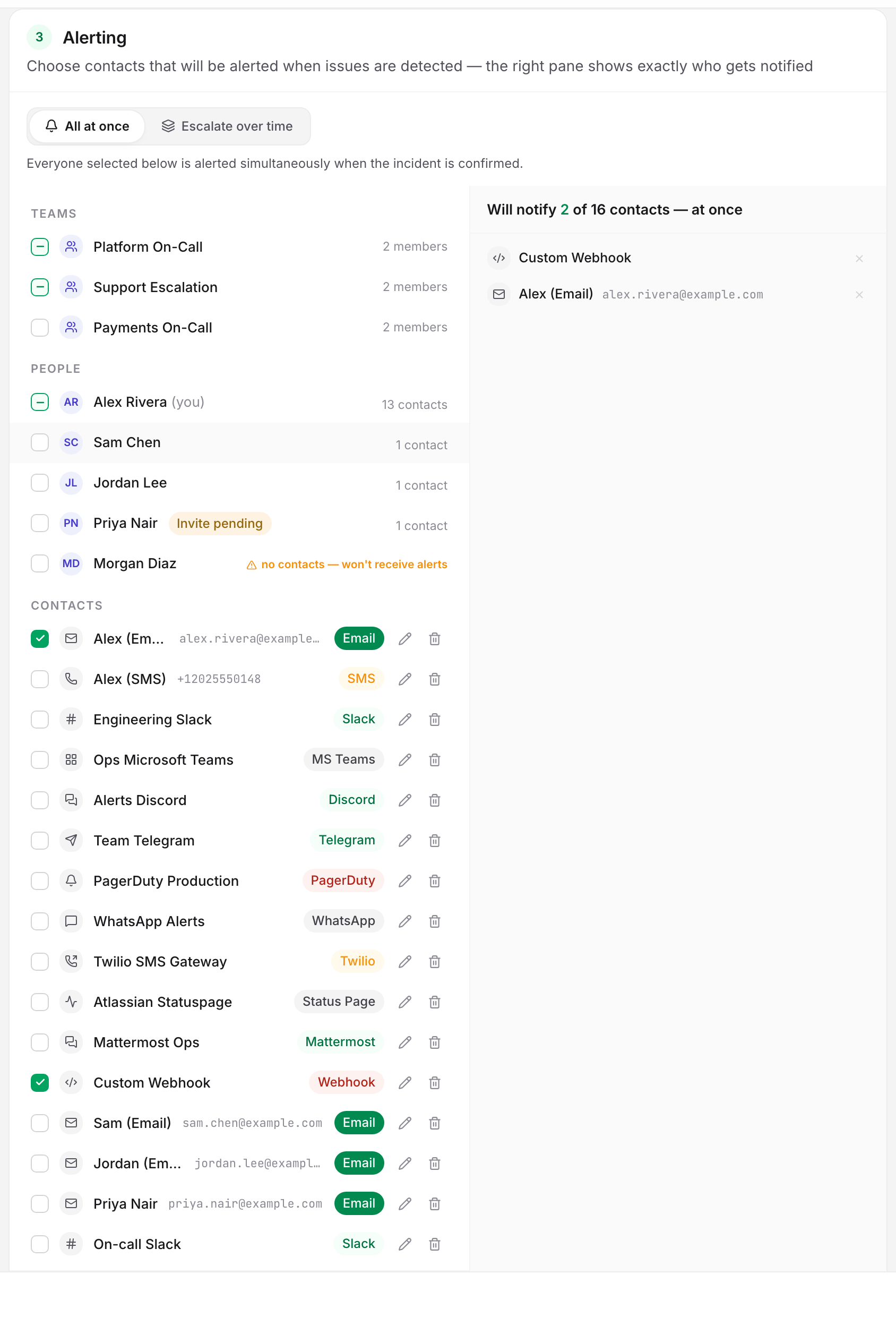
- Saving the integration also creates a matching contact of the same name, already confirmed. Every recipe here ends by putting that contact on the monitors that should fire it.
The Shape Every Recipe Follows
The vendor-specific part of each recipe is one URL and one header line. The rest is identical:
- In the third-party tool, create the inbound endpoint and copy its URL.
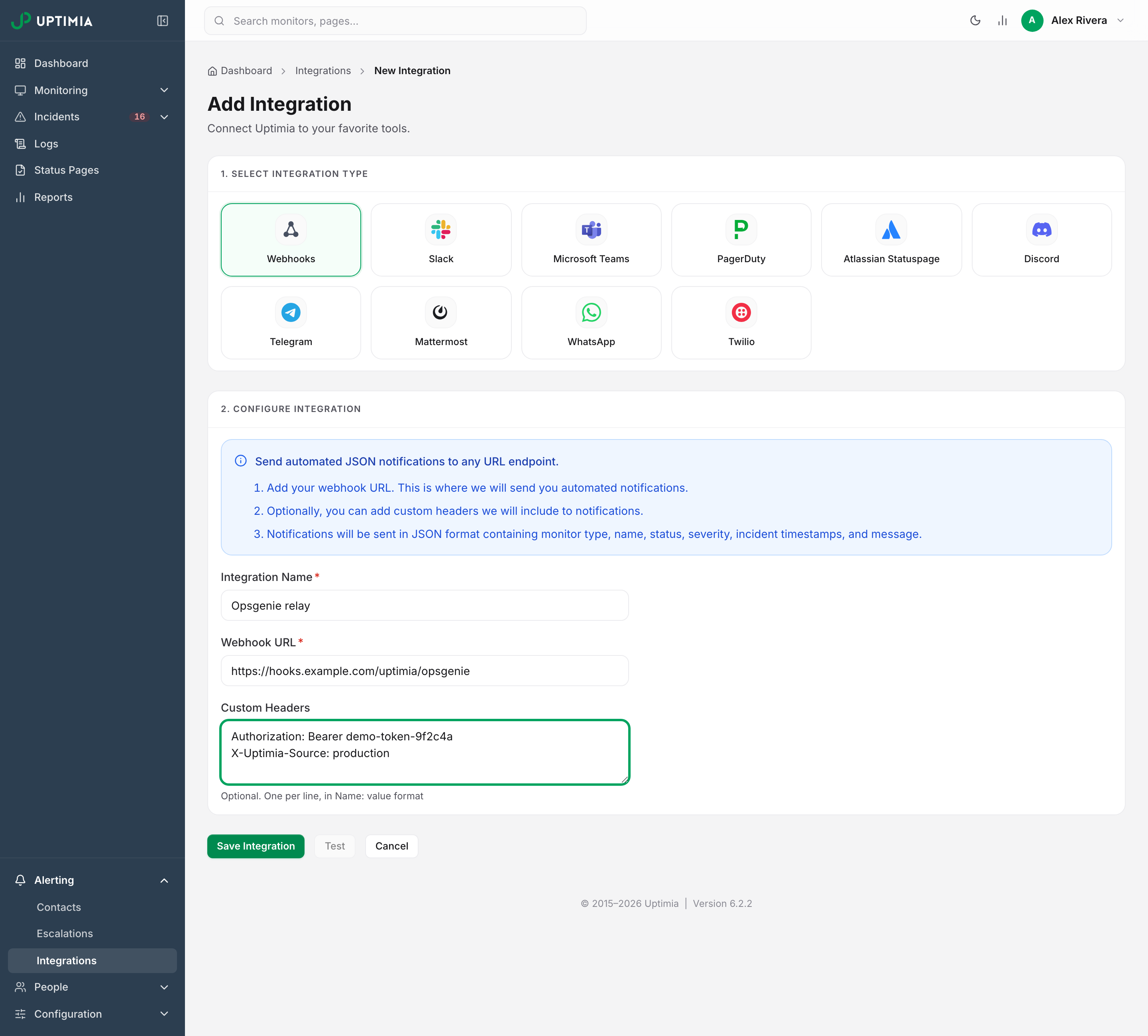
- In Uptimia, go to Alerting → Integrations and click Add Integration.
- Pick the Webhooks tile, fill in Integration Name, and paste the URL into Webhook URL.
- Put any authentication into Custom Headers. One
Name: valueline per header, never a JSON object. - Click save, then use the Test action on the integration row.
- Open each monitor that should fire this webhook and select the contact the integration created in its Alerting card.
Every receiver must answer with any 2xx within 10 seconds on a single-monitor alert, and within 30 seconds on a grouped digest. Uptimia does not follow redirects, and it verifies the TLS certificate. Custom Webhooks Setup has those rules in full.
Note: The Test action reports success as soon as Uptimia has attempted the POST. It does not report what your endpoint answered. Confirm the test landed in Opsgenie, Zapier, n8n or Jira before you trust it.
Fields the Recipes Below Map
The body is one flat JSON object with eleven keys, plus the group object on a grouped digest. Seven of those keys carry the work in the recipes below:
monitor_type plus id plus incident_start_time is the deduplication key. Because id is the monitor id and restarts per family, it is unique only alongside monitor_type. incident_start_time is set on the down POST and repeated unchanged on the recovery.
monitor_status is down, up or test, and it decides open versus close; a degraded incident is still down, so read severity (critical or trouble) to set the receiver's priority. monitor_name is your alert title or issue summary. From the Advanced tab, the monitor note arrives as monitor_notes. Put that note in the ticket. Whoever gets paged then has the runbook.
A Test send carries placeholders rather than sample data, and types the duration as the string None. A receiver whose schema was inferred from a Test capture will be wrong about live alerts. Feed it a realistic body first:
curl -X POST 'https://hooks.example.com/your-endpoint' \
  -H 'Content-Type: application/json' \
  -d '{
    "id": 12345,
    "monitor_type": "uptime",
    "monitor_name": "www.example.com",
    "monitor_unique_id": "web-01",
    "monitor_status": "down",
    "severity": "critical",
    "incident_start_time": "2026-08-31T14:02:11+00:00",
    "incident_end_time": "",
    "incident_duration_seconds": 0,
    "message": "www.example.com is DOWN",
    "monitor_notes": "Runbook: restart the edge pool before paging the DBA"
  }'
Recipe: Opsgenie
Opsgenie takes alerts on its own inbound API endpoint, authenticated with a GenieKey header.
- In Opsgenie, create an API-based integration and copy its endpoint URL and API key.
- In Uptimia, create a Webhooks integration pointing at that URL.
- In Custom Headers, add one line:
Authorization: GenieKey your-api-key. - Save, run the Test, and confirm an alert appeared in Opsgenie.
Map monitor_name to the alert message and severity to the Opsgenie priority. Map monitor_type plus id plus incident_start_time to the alias, so a repeat delivery updates the existing alert instead of raising a second one. To keep the ladder itself inside Uptimia, build an escalation policy and put this webhook on a later step.
Recipe: Zapier
Zapier's Webhooks by Zapier trigger gives you a Catch Hook URL that needs no header.
- In Zapier, add a Webhooks by Zapier trigger and choose Catch Hook. Copy the custom webhook URL.
- Create an Uptimia Webhooks integration with that URL and no custom headers.
- Run the Test so Zapier captures a request, then send the
curlabove so Zapier sees real types. - Build the downstream action from the captured fields.
Recovery POSTs carry the same eleven keys. Add a Zapier filter on monitor_status unless you want the Zap to run on recovery as well as on failure.
Recipe: n8n
An n8n Webhook node exposes a production URL you paste into Uptimia.
- In n8n, add a Webhook node, set the method to POST, and copy its Production URL.
- Set the node's response mode to respond immediately, not when the last node finishes.
- Create an Uptimia Webhooks integration with that URL. If the node uses header auth, add the matching
Name: valueline in Custom Headers. - Save, run the Test, and check the n8n execution list.
Step 2 is the one people skip. Uptimia gives the whole request 10 seconds on a single-monitor alert. A workflow that holds the HTTP response open while it runs blows that budget, and Uptimia marks the delivery failed even though your workflow completed.
Self-Hosted Destinations Are Refused
An n8n instance on your own network cannot receive Uptimia webhooks. When you save the integration, Uptimia resolves the URL and checks it, then runs the same check again before every send. The save is refused if any resolved address is one the public internet cannot reach: private (10.x, 192.168.x, 172.16–31.x), loopback (localhost, 127.0.0.1), link-local, carrier-grade NAT (100.64.0.0/10) or otherwise reserved. From the control panel the message is the generic The integration is missing required fields, or There was an error updating the integration when editing. If you create the integration through the API instead of the control panel, the message names the real reason: Webhook URL rejected: host resolves to a private or reserved address. A URL carrying credentials (https://user:pass@host/) is refused the same way, with the reason URL must not contain credentials. Custom Webhooks Setup has the full rejection table.
The fix is to give the destination a public address. Use n8n Cloud, a public hostname on a reverse proxy with TLS, or a tunnel that ends on a public address rather than a carrier-grade-NAT one (100.64/10). The same rule applies to a self-hosted Mattermost endpoint.
Recipe: Jira
Jira has two routes. Take the first one, through Zapier or n8n, unless you need something quick to stand up.
Through Zapier or n8n. Point an Uptimia webhook at the Catch Hook or Webhook node, and let that tool call Jira's REST API to create the issue. You get full control of project, issue type, priority and custom fields. You also get a place to hold state between the down POST and the up POST.
Direct to a Jira automation webhook. If you have configured an incoming webhook trigger in Jira automation, paste that URL into Uptimia and supply the token as a Name: value line in Custom Headers. This is quicker to stand up and gives you less control over the issue fields.
Either way, key the issue on monitor_type plus id plus incident_start_time. Update that issue on the recovery POST rather than opening a second ticket.
Duplicate Deliveries and Alert Storms
Delivery is at-least-once. Uptimia re-queues a failed send and retries it up to 5 times before dropping the notification. A receiver that is briefly slow can see the same incident twice. Deduplicate on monitor_type plus id plus incident_start_time before you open a ticket or start a workflow, because those three values are stable across every retry of the same alert. The retry schedule and the rest of the delivery guarantees are in Integrations Overview.
A storm changes the shape of what you receive. When several monitors fail inside the join window, Uptimia sends one digest for the group instead of one call per monitor. The payload gains an extra group object. It carries the group id and size, the counts distinct_monitors and down_count, a members list with one {type, id, name, status} entry per monitor, and the acknowledgment fields acknowledged, acknowledged_by and acknowledged_at. The eleven top-level keys still describe the anchor monitor. A Jira recipe that opens one issue per POST will report one outage where there were six. Read group.members and fan out from there. Alert Groups covers when grouping applies.
A webhook never receives an acknowledgment link. Uptimia treats webhooks and PagerDuty as machine pipelines and sends them facts only. Acknowledgment happens in the control panel or from a human channel.
There Is No Signature
Webhook Payload Reference explains why there is no signature, and what to put in Custom Headers instead.
- Use an HTTPS URL with an unguessable path segment. Zapier and n8n both generate one, so keep it.
- Treat the webhook URL like a password. Anyone holding it can post arbitrary JSON to your Zap, workflow or ticket queue.
- Rotate by creating a new endpoint in the third-party tool, editing the Webhook URL on the integration, and retiring the old one. Editing the integration changes every contact that points at it, with no monitor edits.
Warning: deleting a webhook integration also deletes every contact bound to it. A monitor whose only recipient was one of those contacts is left with none and stops alerting until you attach another. Edit the integration's URL instead of deleting and recreating it.
Routing Through an Escalation Policy
If you are building these webhooks into a tiered on-call ladder, put them in an escalation policy rather than on every monitor. A policy's steps hold their own recipients, resolved at the moment each step fires. A webhook contact placed on step 3 is called only after the earlier steps' waits have elapsed, and only while the incident is still down and unacknowledged.
While a monitor is set to Escalate over time, the endpoints paged come from the policy, not from the monitor's own recipient list. Add the webhook contact to a step of that policy, and leave the monitor's own recipient list in place, because it stays required as the fallback. Escalation policies need the Professional plan or above. The trial clears that gate.