
Uptimia delivers downtime and recovery alerts to a Telegram channel or group through the shared Uptimia bot, @uptimia_bot. The integration is channel-based. You add the bot to your channel, give Uptimia that channel's ID, and Uptimia creates a matching contact that you attach to monitors, with no bot token to generate, no pairing link and no /start step. Delivery rules shared by every channel live in Integrations Overview.
Before You Start
- Managing integrations requires the Owner or Admin role. Editor, Read-only and Accounting / Billing seats cannot open Alerting → Integrations.
- You need Telegram installed and signed in, with permission to add a bot to the target channel or group and let it post.
- Decide where alerts land: a public channel, identified by its handle (
@your_channel_id), or a private channel or group, identified by a numeric-100…ID.
How the Telegram Integration Works
Uptimia posts through its own Telegram bot, so you never create or paste a token. The one value you supply is the destination, and it goes in the Channel ID field.
Saving the integration also creates an alert contact with the same name. Monitors select the contact, and the integration is what the contact posts through. Renaming the integration renames the contact with it.
Step 1: Get Your Channel ID
| Destination | ID format | Where to find it |
|---|---|---|
| Public channel | @your_channel_id (the handle, including the @ sign) |
The end of the channel URL on web.telegram.org, or the invite link under the channel's Channel type settings (t.me/your_channel_id) |
| Private channel or group | A negative number, -1001305673209 |
Add an ID bot to the channel and read the ID it reports |
Uptimia stores the value exactly as you type it and passes it straight to Telegram, which will not find a public handle typed without the @.
Step 2: Add @uptimia_bot to the Channel
- In Telegram, search for
uptimia_bot. - Add @uptimia_bot to the channel or group as a member.
- Grant it permission to post messages.
The bot needs membership and posting rights. Without either, Telegram rejects every message Uptimia sends and nothing arrives, including the test.
Step 3: Create the Integration
- In Uptimia, go to Alerting → Integrations.
- Click Add Integration.
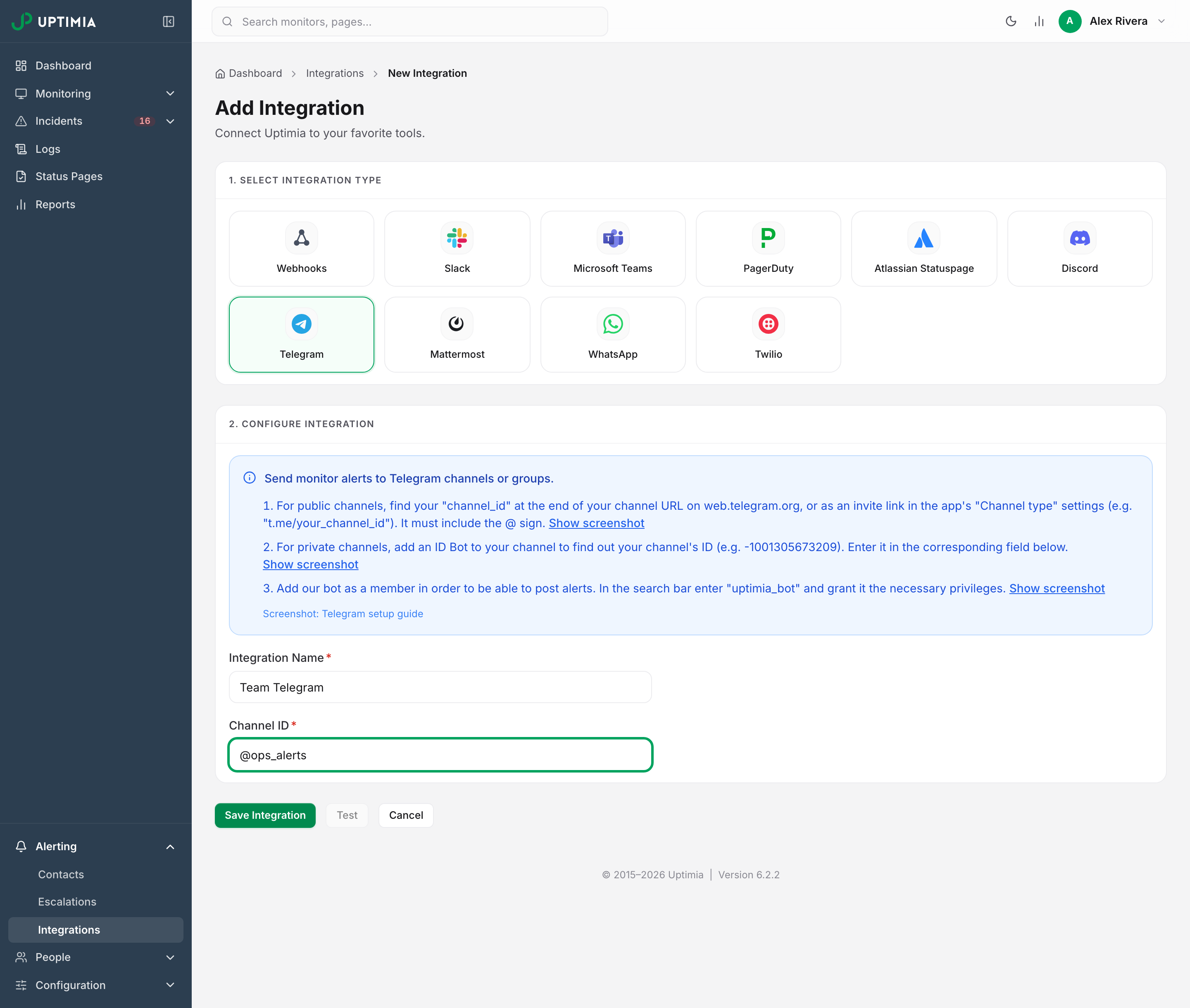
- Select the Telegram card under 1. Select Integration Type.
- Enter a name in Integration Name. This becomes the contact name your team picks from, so make it the channel's name.
- Paste the ID from step 1 into Channel ID.
- Click Save Integration. Uptimia confirms with an Integration created message and returns to the integrations list.
Field Reference
Both fields are required.
| Field | What it does |
|---|---|
| Integration Name | Names the integration and the alert contact created alongside it. |
| Channel ID | The Telegram destination. Placeholder: @your_channel_id or -1001234567890. |
Leaving Channel ID blank blocks the save with This field is required on the field itself; a blank Integration Name blocks it with Integration name is required.
Test It
- On the integrations list, open the row's actions menu (three dots) and choose Test.
- In the integration editor, use the Test button next to Save Integration. It works only after you save; unsaved edits gray it out. The test runs on the saved settings, not what you see on screen.
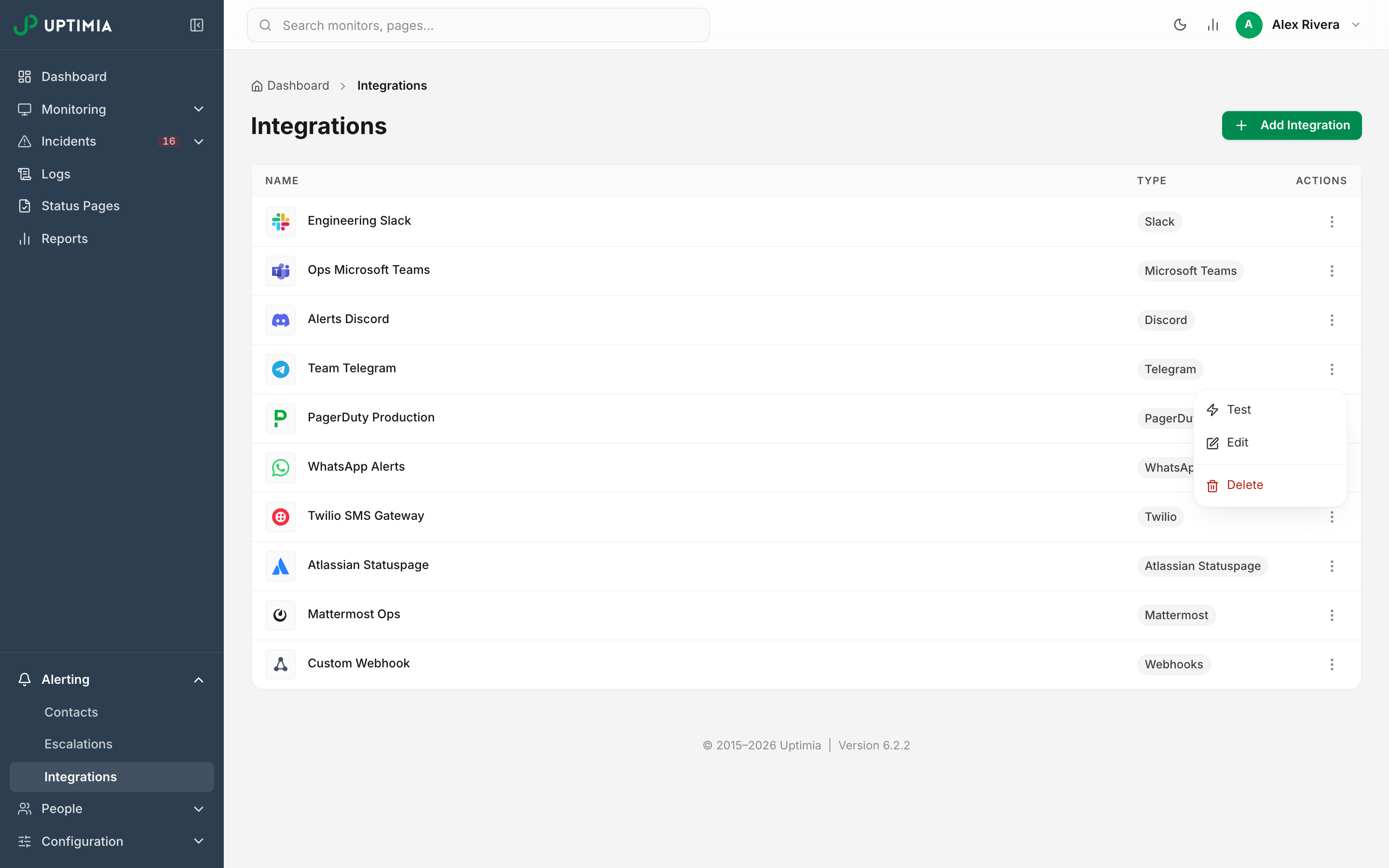
A successful test puts this message in the channel: "Congratulations, your Telegram Channel has been connected to Uptimia! You will receive notifications to this channel as long as you connect this integration to any websites you monitor."
Note: The Test notification sent successfully toast confirms that Uptimia sent the message. Telegram may still have refused it. The only proof is the message in the channel, so if the toast is green and the channel is empty, the bot is missing from the channel or the Channel ID is wrong.
Attach Telegram to Your Monitors
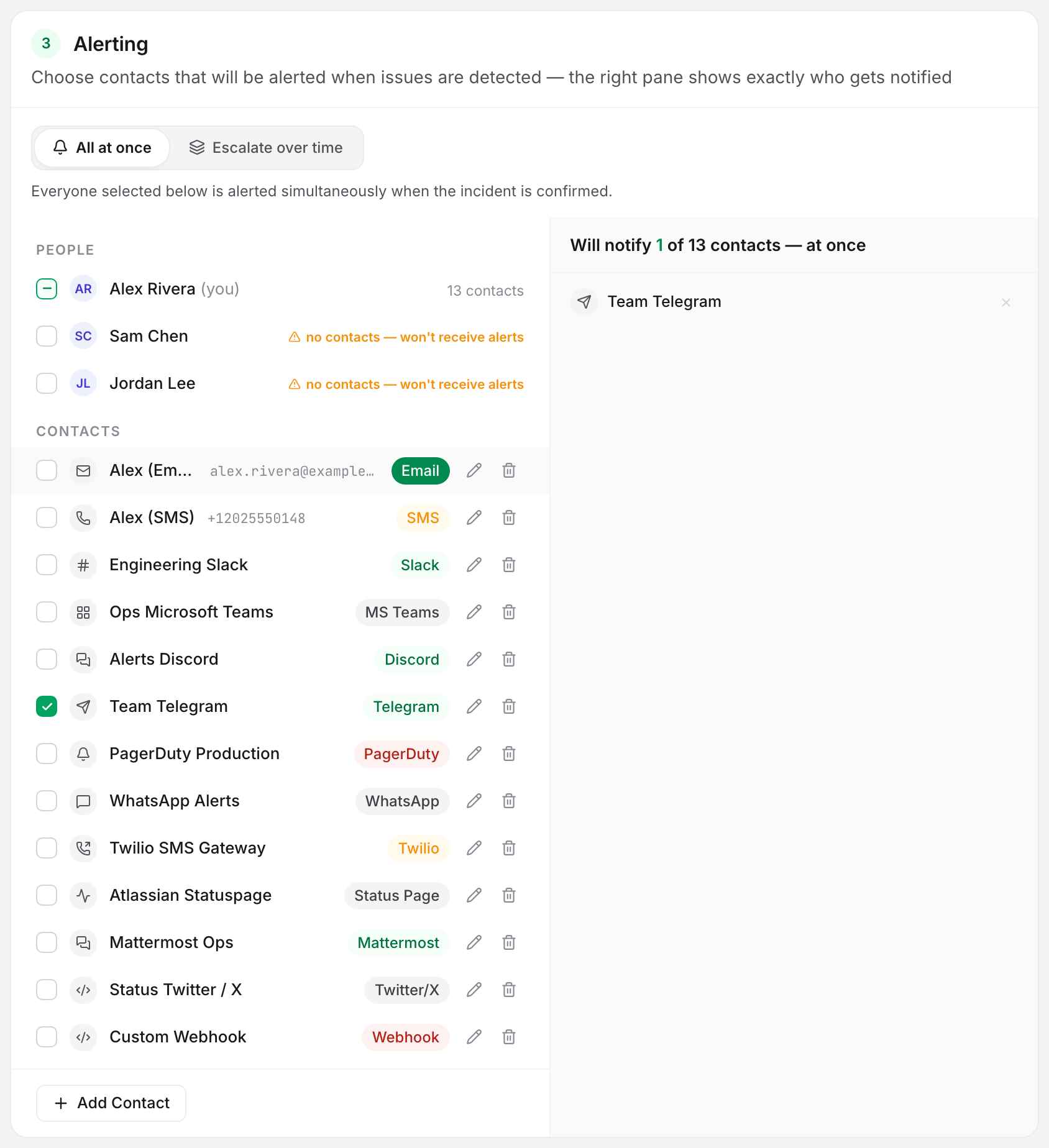
Creating the integration does not start alerts. You pick recipients per monitor, on the Alerting card at the bottom of the monitor editor's Main tab.
- Open the monitor and switch to edit.
- Scroll to the Alerting card.
- Tick the Telegram contact in the recipients panel.
- Click Save Monitor.
You do not have to edit every monitor one at a time.
- Single-user account: the recipients panel's top row, All my contacts — current & future, carries an auto-includes new badge. Monitors set to that row pick up the new Telegram contact with no edit at all.
- Account with team members: the panel groups recipients into People and Contacts instead, plus a Teams group once you have created a team. A monitor set to the person who created the integration picks the new contact up the same way.
Bulk create and monitor templates each carry one recipient selection into every monitor they make. Only monitors with a hand-picked recipient list need editing. See Who Gets Alerted.
While a monitor is set to Escalate over time, the people paged come from the escalation policy rather than from the monitor's own recipient list. Add the Telegram contact to a policy step. The monitor's own list stays required as the fallback for when the grouping and escalation layers cannot take the incident. If a whole ladder reaches nobody, the account owner is paged as a last resort.
Telegram During an Alert Storm
When several monitors on one escalation policy fail together, the channel gets a single grouped message instead of one message per monitor, listing each monitor and its error. Throttled updates follow as more monitors join. The message ends with an Acknowledge: https://… link that pauses the escalation ladder without signing in. See Alert Groups and Acknowledging Incidents and MTTA.
If Alerts Don't Arrive
Work these in order.
@uptimia_bot Left the Channel or Lost Posting Rights. Telegram silently drops posts from a bot that is not a member of the channel or cannot post there. Check the channel's member list and the bot's permissions, then test again.
The Channel ID Is in the Wrong Form. A public handle needs the @; a private channel needs the full negative number, including the leading -100. Open the integration and compare the Channel ID field with the ID your ID bot reported.
The Monitor Is Escalating and Telegram Is Not in the Policy. Open the monitor's Alerting card. If the mode is Escalate over time, the policy selector replaces the recipients panel and Uptimia does not alert the contacts listed on the monitor. Add the Telegram contact to a step of the policy instead.
The Recipient's Alerting Schedule Is Holding the Alert. A schedule belongs to whoever owns the contact rather than to the account or the monitor, so an alert raised outside that person's days or hours is held, then delivered when their window next opens. If all seven days are blocked, that person's contacts are never alerted on any monitor. The account owner edits their own schedule on Alerting → Contacts. Everyone else's lives on People → Users. See Alerting Schedules, Quiet Hours and Time Zones.
Your Account Email Is Unverified. While the account's email address is unverified, no alert is delivered at all, on any channel and any monitor, and the missed alerts are not sent once you verify. The monitor editor shows this as a warning. Verify the address and the next incident alerts normally.
The Test Works but Real Alerts Do Not. The test skips the checks a real alert has to pass, so a working test with silent alerts points at one of the causes above rather than at Telegram. Integrations Overview covers retry behavior and per-channel delivery outcomes.
When to Contact Support
Contact support if the bot is in the channel with posting rights, the ID matches, the monitor's recipients include Telegram, and the incident is visible in the monitor's Incidents card. Include:
- the integration name and the Channel ID as entered
- the monitor name and type
- the incident's start timestamp, with your time zone
- whether the Test action delivers to the channel